
Documenting Power Platform Solutions: Best Practices & Tips

Introduction
Today, I want to discuss a topic that’s crucial for anyone building solutions on the Power Platform: Documentation. I know, I know - it’s not the most exciting part of the process, but trust me, it’s essential for creating maintainable and understandable solutions.
In this post, I’ll share some of my best practices and tips for documenting your Power Apps and Power Automate flows. We’ll cover everything from naming conventions to using comments effectively. I’ll even touch on how the new AI copilot can help streamline the documentation process. Let’s get started!
Why Documentation Matters in the Power Platform
Before we jump into it, let’s talk about why documentation is so important in the Power Platform:
- Maintainability: Well-documented solutions are easier to maintain and update over time, even if the original creator isn’t available.
- Collaboration: Clear documentation makes it simpler for team members to understand and contribute to each other’s work.
- Troubleshooting: When issues arise, good documentation can help pinpoint the cause and find a solution more quickly.
- Knowledge Transfer: As team members come and go, documentation ensures that valuable knowledge isn’t lost in the process.
Naming Conventions: The Foundation of Good Documentation
One of the most basic yet crucial aspects of documenting your Power Platform solutions is using clear and consistent naming conventions. Here are some tips:
-
Power Apps Naming Conventions
-
Power Apps forms / controls naming: Use camel-case for control names (e.g. Btn_SaveAsDraft) and no spaces or special characters. You should also use meaningful and consistent names that indicate the object’s role and function.
Here are more examples of good and bad names for different objects:- Screen: HomeScreen
- Button: Btn_Submit
- Label: Lbl_UserName
- Variable: var_UserName
- Collection: col_Users
- Data source: ds_Users
- Gallery: Gal_Users
-
Inline Comments: Another key aspect of the guidelines is the use of comments in the formula editor. Comments are lines of text that Power Apps ignores but help you and other developers understand your formulas.
You can add comments by using two forward slashes ‘//’ in Power Apps. You should use comments to clarify or provide tips for complex or hard formulas.
Comments can also be useful if someone else modified the app or if you want to share information with other developers. The advantage of comments is that they stay within the app and you don’t need multiple sources for information (e.g. OneNote, Outlook, Teams, DevOps, etc.).
Here is one example of a comment for a formula:1 2// This formula checks if the user is an admin If(User().Email in AdminEmails, true, false)
-
-
Power Automate Naming Conventions
-
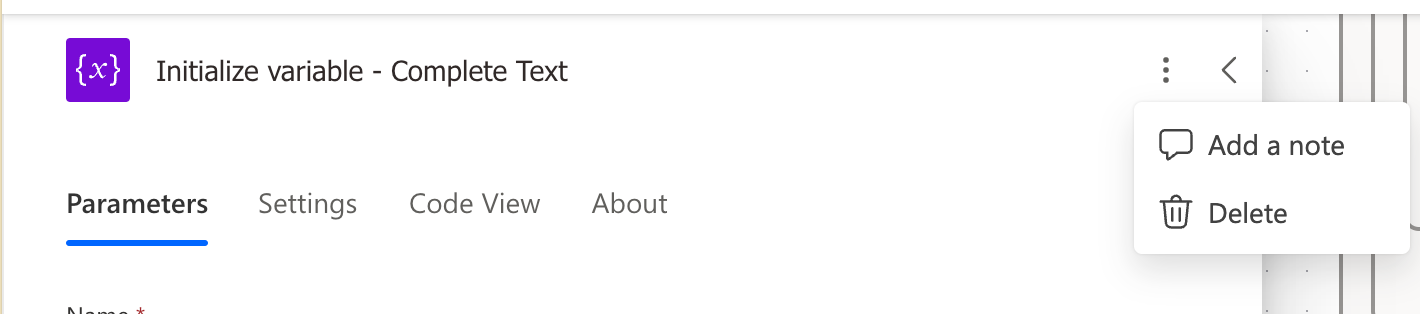
Action / Trigger Naming: Instead of using generic names like “Actionname x,” try to provide descriptive and meaningful names that clearly indicate the purpose of each action /trigger. For example, if you’re initializing an ID, you could name the action “Initialize Variable - ID” to show its specific functionality.
-
Add descriptions in the “Add a note” section: For complex or hard-to-understand actions, it’s crucial to include additional explanations in the “Add a note” section. This helps users grasp the purpose, logic, or formula used in the action. By providing detailed explanations, you can enhance the clarity and understanding of your workflows. E.g.:
- Show formulas from the action metdadata field(s) for better / faster visibility
- Explain the purpose and functionality of a particular piece of code or action
- Clarify complex formulas or expressions
- Provide context for future maintainers (including yourself!)
Leveraging the AI Copilot for Documentation
The new AI copilot in Power Automate can be very helpful for documentation purposes. Here’s how:
- Use the copilot to generate explanations for complex formulas or expressions
- Ask the copilot to suggest meaningful names for actions and variables
- Have the copilot summarize the purpose and functionality of a flow or app
Keep in mind that while the AI copilot is a powerful tool, it’s not a substitute for human judgment. Always review and refine the copilot’s suggestions to ensure accuracy and clarity.

Documentation and Security Considerations
When using AI tools for documentation, it’s important to keep security in mind:
- Avoid including sensitive data or confidential information in your comments or descriptions
- If you’re using a third-party AI tool, ensure that it complies with your organization’s security policies
- Be cautious when sharing documentation externally, especially if it contains proprietary or sensitive information
Key Takeaways
- Use clear and consistent naming conventions for screens, forms, controls, flows, and actions
- Leverage comments to explain complex formulas, provide context, and clarify functionality
- Take advantage of the AI copilot for generating explanations and suggestions, but always review its output
- Be mindful of security when including sensitive information in documentation or using third-party AI tools
Wrapping Up
Phew, that was a lot to cover! But I hope this post has given you a starting point for documenting your Power Platform solutions.
Remember, a little bit of documentation goes a long way in making your apps and flows more maintainable, understandable, and collaborative.
If you have any tips or best practices of your own, I’d love to hear them! Feel free to share in the comments below. And if you found this post helpful, consider sharing it with your fellow Power Platform developers.
Until next time, happy documenting!
Published on:
Learn moreWe can help you with Documenting Power Platform Solutions: Best Practices & Tips
If you want help implementing, troubleshooting, or improving this product, contact us and we’ll point you in the right direction.

Related posts
Creating Copilot Studio Agents Without an M365 Copilot Premium License
A common assumption when getting started with Copilot Studio is that you need a full Microsoft 365 Copilot Premium license. That assumption is...
Power Automate: Get events (V4) shared mailbox fix
When your flow reads a shared mailbox calendar using the Office 365 Outlook → Get events (V4) connector, it can fail in a way that looks like...
Using Managed Identity with Azure Automation & PnP.PowerShell
How to Set Up a Managed Identity for Azure Automation Runbooks and Use It in PowerShell Scripts with PnP.PowerShell This guide walks you throu...
UPDATED - Set Up Pay-as-you-go M365 Chat & SharePoint Agents
Introduction to Pay-as-You-Go Agents in Microsoft 365 Microsoft has introduced a flexible way for organizations to leverage AI capabilities wi...
How to Use Flexible Sections in SharePoint Pages and News
If you’ve been using SharePoint Online to build pages or share news, you know how important it is to have a layout that works for your c...
What's New in SharePoint Pages
1. New Carousel Layout in the Hero Web Part The Hero Web Part has always been a fundamental element of SharePoint pages. The new Carousel Layo...
Power Platform Solutions Made Simple
Introduction to Power Platform Solutions Power Platform Solutions offer many benefits, especially when moving from standalone flows and apps t...
Use your Bluesky post for comments on your Hugo Blog
Since Bluesky is getting really popular by people I interact with, I decided to switch my blog comments to Bluesky posts. In this blog post, I...
Exploring SharePoint Online's SiteAssets Library
The SiteAssets library in SharePoint Online often seems like a mystery to a lot of users I talk to, but it’s important to understand it ...
Step-by-Step Guide to Copy Pages between SharePoint Online
Unfortunately you can’t copy pages in SharePoint through the UI. But sometimes you may need to copy pages and their associated SiteAsset...