The Hero Web Part has always been a fundamental element of SharePoint pages. The new Carousel Layout enhances its functionality by enabling users to showcase multiple items in a rotating slideshow. This feature is ideal for highlighting important announcements, promotions, or featured content.
Step-by-Step Instructions
Add the Hero Web Part
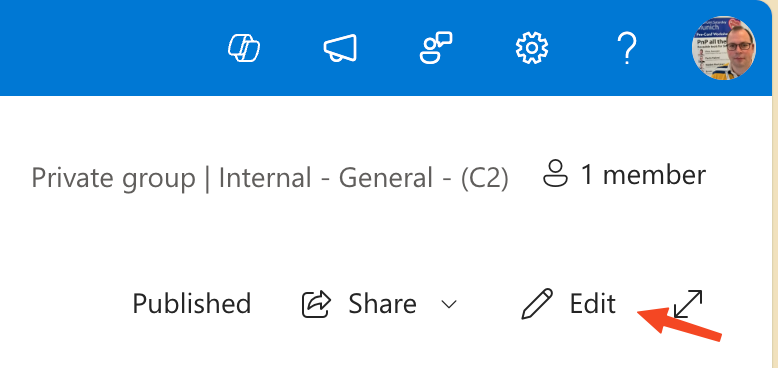
Navigate to your SharePoint page and enter Edit mode.
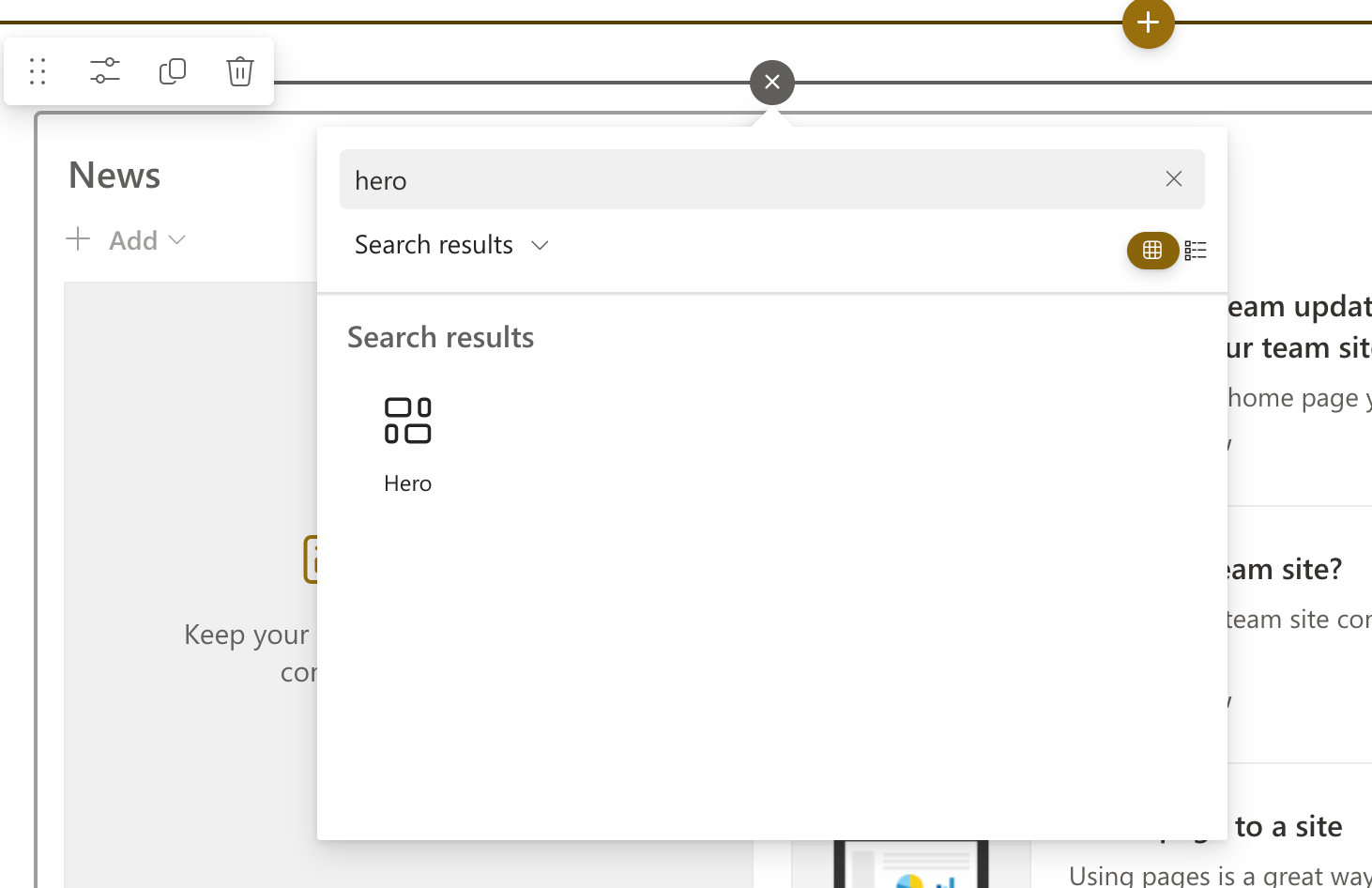
Click the + Add a web part icon or open the Toolbox.
Search for Hero in the web part menu and select it.
Select the Carousel Layout
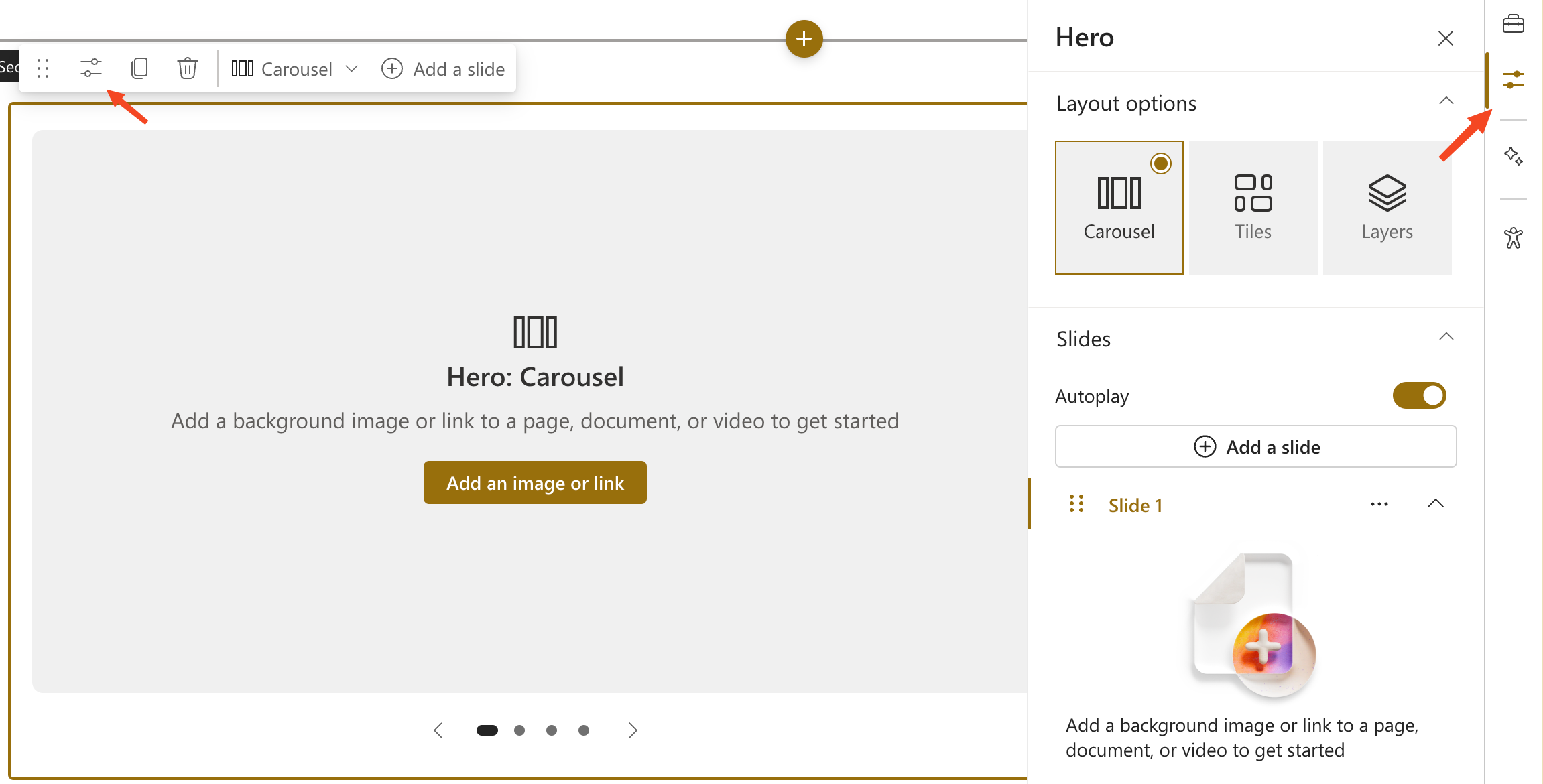
With the Hero Web Part added, click the Edit properties button (slider icon) in the top-left corner of the web part.
In the Property Pane, select Carousel from the Layout dropdown menu.
Add Slides
Click Add a slide to create up to five slides.
For each slide, you can:
Upload an image or select one from your library.
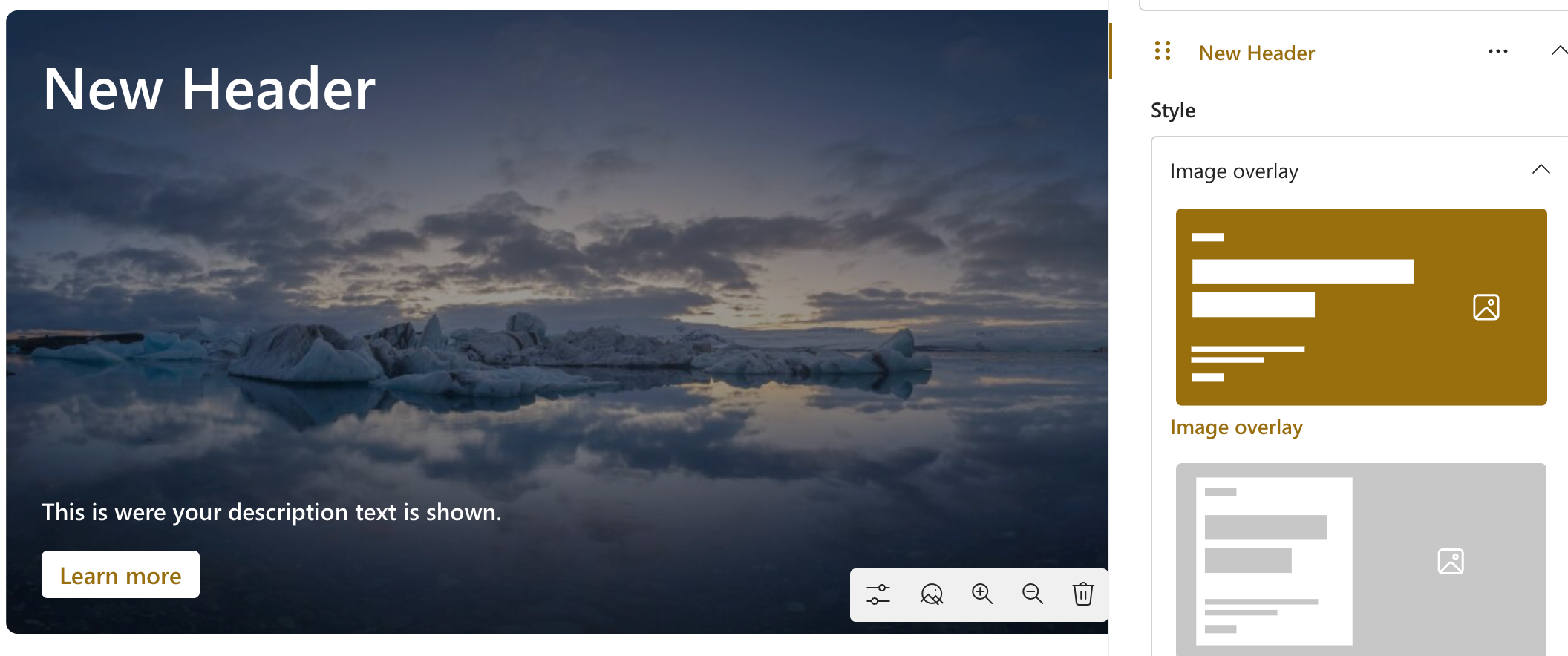
Add a Topic (up to 40 characters), Header (up to 110 characters), and Description (up to 500 characters).
Include a Call to Action (CTA) button with customizable text.
Customize Slide Settings
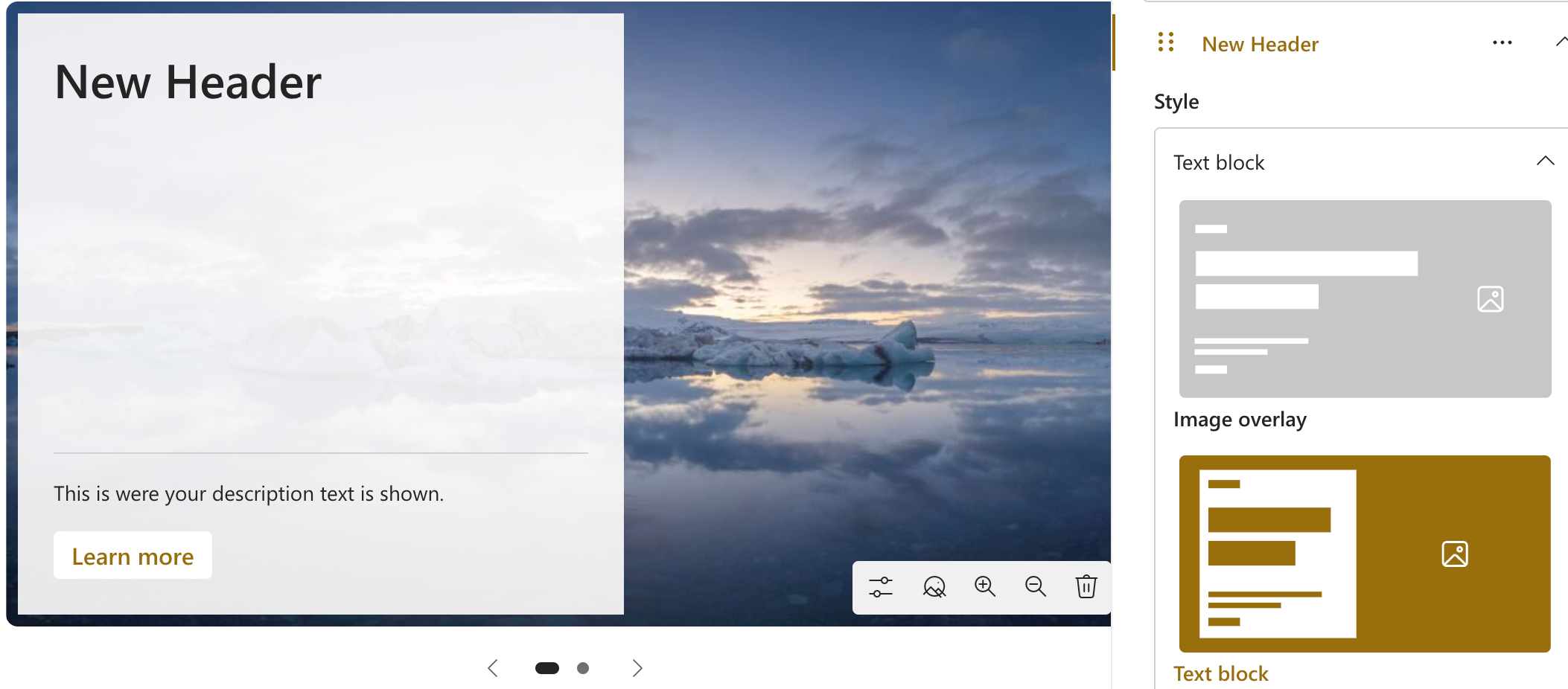
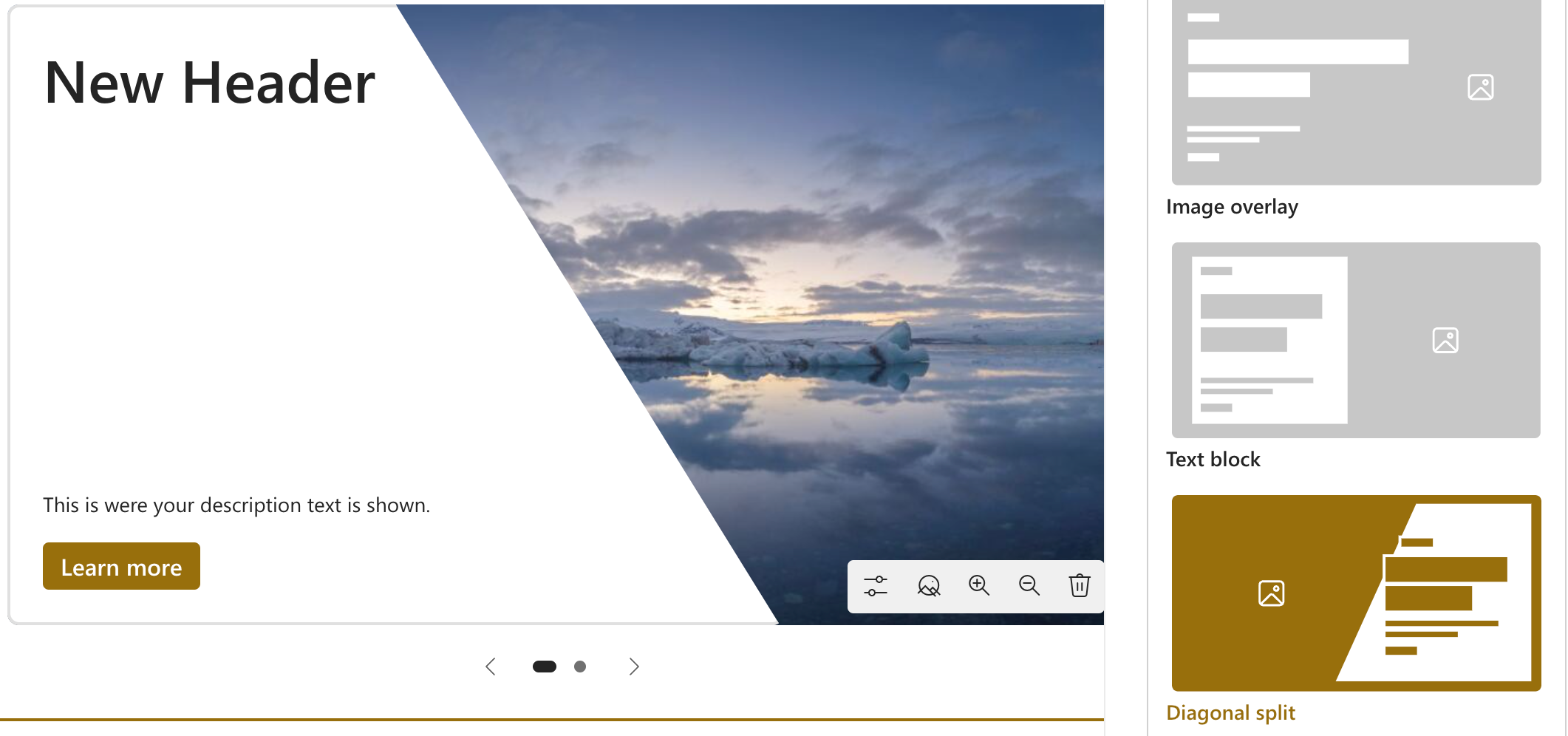
Choose from three styles:
Image Overlay Text Block Diagonal Split
Adjust text alignment, image focal points, and overlay opacity for better readability.
Enable Autoplay
Toggle Autoplay in the Property Pane to automatically cycle through slides.
Publish Your Page
Once satisfied with your Carousel, click Save as draft or Publish to make it live.
2. New Editorial Card Web Part
The Editorial Card Web Part significantly enhances content creation. It allows for manual customization to display content in an engaging card format. This feature is perfect for highlighting announcements, articles, or any content requiring a unique presentation.
Step-by-Step Instructions
Add the Editorial Card Web Part
Enter Edit mode on your SharePoint page.
Click the + Add a web part icon or open the Toolbox.
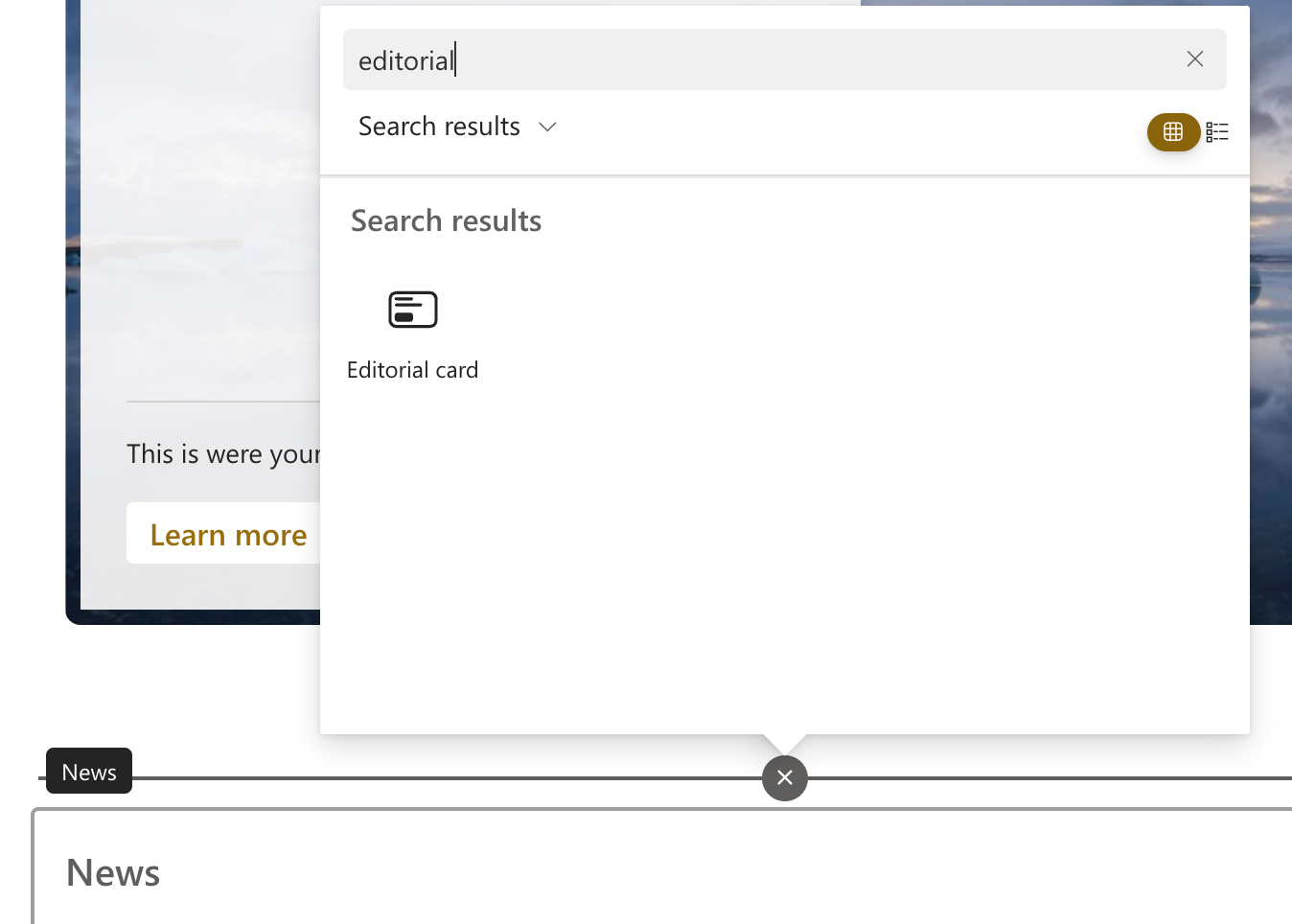
Search for Editorial Card in the web part menu and select it.
Fill in Content
Section/Category Name: Add a short phrase (up to 40 characters).
Headline: Enter the main title of your card.
Description: Provide additional context or details.
Use text formatting options (e.g., font size, color, bold, italic) to enhance readability.
Customize the Background
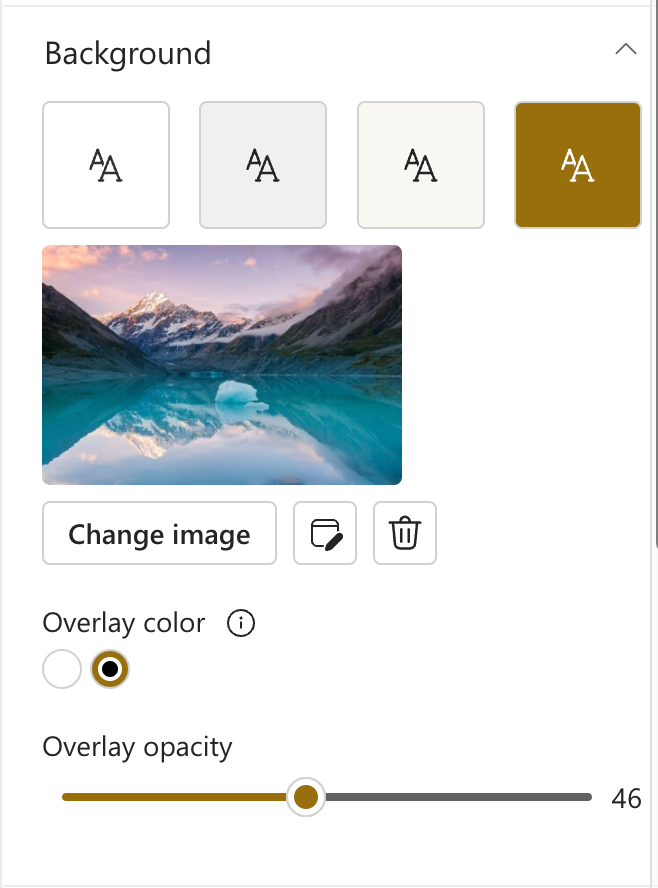
Click Change Background to upload an image or select a color.
Adjust Overlay Color and Opacity in the Content Pane for better text visibility.
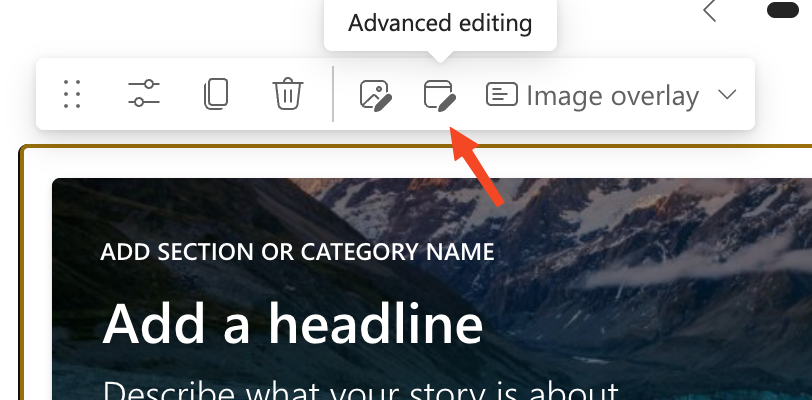
Use advanced image editing tools (e.g., crop, filters, focal point adjustment).
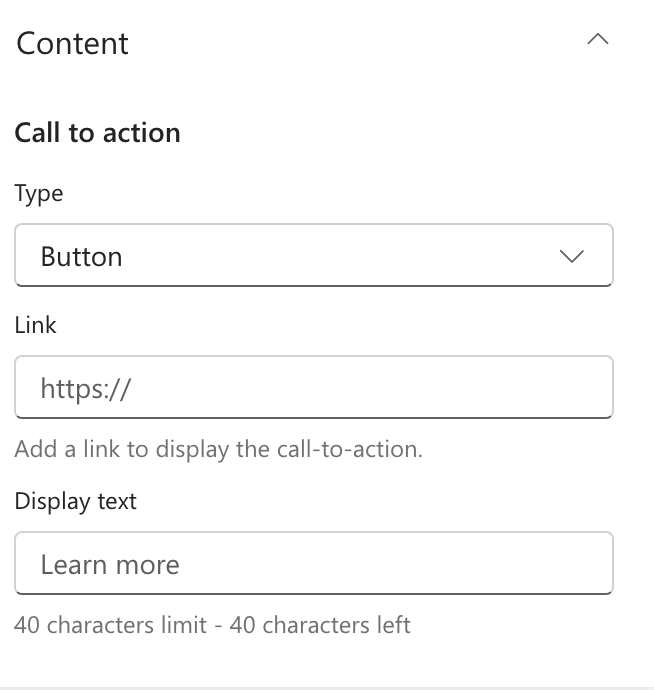
Set Up the Call to Action
Open the Content Pane and add a link to enable the CTA.
Choose the button type (e.g., icon, text, or full card click) and customize the display text.
Choose a Layout
Select from:
Image Overlay Color Block Split
Adjust Content Alignment (left, center, or right) for a personalized look.
Publish Your Page
Click Save as draft or Publish to make your Editorial Card live.
3. New Focal Point for Images
SharePoint has improved its Focal Point feature, allowing you to crop images more precisely. This ensures that the most important parts of your photos are visible on all devices.
Step-by-Step Instructions
Edit the Page
Navigate to your SharePoint page and enter Edit mode.
Select the Image
Click on the image you want to adjust: in the Hero Web PartEditorial Card Web Part
Adjust the Focal Point
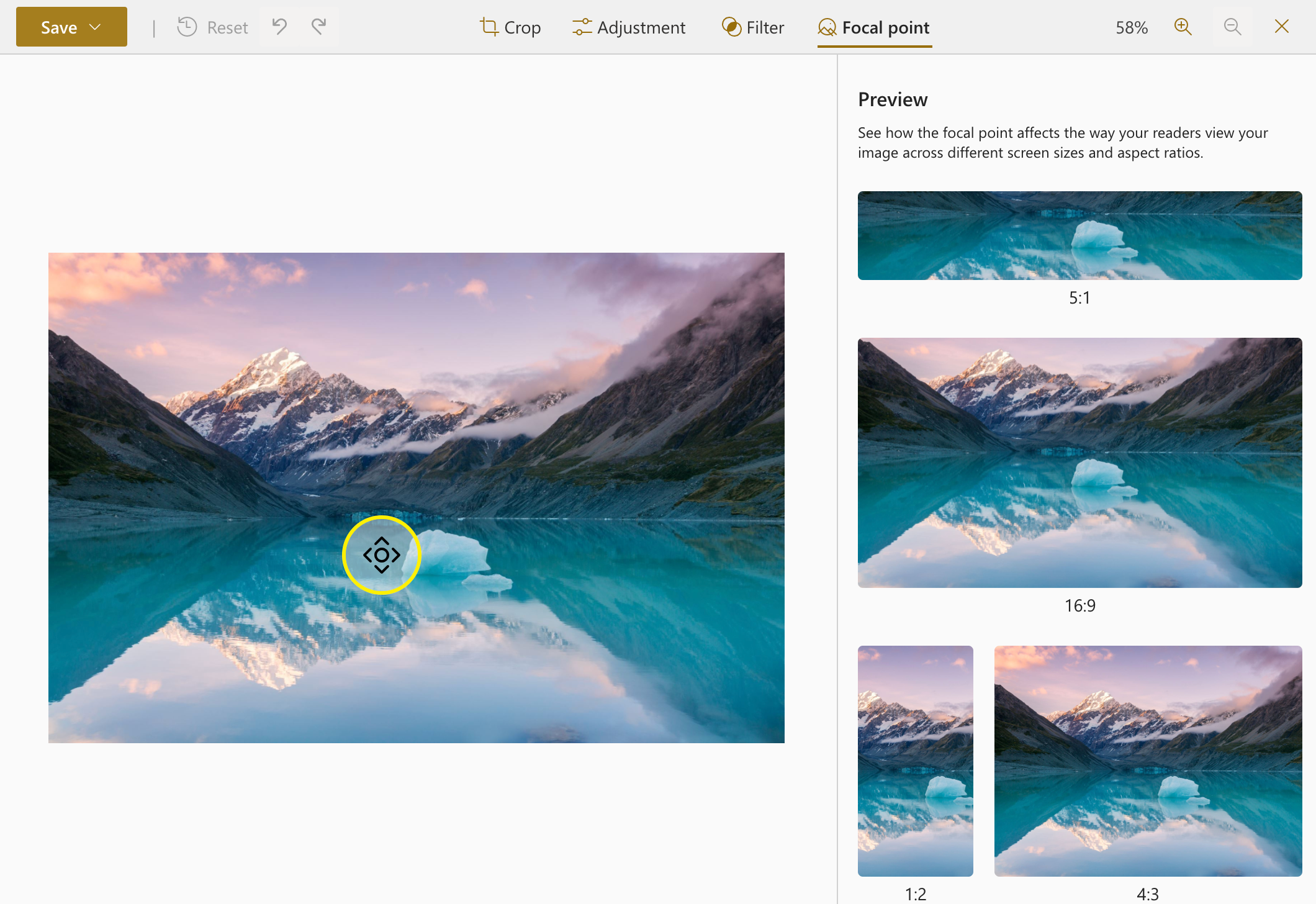
Click the Set focal point button in the toolbar (a circular icon).
Drag the focal point to the desired location within the image preview.
Use the preview pane to see how the image will appear on different devices and layouts.
Save Changes
Click Save to apply your focal point adjustments.
Publish the page to make the changes live.
Availability
Targeted Release: Mid-January 2025
General Availability: Mid-February 2025
Are you excited about these new SharePoint page features? Share your thoughts and ideas in the comments below!