
Exploring SharePoint Online's SiteAssets Library

The SiteAssets library in SharePoint Online often seems like a mystery to a lot of users I talk to, but it’s important to understand it for managing your page content.
In this blog post, we will explore what the SiteAssets library is, how it is used when you create a new page, and—most importantly—how to decide where different types of content should be stored and why.
By the end, you’ll have a much better understanding of how to use SiteAssets effectively and make informed decisions on where to put your content.
What is the SiteAssets Library and how is it used?
The SiteAssets library is a special document library in SharePoint Online that stores all the assets used directly in your site pages. This includes images, videos, and other media that you add to your pages. A dedicated folder for each page is automatically created when you create a new page, and the first asset is uploaded.
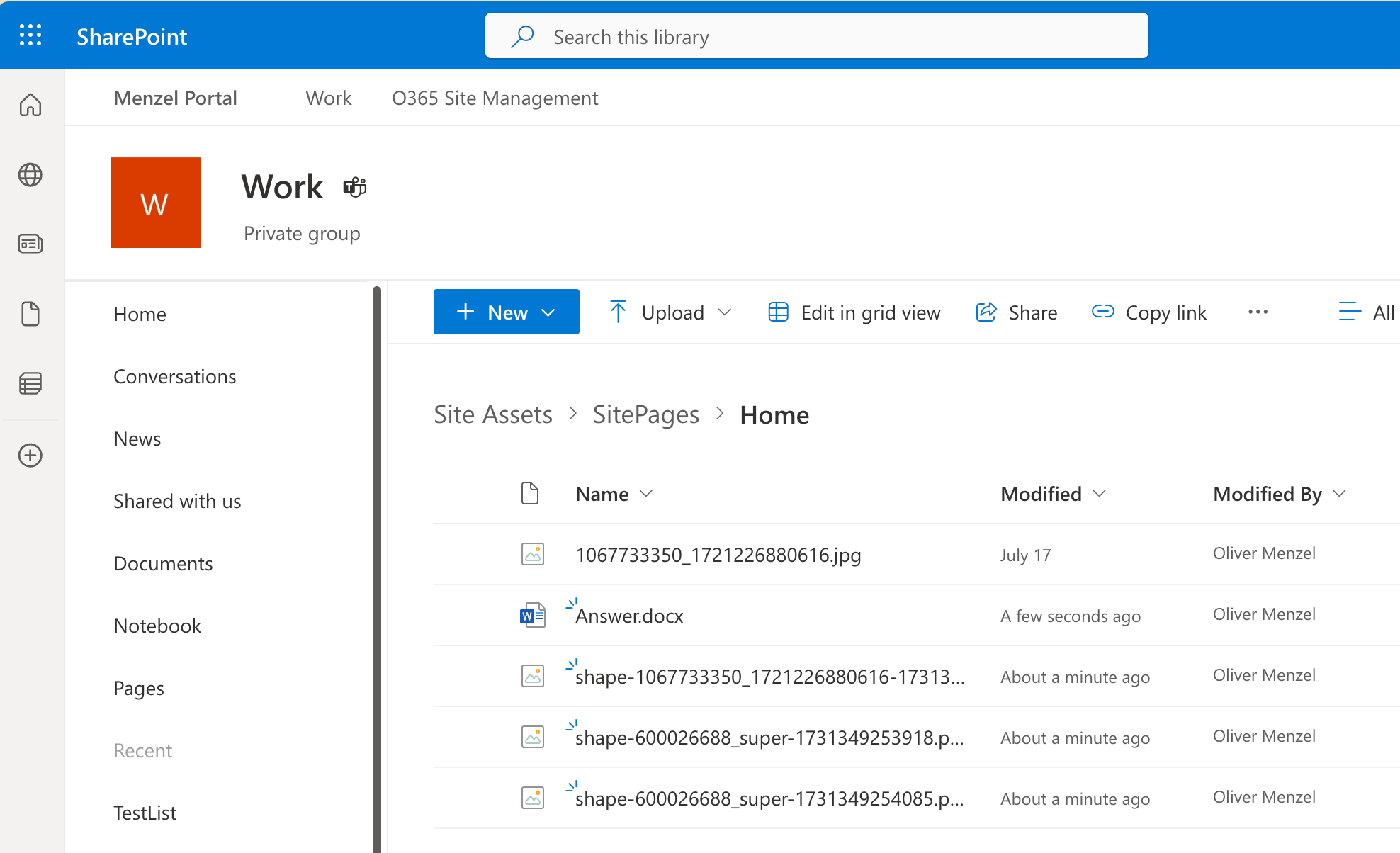
When you create a new page, the SiteAssets library is automatically created for that page. This means that any images or other assets you add to the page are stored in this library.
When you add an image to a page, it is stored in the SiteAssets library. This makes it easy to manage your page content, as all the assets are stored in one place.
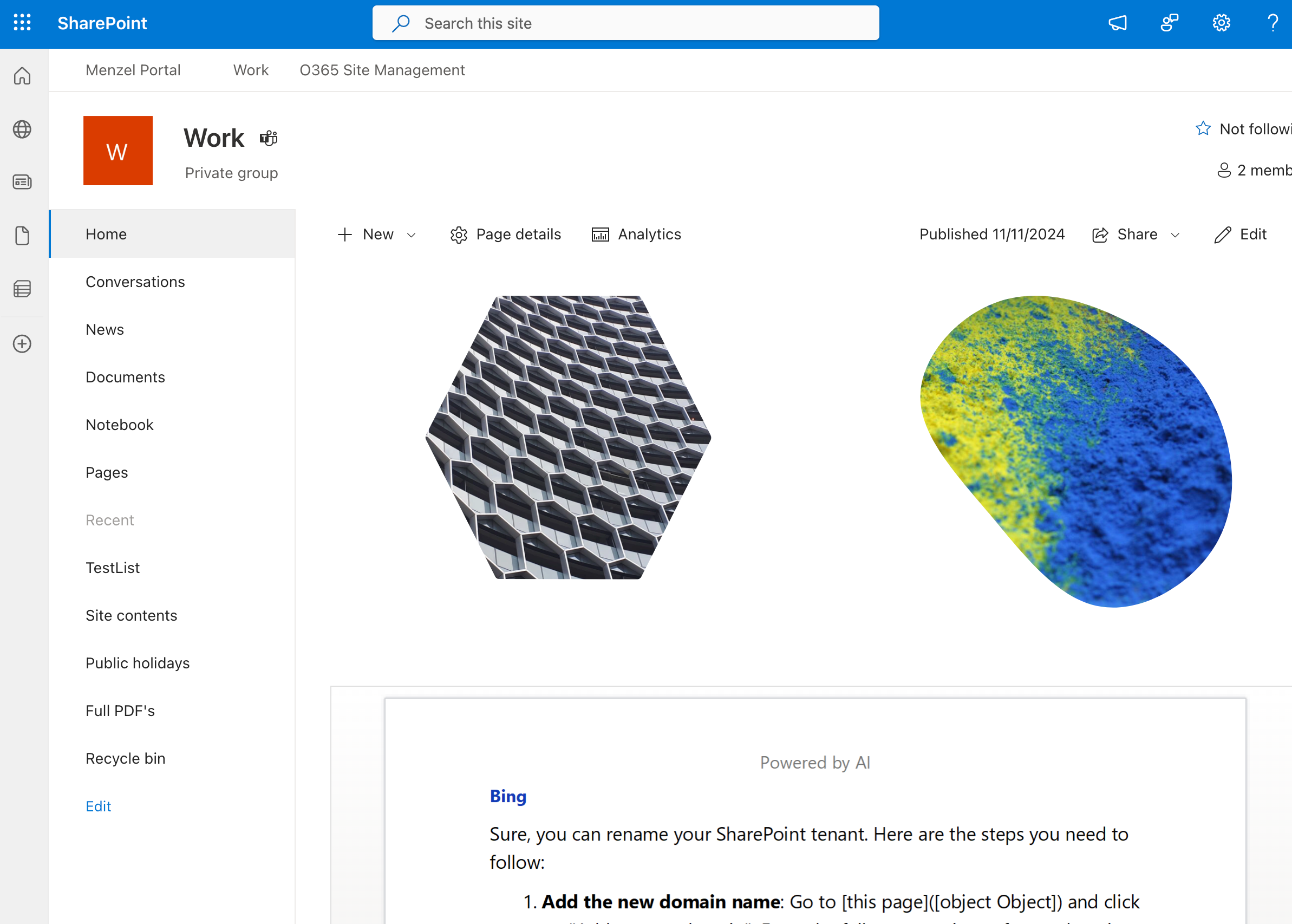
The SiteAssets library also plays an important role when you’re making changes to a page as like with any other library in SharePoint Online the assets stored in the SiteAssets library will also have versioning capabilities. This means you can go back to previous versions of an asset if necessary, providing a safety net when experimenting with image or content changes.
Where to Store Different Content Types and Why
The SiteAssets library is convenient, but it’s not always the best option for every type of content. Having a clear strategy for the best storage location for each type of content can improve organization, and ease of use across your SharePoint site.
For example, if you are uploading a file to your page, be aware that the file will be stored in the SiteAssets library even if you are deleting the webpart from the page later.
This can lead to a cluttered SiteAssets library with files that are no longer needed. So you have to make sure to clean up the SiteAssets library regularly to avoid this.
This is especially true since those files can be found by the M365 search and Copilot at any time.
Let’s look at the various types of content and the best options for storing them at least in my view:
-
Images
The SiteAssets library works well for quick storage, but if you have a large number of images that you want to use across multiple pages, using a dedicated Picture Library or a folder in the Shared Documents library is a better choice.
This way, you only need to change the image in one place and it will be updated on all pages that use it. -
Documents (e.g., PDFs)
Instead of saving PDFs and supporting documents in SiteAssets, you should consider using a dedicated document library or folder(s) in the Shared Documents library.
There you can organize your documents better as everything is stored in one place that “most” users will already know about. This makes it also easier to change documents and not to create different files for each version. -
Videos
Videos take up a lot of space, and storing them in SiteAssets can lead to a bloated folder if videos that are no longer needed are still stored because the page contributors doesn’t think of cleaning the folder in the SiteAssets library.
Instead, consider storing videos in a dedicated document library or create a folder in the Shared Documents library.
Tips for Moving Content to a Better Location
If you realize that your SiteAssets library is becoming too hard to maintain, it may be time to move some of those files to more appropriate locations. Here are some tips for doing that effectively:
-
Move Files Carefully: Moving files from SiteAssets to a different library helps keep your content more organized, but you need to do it systematically.
Make sure you have a clear plan for where each file should go and I would recommend to copy the files first and then delete them from the SiteAssets library after you changed all references to the new location in your pages to avoid broken links. -
Check Links and References: After deleting the files, make sure all links and references on your pages still work. Broken links can disrupt the user experience, so it’s important to verify that your pages continue to function correctly after moving content.
-
Communicate Changes: Let your team know when you’re moving files. Providing updates helps ensure that others who may be using those assets know where to find them in the future and can adjust their workflows accordingly.
Conclusion
The SiteAssets library is a powerful tool for automatically storing page-related content in SharePoint Online. However, it’s important to evaluate when it makes sense to use the SiteAssets library and when dedicated libraries or folders would be a better fit.
By planning ahead and organizing your media, documents, and other content wisely, you can keep your SharePoint site efficient and user-friendly.
What are your thoughts on the SiteAssets library? Do you have any others tips for managing content in SharePoint Online? Share your thoughts in the comments below!
Published on:
Learn moreWe can help you with Exploring SharePoint Online's SiteAssets Library
If you want help implementing, troubleshooting, or improving this product, contact us and we’ll point you in the right direction.

Related posts
Team News to Company News: An Approval Flow for SharePoint News
In almost every intranet project I’m part of, the same question comes up sooner or later. HR, IT, Facilities and a bunch of other teams ...
Creating Copilot Studio Agents Without an M365 Copilot Premium License
A common assumption when getting started with Copilot Studio is that you need a full Microsoft 365 Copilot Premium license. That assumption is...
Power Automate: Get events (V4) shared mailbox fix
When your flow reads a shared mailbox calendar using the Office 365 Outlook → Get events (V4) connector, it can fail in a way that looks like...
Using Managed Identity with Azure Automation & PnP.PowerShell
How to Set Up a Managed Identity for Azure Automation Runbooks and Use It in PowerShell Scripts with PnP.PowerShell This guide walks you throu...
UPDATED - Set Up Pay-as-you-go M365 Chat & SharePoint Agents
Introduction to Pay-as-You-Go Agents in Microsoft 365 Microsoft has introduced a flexible way for organizations to leverage AI capabilities wi...
How to Use Flexible Sections in SharePoint Pages and News
If you’ve been using SharePoint Online to build pages or share news, you know how important it is to have a layout that works for your c...
What's New in SharePoint Pages
1. New Carousel Layout in the Hero Web Part The Hero Web Part has always been a fundamental element of SharePoint pages. The new Carousel Layo...
Power Platform Solutions Made Simple
Introduction to Power Platform Solutions Power Platform Solutions offer many benefits, especially when moving from standalone flows and apps t...
Use your Bluesky post for comments on your Hugo Blog
Since Bluesky is getting really popular by people I interact with, I decided to switch my blog comments to Bluesky posts. In this blog post, I...
Step-by-Step Guide to Copy Pages between SharePoint Online
Unfortunately you can’t copy pages in SharePoint through the UI. But sometimes you may need to copy pages and their associated SiteAsset...