
Team News to Company News: An Approval Flow for SharePoint News

In almost every intranet project I’m part of, the same question comes up sooner or later. HR, IT, Facilities and a bunch of other teams have their own SharePoint sites and publish news there. Good. The people who know the topic write about it and they don’t need to ask anyone upfront.
Then someone from HR writes about the new canteen, and suddenly the whole company should know about it. Same for a new password policy or the office move. These news should show up on the intranet as well, and that changes things. Corporate Communications wants to decide what appears there. Not the department head, and definitely not the team assistant who happens to have edit rights.
I recently built a solution for exactly this, and in this post I want to show how it works. I’ll skip most of the technical details and focus on the pieces and how they fit together.
What I Wanted to Achieve
Departments keep publishing on their own sites, no approval needed. If a news post should go company-wide, the author clicks a button, Corporate Communications approves or rejects it, and approved news show up on the intranet automatically.
On top of that, I had a few rules for myself:
- No approval for local news. I thought about SharePoint’s content approval on the library for a moment, but that would put every page through an approval, not only the ones that go company-wide.
- Only Corporate Communications decides. A department head can’t push their own news to the intranet.
- Standard licences. No premium connectors, no SPFx.
- One flow for all sites, not one per department.
- Once approved, it stays approved. If the author fixes a typo afterwards, nobody has to approve it again.
The Building Blocks
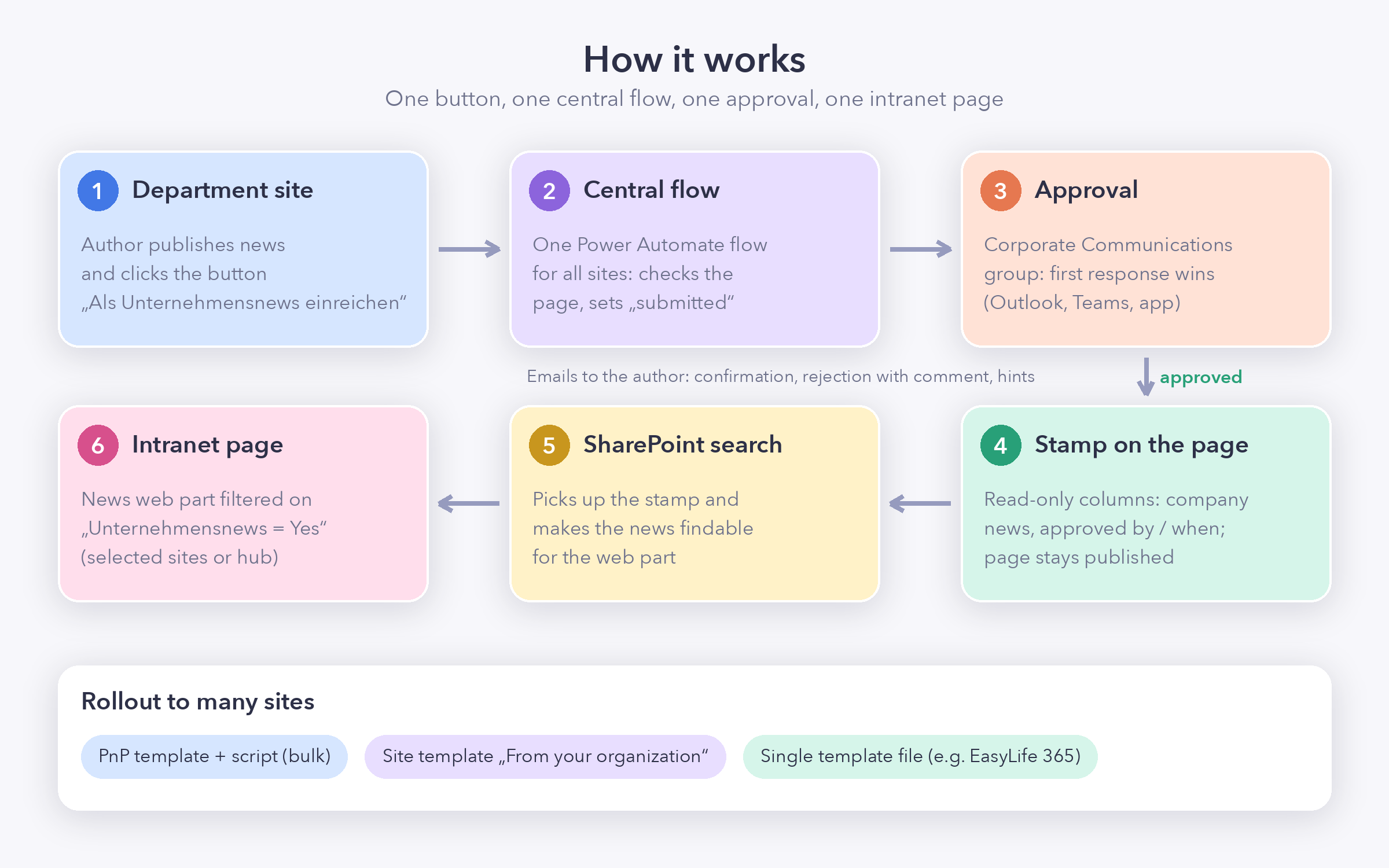
1. A Button in the Site Pages Library
Every news site gets an additional column in Site Pages with a button labelled “Als Unternehmensnews einreichen” (submit as company news). It’s just column formatting, so there’s no code and no app to deploy.
The button only appears where it makes sense. Regular pages and the home page don’t get it, and neither do drafts or pages someone is currently editing. While an approval is running it’s hidden, and after the news has been approved it stays hidden. If Corporate Communications rejects a post, the label changes to “Erneut einreichen” (submit again).
One thing I ran into: the formatter needs the fields it references to be available in the view. That’s why the views created by the template also include Version and Promoted State column. If someone builds their own view without these columns, the button just stays visible. Not a big deal, as the flow checks those things too.
A status column next to the button shows whether a page is submitted, approved or rejected. While I was at it, I also gave the Promoted State column a nicer look. Instead of 0, 1 or 2 it now shows the page type (News, Page, Home Page, News Link, Template), plus Draft or In Progress where it applies. That alone makes the library a lot easier to read.
2. One Flow for All Sites
The button starts a Power Automate flow, and there’s only one of them in the whole tenant. The flow works out which site and which page it was started from, so a new department site doesn’t need its own copy.
It lives in a Power Platform solution, together with environment variables (e.g. which group approves) and connection references. That way I can move it from test to production without touching the flow itself.
Authors only need run-only permission. The flow runs with the connections of a service account, so authors don’t need any rights on the approval or on the approval columns. They click the button, that’s it.
What the flow does step by step is described further down in Inside the Flow.
3. The Approval
If the checks pass, the flow sends an approval request to the members of the Corporate Communications group (an EntraID Security or M365 group). First response wins. The request has the title, a link to the page, the site and the name of the person who submitted it. Approvers can handle it in Outlook, in Teams or in the Power Automate app, whatever they prefer.
4. A “Stamp” on the Page
When a post is approved, the flow writes a few values directly to the news page: Unternehmensnews = Yes, the status, who approved it, when, and which version.
These columns are read-only. You can’t change them in the page properties, the details pane or the grid view, so nobody can declare their own news as company news. Only the flow sets them.
What I really like here: the flow writes these values without creating a new version, and Modified and Modified by stay as they were. The page remains published exactly as the author left it. No surprise draft, no flow account showing up as the last editor.
Either way, the author gets an email, with the approver’s comment if there is one.
5. The Intranet Page
On the intranet there’s a page with the standard SharePoint News web part, filtered on the page property Unternehmensnews = Yes. No extra list, no copied pages, nobody curating anything by hand. The news stays on the department site where it was written, and readers who click it land on the original page.
Approved news won’t necessarily appear immediately. In my tests, it usually took somewhere between 1 and 15 minutes before a newly approved post showed up in the News web part.
6. Rolling It Out to Many Sites
All of this only helps if you can roll it out to 30 or 50 sites without spending a week on it. That’s why everything site-related comes as a template. And honestly, in this scenario templating isn’t just about saving time.
The intranet filter only works if the “Unternehmensnews” column is the very same column on every site: same internal name, same ID. Only then does search treat it as one property across all sites. If you create it by hand on 30 sites, you’ll end up with 30 slightly different columns sooner or later, and the web part quietly misses some news. On top of that, you can’t fully set up a read-only column, a button that points to the right flow and the matching views through the SharePoint UI anyway. The template does it once and does it right. And you can run it again: no duplicates, a new site is ready in minutes, and changes such as a new flow ID after the move to production get rolled out the same way.
Depending on who does the rollout, there are three options:
- A PnP provisioning template plus a script, for admins who want to cover existing sites in bulk from a CSV file. This one works for every site language.
- Organisation site templates. Site owners pick “Unternehmensnews (Deutsch)” or “Unternehmensnews (English)” under Settings → Apply a site template → From your organization. There’s one per language because these templates address the library by its translated name (“Websiteseiten” vs. “Site Pages”).
- A single template file for provisioning tools like EasyLife 365, so new sites have everything from day one. Here too, one file per language.
Inside the Flow
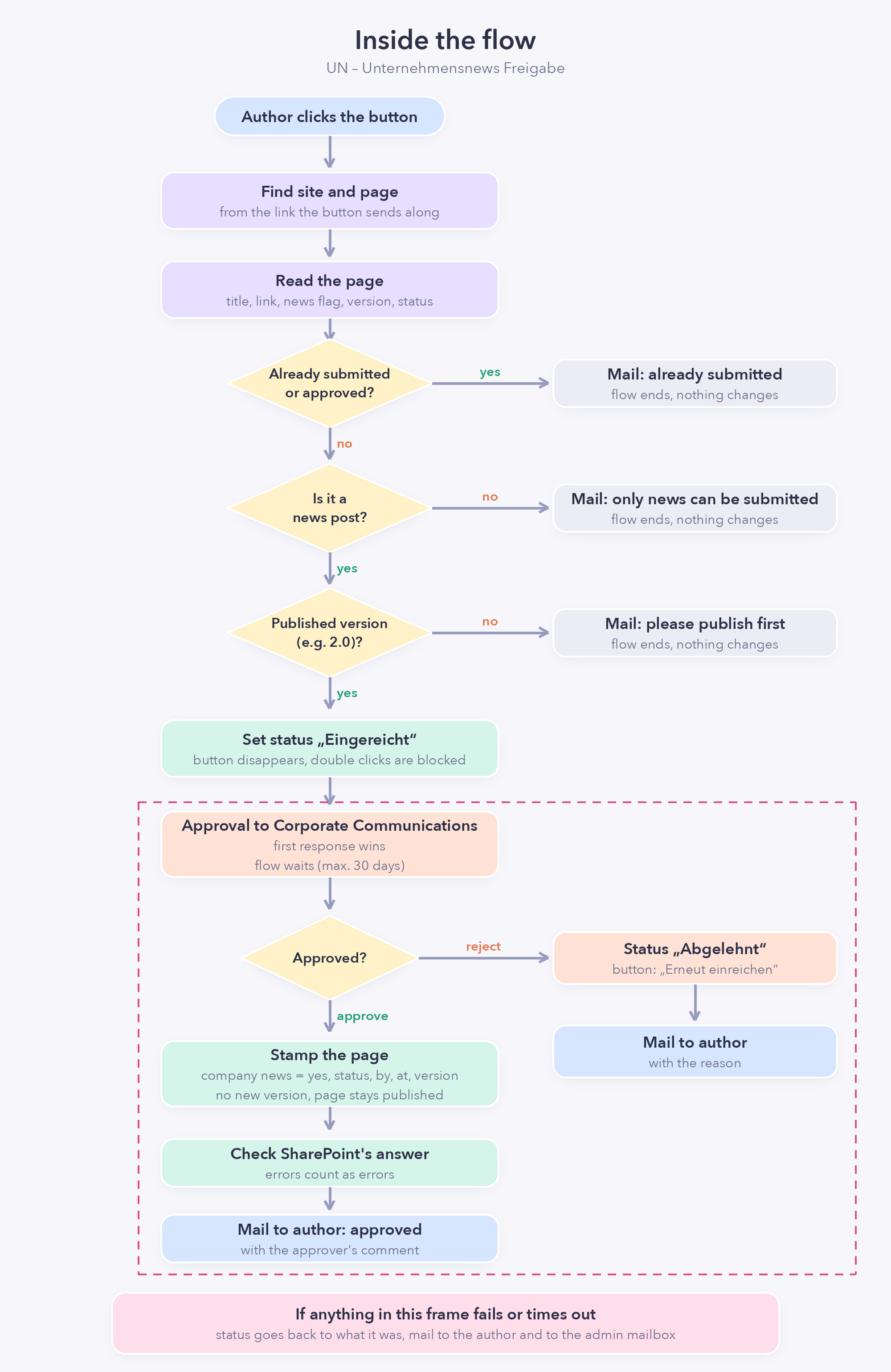
The flow isn’t big, but a few spots in it I think could be interessing for you too. Here’s the overview first:
Where am I?
The button doesn’t tell the flow much. It passes a link to the page and its ID, nothing else. The flow cuts the site address out of that link and works with whatever site it was started from. That’s the reason one flow is enough for all sites. I had to look at the actual data the button sends to get this right, because the documentation is rather vague here.
Check first, change later
Before the flow touches anything, it reads the page and asks three questions. Was it already submitted or approved? Is it a news post? Is the current version published? If any answer is wrong, the author gets a mail explaining why, and the flow ends without changing anything. The button already hides itself in these cases, but people can also start a flow from the menu, so the flow doesn’t rely on the button alone.
Mark it as submitted before asking
Right after the checks, the status is set to “Eingereicht”. The button disappears, and a second click (or a colleague clicking at the same time) runs into the first check and stops there. Only then does the approval request go out.
Waiting for an answer
The approval goes to the members of the Corporate Communications group, and the first response counts. The flow simply waits, for a few minutes or a few days. Keep in mind that a Power Automate run ends after 30 days at the latest. That’s covered too, see the frame below.
The stamp, the trickiest part
Writing a few values to a page sounds trivial, but published pages are tricky. The obvious way to update them is either blocked on published pages or creates a new draft version, and then the page suddenly shows “Draft” and the flow account as the last editor. So the flow uses SharePoint’s ValidateUpdateListItem endpoint to update the metadata without going through the normal page-editing process. In this scenario, that lets the approval metadata be written without creating another page version or changing Modified and Modified by. The request still uses the standard “Send an HTTP request to SharePoint” action, so no premium connector is required.
Don’t trust “OK” blindly
SharePoint might answer such requests with “success” even when it didn’t save anything. If you don’t check, the flow ends and nothing is stamped. That’s why there’s an explicit check of the answer after every write, and a problem there is treated as a real error.
The safety net
Everything from the approval onwards sits inside a container (a “scope” in Power Automate). If anything inside fails or the 30 days run out, the flow puts the status back to what it was, so the button shows up again. The author and an admin mailbox both get a mail. Without this, a news post could stay “Eingereicht” forever, and nobody would notice.
A News Post approval from Start to Finish
Back to the canteen:
- HR writes the news on their site and publishes it. Everyone following the HR site sees it right away, no approval involved.
- HR thinks the whole company should know and clicks the button.
- The flow checks the page, sets the status to submitted (the button disappears) and sends the approval to Corporate Communications.
- Someone in Corporate Communications opens the request, has a quick look at the page and approves it with a short comment.
- The flow stamps the page as company news. The page itself isn’t touched and stays published.
- HR gets a confirmation mail including the comment.
- After the next search crawl, the canteen news shows up on the intranet next to the latest news from IT and Facilities.
If the post gets rejected, HR finds the reason in their inbox, can rework the page and submit it again.
I hope this gives you a few ideas for dealing with the gaps in SharePoint’s standard news features. If you’ve solved the same problem differently, I’d love to hear about it in the comments.
Resources
- Column formatting: create a button to launch a flow (Microsoft Learn)
- Site templates and site scripts overview (Microsoft Learn)
- Introducing the PnP provisioning engine (Microsoft Learn)
- Use the News web part on a SharePoint page (Microsoft Support)
Published on:
Learn moreWe can help you with Team News to Company News: An Approval Flow for SharePoint News
If you want help implementing, troubleshooting, or improving this product, contact us and we’ll point you in the right direction.

Related posts
Creating Copilot Studio Agents Without an M365 Copilot Premium License
A common assumption when getting started with Copilot Studio is that you need a full Microsoft 365 Copilot Premium license. That assumption is...
Power Automate: Get events (V4) shared mailbox fix
When your flow reads a shared mailbox calendar using the Office 365 Outlook → Get events (V4) connector, it can fail in a way that looks like...
Using Managed Identity with Azure Automation & PnP.PowerShell
How to Set Up a Managed Identity for Azure Automation Runbooks and Use It in PowerShell Scripts with PnP.PowerShell This guide walks you throu...
UPDATED - Set Up Pay-as-you-go M365 Chat & SharePoint Agents
Introduction to Pay-as-You-Go Agents in Microsoft 365 Microsoft has introduced a flexible way for organizations to leverage AI capabilities wi...
How to Use Flexible Sections in SharePoint Pages and News
If you’ve been using SharePoint Online to build pages or share news, you know how important it is to have a layout that works for your c...
What's New in SharePoint Pages
1. New Carousel Layout in the Hero Web Part The Hero Web Part has always been a fundamental element of SharePoint pages. The new Carousel Layo...
Power Platform Solutions Made Simple
Introduction to Power Platform Solutions Power Platform Solutions offer many benefits, especially when moving from standalone flows and apps t...
Use your Bluesky post for comments on your Hugo Blog
Since Bluesky is getting really popular by people I interact with, I decided to switch my blog comments to Bluesky posts. In this blog post, I...
Exploring SharePoint Online's SiteAssets Library
The SiteAssets library in SharePoint Online often seems like a mystery to a lot of users I talk to, but it’s important to understand it ...
Step-by-Step Guide to Copy Pages between SharePoint Online
Unfortunately you can’t copy pages in SharePoint through the UI. But sometimes you may need to copy pages and their associated SiteAsset...