
Power Platform Solutions Made Simple

Introduction to Power Platform Solutions
Power Platform Solutions offer many benefits, especially when moving from standalone flows and apps to solution-aware versions. They provide more control, and make it easier to share and collaborate on different environments.
-
What Are Solutions?
Solutions are like containers that hold items like flows, apps, connection references, and environment variables. They help keep everything organized and manageable. -
Benefits of Using Solutions
- Consistency: Solutions keep workflows consistent.
- Simplified Management: They simplify managing different environments.
- Control: Solutions provide more control over what can be changed with managed environments.
-
Connection References
Connection references manage how your solution connects to services, so you don’t need to manually enter credentials every time. -
Environment Variables Environment variables allow workflows to adapt to different environments by storing information that may change, like URLs, email addresses, or other settings.
Before environment variables existed, you had to manually change these details each time you moved a solution from development to production. This manual process was time-consuming and increased the risk of errors. Environment variables make this process much easier and more reliable by allowing automatic adjustments. -
Managed vs. Unmanaged Solutions
- Managed Solutions: Used in production to prevent changes and ensure stability.
- Unmanaged Solutions: Used in development environments where changes are allowed.
How to Create Power Platform Solutions
Creating solutions is really straightforward, whether starting from scratch or modifying existing flows. Here’s how to get started:
Approach 1: Start from Scratch
If you’re starting from scratch, follow these steps to create a solution:
-
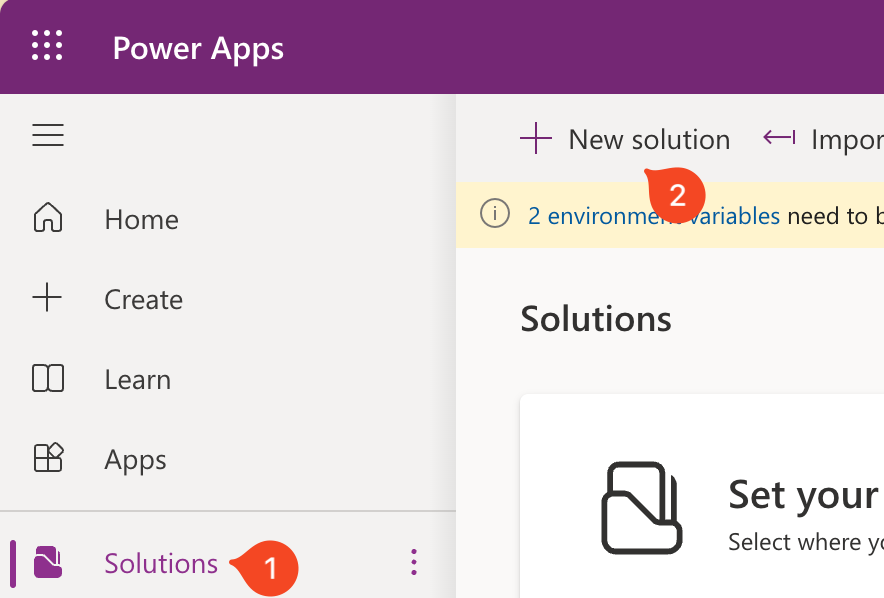
Create a New Solution: Go to Power Platform, select “Solutions,” and click “New Solution.” Give it a meaningful name that reflects its purpose.
-
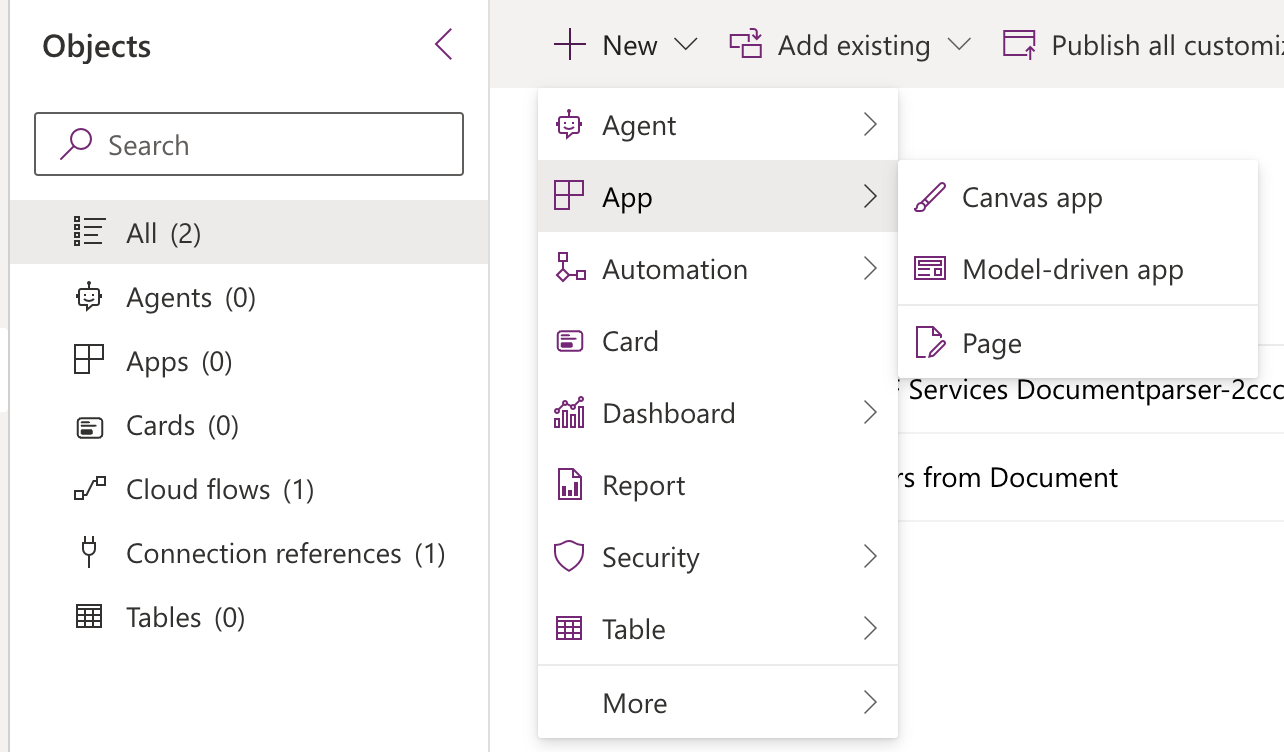
Add Components: Add the necessary components, such as cloud flows, PowerApps, or environment variables.
-
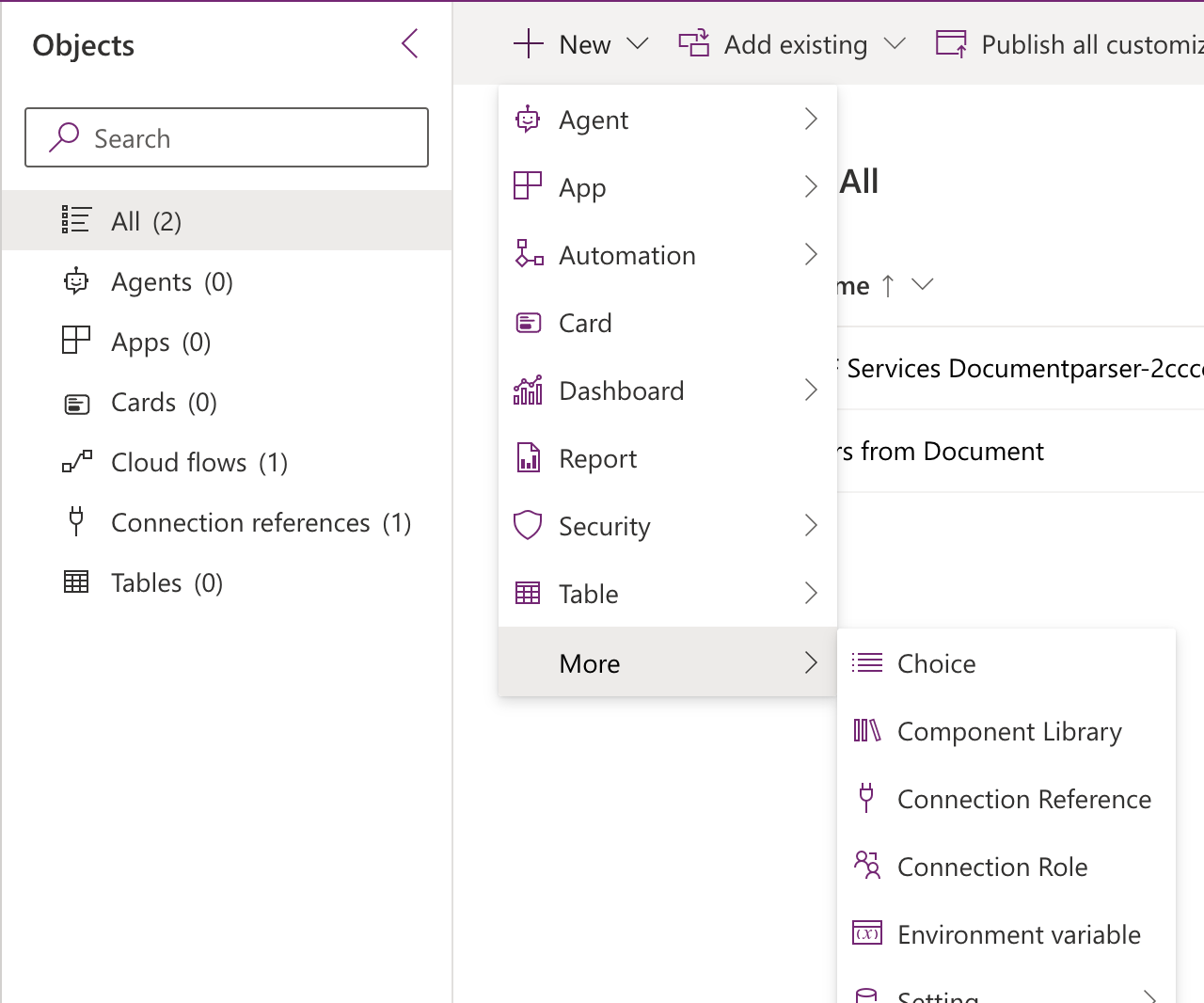
Add Environment Variables: Create environment variables for settings like URLs or email addresses. These variables make your solution adaptable and ensure it works smoothly across development, testing, and production environments.
-
Test Your Solution: Before moving to a different environment, test each component to ensure they work well together. This will ensure that everything is properly organized and easy to manage from the beginning.
Approach 2: Convert Existing Personal Flows
If you already have flows, you can convert them into solution-aware flows by following these steps:
-
Create a New Solution: Go to Power Platform, select “Solutions,” and click “New Solution.” Give it a meaningful name that reflects its purpose.
-
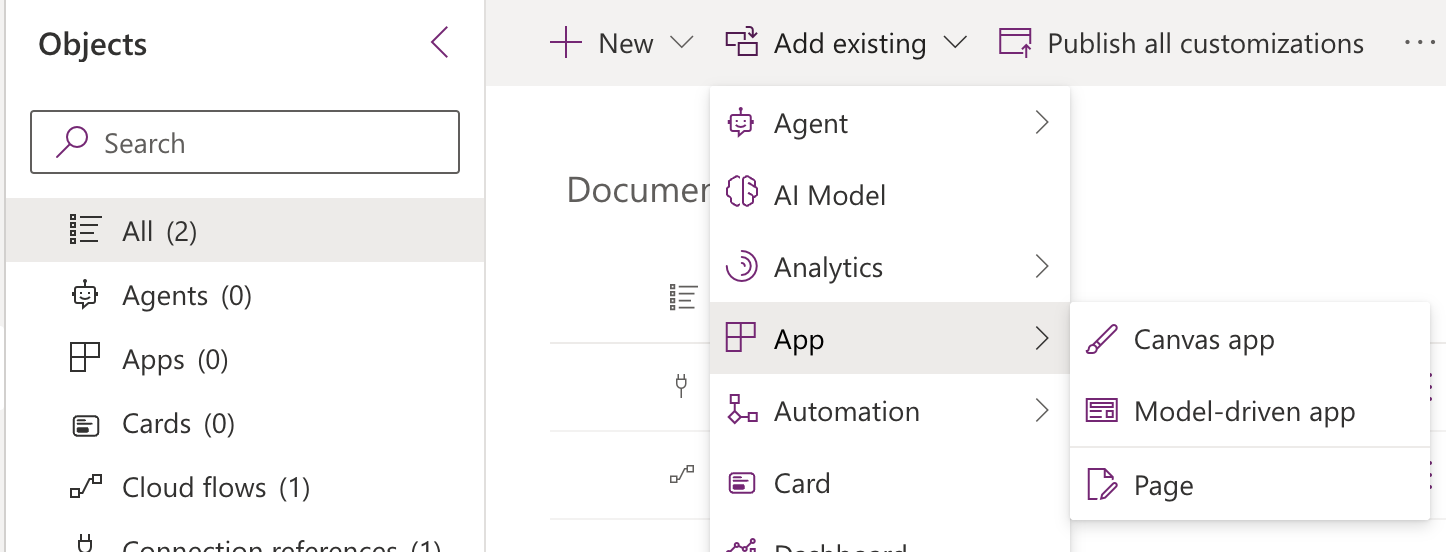
Add items to Solution: Go to Power Platform’s “Solutions” tab. Create a new solution or open an existing one, then click on “Add Existing” and select “Cloud Flow” or “App.” Find your flow in the list and add it.
-
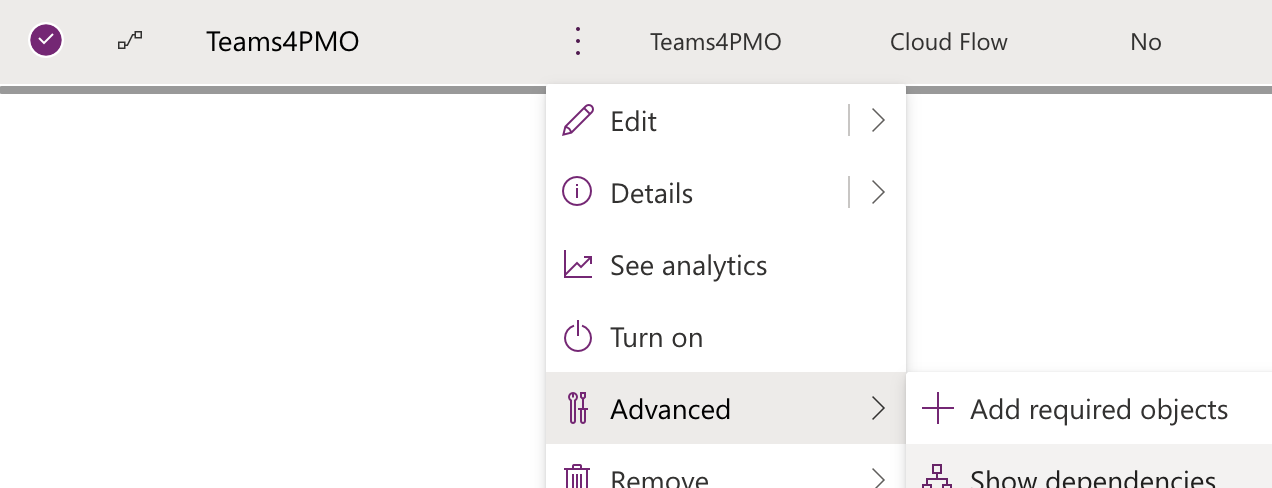
Add required Objects: If you want to make sure your solution is complete, use this menu item to add all required objects of the selected App or Flow to the solution.
-
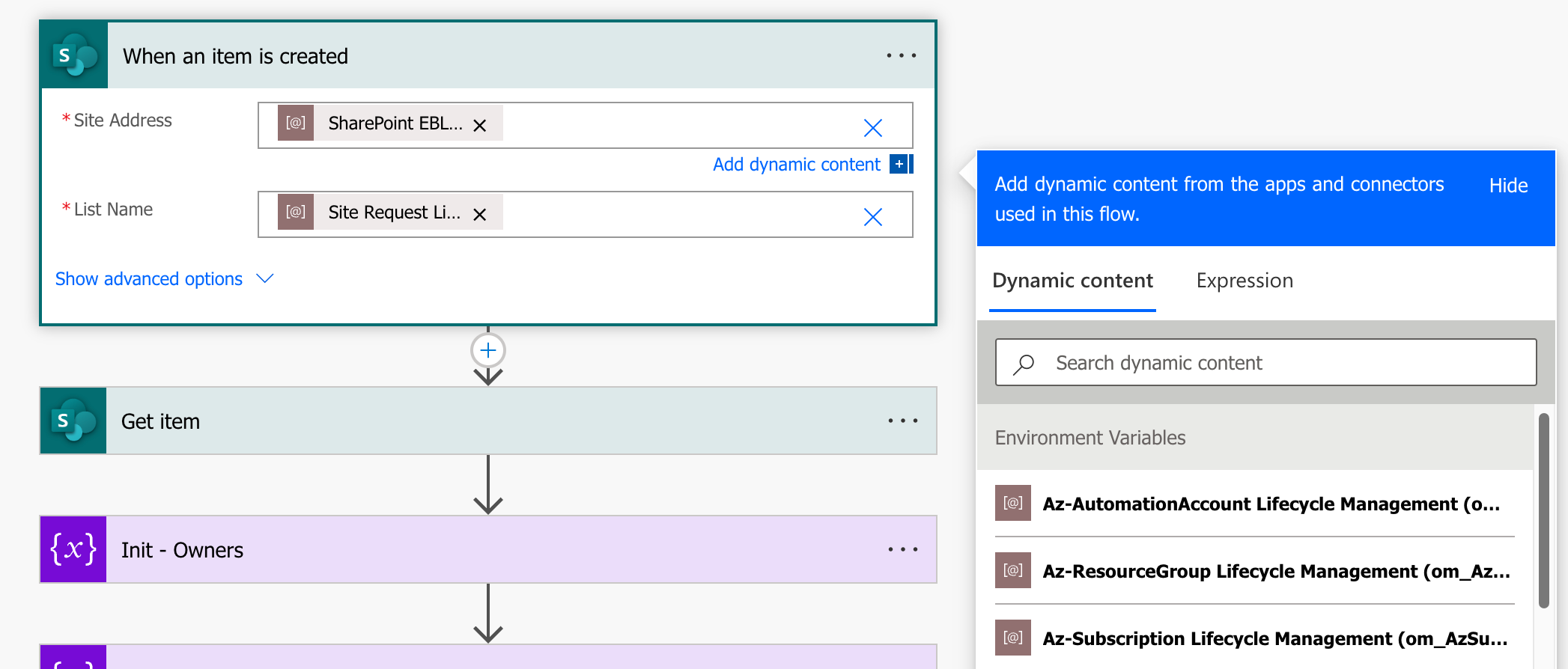
Use Environment Variables: Review all your PowerApps and Power Platform workflows and replace hardcoded URLs, lists, or email addresses with the appropriate environment variables.
-
Test Your Flow: Test the flow within the solution to ensure everything works as expected.
-
Deploy Your Solution: Once you’re satisfied with the flow, deploy the solution to the desired environment.
Creating solutions from scratch or converting existing flows into solution-aware applications ensures that your Power Platform components are well-organized, easy to manage, and ready for depolyments across environments.
Best Practices for Power Platform Solutions
To ensure that your solutions are easy to manage, consider these best practices of myself:
- Organize by Department or Project Type: This will help you find solutions more easily and maintain a clear organizational structure.
- Develop Directly in Solutions: Build workflows and Apps directly in solutions to keep everything organized and adaptable.
- Create in Unmanaged, test and Deploy in Managed Mode: If you’re doing development like this, you will have more control over your solution, as you can only change items in the unmanaged solution. This way you keep everything stable in production.
- Use Environment Variables: Environment variables make your solutions adaptable and ensure they work smoothly across different environments.
- Save Solutions to Source Control: Saving solutions to source control (like GitHub, or SharePoint) ensures that you have a backup and can track changes over time.
Related Post: For more tips on naming and documenting solutions, see my post on documenting Power Platform solutions.
Conclusion
Power Platform Solutions are a structured way to manage workflows, making them portable and easy to control across different environments. Using solutions, you can simplify processes, reduce errors, and improve efficiency, especially in large organizations involving many people and environments. Building workflows in solutions and following best practices ensures that your organization can get the most out of Power Platform.
Are you using Power Platform Solutions in your organization? What benefits have you seen? Share your experiences in the comments below!
Published on:
Learn moreWe can help you with Power Platform Solutions Made Simple
If you want help implementing, troubleshooting, or improving this product, contact us and we’ll point you in the right direction.

Related posts
Team News to Company News: An Approval Flow for SharePoint News
In almost every intranet project I’m part of, the same question comes up sooner or later. HR, IT, Facilities and a bunch of other teams ...
Creating Copilot Studio Agents Without an M365 Copilot Premium License
A common assumption when getting started with Copilot Studio is that you need a full Microsoft 365 Copilot Premium license. That assumption is...
Power Automate: Get events (V4) shared mailbox fix
When your flow reads a shared mailbox calendar using the Office 365 Outlook → Get events (V4) connector, it can fail in a way that looks like...
Using Managed Identity with Azure Automation & PnP.PowerShell
How to Set Up a Managed Identity for Azure Automation Runbooks and Use It in PowerShell Scripts with PnP.PowerShell This guide walks you throu...
UPDATED - Set Up Pay-as-you-go M365 Chat & SharePoint Agents
Introduction to Pay-as-You-Go Agents in Microsoft 365 Microsoft has introduced a flexible way for organizations to leverage AI capabilities wi...
How to Use Flexible Sections in SharePoint Pages and News
If you’ve been using SharePoint Online to build pages or share news, you know how important it is to have a layout that works for your c...
What's New in SharePoint Pages
1. New Carousel Layout in the Hero Web Part The Hero Web Part has always been a fundamental element of SharePoint pages. The new Carousel Layo...
Use your Bluesky post for comments on your Hugo Blog
Since Bluesky is getting really popular by people I interact with, I decided to switch my blog comments to Bluesky posts. In this blog post, I...
Exploring SharePoint Online's SiteAssets Library
The SiteAssets library in SharePoint Online often seems like a mystery to a lot of users I talk to, but it’s important to understand it ...
Step-by-Step Guide to Copy Pages between SharePoint Online
Unfortunately you can’t copy pages in SharePoint through the UI. But sometimes you may need to copy pages and their associated SiteAsset...