
Organize Your SharePoint Informations with a News Web Part

What Is the SharePoint News Web Part?
The News Web Part is like a blank canvas. You can use it to create a personalized content hub that keeps your team informed and engaged. It’s like having your own digital newspaper, but better!
You can use it to share updates, announcements, and stories with your team. It’s a great way to keep everyone in the loop and make sure they don’t miss out on important information.
Labeling Content Made Simple
Here’s the secret sauce: ‘digital labels’ or Metadata. These are like sticky notes that help you sort and find content in a snap. You can label pages with topics such as “Innovation” or “Team Events”, making it super easy to organize and retrieve.
Setting Up Your News Display
Now, let’s roll up our sleeves and set up the News Web Part:
- Choose your layout: Pick a style that suits your site. Tiles, carousel, or list—take your pick!
- Filter your content: Decide what you want to see, just like tuning into your favorite radio station.
Step-by-Step: Crafting Your Digital Labels
Creating a ‘Topic’ Column
-
Head to the Site Pages library: This is where your content lives.
-
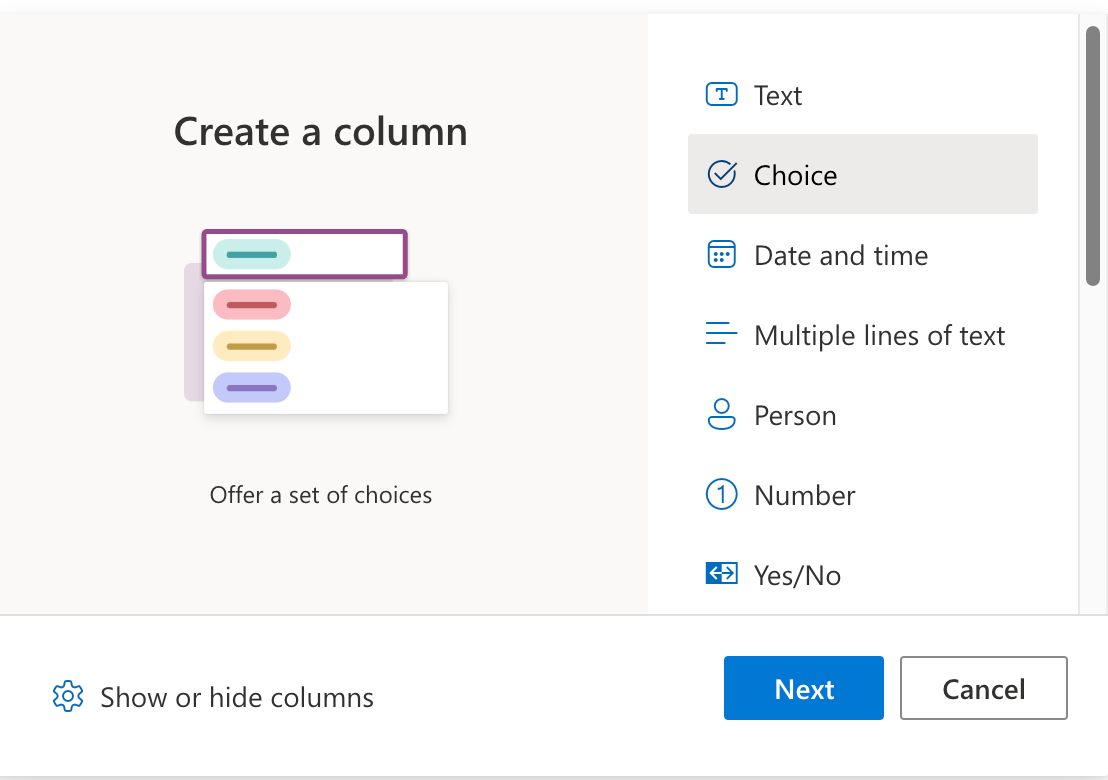
Add a ‘Topic’ column: Name it, choose ‘Choice’, and list your topics.
-
Save: Your labels are ready to go!
Tagging Your Pages
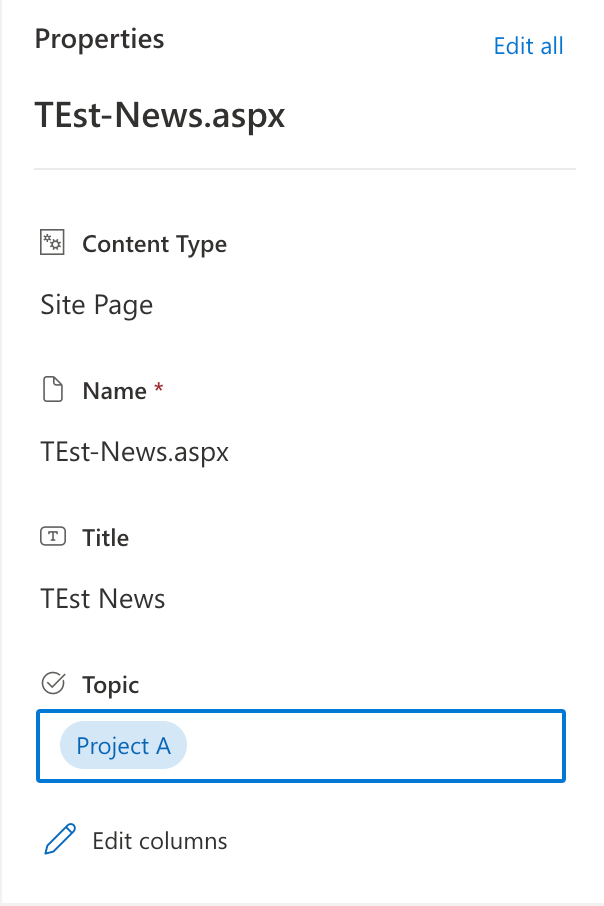
- Edit your page: Go to the details pane and choose a ‘Topic’.
Filtering News Like a Pro
- Edit your page: Click the pencil icon to edit the page and insert the News Web Part to the page.
- Set up your News source: Choose this site.
- Set up your filter:
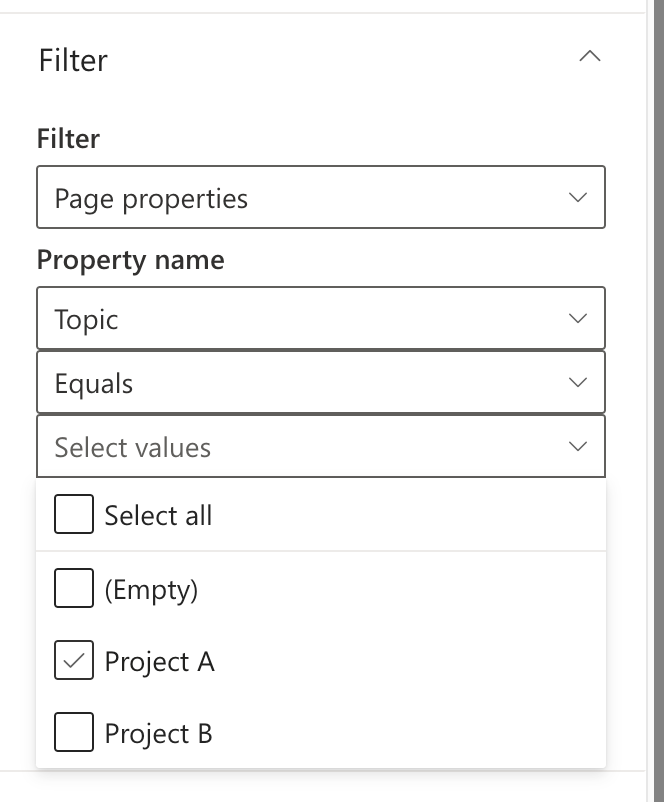
- Go to the filter section and pick ‘Page properties’ as filter.
- Choose the ‘Topic’ column as the property,
- Check right value(s) (e.g. Project A) and let the magic happen.
Real-Life Magic
Imagine you have a SiteCollection for your team. You can use different News Web Parts to show News, How-To’s, and Events. Each Web Part can be filtered by ‘Topic’, so everyone sees what’s relevant to them.
Final Thoughts
And there you have it, a friendly guide to making the most of the SharePoint News Web Part. With these tips, your SharePoint site will be the go-to spot for all things relevant and interesting.
Published on:
Learn moreWe can help you with Organize Your SharePoint Informations with a News Web Part
If you want help implementing, troubleshooting, or improving this product, contact us and we’ll point you in the right direction.

Related posts
Creating Copilot Studio Agents Without an M365 Copilot Premium License
A common assumption when getting started with Copilot Studio is that you need a full Microsoft 365 Copilot Premium license. That assumption is...
Power Automate: Get events (V4) shared mailbox fix
When your flow reads a shared mailbox calendar using the Office 365 Outlook → Get events (V4) connector, it can fail in a way that looks like...
Using Managed Identity with Azure Automation & PnP.PowerShell
How to Set Up a Managed Identity for Azure Automation Runbooks and Use It in PowerShell Scripts with PnP.PowerShell This guide walks you throu...
UPDATED - Set Up Pay-as-you-go M365 Chat & SharePoint Agents
Introduction to Pay-as-You-Go Agents in Microsoft 365 Microsoft has introduced a flexible way for organizations to leverage AI capabilities wi...
How to Use Flexible Sections in SharePoint Pages and News
If you’ve been using SharePoint Online to build pages or share news, you know how important it is to have a layout that works for your c...
What's New in SharePoint Pages
1. New Carousel Layout in the Hero Web Part The Hero Web Part has always been a fundamental element of SharePoint pages. The new Carousel Layo...
Power Platform Solutions Made Simple
Introduction to Power Platform Solutions Power Platform Solutions offer many benefits, especially when moving from standalone flows and apps t...
Use your Bluesky post for comments on your Hugo Blog
Since Bluesky is getting really popular by people I interact with, I decided to switch my blog comments to Bluesky posts. In this blog post, I...
Exploring SharePoint Online's SiteAssets Library
The SiteAssets library in SharePoint Online often seems like a mystery to a lot of users I talk to, but it’s important to understand it ...
Step-by-Step Guide to Copy Pages between SharePoint Online
Unfortunately you can’t copy pages in SharePoint through the UI. But sometimes you may need to copy pages and their associated SiteAsset...