
Why I use Microsoft Copilot as AI assistant & you should too

I tried out a lot of LLM’s over time (ChatGPT, Gemini, etc.) and personally still prefer using Microsoft Copilot over the others for multiple reasons. Copilot is an innovative AI assistant, offering a plethora of features that cater to a wide spectrum of online activities. In my view the free version of Copilot is particularly noteworthy for its versatility and user-friendly approach even compared to other paid AI assistants. Everything I will mention here is based on the free version of Copilot. So you can try it out without any costs. Let’s delve into the topics that make Copilot my preferred choice:
Real-Time Information Access
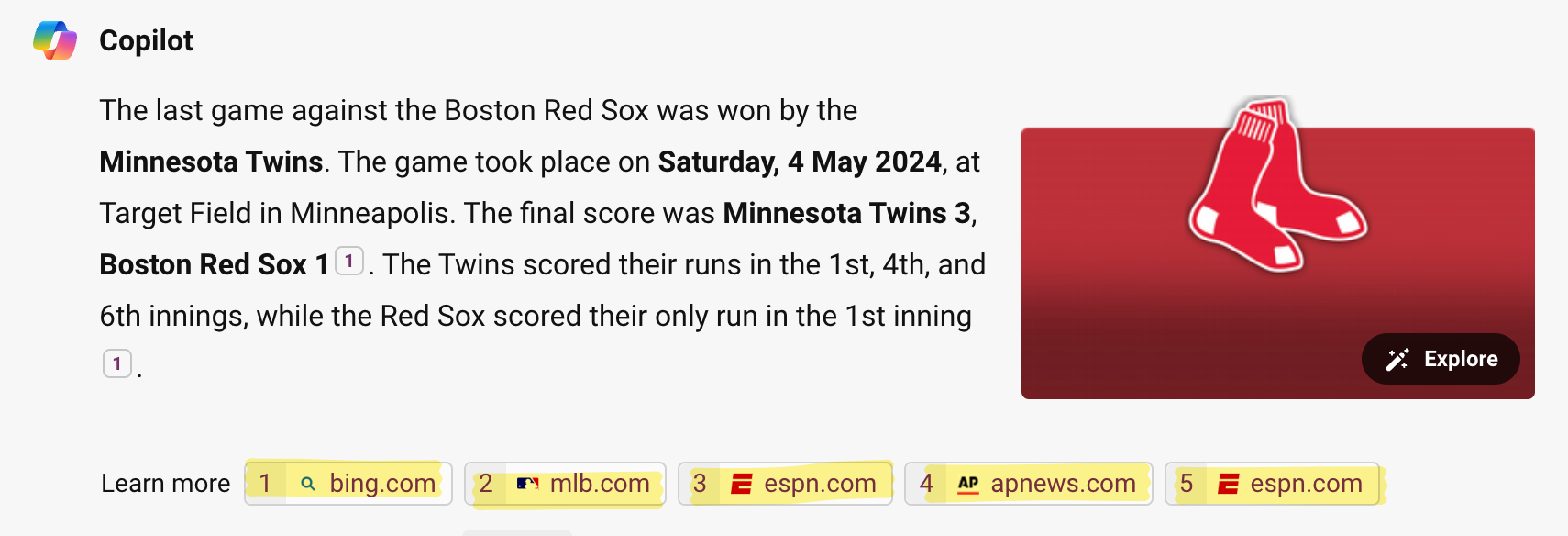
Copilot’s seamless integration with Bing search technology ensures that users have access to information that is current and relevant. This feature is invaluable for professionals who require up-to-date data to make informed decisions.

Source-Cited Responses
Copilot enhances the reliability of its information by providing footnotes with sources, akin to a well-researched article. This level of transparency is crucial for users who need to trace the origin of the information for academic or professional purposes.
Enhanced AI Performance
At its core, Copilot is equipped with GPT-4 Turbo, an AI model that offers a significant leap in performance over its predecessors. This advancement translates to a more intuitive user experience, with responses that are contextually aware and richly detailed.
Diverse Input Methods
Copilot’s ability to process both voice and image inputs marks a significant step forward in AI interaction. Users can engage with Copilot in a manner that best suits their preferences or situational needs, be it through spoken commands or visual queries.

Browser Integration for Convenience
The integration of Copilot directly into the Edge web browser (my go-to browser) makes it easy to it, allowing users to summon assistance without interrupting their online journey. This feature is particularly beneficial for those who multitask or require quick information retrieval. Here in particular I like the fact:
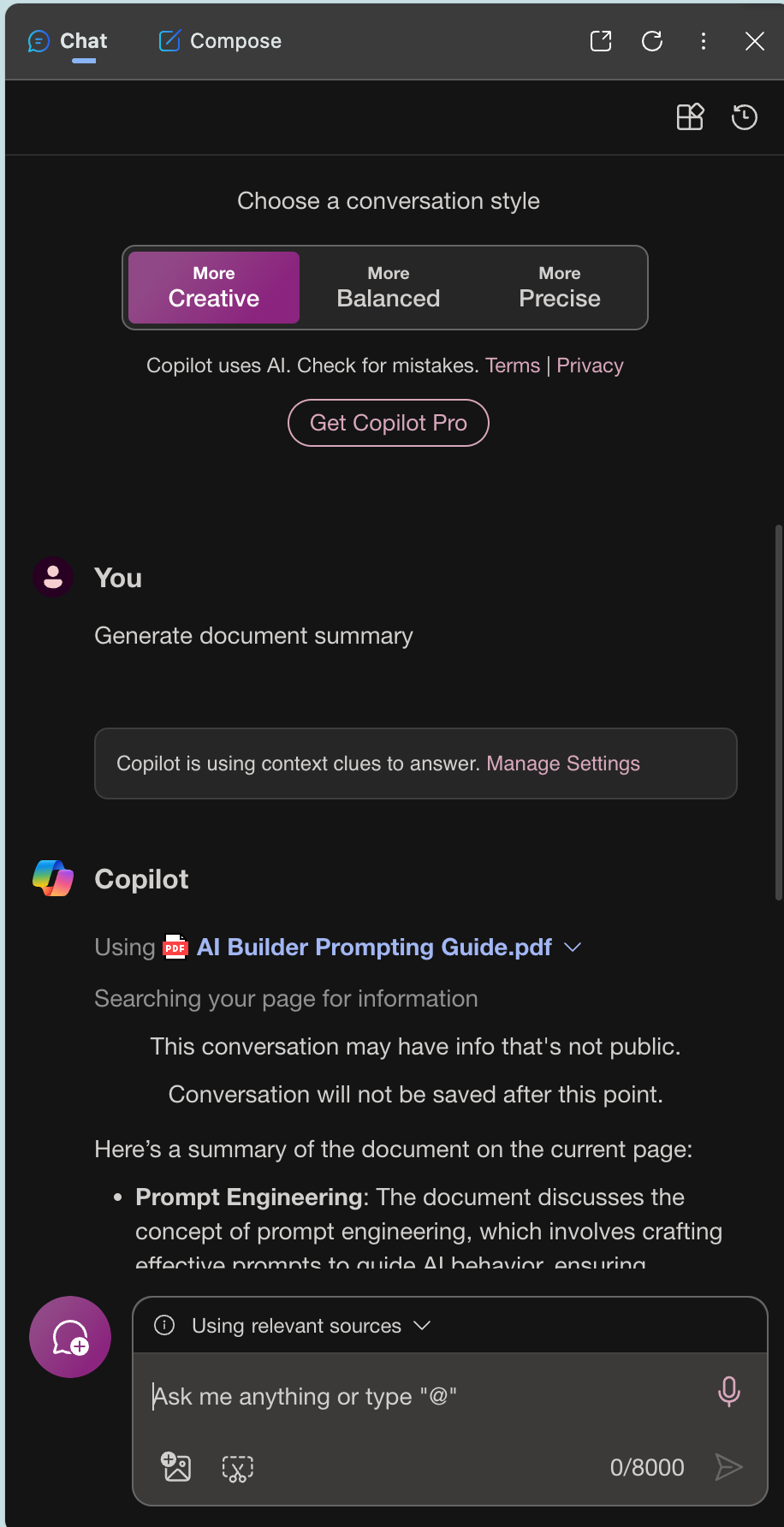
- That I can use Copilot to generate summaries of articles I’m reading
- Summarize files that I opened in the browser, like Office documents or PDFs.
- Use Copilot to summarize a YouTube video as long as it has subtitles.
Creative Image Generation
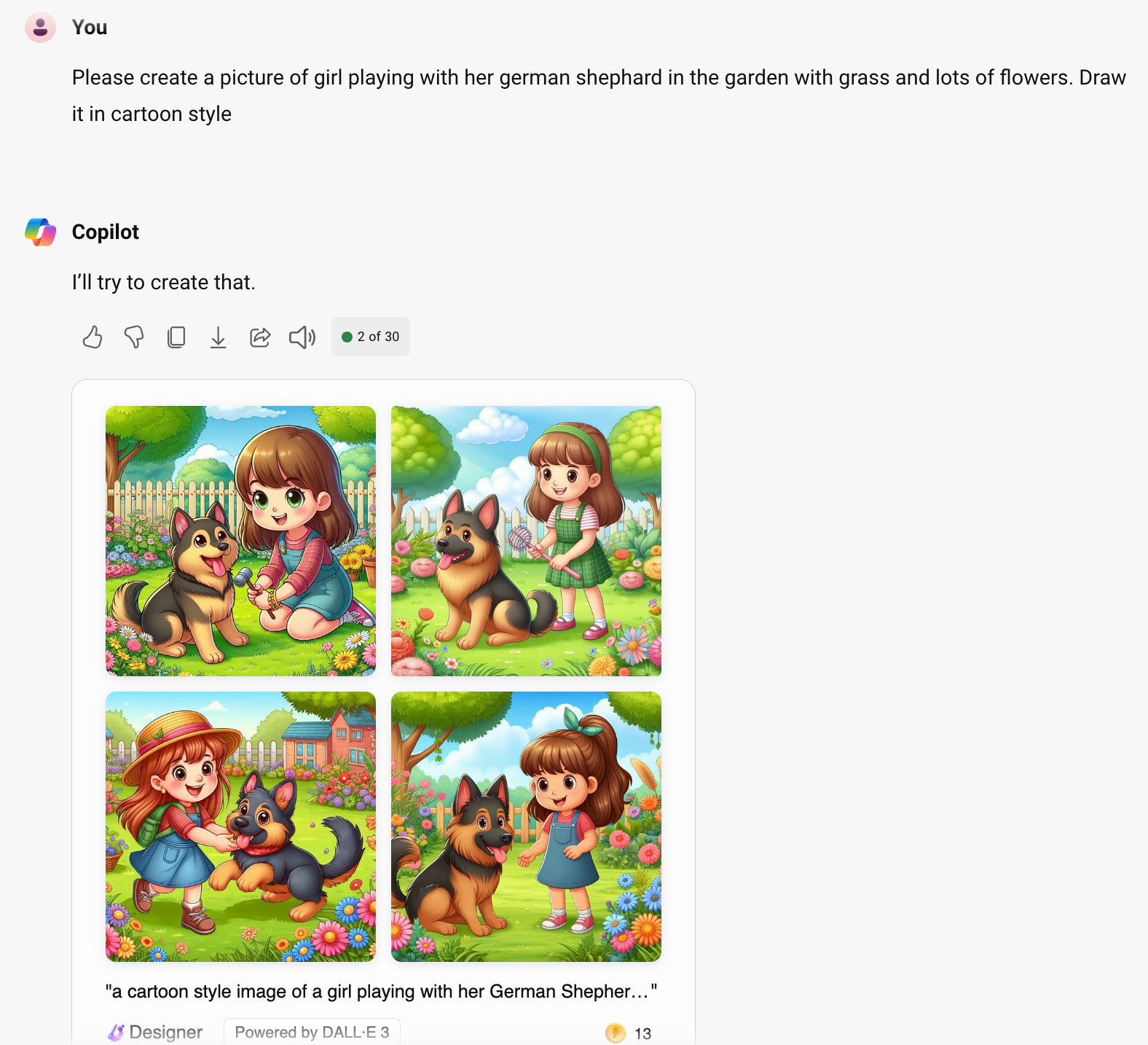
Copilot’s image generation capability allows you to bring your creative visions to life. As someone who isn’t very good at drawing, I find this feature particularly useful.
Describe a concept, and Copilot will translate it into a visual representation, offering a new dimension to content creation and design. The model used for this is DALL-E 3.
Another benefit of using Copilot is that Copilot is creating 4 different images at once, so you can choose the one that fits your needs best. Those image(s) can then also be used in Microsoft Designer very easily.
Intelligent Image Analysis
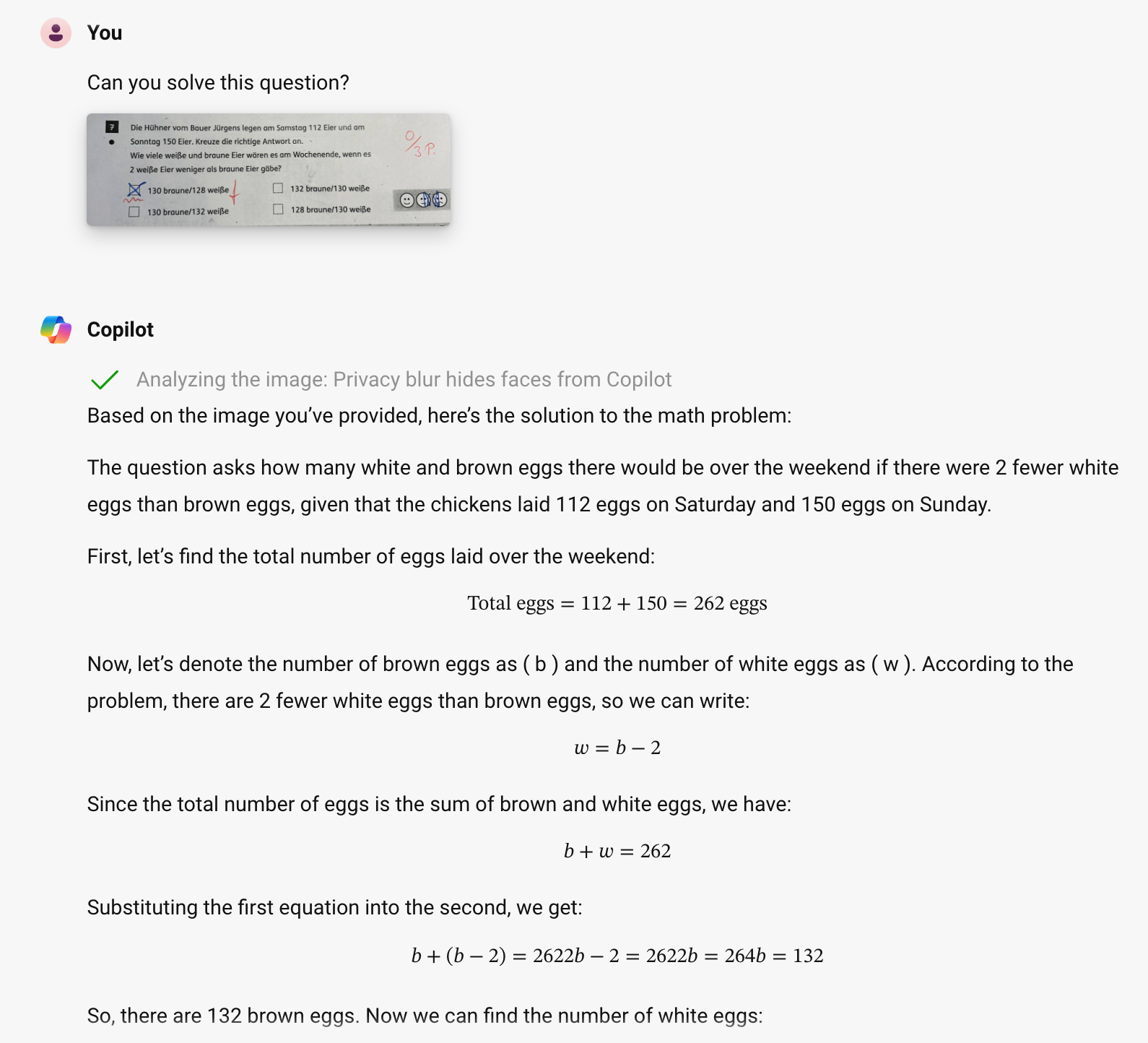
The addition of image analysis to Copilot’s skill set further extends its utility. Users can upload images for analysis, receiving detailed insights and information, which is especially useful for educational, professional, and personal explorations.
In Summary: Embrace the Future with Microsoft Copilot
Microsoft Copilot is more than just an AI assistant; it’s a comprehensive companion for your digital life. With its real-time information access, source-cited responses, advanced AI performance, diverse input methods, browser integration, creative image generation, and intelligent image analysis, Copilot is equipped to enhance your online experience in ways you’ve never imagined.
Whether you’re a professional seeking efficiency, a student in search of knowledge, or a creative soul looking to bring ideas to life, Copilot is designed to meet your needs. It’s time to embrace the future of digital assistance.
Take the next step: Try it today and discover how it might can help you in your daily tasks. Do you prefer other AI assistants? Let me know why in the comments below or on one of my social media channels.
Published on:
Learn moreWe can help you with Why I use Microsoft Copilot as AI assistant & you should too
If you want help implementing, troubleshooting, or improving this product, contact us and we’ll point you in the right direction.

Related posts
Creating Copilot Studio Agents Without an M365 Copilot Premium License
A common assumption when getting started with Copilot Studio is that you need a full Microsoft 365 Copilot Premium license. That assumption is...
Power Automate: Get events (V4) shared mailbox fix
When your flow reads a shared mailbox calendar using the Office 365 Outlook → Get events (V4) connector, it can fail in a way that looks like...
Using Managed Identity with Azure Automation & PnP.PowerShell
How to Set Up a Managed Identity for Azure Automation Runbooks and Use It in PowerShell Scripts with PnP.PowerShell This guide walks you throu...
UPDATED - Set Up Pay-as-you-go M365 Chat & SharePoint Agents
Introduction to Pay-as-You-Go Agents in Microsoft 365 Microsoft has introduced a flexible way for organizations to leverage AI capabilities wi...
How to Use Flexible Sections in SharePoint Pages and News
If you’ve been using SharePoint Online to build pages or share news, you know how important it is to have a layout that works for your c...
What's New in SharePoint Pages
1. New Carousel Layout in the Hero Web Part The Hero Web Part has always been a fundamental element of SharePoint pages. The new Carousel Layo...
Power Platform Solutions Made Simple
Introduction to Power Platform Solutions Power Platform Solutions offer many benefits, especially when moving from standalone flows and apps t...
Use your Bluesky post for comments on your Hugo Blog
Since Bluesky is getting really popular by people I interact with, I decided to switch my blog comments to Bluesky posts. In this blog post, I...
Exploring SharePoint Online's SiteAssets Library
The SiteAssets library in SharePoint Online often seems like a mystery to a lot of users I talk to, but it’s important to understand it ...
Step-by-Step Guide to Copy Pages between SharePoint Online
Unfortunately you can’t copy pages in SharePoint through the UI. But sometimes you may need to copy pages and their associated SiteAsset...