
SharePoint Page Authoring gets enhanced by new Content Pane
Introduction
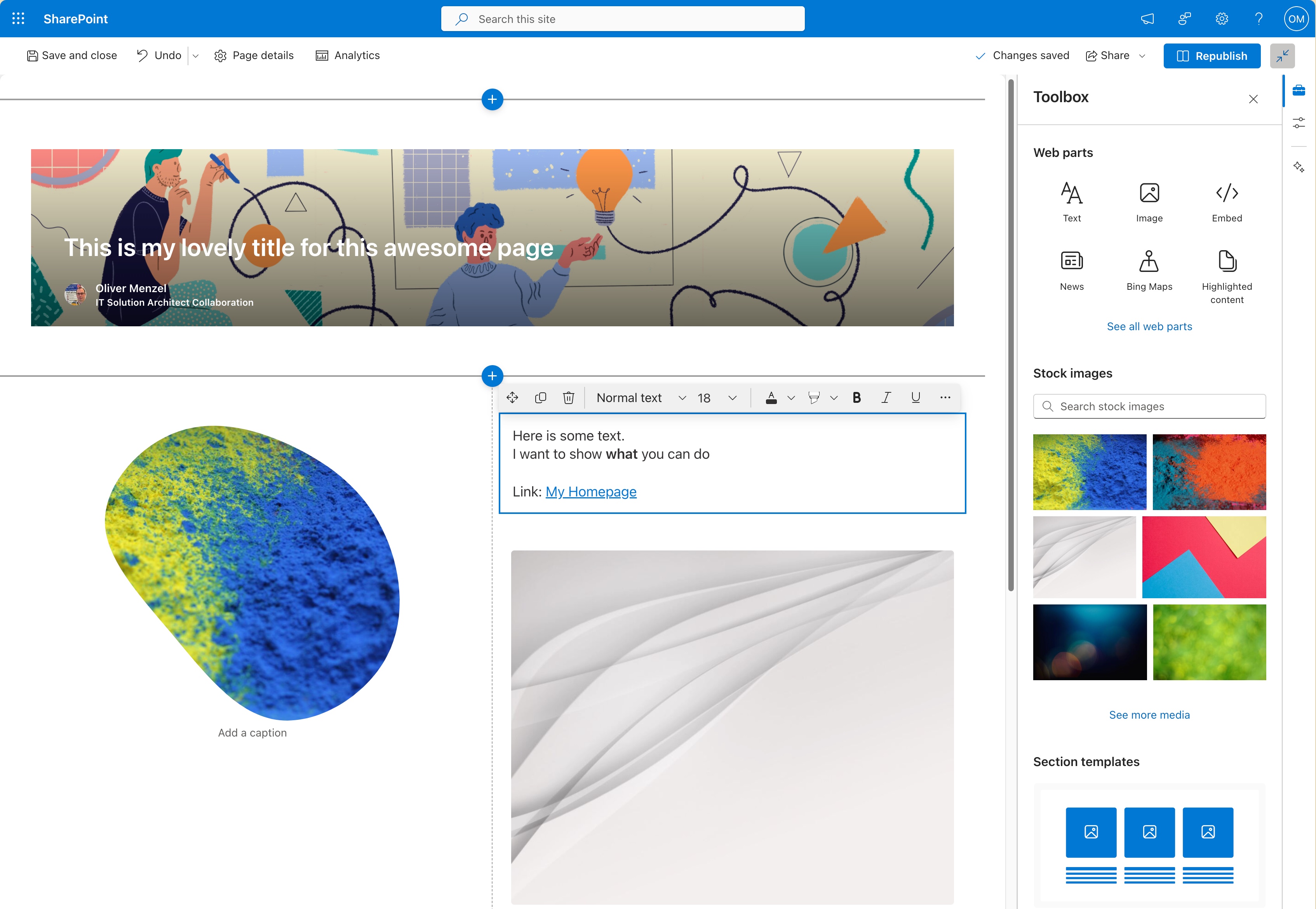
Hey there, SharePoint enthusiasts! Today, I’m excited to share with you an update to the SharePoint page authoring experience. Microsoft has introduced a new feature called the Content Pane, which is set to streamline your page creation process and make it easier than ever to create stunning, engaging pages. In this post, we’ll dive into what the Content Pane is, how it works, and why it’s a must-try for anyone working with SharePoint pages.
What is the Content Pane?
The Content Pane is a new hub for all your page authoring needs, conveniently located on the right-hand side of your screen when you enter edit mode. It consists of three main sections: the Toolbox, Properties, and Design Ideas. This pane is designed to provide quick access to various tools and settings, making your page creation process more efficient and intuitive.
The Toolbox: Your One-Stop Shop for SharePoint Page Elements
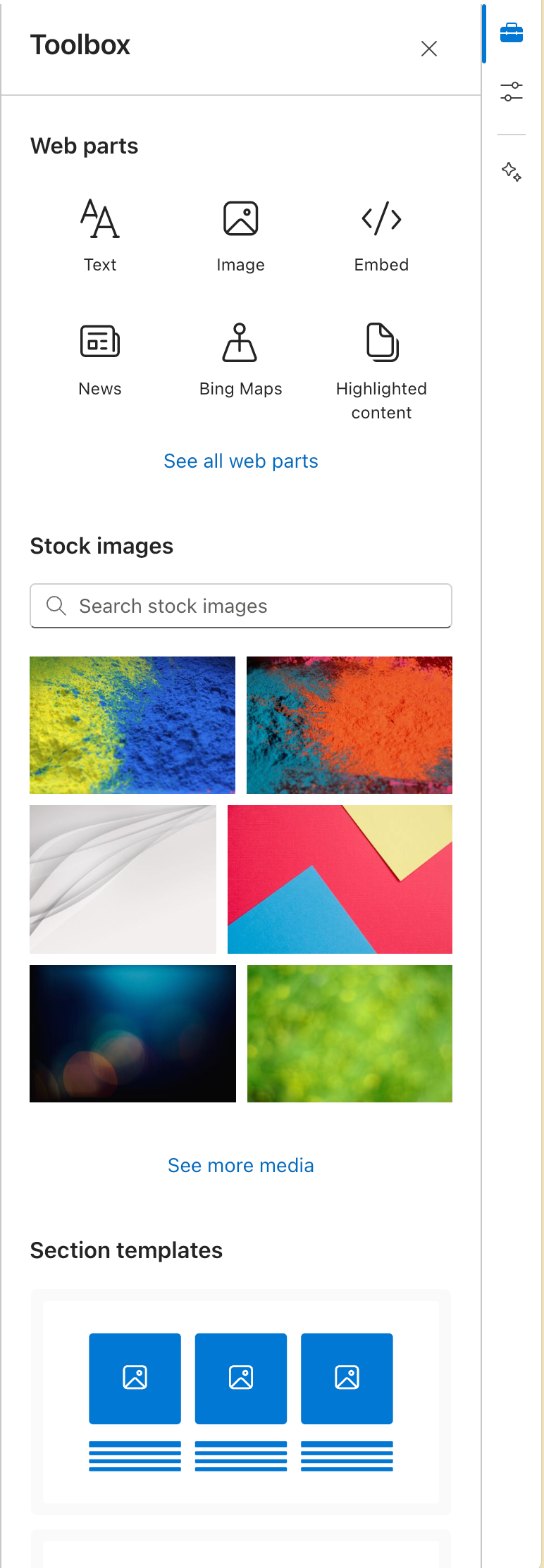
The Toolbox is a brand new addition to the SharePoint page authoring experience, and it’s a real game-changer. Here, you’ll find everything you need to create a stunning page, including:
-
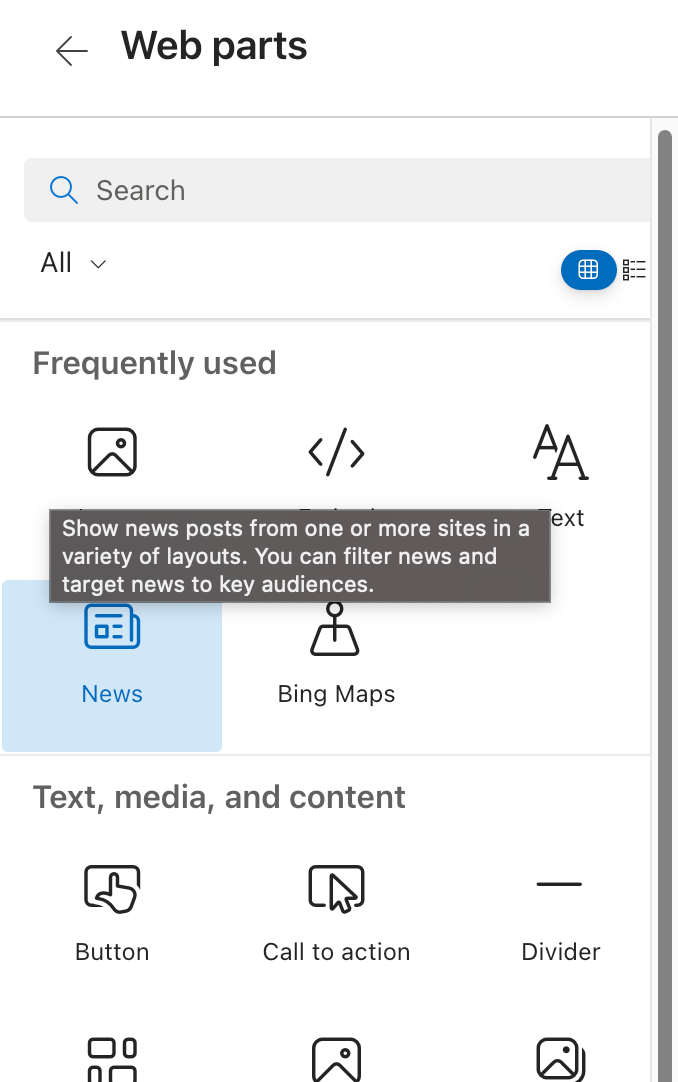
Web Parts The Toolbox offers a selection of commonly used web parts, which you can easily add to your page by clicking and dragging them onto the canvas. If you don’t see the web part you need, simply click “See all web parts” to access the full library.
-
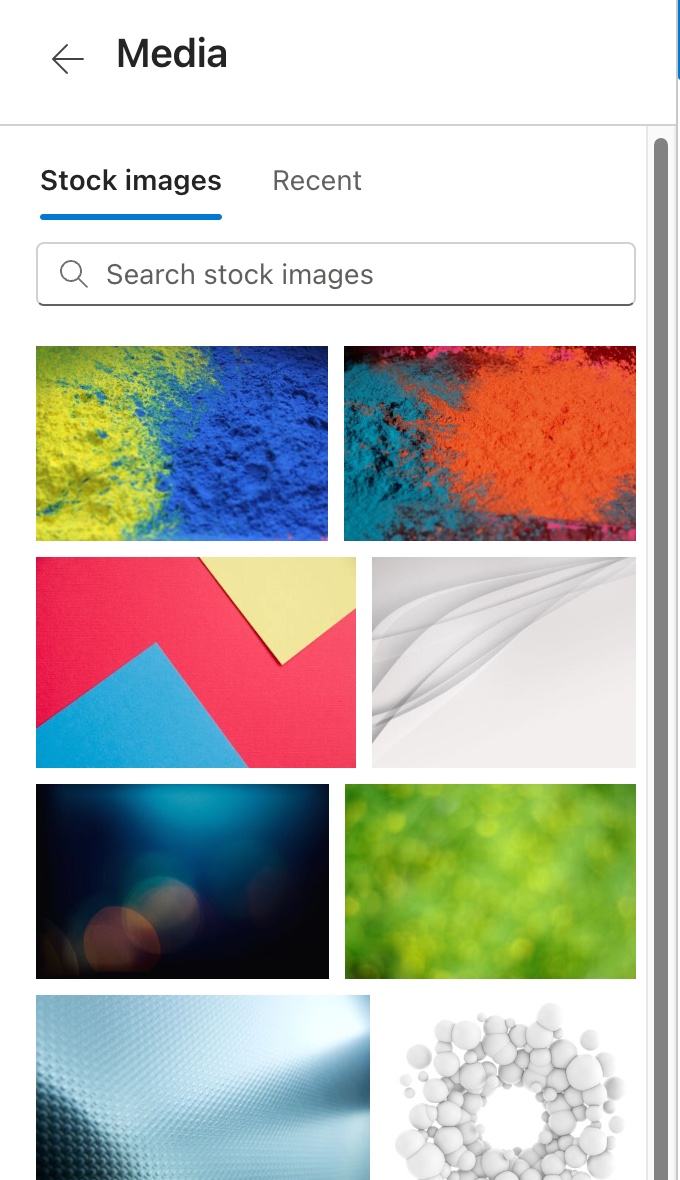
Stock Images Say goodbye to the hassle of searching for the perfect image! The Toolbox includes a built-in stock image library, allowing you to search for and insert high-quality images directly onto your page. You can also access your recently used images or upload your own using the “Browse images” button.
-
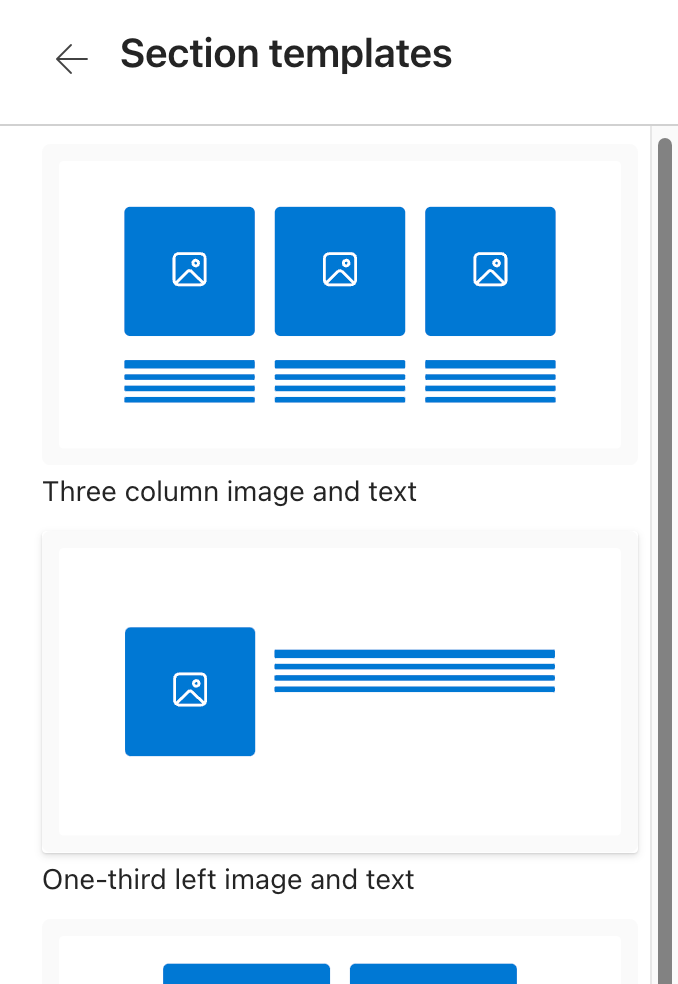
Section Templates The Toolbox also includes a collection of pre-designed section templates, making it easy to create visually appealing layouts for your content. Simply click on a template to add it to your page, or click “See all section templates” to explore the full range of options.
Properties Pane: Customize Your Page Elements
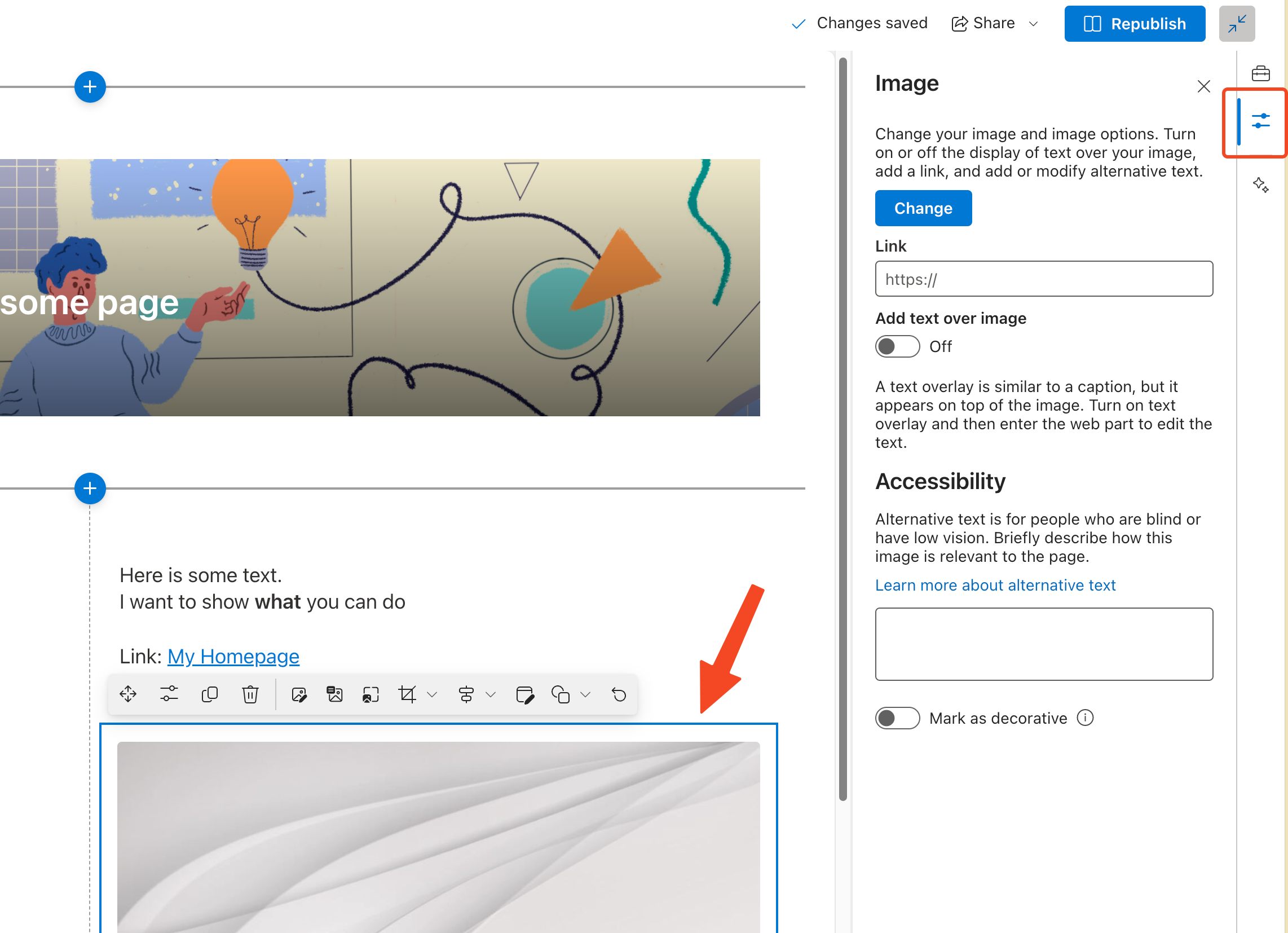
The Properties Pane is another key feature of the Content Pane, providing a centralized location for managing the settings and customization options for your page elements. When you select a web part or section on your page, the Properties Pane will update to display the relevant settings, allowing you to make changes quickly and easily.
Design Ideas: Inspiration at Your Fingertips
The Design Ideas feature, will provide suggestions and inspiration for designing your page based on the content you’ve added. This is a great way to explore new layout options and ensure that your page looks professional and engaging.
A Streamlined Section Editing Experience
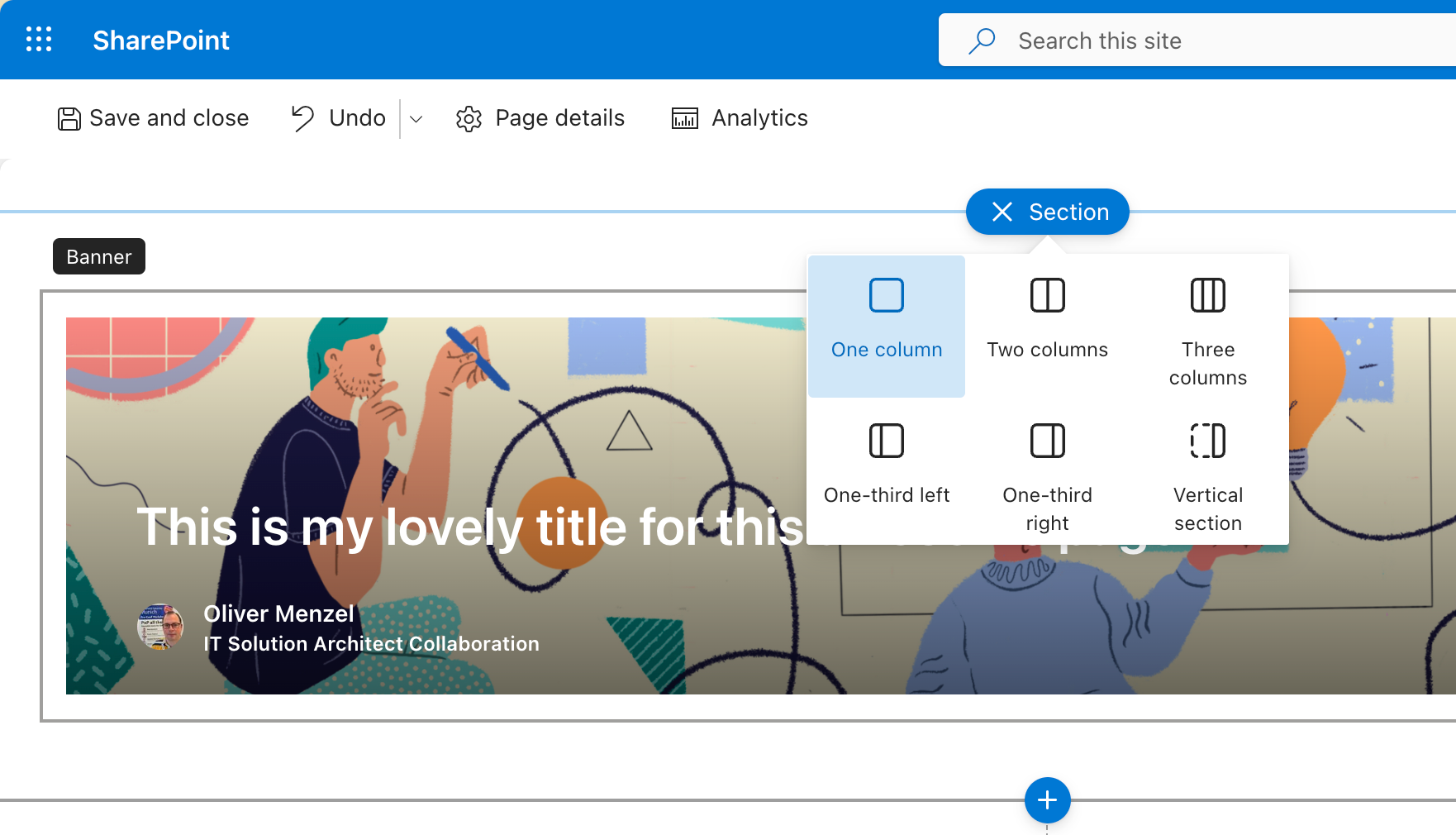
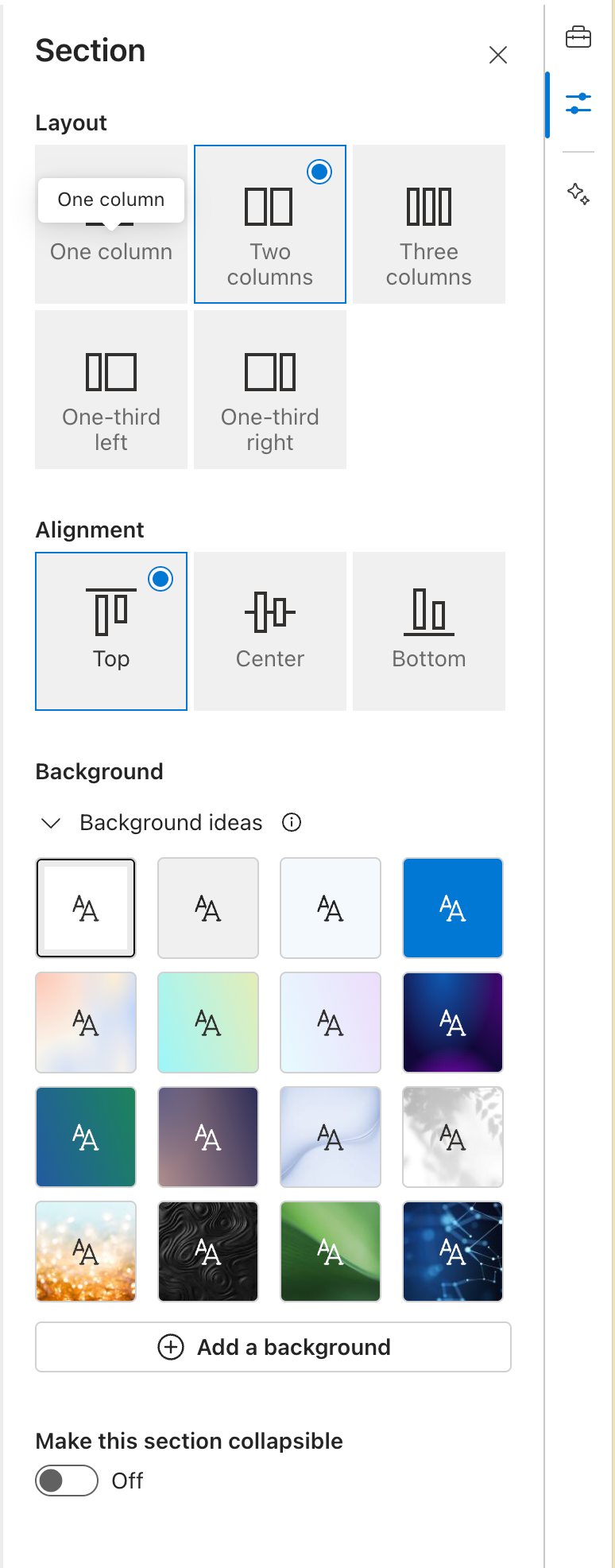
In addition to the Content Pane, Microsoft has also redesigned the section editing experience in SharePoint pages. The section tools, previously located on the left-hand side of the screen, have now been integrated into the page canvas itself. To add a new section, simply click the “+” button between existing sections. The section toolbar, located in the upper-left corner of each section, provides quick access to options like moving, editing, duplicating, and deleting sections.
Conclusion
The new Content Pane and streamlined section editing experience in SharePoint pages are set to revolutionize the way we create and design our content. With easy access to web parts, stock images, section templates, and properties, as well as the upcoming Design Ideas feature, crafting stunning and engaging pages has never been easier.
So, have you checked if the Content Pane is available in your SharePoint environment yet? If so, I’d love to hear your thoughts! Please leave a comment below and let me know how you’re finding the new features and how they’ve impacted your page authoring experience.
Until next time, happy creating!
References
Published on:
Learn moreWe can help you with SharePoint Page Authoring gets enhanced by new Content Pane
If you want help implementing, troubleshooting, or improving this product, contact us and we’ll point you in the right direction.

Related posts
Creating Copilot Studio Agents Without an M365 Copilot Premium License
A common assumption when getting started with Copilot Studio is that you need a full Microsoft 365 Copilot Premium license. That assumption is...
Power Automate: Get events (V4) shared mailbox fix
When your flow reads a shared mailbox calendar using the Office 365 Outlook → Get events (V4) connector, it can fail in a way that looks like...
Using Managed Identity with Azure Automation & PnP.PowerShell
How to Set Up a Managed Identity for Azure Automation Runbooks and Use It in PowerShell Scripts with PnP.PowerShell This guide walks you throu...
UPDATED - Set Up Pay-as-you-go M365 Chat & SharePoint Agents
Introduction to Pay-as-You-Go Agents in Microsoft 365 Microsoft has introduced a flexible way for organizations to leverage AI capabilities wi...
How to Use Flexible Sections in SharePoint Pages and News
If you’ve been using SharePoint Online to build pages or share news, you know how important it is to have a layout that works for your c...
What's New in SharePoint Pages
1. New Carousel Layout in the Hero Web Part The Hero Web Part has always been a fundamental element of SharePoint pages. The new Carousel Layo...
Power Platform Solutions Made Simple
Introduction to Power Platform Solutions Power Platform Solutions offer many benefits, especially when moving from standalone flows and apps t...
Use your Bluesky post for comments on your Hugo Blog
Since Bluesky is getting really popular by people I interact with, I decided to switch my blog comments to Bluesky posts. In this blog post, I...
Exploring SharePoint Online's SiteAssets Library
The SiteAssets library in SharePoint Online often seems like a mystery to a lot of users I talk to, but it’s important to understand it ...
Step-by-Step Guide to Copy Pages between SharePoint Online
Unfortunately you can’t copy pages in SharePoint through the UI. But sometimes you may need to copy pages and their associated SiteAsset...