
How to Remove and Save Attachments from Multiple Outlook Emails
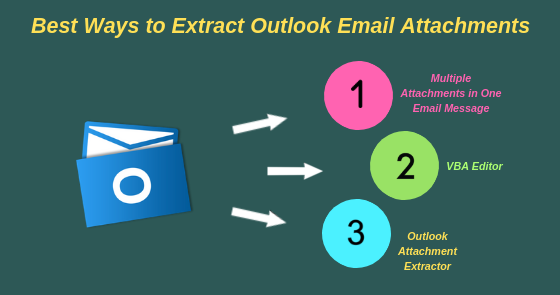
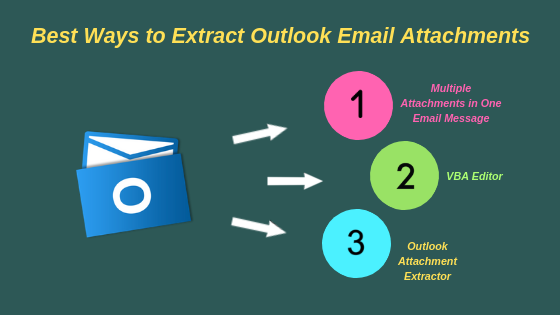
To know about how to download attachments from Outlook automatically as well as manually, we go through the following methods:
- At first, select the email message to export all Outlook attachments
- Then, choose one single attachment from that email
- Now, you will see the message “Save All Attachments” on the attachment tab
- Lastly, hit "OK" to extract the attachments to the desired location
- Use “Alt key + F11” simultaneously to access VBA Editor
Note: You can install VBA Macro from here:http://gallery.technet.microsoft.com/office/Save-attachments-from-5b6bf54b
- In VBA Editor select File >> Import File and import the saved file
- Now, Save it and exit VBA Macro dialog
Note: To move further you have to enable all macros in Outlook- Now, choose the desired email messages to export the attachment
- Use Alt+F8 key in order to open Macros dialog box
- Now, choose Execute Saving >> Run
- · Finally, you will see a pop-up window, choose a folder in which you want to save the attachments.
Method 3: Guideline to Remove Attachments in Outlook Automatically- First of all, open your Outlook and go to Rules and then choose “Manage Rules and Alerts”
- Select “New Rules” and click on “Apply rules on message I received” and then click Next
- You will see a pop up window and in that choose “Yes”. Now, check the “Run a script” option. Give your script a name and hit on “OK”. And then “Next”.
- Your attachments will be saved on the desired location and you can retrieve them.
- In VBA Editor select File >> Import File and import the saved file
- Now, Save it and exit VBA Macro dialog
- Now, choose the desired email messages to export the attachment
- Use Alt+F8 key in order to open Macros dialog box
- Now, choose Execute Saving >> Run
- · Finally, you will see a pop-up window, choose a folder in which you want to save the attachments.
Though the manual methods are helpful and free. But, it also comes with a couple of limitations, which are mentioned below:
2. These methods take too much time to process.
User can opt for a trustworthy automated software to seamlessly remove and save attachments from multiple Outlook emails. Hence, we recommend to make the best use of Outlook Email Attachment Downloader. It is the best alternative to overcome the drawbacks of above the mentioned manual methods. This software provides ease and convenience in the extraction of the Outlook attachments in a hassle-free way.
Here Go Some Remarkable Features that Makes the Tool Best Among Others
- Seamlessly remove and save attachments from multiple Outlook emails from PST, OST & BAK files.
- Using two-mode options makes it easy to add single or bulk files via Add File (s) & Add Folder
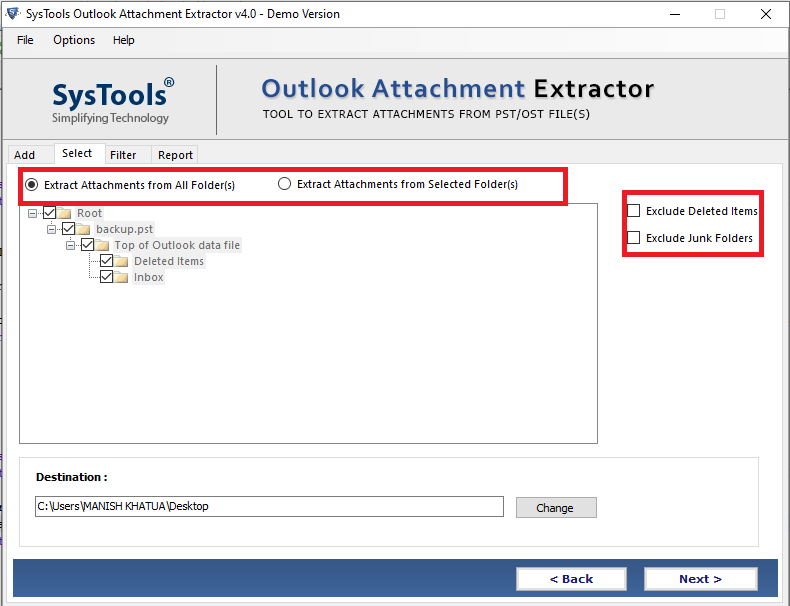
- Option to remove all Outlook attachments from Deleted Items & Junk folders
- Facility to save all Outlook PST attachments from Selected Folder (s) or All Folder (s)
- One can avail option to efficiently preserve the folder hierarchy for the extracted attachments with maintained data integrity
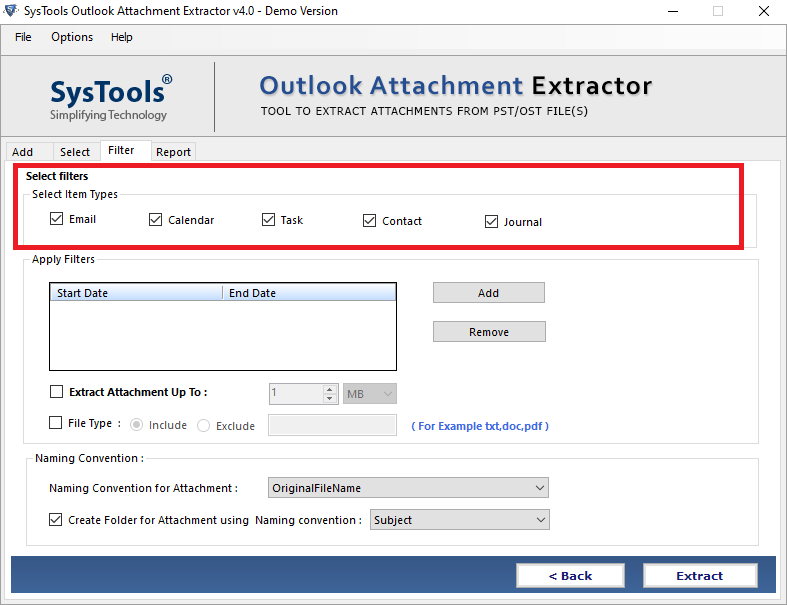
- Provides option to extract attachments from selective data items such as emails, contacts, calendars, tasks & journals
- Using “Date filter” option, extract all attachments from Outlook files selectively
- “Size filter” option to remove PST, OST & BAK file attachments according to the specified size range
- Option to include/exclude attachment file type like PDF, DOCX, XLSX, etc. from the panel
- Offers various naming conventions to remove and save attachments from multiple Outlook emails
- Capable enough to support files from all Outlook versions i.e., 2019, 2016, 2013, 2010, etc.

- Seamlessly remove and save attachments from multiple Outlook emails from PST, OST & BAK files.
- Using two-mode options makes it easy to add single or bulk files via Add File (s) & Add Folder
- Option to remove all Outlook attachments from Deleted Items & Junk folders
- Facility to save all Outlook PST attachments from Selected Folder (s) or All Folder (s)
- One can avail option to efficiently preserve the folder hierarchy for the extracted attachments with maintained data integrity
- Provides option to extract attachments from selective data items such as emails, contacts, calendars, tasks & journals
- Using “Date filter” option, extract all attachments from Outlook files selectively
- “Size filter” option to remove PST, OST & BAK file attachments according to the specified size range
- Option to include/exclude attachment file type like PDF, DOCX, XLSX, etc. from the panel
- Offers various naming conventions to remove and save attachments from multiple Outlook emails
- Capable enough to support files from all Outlook versions i.e., 2019, 2016, 2013, 2010, etc.


Published on:
Learn more
Related posts
How to Backup Office 365 Email PowerShell? Detailed Explanation
Experts know the steps to backup Office 365 email PowerShell command but they do not suggest it to novice users.You shall find a ton of ...
How to Repair a Broken PST File
If you're facing issues with your Outlook mailbox and suspect that the Personal Folders (PST) file might be causing the problem, read on to le...
Office 365 Tenant to Tenant Migration – Microsoft Admin Guide
Office 365 is widely used by organizations around the globe, and sometimes the need for tenant-to-tenant migration arises. This can occur due ...
How to Extract All Attachments from Outlook? - Here are Best 2 Methods
If you are having trouble saving Outlook attachments in the default folder? Then this blog will guide you with the step by step process to ext...
How to Create CSV file from Outlook Contacts Mac
If you have switched to a Mac machine and are wondering how to create a CSV file from Outlook Contacts Mac, this post has got you covered. The...
Thunderbird to Outlook Converter Crack – Technicalities & Coupon Code
This blog provides insights into converting Thunderbird to Outlook and highlights the risks of downloading a Thunderbird to Outlook converter ...
How to Open OLM file on Windows? – Automated Solution
The Outlook is an email client emerging day by day also compatible with both Windows and Mac OS X while many Outlook users need to change thei...
How to Migrate Google Drive Data to New Account - Easy Method
If you are experiencing storage issues on your Google Drive account and want to migrate your data to a new account, then don't worry, we have ...
How to Merge Outlook Contacts from Multiple Folders Manually?
If you are an Outlook user and have multiple contact folders? Want to merge them into one? If your answer is yes, then in this blog you will f...