
External User Access Reviews in Office 365

Understanding External User Access
Before diving into the reviews, it’s important to understand what external access entails. External users in O365 are individuals who are not employees, or onsite agents for your organization. They could be partners, vendors, or consultants who need access to certain parts of your O365 environment, such as SharePoint sites or Microsoft Teams.
The Need for Access Reviews
The principle of least privilege mandates that users should have access only to the information and resources that are absolutely necessary for their work. Over time, access requirements can change, and periodic reviews ensure that external users only have the access they need. This is where O365’s access review feature comes into play, allowing for the systematic verification and auditing of user privileges.
Setting Up Access Reviews
To set up access reviews in O365, follow these steps:
-
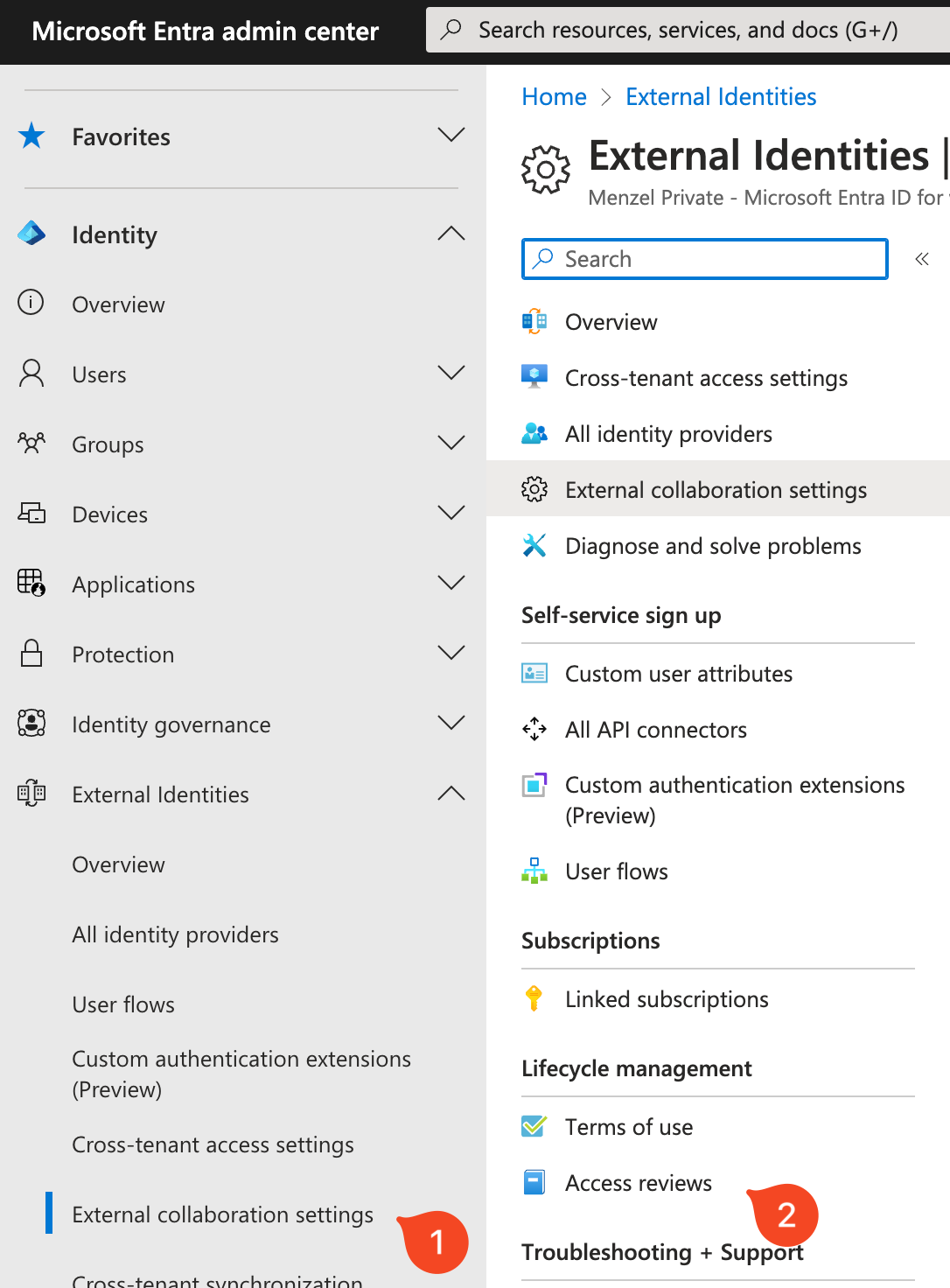
Navigate to the Access Reviews Dashboard: Access this via the Microsoft 365 compliance center or Azure Active Directory (EntraID) portal.
-
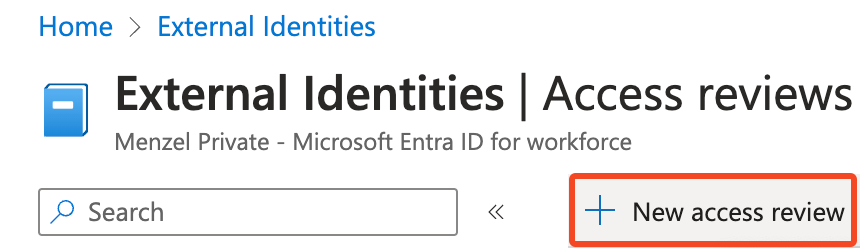
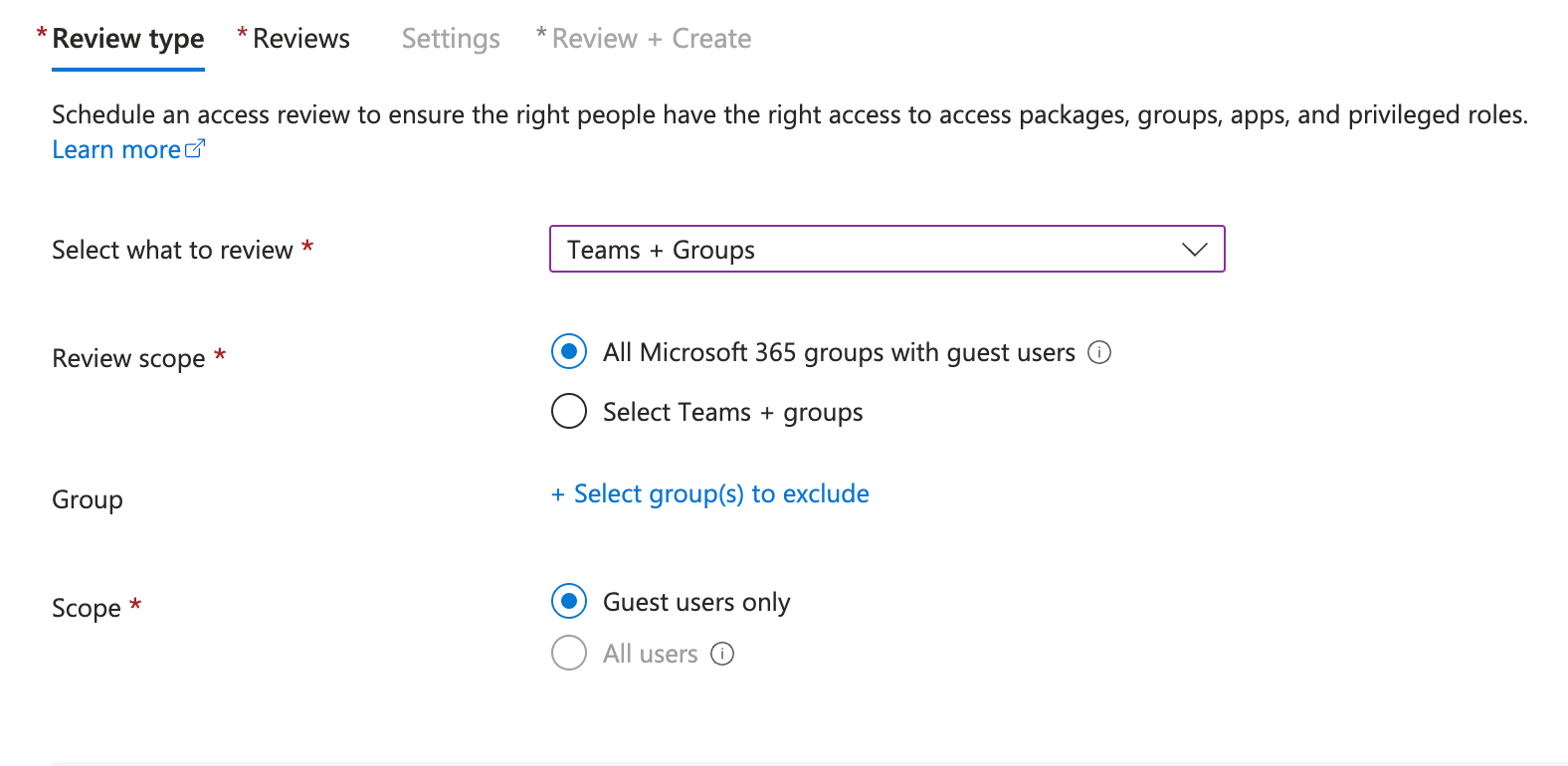
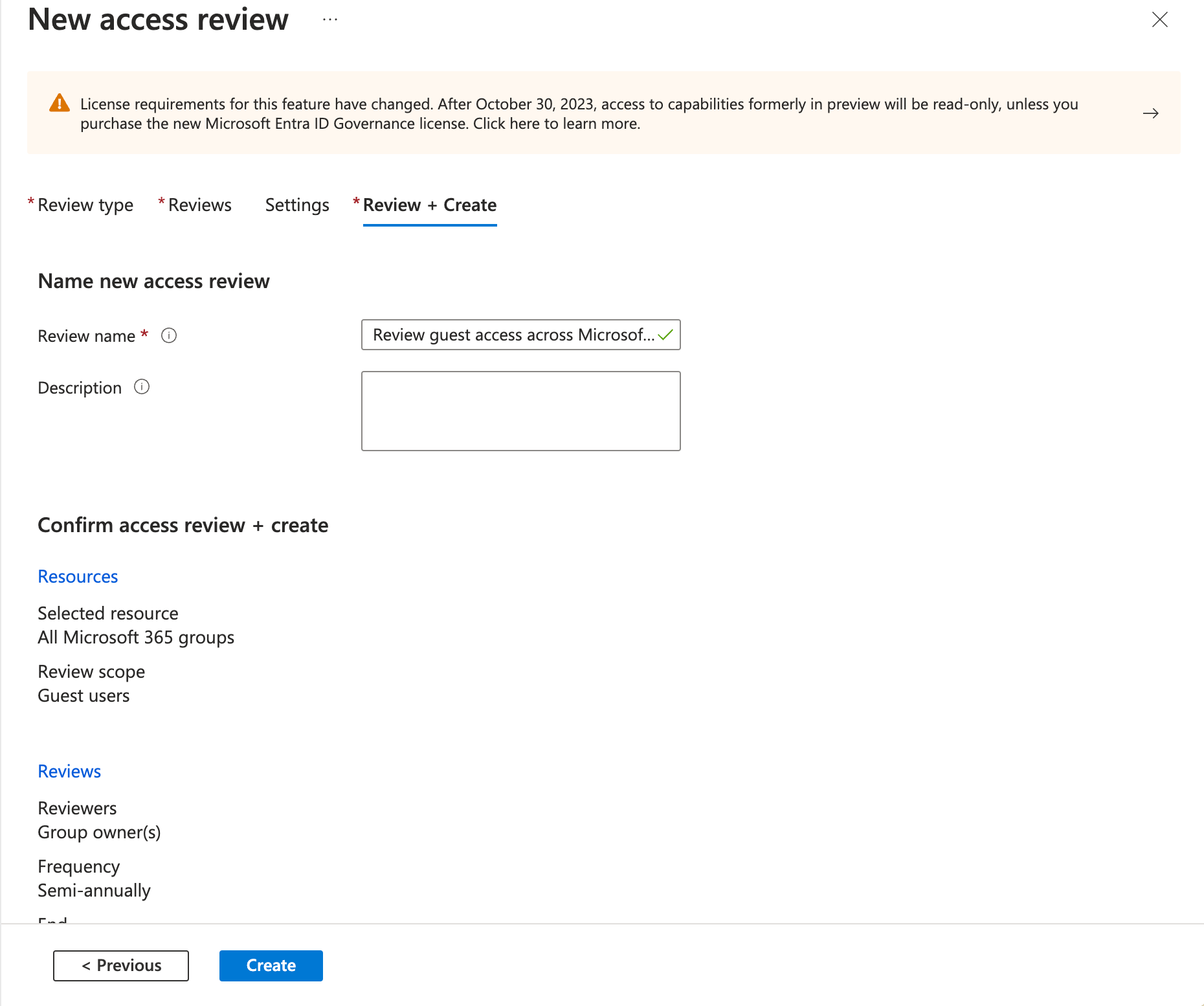
Create a New Access Review: Specify the scope of the review, whether it’s targeted at guest users across all Microsoft Teams and Groups or specific ones.
-
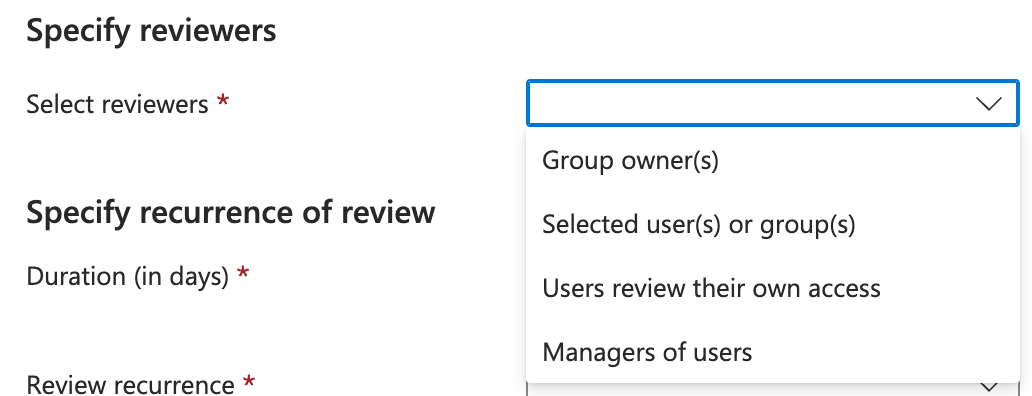
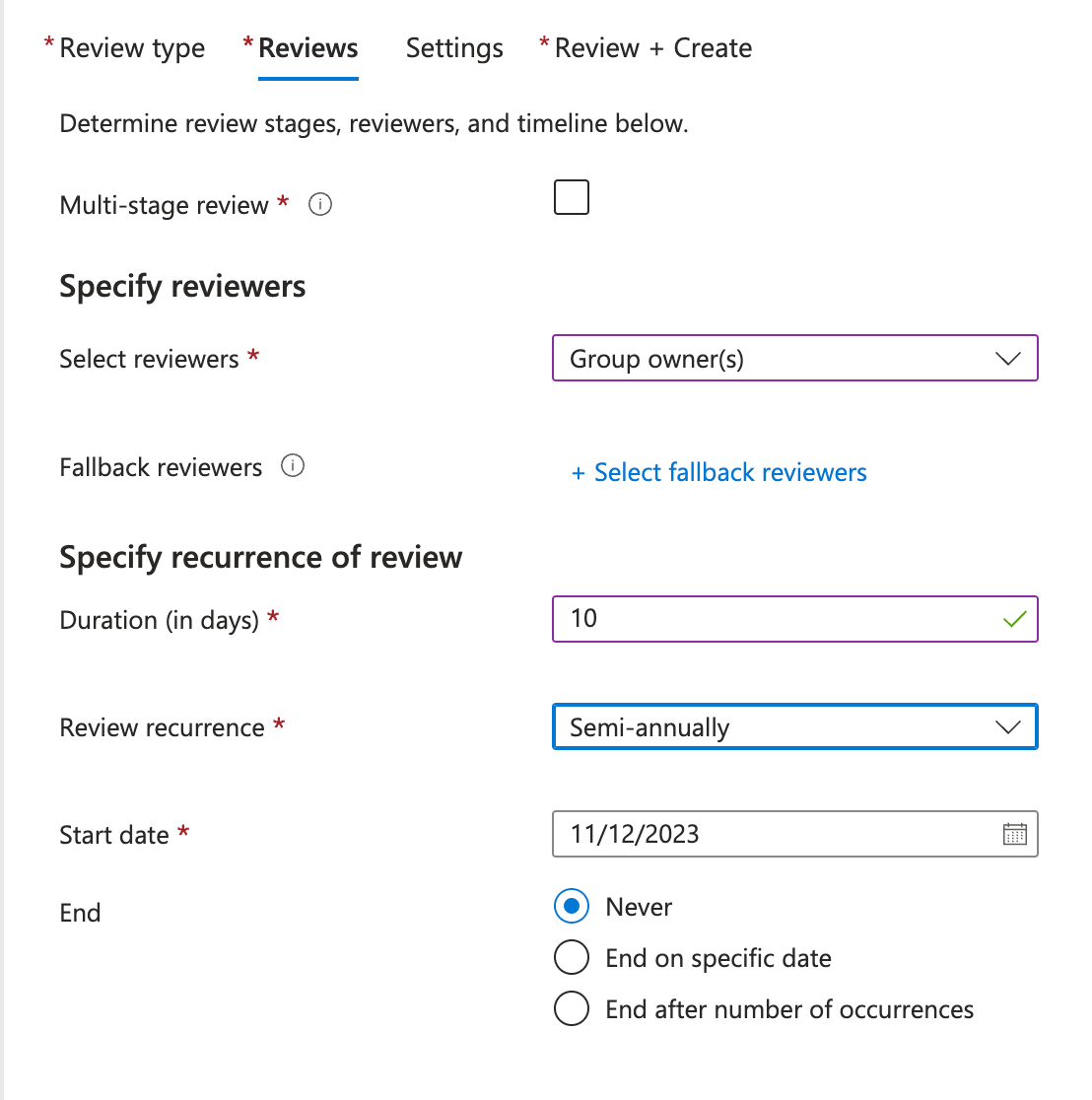
Define Review Settings: Choose who will perform the review (group owners, specific users, or application owners), set the frequency (one-time or recurring), and establish the start and end dates.
-
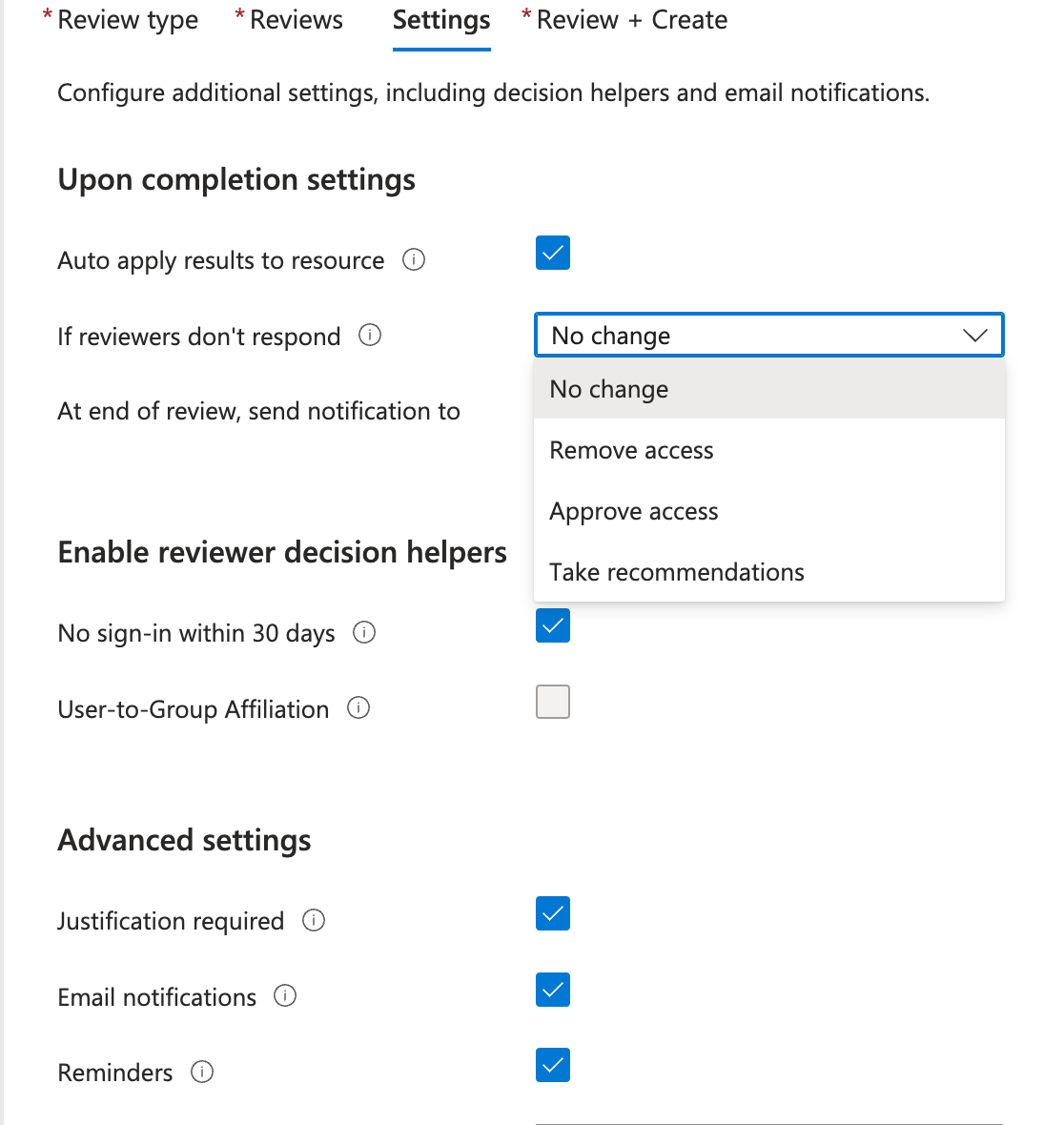
Customize Review Settings: Decide on the outcomes for denied access, such as automatic removal or a manual step, and whether reviewers receive reminders.
-
Review and Confirm: Double-check the settings, and then create the access review.
Conducting the Review
Once set up, designated reviewers will be notified to examine the access rights of external users. Reviewers can approve or deny access for each user, and they can provide reasons for their decisions. It’s best practice to include guidelines for making these decisions to ensure consistency and compliance.
Examples of Access Reviews in Action
-
Vendor Access Review: A company conducts quarterly reviews of vendor access to its internal procurement system to validate that only current vendors have access.
-
Consultant Project Completion: Upon the completion of a project, the external consultant’s access to the project’s SharePoint site is reviewed and revoked if no longer needed.
-
Partner Collaboration: Annual reviews of a partner organization’s access to shared Teams channels are performed to ensure that only relevant individuals retain access.
Best Practices
-
Regular Schedule: Conduct access reviews on a regular schedule to maintain security hygiene.
-
Clear Documentation: Keep detailed records of each review for auditing purposes.
-
User Notification: Inform external users about the review process to ensure transparency and avoid confusion if access is altered or revoked.
Conclusion
Access reviews in O365 are an essential practice for maintaining secure and efficient collaborations with external users. By regularly reviewing and adjusting access rights, organizations can protect sensitive information while facilitating productive partnerships. With O365’s robust access review tools, you can ensure that your external collaborations are both productive and secure.
Published on:
Learn moreWe can help you with External User Access Reviews in Office 365
If you want help implementing, troubleshooting, or improving this product, contact us and we’ll point you in the right direction.

Related posts
Creating Copilot Studio Agents Without an M365 Copilot Premium License
A common assumption when getting started with Copilot Studio is that you need a full Microsoft 365 Copilot Premium license. That assumption is...
Power Automate: Get events (V4) shared mailbox fix
When your flow reads a shared mailbox calendar using the Office 365 Outlook → Get events (V4) connector, it can fail in a way that looks like...
Using Managed Identity with Azure Automation & PnP.PowerShell
How to Set Up a Managed Identity for Azure Automation Runbooks and Use It in PowerShell Scripts with PnP.PowerShell This guide walks you throu...
UPDATED - Set Up Pay-as-you-go M365 Chat & SharePoint Agents
Introduction to Pay-as-You-Go Agents in Microsoft 365 Microsoft has introduced a flexible way for organizations to leverage AI capabilities wi...
How to Use Flexible Sections in SharePoint Pages and News
If you’ve been using SharePoint Online to build pages or share news, you know how important it is to have a layout that works for your c...
What's New in SharePoint Pages
1. New Carousel Layout in the Hero Web Part The Hero Web Part has always been a fundamental element of SharePoint pages. The new Carousel Layo...
Power Platform Solutions Made Simple
Introduction to Power Platform Solutions Power Platform Solutions offer many benefits, especially when moving from standalone flows and apps t...
Use your Bluesky post for comments on your Hugo Blog
Since Bluesky is getting really popular by people I interact with, I decided to switch my blog comments to Bluesky posts. In this blog post, I...
Exploring SharePoint Online's SiteAssets Library
The SiteAssets library in SharePoint Online often seems like a mystery to a lot of users I talk to, but it’s important to understand it ...
Step-by-Step Guide to Copy Pages between SharePoint Online
Unfortunately you can’t copy pages in SharePoint through the UI. But sometimes you may need to copy pages and their associated SiteAsset...