
New Editing Options for Image Web Part in SharePoint Online

Adding and Editing Images with the Image Web Part
The Image web part simplifies the process of adding visual elements to your SharePoint Online pages. Here’s how you can set it up:
Inserting an Image
Navigate to the page where you want to add an image and select “Edit” at the top right of the page to enable editing mode. Choose the section you want to insert the Image web part and click the “+” sign to add a new web part. Select “Image” from the list of available web parts.
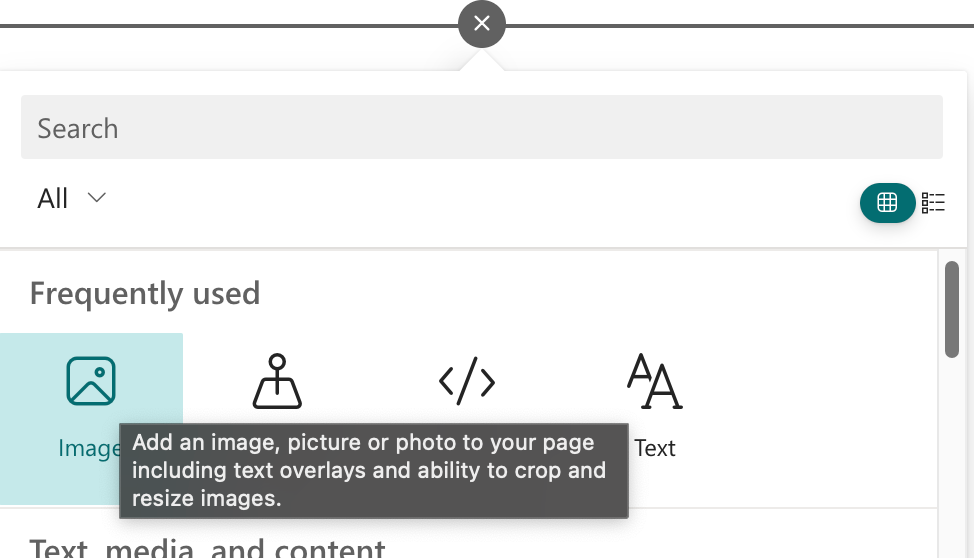
Editing an Image
Once the image is inserted, you might want to fine-tune its appearance. Click the ‘Advanced editing’ to access the editing options. From there, you can:

- Crop: Adjust the framing of your image to focus on the most important elements.
- Adjustment: Modify brightness, contrast, and saturation to ensure your image stands out or blends in with the overall design.
- Filters: Apply filters for artistic effects or to conform to your branding guidelines.
- Markup: Add shapes, lines, and text to your image to highlight specific elements.

Adding Text Overlays
Enhance your images by adding text directly over them. While in the edit mode of the Image web part, you’ll find an option to “add text over the image.” Click on it, and a text box will appear on your image where you can enter your desired text. This feature is particularly useful for headers, announcements, or to convey additional context.

Configuring Accessibility
It’s crucial to ensure that your images are accessible to all users. When editing the Image web part, add descriptive alternative text that accurately represents the image content for users who use screen readers.
Saving Your Edits
After making all your edits, don’t forget to save your changes. You can publish or republish the page to make the changes live or you can ‘Save as draft’ to work on this page later.
Conclusion
The Image web part in SharePoint Online is a powerful tool that, with its new editing capabilities, can significantly enhance the visual impact of your pages. By following these detailed steps, you can effectively use images to complement your textual content, make your pages more engaging, and ensure they are inclusive for all users.
Published on:
Learn moreWe can help you with New Editing Options for Image Web Part in SharePoint Online
If you want help implementing, troubleshooting, or improving this product, contact us and we’ll point you in the right direction.

Related posts
Creating Copilot Studio Agents Without an M365 Copilot Premium License
A common assumption when getting started with Copilot Studio is that you need a full Microsoft 365 Copilot Premium license. That assumption is...
Power Automate: Get events (V4) shared mailbox fix
When your flow reads a shared mailbox calendar using the Office 365 Outlook → Get events (V4) connector, it can fail in a way that looks like...
Using Managed Identity with Azure Automation & PnP.PowerShell
How to Set Up a Managed Identity for Azure Automation Runbooks and Use It in PowerShell Scripts with PnP.PowerShell This guide walks you throu...
UPDATED - Set Up Pay-as-you-go M365 Chat & SharePoint Agents
Introduction to Pay-as-You-Go Agents in Microsoft 365 Microsoft has introduced a flexible way for organizations to leverage AI capabilities wi...
How to Use Flexible Sections in SharePoint Pages and News
If you’ve been using SharePoint Online to build pages or share news, you know how important it is to have a layout that works for your c...
What's New in SharePoint Pages
1. New Carousel Layout in the Hero Web Part The Hero Web Part has always been a fundamental element of SharePoint pages. The new Carousel Layo...
Power Platform Solutions Made Simple
Introduction to Power Platform Solutions Power Platform Solutions offer many benefits, especially when moving from standalone flows and apps t...
Use your Bluesky post for comments on your Hugo Blog
Since Bluesky is getting really popular by people I interact with, I decided to switch my blog comments to Bluesky posts. In this blog post, I...
Exploring SharePoint Online's SiteAssets Library
The SiteAssets library in SharePoint Online often seems like a mystery to a lot of users I talk to, but it’s important to understand it ...
Step-by-Step Guide to Copy Pages between SharePoint Online
Unfortunately you can’t copy pages in SharePoint through the UI. But sometimes you may need to copy pages and their associated SiteAsset...