
How to provide statement id in the serverless SQL pool support ticket?

Serverless SQL pool is a query service that enables you to analyze data in Azure Data Lake storage, Cosmos DB, or Data verse without a need to manage the resources, tune your queries, or do any other administration task to enable your data analyst to query data.
There is a set of best practices that you should apply in your solution that should ensure optimal performance. By following the best practices, you will ensure that in most cases your queries will be executed without any issue.
However, in some cases you might experience some errors of slower queries even if you have properly configured everything. In this case, you can file a support ticket, and synapse support team will analyze your query and handle the issues.
It is especially important to include all the information that will help the support team to resolve the issues, for example:
- Workspace name
- Region
- Statement ID
- Error text, query text, Approximate time of the query execution/error, results (if applicable and not contain confidential information)
The {Statement ID} is very important information that you should include whenever you report an issue. {Statement ID} enables the support team to find most of the information about your query (execution time, duration, error message, etc.), so in most cases it is more valuable than any other information.
To avoid delays in the resolution of your support case and going back and forward while trying to get additional information, make sure that you include this statement id in your support ticket.
In the following sections, I will explain how to find this information in serverless SQL pool.
Where is my {Statement ID}?
A statement id is information that is returned to the client application whenever you execute a query. Let’s look at a query that is executed using Synapse Studio that returns the following results:
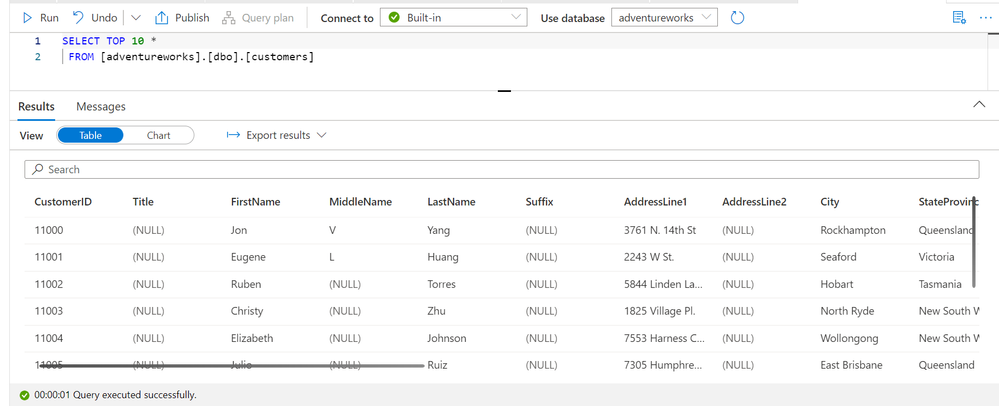
Note that the results are displayed in the “Results” tab, but there is another tab called “Messages”. Instead of looking at the results, you should switch to the “Messages” tab by clicking on the “Messages” label:
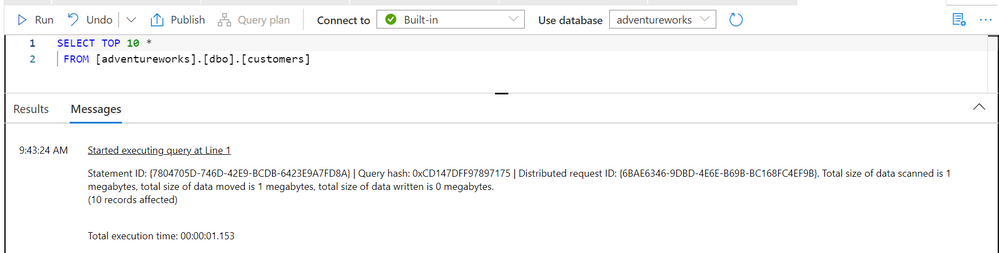
In the “Messages” tab, you will be able to see the GUID representing the ID of the statement.
If you are using other tools for querying, you can use a similar approach to find the {Statement ID} in the messages. The following figure shows how to find this information when you execute a query in SQL Server Management Studio:

If you can execute a query manually via tool, always find the {Statement Id} and send it as a part of support request.
The {Statement ID} is sent as an info message using the standard TDS protocol. Therefore, you can get this information even if you are writing code that is accessing serverless pool. You can use SqlConnection.InfoMessage to get this info in your .Net code. Other libraries and language have similar API for fetching messages.
It might be more difficult to find the {Statement ID} if you cannot directly execute the query. For example, Power BI or Analysis services might run the queries in the background to refresh the reports, and you might not be able to see the messages.
In that case you should try to find the query and its statement id in the history on serverless pool.
First, make sure that you set up the QPI T-SQL library in your serverless database. This library is a set of useful T-SQL scripts that enable you to find some information in the databases on the serverless SQL pool. Once you execute this script, you will be able to query qpi.query_history view, that returns the recent query executions, their statement ids, duration, data processed etc.
The results that this view might return are shown in the following picture:

The value in the request_id column is the value that you should report in a support ticket. This is the easiest way to find the {Statement Id} for the queries that you did not execute directly. Note that at the time of writing this post, the statement id is not shown in the Synapse SQL requests report.
Conclusion
One of the most important pieces of information that you should provide to Synapse support team that is working on the support ticket is the {Statement ID}. This information will enable the support team to quickly find all information about your query and speed up the support case resolution.
Make sure that you use this post to find the statement id and include it in the support ticket that you are reporting to ensure that your support case will be more efficiently resolved.
Published on:
Learn moreRelated posts
We're moving!
We’re moving to the Analytics on Azure Tech Community! All new Azure Synapse Analytics content will be published there. In the next few days a...
Upgrade to Azure Synapse runtimes for Apache Spark 3.4 & previous runtimes deprecation
It is important to stay ahead of the curve and keep services up to date. That's why we encourage all Azure Synapse customers with Apache ...
ADF\Synapse Analytics - Replace Columns names using Rule based mapping in Mapping data flows
In real time, the column names from source might not be uniform, some columns will have a space in it, some other columns will not. For exampl...
Interpreting Script activity output json with Azure Data Factory\Synapse analytics
Script activity in Azure Data Factory\ Synapse analytics is very helpful to run queries against data sources mentioned here in this document.&...
Synapse Connectivity Series Part #4 - Advanced network troubleshooting and network trace analysis
Continuing the series of this blog posts I would like to go more advanced on troubleshooting connectivity issues. I would like to thank also&n...
Boost your CICD automation for Synapse SQL Serverless by taking advantage of SSDT and SqlPackage CLI
Introduction Azure Synapse Analytics Serverless SQL is a query service mostly used over the data in your data lake, for data discovery,...
Metadata-Based Ingestion in Synapse with Delta Lake
Overview The crucial first step in any ETL (extract, transform, load) process or data engineering program is ingestion, w...
Missing Fields Added to Dedicated SQL pool Diagnostic Settings Logs
Over the past year, customers have informed the team there were a set of key columns missing in the standalone Dedicated SQL pools (formerly S...
Using Azure DevOps with Synapse Workspaces to create hot fixes in production environments
Have you ever deployed a release to production only to find out a bug has escaped your testing process and now users are being severely impact...
Azure Synapse MVP Corner - March 2023
About this blog series Microsoft Most Valuable Professionals, or MVPs, are technology experts who passionately share their knowledge with the ...