
Updates in Microsoft Teams allows users to create, submit, and review employee updates
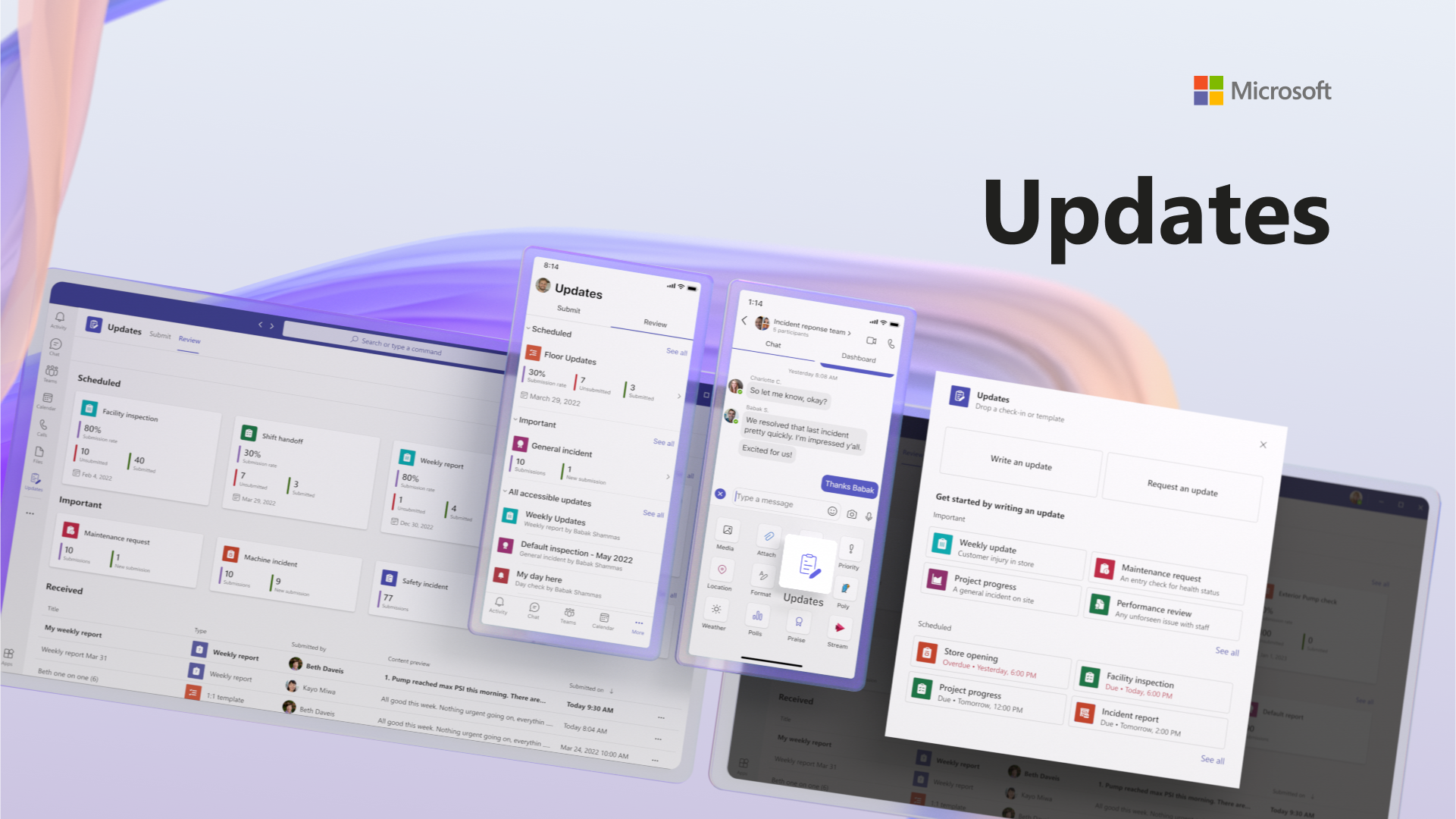
Updates in Teams is an out-of-the-box app that enables people to create, submit, and review all their updates, check-ins, and reports in the flow of work. Whether those are recurring processes that happen on a regular basis, like a weekly update, store opening, or facility inspection, or in the moment updates that might be needed at any time, like a shift handoff, maintenance request, or incident report, Updates makes it easy for people to manage them all in one place. People can use the templates in the Updates app to get started and configure them for specific business or team needs.
Assign and submit updates in the flow of work
People can create and assign updates to their teams from a chat, a channel conversation, or through the Updates app. They simply fill in the name of the request, the information they need to collect, who needs to complete it, and when it is due.
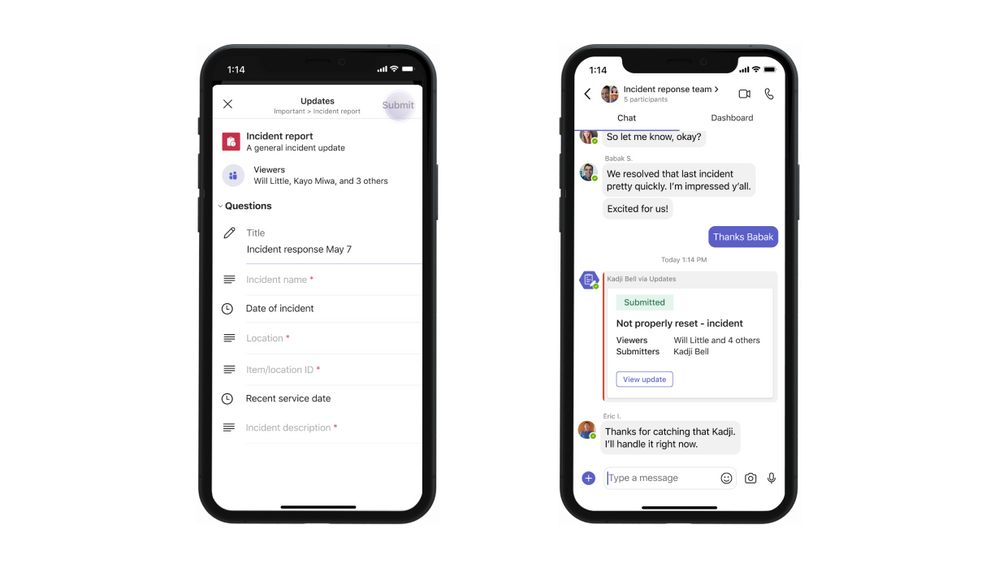
Workers are alerted in Teams that they were assigned an update and can quickly review the details of the request. They can easily complete the update, add any images, files, or videos that are needed, and submit it in a chat, channel conversation, or in the Updates app. With this lightweight experience of answering questions with the tap of a button, employees can easily give updates while completing day-to-day tasks. 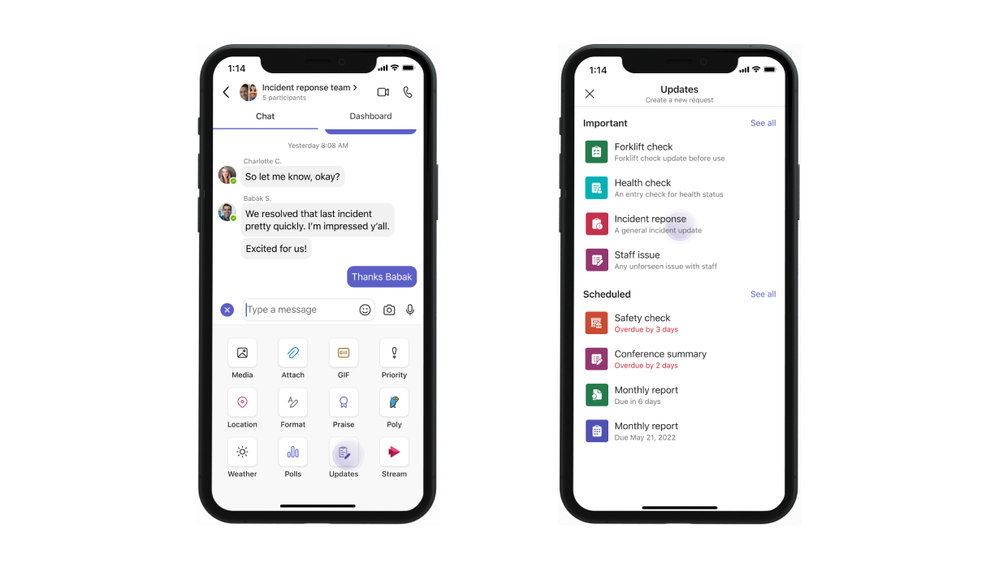
Review all updates in one place
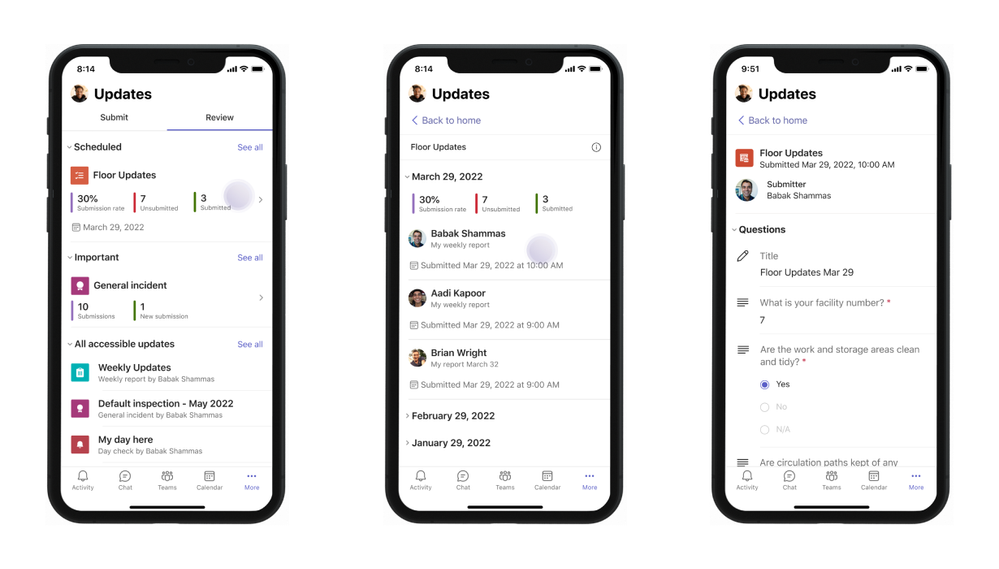
As workers complete their updates, the summary card will reflect those in real time so managers and other viewers can track and act on them. Frontline managers and workers can see a consolidated view of their different updates. Each update type is displayed along with details such as the status, due date, and number of submissions. People can also select a specific submission to see the detailed responses and engage accordingly.
This allows frontline managers, area experts, working groups, and corporate leaders to have better visibility into all update statuses and details in one dashboard.

Get started with configurable out-of-the-box templates
People can either build an update from scratch or leverage and configure out-of-the box templates in the Updates app to meet their specific business or team needs, including shift handoffs, maintenance requests, and facility inspections. Questions can be open-ended or multiple choice, can be required or optional, and can include date fields. Users can also set rules for submission, including requiring a specific delivery frequency, attaching a file, image, or video, and who can view responses.
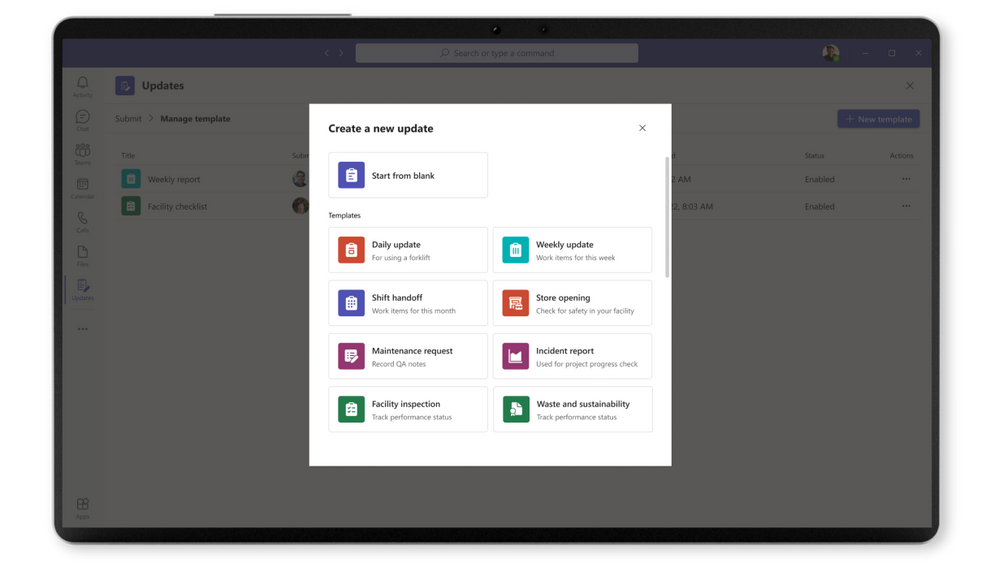
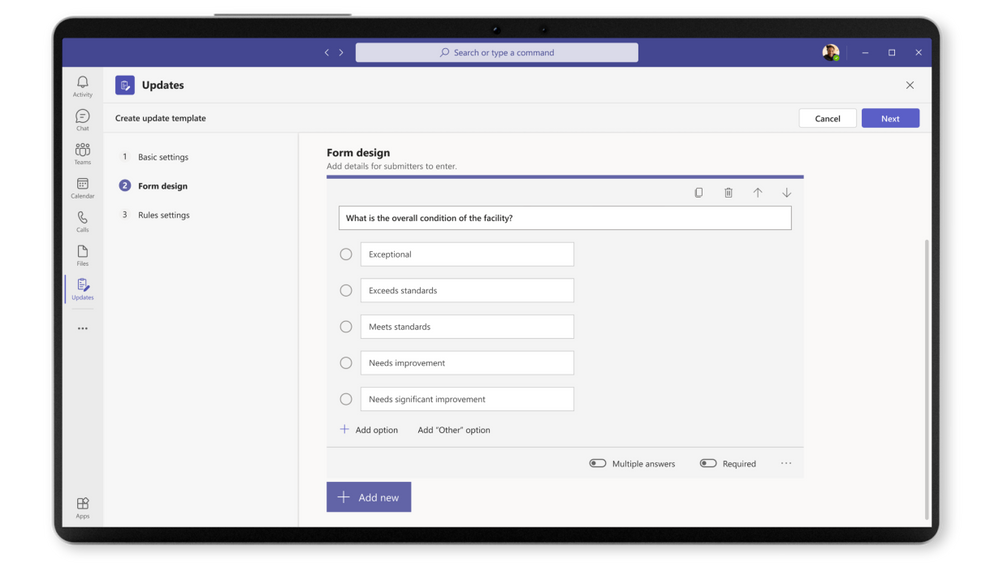
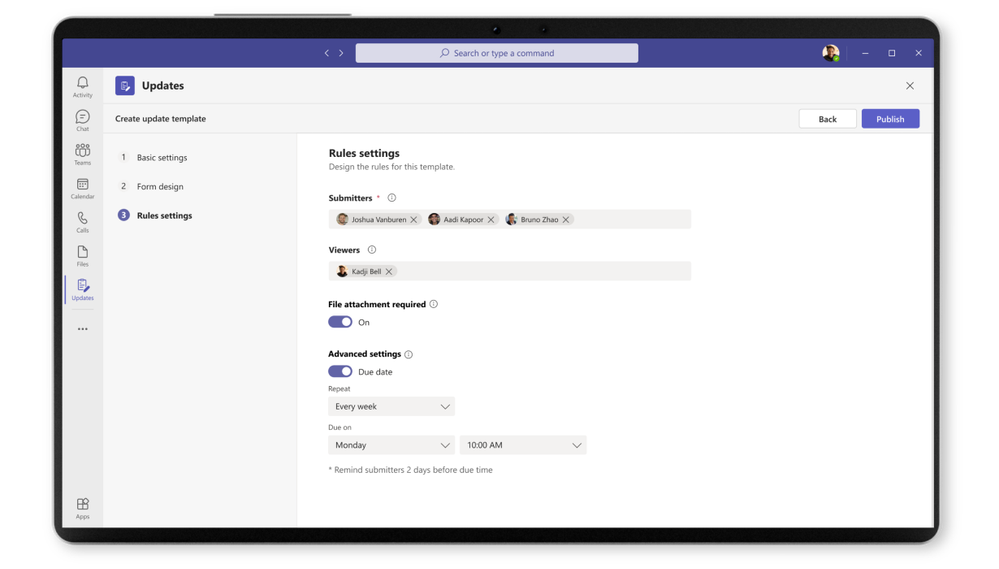
Gain more visibility and help your teams stay up to date with Updates in Microsoft Teams
Click here to view the Updates in Microsoft Teams Look Book!
Updates is available for users in Teams on paid commercial SKUs, including F1 and F3 SKUs for frontline workers. They will be coming soon to GCC SKUs. Check out more details on how to use Updates in Teams and the app’s features and learn more about how to pin and configure Updates for your organization.
Continue the conversation by joining us in the Microsoft 365 Tech Community! Whether you have product questions or just want to stay informed with the latest updates on new releases, tools, and blogs, Microsoft 365 Tech Community is your go-to resource to stay connected!
Published on:
Learn moreRelated posts
Announcing the General Availability of the Microsoft 365 Document Collaboration Partner Program
Empowering Seamless Collaboration for Modern Workforces We are thrilled to announce the general availability of the Microsoft 365 Docume...
Favorite Microsoft 365 Copilot Prompts
(Amber Plumb interviewing Michael Morales and Allison Sweet) The power of M365 Copilot is transforming the way our support team operates...
Favorite Copilot Prompts
(Amber Plumb interviewing Michael Morales and Allison Sweet) The power of M365 Copilot is transforming the way our support team operates...
Boost digital event engagement with Voting and Archiving in Teams Q&A
Managing and delivering effective town halls is key to enabling two-way dialogue with leaders in today’s hybrid world. Microsoft Teams Q&A...
Prepare now for key end of support moments in 2025
One year from today, on October 14, 2025, support will end for all Office 2016 and 2019 suites, standalone apps, and servers. This includes:&n...
Everything you should know about Visio 2016 and Visio 2019 end of support
On October 14, 2025, Visio 2016 and Visio 2019 will reach end of support. After this date, Visio 2016 and Visio 2019 will no longer receive se...
Limit frontline worker access to Teams when off shift
We’re excited to announce that the frontline working time feature is now generally available! This feature allows admins to block or warn acce...
We are removing Feed on Microsoft 365 (Office)
As part of our ongoing efforts to streamline and enhance user experiences, we will be retiring the Feed feature (shown in figure 1 below) on t...
NOW ON DEMAND | Microsoft Loop Learning Series [Six webinars]
UPDATE | All parts of the Loop Learning Series have aired and are now available to watch on demand, playable below in this blog post. Ar...
Leveraging Partner Apps to Deliver on the Promise of AI-Led Productivity
The advent of generative AI is driving a rethink of what outcomes we deserve from our productivity software – from gains in efficiency to more...