
Enhance the diagramming experience in Microsoft Teams with the new Visio app

Microsoft Teams is your hub for teamwork, bringing together everything a team needs—meetings, calling, collaboration, chat—and diagramming.
As of today, Visio is available as a personal app or private workspace in Microsoft Teams. With a private workspace, users will be able to view, edit, and create Visio files in a central location without leaving Teams. We’re integrating the Visio app into where work happens to help streamline and improve collaboration on business processes, org charts, product launch timelines, and so much more.
Note: The Visio app is not yet available in the new Teams experience but is coming soon.
Getting started
The Visio app comes pre-installed for enterprise users and can be accessed in several places from within Teams, for instance, in the left pane by selecting More added apps (…). Scroll through the list of available apps and then, select the Visio icon to open the app within Teams.
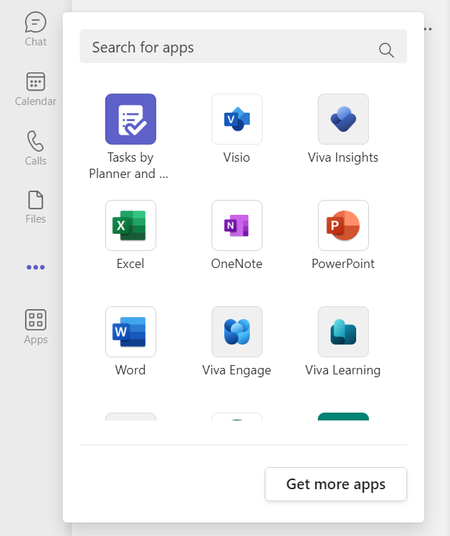
From here, users will get a view of all the information their team has saved in the Visio app, including access to available templates, Recommended files, Recently opened files, Shared files, and Favorites.

Pin the Visio app for easy access
Teams enables you to keep your most-used apps right at your fingertips. If Visio is one of those apps, you can pin the app to the left pane by right clicking the Visio icon and selecting Pin.

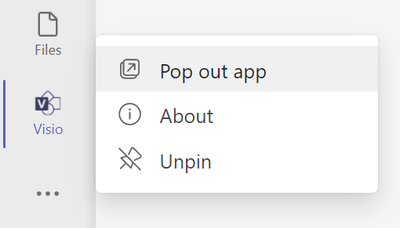
You can change the order in which the Visio app appears in your list of pinned apps by dragging and dropping the icon. Or, if you wish to unpin the app, right-click the Visio icon and select Unpin.

Pop out the Visio app in a new window
When using the Teams desktop app, users will be able to use the Pop out app option to open Visio in a separate window, allowing users to continue using Teams chat, call, collaboration, and meeting capabilities. To do this, right-click the Visio icon—whether it’s pinned on the left of Teams or from the list of More added apps (…)—and then select Pop out app.

Add a Visio file as a tab
You can also quickly access and manage the Visio files you interact with the most by adding them as a dedicated tab at the top of a Teams channel or chat. To add a new tab, select the plus (+) button at the top of the preferred channel or chat. If you don’t see the Visio icon right away, select the See all icon or type “Visio” in the Search bar. Then, select the Visio icon.
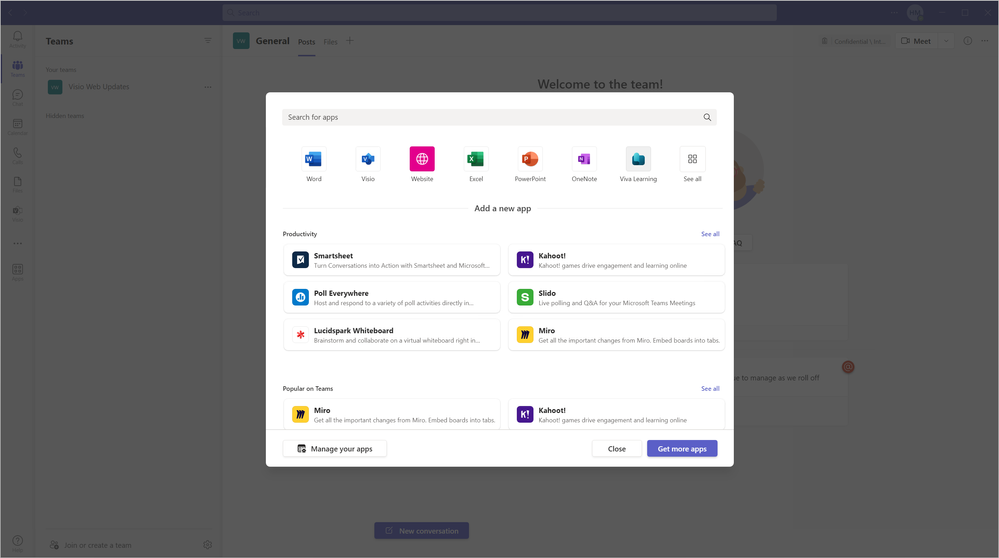
Here, you’ll be asked to ‘pick an item’ (i.e.: a Visio file) from My files, Recent files, or any file stored in your team’s SharePoint folders. Select the file you want to add as a tab, then select the Save button. After selecting Save, the Visio file will open in Teams and show up as a tab at the top of the channel or chat.
Note: You can add the same Visio file as a tab in multiple channels and chats.
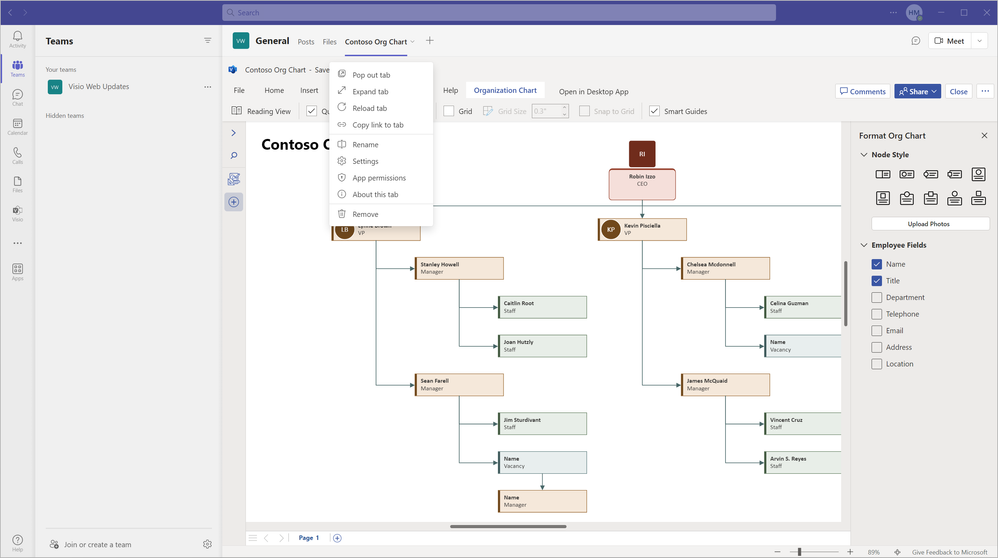
Once the file is open in Teams, you can open it in a new window by selecting the Pop out tab icon from the tab’s drop-down menu. From the drop-down menu, you can also expand the tab, reload the tab, copy the link to the tab, rename the tab, and remove the tab, among other actions.
When sharing a Visio file in a chat
It’s important to note that any Visio files shared via a Teams chat will open in the Visio app in Teams by default.

The Visio app in Teams is now available for commercial tenants worldwide and is rolling out soon to GCC, GCC High, and DoD tenants. Microsoft 365 commercial subscribers and Visio Plan 1 and Visio Plan 2 subscribers with a Microsoft Teams license will be able to view, edit, and create Visio files in 31 languages supported by the Visio app in Teams.
We are listening!
We look forward to hearing your feedback and learning more about how we can improve the diagramming experience in Microsoft Teams. Please tell us what you think of the Visio app in the comments below. You can also send feedback via the Visio Feedback Portal or directly in the Visio app in Teams using “Give Feedback to Microsoft” in the bottom right corner.
Did you know? The Microsoft 365 Roadmap is where you can get the latest updates on productivity apps and intelligent cloud services. Check out what features are in development or coming soon on the Microsoft 365 Roadmap or view roadmap item, Visio personal app in Microsoft Teams.
Published on:
Learn moreRelated posts
Announcing the General Availability of the Microsoft 365 Document Collaboration Partner Program
Empowering Seamless Collaboration for Modern Workforces We are thrilled to announce the general availability of the Microsoft 365 Docume...
Favorite Microsoft 365 Copilot Prompts
(Amber Plumb interviewing Michael Morales and Allison Sweet) The power of M365 Copilot is transforming the way our support team operates...
Favorite Copilot Prompts
(Amber Plumb interviewing Michael Morales and Allison Sweet) The power of M365 Copilot is transforming the way our support team operates...
Boost digital event engagement with Voting and Archiving in Teams Q&A
Managing and delivering effective town halls is key to enabling two-way dialogue with leaders in today’s hybrid world. Microsoft Teams Q&A...
Prepare now for key end of support moments in 2025
One year from today, on October 14, 2025, support will end for all Office 2016 and 2019 suites, standalone apps, and servers. This includes:&n...
Everything you should know about Visio 2016 and Visio 2019 end of support
On October 14, 2025, Visio 2016 and Visio 2019 will reach end of support. After this date, Visio 2016 and Visio 2019 will no longer receive se...
Limit frontline worker access to Teams when off shift
We’re excited to announce that the frontline working time feature is now generally available! This feature allows admins to block or warn acce...
We are removing Feed on Microsoft 365 (Office)
As part of our ongoing efforts to streamline and enhance user experiences, we will be retiring the Feed feature (shown in figure 1 below) on t...
NOW ON DEMAND | Microsoft Loop Learning Series [Six webinars]
UPDATE | All parts of the Loop Learning Series have aired and are now available to watch on demand, playable below in this blog post. Ar...
Leveraging Partner Apps to Deliver on the Promise of AI-Led Productivity
The advent of generative AI is driving a rethink of what outcomes we deserve from our productivity software – from gains in efficiency to more...