
How to use CETAS on serverless SQL pool to improve performance and automatically recreate it

Serverless SQL pool has a very cool way to handle CREATE EXTERNAL TABLE AS SELECT (CETAS). I mean, you can use a serverless SQL pool to create a CETAS which will materialize the query results. It means a heavy query in which, for example, the results would be part of future large join with other queries or aggregations that can be consolidated for reporting purposes. Those scenarios are examples that could be used as a CETAS. CETAS will be stored as a parquet file accessed by an external table in your storage and the performance is awesome. Later I am suggesting how to recreate the CETAS using pipeline against serverless SQL Pool.
CETAS on serverless SQL Pool
Let's consider the following query scenario as an example, every object part of this query could represent a View which is been executed against the Storage. There are some aggregations in this query and those results will be used in a report to filter later, also that data does not need to be updated frequently. Just once a day.
Query:
The view I am using is querying some delta files. However, it could be a parquet, CSV o JSON.
Information about the format supported datatypes: Serverless SQL pool - Azure Synapse Analytics | Microsoft Docs
Do you need the View to use CETAS? No. You could use Select Openrowset directly inside of the CETAS or the View. However, note I will be using scoped credentials and authenticating my query with MSI because I am impersonating the permissions to access the storage account through the MSI and that will be important later.
More information? Check on the Doc.:
CREATE EXTERNAL TABLE AS SELECT (CETAS) in Synapse SQL - Azure Synapse Analytics | Microsoft Docs
Create and use views in serverless SQL pool - Azure Synapse Analytics | Microsoft Docs
Anyway, back to our T-SQL query example, here is the step by step to create the script:
1) First, I defined the database scoped credential. I choose MSI which means managed identity.
2) Second, I created the external data source pointing to the storage files under the scoped I just defined.
3) Third, the view definition using the data source created.
T-SQL example:
As the definition of the database scoped is MSI as I just mentioned, it means my Synapse Workspace needs to have Storage Blob Data contributor permission on the Storage Account (Fig 1) to be queried, hence when I execute this query it will use MSI workspace permissions.
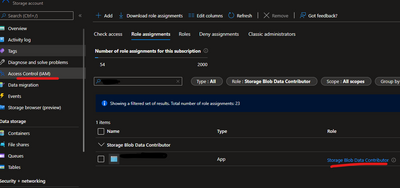
Fig 1
Some references for more information related to the storage permissions and scoped credential
CREATE DATABASE SCOPED CREDENTIAL (Transact-SQL) - SQL Server | Microsoft Docs
Control storage account access for serverless SQL pool - Azure Synapse Analytics | Microsoft Docs
OK, now let me create my CETAS. So before creating the CETAS I need to define a format file and a data source to store my CETAS files and here goes the steps:
- Create the database scoped credential ( reusing the one from the last example above)
- Create the external file format ( I choose parquet for performance reasons)
- Create the external Datasource
- Create the external table (CETAS)
CETAS can drastically improve the performance of your query. For example, this view execution in my environment took 34 seconds to complete, while when I change this execution to materialize the aggregations with CETAS it took 4 seconds.
CETAS Views only

However, if there is a need to update regularly this information. Would be just dropping and recreating?
Answer: yes… almost.
Recreating CETAS
DROP EXTERNAL TABLE is a metadata operation, so once the external table is dropped on the serverless side the file would still exist on the Storage Account.
As for the example, it will be:
Therefore, you will need to go there and delete the folder and files to recreate it again (manually), otherwise, you will hit an error like this:

Fig 2
Pipelines as Answer:
So here is an idea of how to customize this process with Pipelines… and it is pretty easy (Fig 3).
1) Create an Activity to Delete Files
2) Create a Stored Procedure with the CETAS re-creation definition on serverless SQL pool
3) Call this Stored Procedure from the Pipeline
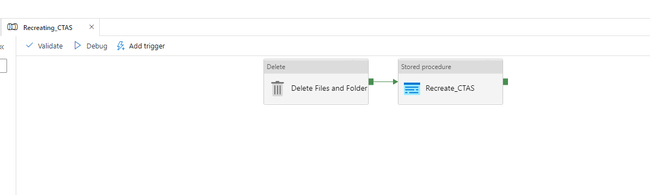
Fig 3
Step by step:
1) Delete Files: Add the Activity called Delete and configure it pointing to the folder where the CETAS was configured to be stored. This will delete the files and folder, so be careful to not point to the wrong folder( Fig 4 and 5):.
In my example, the path would be as follows, so I configured it to the folder FactSale_CETAS:

Fig 4

Fig 5
2) Stored Procedure: Add the CETAS re-creation inside of a Stored Procedure inside of a Serverless database.
Follow my script example:
3) Execute the Stored Procedure: If you need to execute an activity against a serverless SQL pool, choose SQL Stored Procedure under General Activity ( Fig 6 and 7). While doing that I created a linked service pointing to SQL Server as the example below. Note, even though my User and Password are SQL (Fig 7), my View definition is using the Data Source with MSI scope( look at view definition above in case of doubts), so the permissions to connect to the storage while executing the queries are MSI not SQL. Even because it is not possible to add a SQL User in an Azure Storage Account.
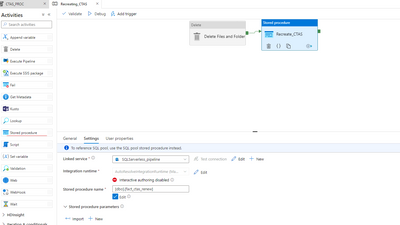
Fig 6

Fig 7
Now you can run CETAS over and over again!
Conclusion:
CETAS is an easy way to consolidate information for an intermediate query step ( when a sub-query result will be used to join other tables in a complex query join) or an even query with multiple aggregations. It improves the performance and cost, as subsequent queries will process fewer data. I worked in scenarios where we changed a 30 min of execution timing out to seconds and the pipeline is one way out to make this process automatic and simple.
I hope it helps,
Liliam
UK Engineer
Published on:
Learn moreRelated posts
We're moving!
We’re moving to the Analytics on Azure Tech Community! All new Azure Synapse Analytics content will be published there. In the next few days a...
Upgrade to Azure Synapse runtimes for Apache Spark 3.4 & previous runtimes deprecation
It is important to stay ahead of the curve and keep services up to date. That's why we encourage all Azure Synapse customers with Apache ...
ADF\Synapse Analytics - Replace Columns names using Rule based mapping in Mapping data flows
In real time, the column names from source might not be uniform, some columns will have a space in it, some other columns will not. For exampl...
Interpreting Script activity output json with Azure Data Factory\Synapse analytics
Script activity in Azure Data Factory\ Synapse analytics is very helpful to run queries against data sources mentioned here in this document.&...
Synapse Connectivity Series Part #4 - Advanced network troubleshooting and network trace analysis
Continuing the series of this blog posts I would like to go more advanced on troubleshooting connectivity issues. I would like to thank also&n...
Boost your CICD automation for Synapse SQL Serverless by taking advantage of SSDT and SqlPackage CLI
Introduction Azure Synapse Analytics Serverless SQL is a query service mostly used over the data in your data lake, for data discovery,...
Metadata-Based Ingestion in Synapse with Delta Lake
Overview The crucial first step in any ETL (extract, transform, load) process or data engineering program is ingestion, w...
Missing Fields Added to Dedicated SQL pool Diagnostic Settings Logs
Over the past year, customers have informed the team there were a set of key columns missing in the standalone Dedicated SQL pools (formerly S...
Using Azure DevOps with Synapse Workspaces to create hot fixes in production environments
Have you ever deployed a release to production only to find out a bug has escaped your testing process and now users are being severely impact...
Azure Synapse MVP Corner - March 2023
About this blog series Microsoft Most Valuable Professionals, or MVPs, are technology experts who passionately share their knowledge with the ...