
Troubleshooting the Cloud Policy service - part 2

Many customers have switched from Group Policy as a means for managing policies for Microsoft 365 Apps for enterprise on Windows devices, to the Cloud Policy service which allows administrators to configure policies for a large number of Microsoft 365 apps and services, including full support for Microsoft 365 Apps for enterprise on Windows as well as the other platforms, from a single administration experience.
To accomplish this, a supported application makes a “check-in” call, passing the user’s authentication token, to one of the 5 platform specific Cloud Policy service “check-in” APIs. When the application receives a successful response, it processes the response and determines which policies in the response need to be enforced based on which policies that application supports. If policies are configured for the user, the response will contain all the policies that are configured for that user, filtered by the supported platform. As an example, if “VBA macro notifications” policy is configured for a user and an application calls the web API, the policy will not be included in the response as there are no web applications which support that policy. If an application calls the Windows API, the policy will be included as some of the Office apps running on Windows support that policy. But what if it doesn’t? How are you able to troubleshoot the various APIs to ensure they are providing the policies you configured for your users?
The original troubleshooting article was written when the Cloud Policy service only supported Microsoft 365 Apps for enterprise running on Windows. While this information is still useful for that scenario, especially for the information regarding how Cloud Policy uses the registry, you may want to call the check-in APIs directly so you can review the responses that are being provided to the applications that call the service.
Important: Policy configurations in the Cloud Policy service are targeted to users using group membership. To call the “check-in” APIs you will need to sign in as the user you wish to examine the policy response for. It is recommended when troubleshooting to start with a user account that is properly receiving policies. This will help you confirm that you are performing the correct steps and can inspect the policy response before you perform these steps with a user account that you believe is having an issue.
First: Get the Authorization Token for the user account you wish to troubleshoot
Note: This requires the user account to be authenticated.
- Open a private browser session.
- Go to - https://feedbackportal.microsoft.com/feedback but do not sign in.
- FYI - You can use any site that uses Entra ID for authentication.
- Open the browser’s developer tools.
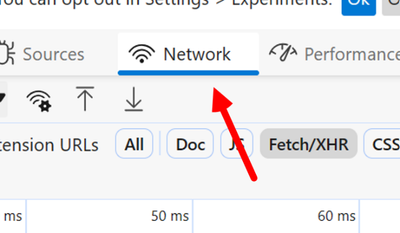
- In developer tools, open the Network tab.
- In developer tools, open the Network tab.
- Sign in @ https://feedbackportal.microsoft.com/feedback with the user account you wish to troubleshoot with.
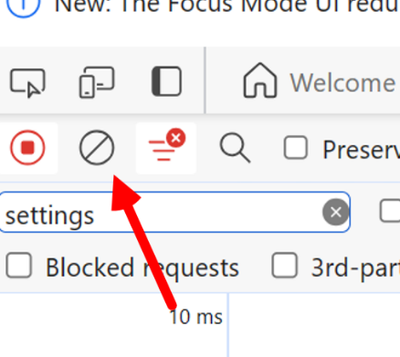
- In the left pane you will see a bunch of traffic. Scroll or search for the “policies” item and click on it. This is the HTTP request to the Cloud Policy service.
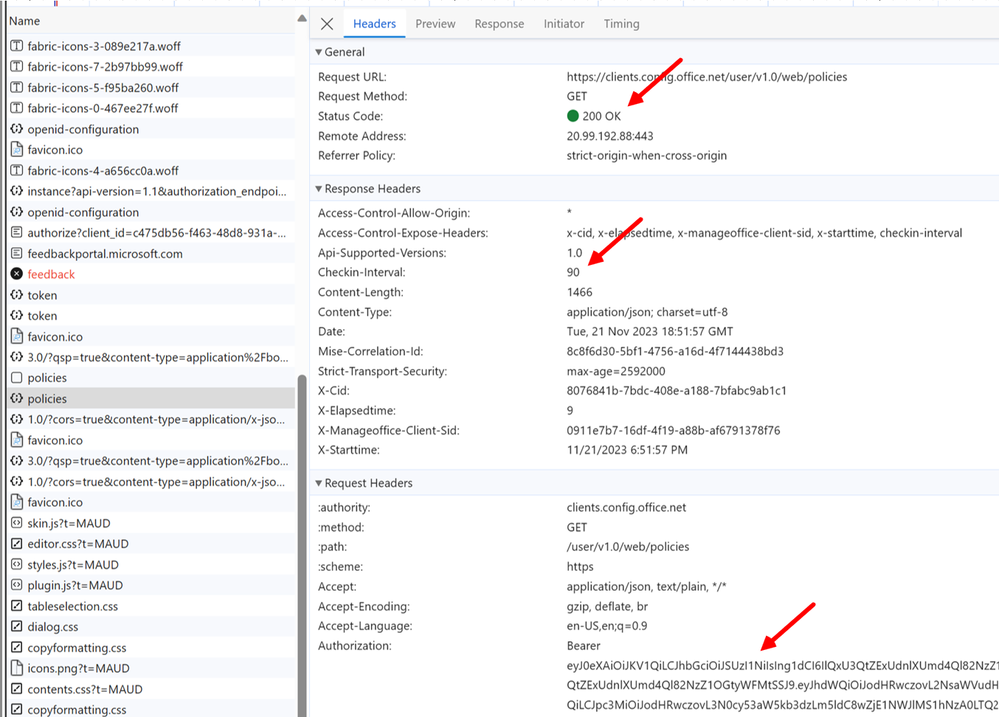
If you look at the Headers tab, you can see a few important pieces of information:
- The status code tells you that the call was successful or not.
- The checkin-interval tells the calling applications how long to wait before calling again.
- The authorization value is the user’s authentication token.
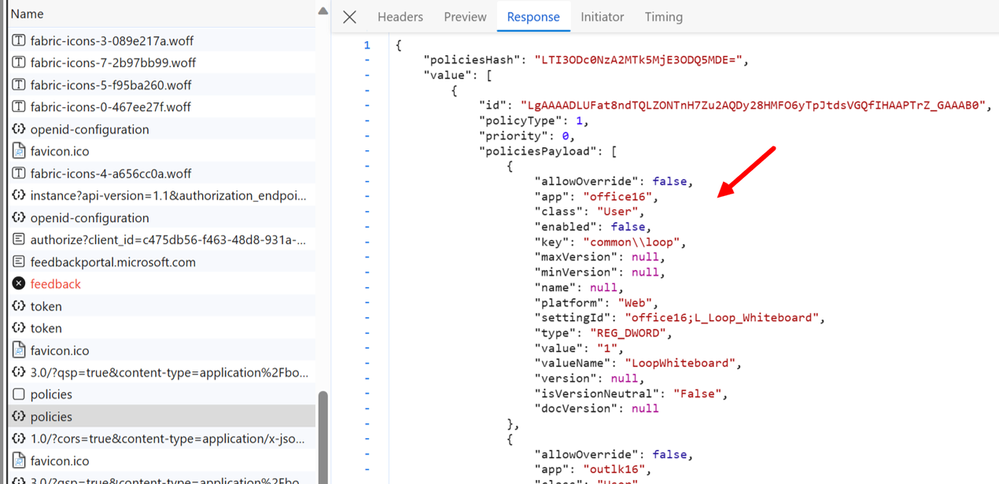
Click on the Response tab and you will see the details for all the policies that are targeted to the user which are supported on that platform.
- Go to the Header tab and copy the Authorization value. Do not copy the term ‘bearer’ and be careful not to include any leading or trailing spaces.
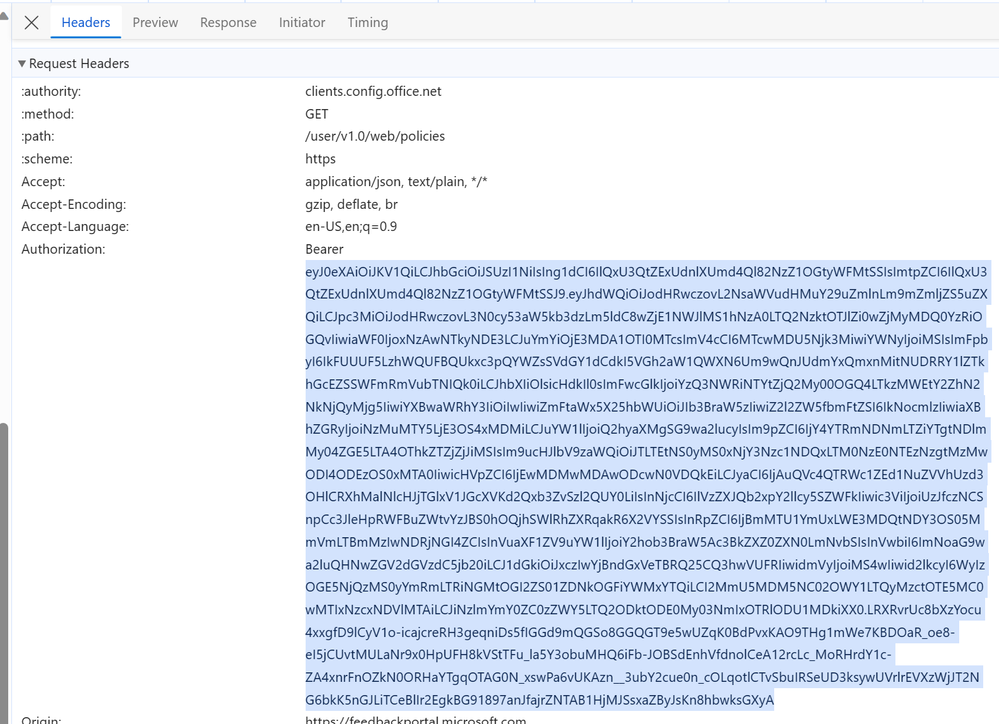
Second: Call the check-in APIs directly
In this example I am going to use Postman to help me make the API calls and inspect the responses.
- Open Postman.
- Choose one of the platform specific APIs you want to test.
- Windows - https://clients.config.office.net/user/v1.0/windows/policies
- Web - https://clients.config.office.net/user/v1.0/web/policies
- iOS - https://clients.config.office.net/user/v1.0/ios/policies
- Android - https://clients.config.office.net/user/v1.0/android/policies
- Mac - https://clients.config.office.net/user/v1.0/mac/policies
- Paste the API URL into the HTTP Request and make sure the request type is set to GET
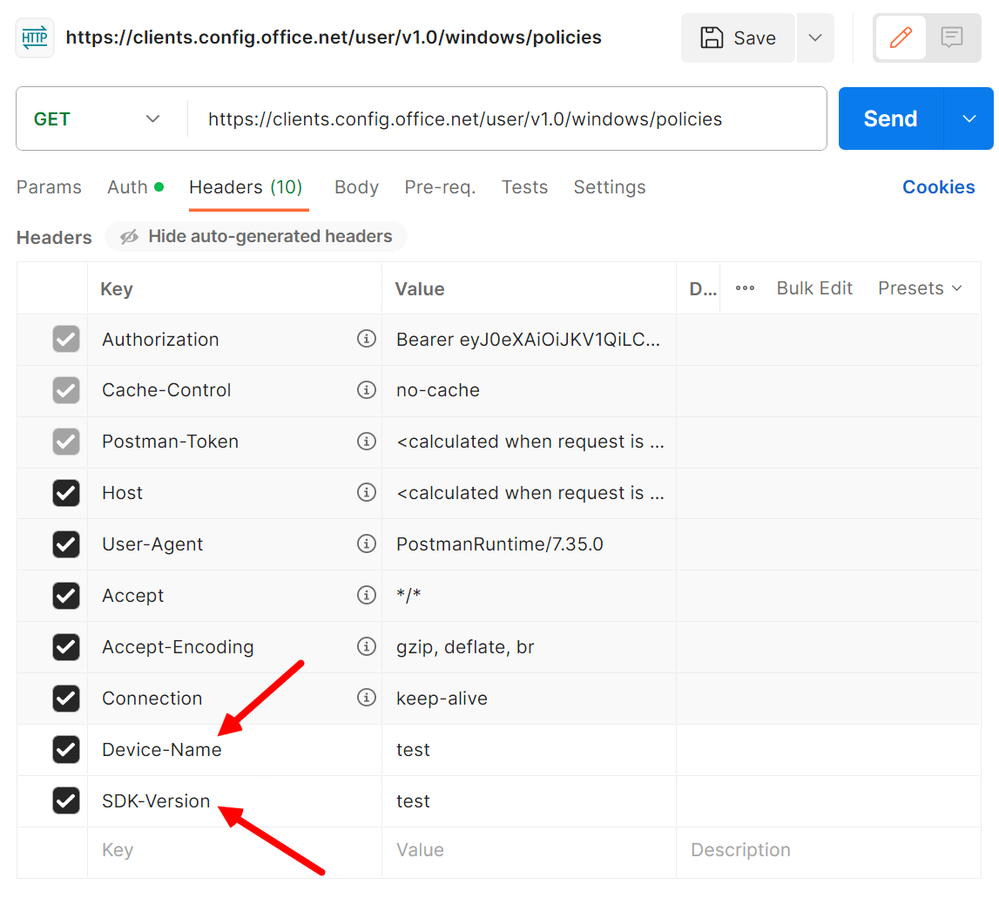
- Add two additional headers
- device-name
- sdk-version

You need to provide a value for each but it is not important what you set the value to for troubleshooting. I always use ‘test’ as the value for both.
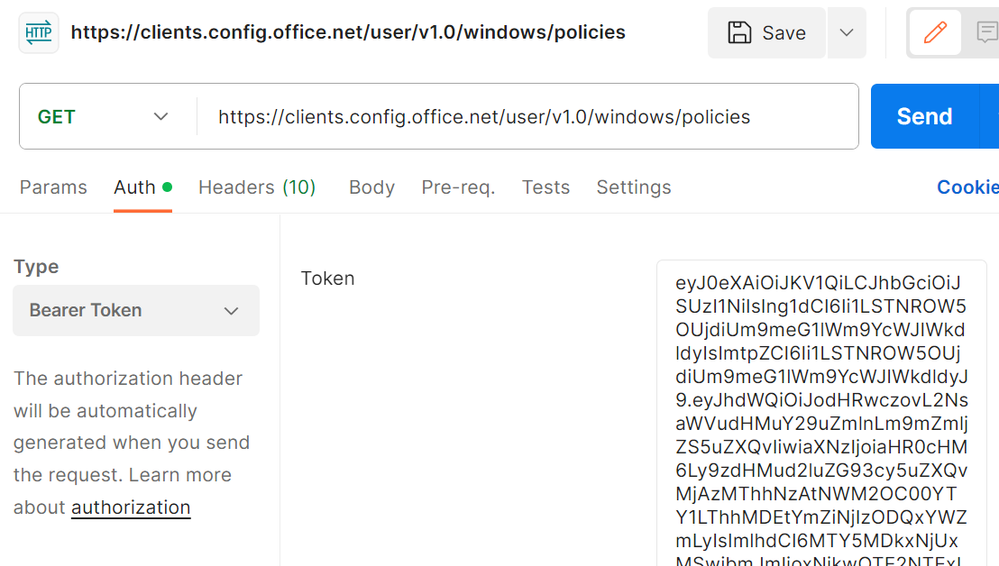
- Go to the Auth tab, select the Type as Bearer Token and paste in the token you copied from the steps above.
- Click Send to send the HTTP request.
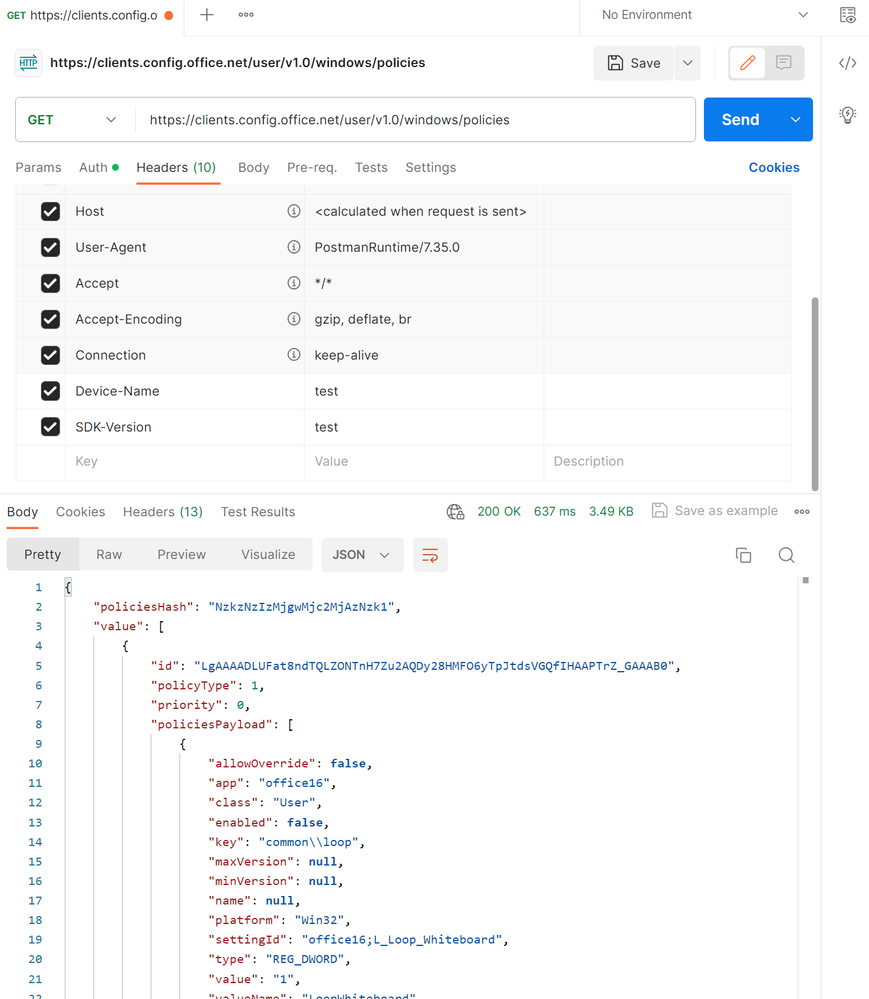
- Now you can inspect the response.

You can see in the example below that the status code is 200 which means the call completed and the user has policies targeted to them. Another common successful response is 204 which means that the call completed but the user does not have any policies configured for them that are supported on that platform.
Third: Keep in mind
Multiple policy configurations can be targeted to multiple groups and conflicting policy settings are managed by the priority values, so make sure you have reviewed the user’s group memberships before troubleshooting. Also keep in mind some policy configurations may apply to all users on the tenant no matter their group membership.
The Cloud Policy service uses a cache on the service side to improve performance for multiple calls for the same user from multiple applications. This cache is maintained for 90 minutes. Keep this in mind when troubleshooting as any changes you make to policy configurations may be delayed for up to 90 minutes depending on the calling pattern for that user.
How to contact us
- To discuss any specific concerns, you can reach out to us via Services Hub.
- Contact Microsoft Support via the Microsoft 365 admin center.
Continue the conversation by joining us in the Microsoft 365 Tech Community! Whether you have product questions or just want to stay informed with the latest updates on new releases, tools, and blogs, Microsoft 365 Tech Community is your go-to resource to stay connected!
Published on:
Learn moreRelated posts
Announcing the General Availability of the Microsoft 365 Document Collaboration Partner Program
Empowering Seamless Collaboration for Modern Workforces We are thrilled to announce the general availability of the Microsoft 365 Docume...
Favorite Microsoft 365 Copilot Prompts
(Amber Plumb interviewing Michael Morales and Allison Sweet) The power of M365 Copilot is transforming the way our support team operates...
Favorite Copilot Prompts
(Amber Plumb interviewing Michael Morales and Allison Sweet) The power of M365 Copilot is transforming the way our support team operates...
Boost digital event engagement with Voting and Archiving in Teams Q&A
Managing and delivering effective town halls is key to enabling two-way dialogue with leaders in today’s hybrid world. Microsoft Teams Q&A...
Prepare now for key end of support moments in 2025
One year from today, on October 14, 2025, support will end for all Office 2016 and 2019 suites, standalone apps, and servers. This includes:&n...
Everything you should know about Visio 2016 and Visio 2019 end of support
On October 14, 2025, Visio 2016 and Visio 2019 will reach end of support. After this date, Visio 2016 and Visio 2019 will no longer receive se...
Limit frontline worker access to Teams when off shift
We’re excited to announce that the frontline working time feature is now generally available! This feature allows admins to block or warn acce...
We are removing Feed on Microsoft 365 (Office)
As part of our ongoing efforts to streamline and enhance user experiences, we will be retiring the Feed feature (shown in figure 1 below) on t...
NOW ON DEMAND | Microsoft Loop Learning Series [Six webinars]
UPDATE | All parts of the Loop Learning Series have aired and are now available to watch on demand, playable below in this blog post. Ar...
Leveraging Partner Apps to Deliver on the Promise of AI-Led Productivity
The advent of generative AI is driving a rethink of what outcomes we deserve from our productivity software – from gains in efficiency to more...