
New tools to create and customize professional looking diagrams in Visio for the web

During our Microsoft Ignite session last fall, we recapped some of the latest features in Visio for the web. In that session, we also announced several upcoming features and improvements that will help you create better looking diagrams faster and new tools to help you add some personalization. This blog post covers the details of those features, which are currently rolling out to Visio for the web users—including Visio in Microsoft 365, Visio Plan 1, and Visio Plan 2—unless otherwise noted.
New and improved diagramming tools in Visio for the web
Format Painter (currently rolling out): We are excited to introduce the Format Painter tool in Visio for the web. Using Format Painter, you can quickly copy the fill and formatting of one shape to a single shape or to multiple shapes in your diagram with a few clicks. Format Painter can be accessed from the Home tab or from the floating context menu, as you’ll read about soon, which appears when you right-click or select an object. Please note that copying the format of grouped shapes is not currently supported. Visit our support article to learn more about the Format Painter tool in Visio for the web.

Shapes in the Document stencil (currently rolling out): Previously available only in the Visio desktop app, the Shapes in the Document stencil is rolling out to Visio Plan 2 subscribers in Visio for the web. With the Shapes in the Document stencil, you can now quickly access and use shapes that exist in your Visio file. The stencil will always be pinned to the shape panel—whether you start from a new blank drawing or a template. If starting new, you will need to add shapes to the canvas before they appear in the Shapes in the Document stencil.

Enhanced floating context menus (currently rolling out): We are adding common user actions and formatting options in the floating context menus, so you can quickly access the necessary tools needed to complete your diagram faster. Simply right-click or select the appropriate object in your diagram and choose the desired action from the context menu. Newly added commands enable you to quickly rotate text, change the shape outline weight and style, edit connector lines, arrows, or points, make connectors curved, angled, or straight, and—speaking of Format Painter—apply the same formatting to multiple objects in your diagram.
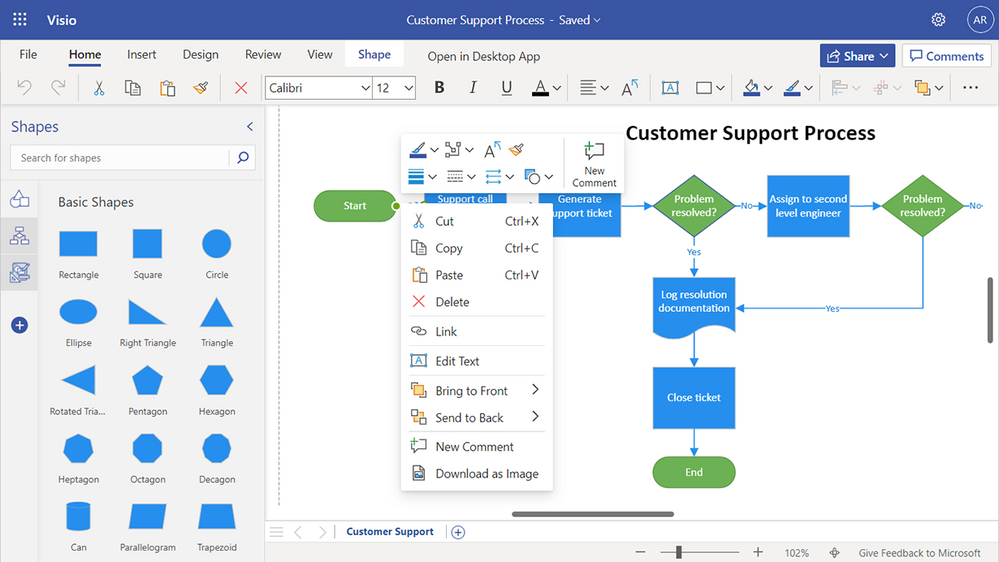
We’ve also enhanced this experience to support the press-and-hold method on a touchscreen device.

Snap experience improvements (currently rolling out): We’ve addressed one of your topmost concerns—aggressive snapping to objects in Visio for the web—and made the snap experience more user-friendly. This means when you draw, resize, or move a shape in your diagram, you will notice a smooth experience when snapping or aligning to other shapes or objects in your diagram. You can also turn the snap-to shapes capabilities on or off by selecting or deselecting the new Smart Guides checkbox available from the View tab in the ribbon.

New customization tools in Visio for the web
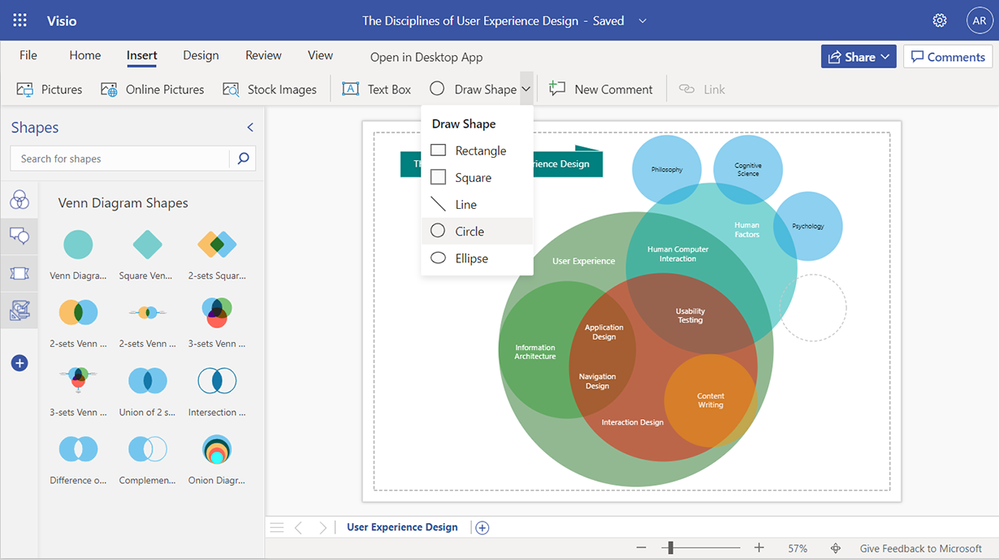
Draw Shape tool (now available!): Visio for the web now supports drawing shapes, including rectangles, squares, lines, circles, and ellipses of the desired dimensions. The new Draw Shape tool can be accessed from both the Home tab and the Insert tab on the ribbon. To create a shape in your diagram from the Insert tab, go to the Draw Shape drop-down, select the shape you want, click anywhere on the canvas, and then drag the mouse pointer to draw the selected shape. Visit our support article to learn more about the Draw Shape tool in Visio for the web.

*Bonus announcement for desktop users of Office*
Modern landing page for Visio in the Office desktop app (now available!): We have recently added Visio’s modern landing page to the Office desktop app, providing users with a familiar and collaborative start experience similar to other Office apps, like Microsoft Word, Microsoft Excel, and Microsoft PowerPoint. Visio users will now get access to a powerful set of Office features, such as improved file discovery, better template categorization, and quick access to Visio files that have been recently edited, accessed, and reviewed by colleagues directly in the Office desktop app.

To try the new experience, search for and open the Office app on your Windows device. Click on the Visio icon in the side navigation bar or search for “Visio” in the Search box. This will launch the modern landing page for Visio in the Office environment where you can quickly create new diagrams, and access Visio files, including Recommended, Recently opened, Shared, and Favorites to quickly pick up where colleagues left off.
Give us your feedback! Please tell us what you think of the new diagramming and customization tools in the comments below or send feedback via the Visio Feedback portal. Follow us on Twitter and LinkedIn to stay informed with the latest updates for Visio.
Want to know what other Visio features have been released recently or what's coming soon? Check out these Visio updates on the Microsoft 365 Roadmap to learn more!
Continue the conversation by joining us in the Microsoft 365 Tech Community! Whether you have product questions or just want to stay informed with the latest updates on new releases, tools, and blogs, Microsoft 365 Tech Community is your go-to resource to stay connected!
Published on:
Learn moreRelated posts
Announcing the General Availability of the Microsoft 365 Document Collaboration Partner Program
Empowering Seamless Collaboration for Modern Workforces We are thrilled to announce the general availability of the Microsoft 365 Docume...
Favorite Microsoft 365 Copilot Prompts
(Amber Plumb interviewing Michael Morales and Allison Sweet) The power of M365 Copilot is transforming the way our support team operates...
Favorite Copilot Prompts
(Amber Plumb interviewing Michael Morales and Allison Sweet) The power of M365 Copilot is transforming the way our support team operates...
Boost digital event engagement with Voting and Archiving in Teams Q&A
Managing and delivering effective town halls is key to enabling two-way dialogue with leaders in today’s hybrid world. Microsoft Teams Q&A...
Prepare now for key end of support moments in 2025
One year from today, on October 14, 2025, support will end for all Office 2016 and 2019 suites, standalone apps, and servers. This includes:&n...
Everything you should know about Visio 2016 and Visio 2019 end of support
On October 14, 2025, Visio 2016 and Visio 2019 will reach end of support. After this date, Visio 2016 and Visio 2019 will no longer receive se...
Limit frontline worker access to Teams when off shift
We’re excited to announce that the frontline working time feature is now generally available! This feature allows admins to block or warn acce...
We are removing Feed on Microsoft 365 (Office)
As part of our ongoing efforts to streamline and enhance user experiences, we will be retiring the Feed feature (shown in figure 1 below) on t...
NOW ON DEMAND | Microsoft Loop Learning Series [Six webinars]
UPDATE | All parts of the Loop Learning Series have aired and are now available to watch on demand, playable below in this blog post. Ar...
Leveraging Partner Apps to Deliver on the Promise of AI-Led Productivity
The advent of generative AI is driving a rethink of what outcomes we deserve from our productivity software – from gains in efficiency to more...