
Approvals in Teams now available in Microsoft 365 F1 SKU for Frontline Workers

Approvals in Microsoft Teams enables everyone, from frontline workers to corporate headquarters employees, to easily create, manage, and share approvals directly from your hub for teamwork. Approvals is now available in the Microsoft 365 F1 SKU that is targeted for frontline workers, so now frontline workers can do the following seamlessly:
Create an approval request
Workers can quickly start an approval flow in Microsoft Teams from a chat or a channel conversation or from the Approvals app. Simply fill in the name for the request, who needs to approve it, any additional information, and add an attachment if needed. Additionally, they can create custom responses to tailor the request to the needs of your business.
Approve or reject a request
Once an approval is submitted, approvers like frontline managers are notified. They can quickly review the details of the request and any files included in the approval. If the request was submitted in a chat or a channel, an approvals card will be displayed with all the relevant actions they can take.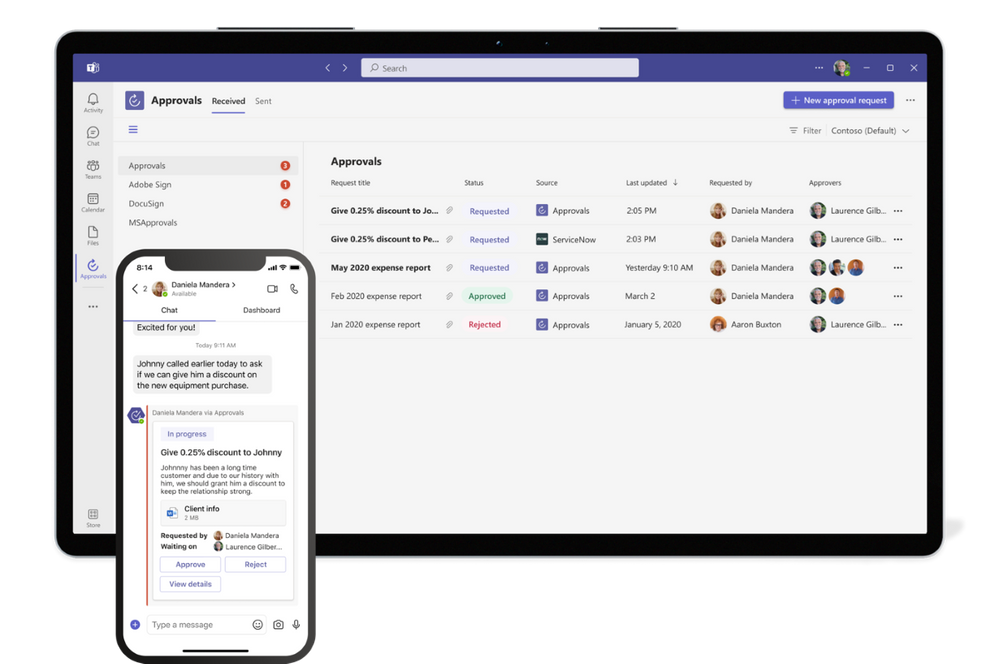
Track and manage your approvals
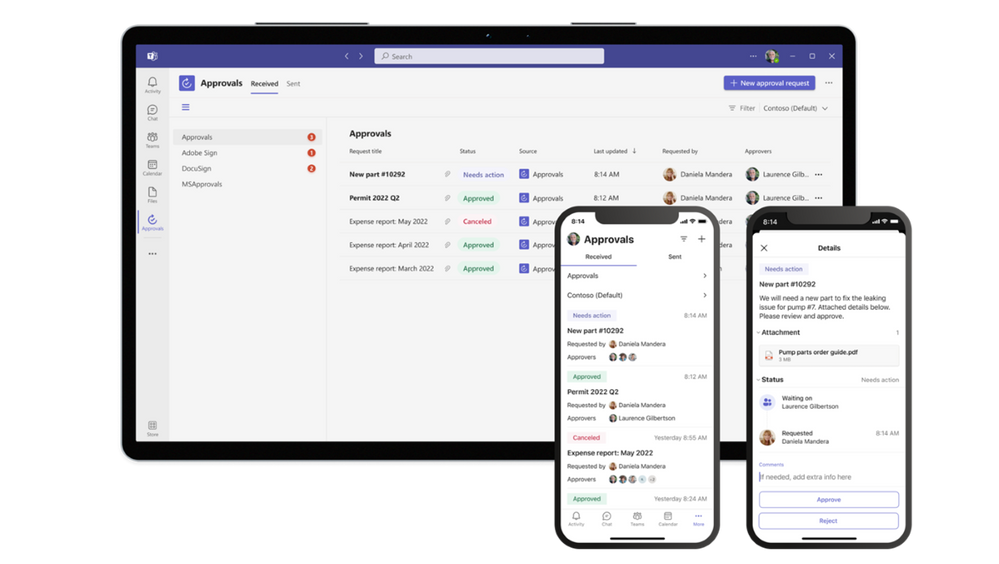
Frontline managers and workers can see and manage all their approvals from one place. Each request is displayed along with key details, such as status, source, requestor, and approvers. They can also select a specific approval to see more information and track progress.
Capture electronic signatures
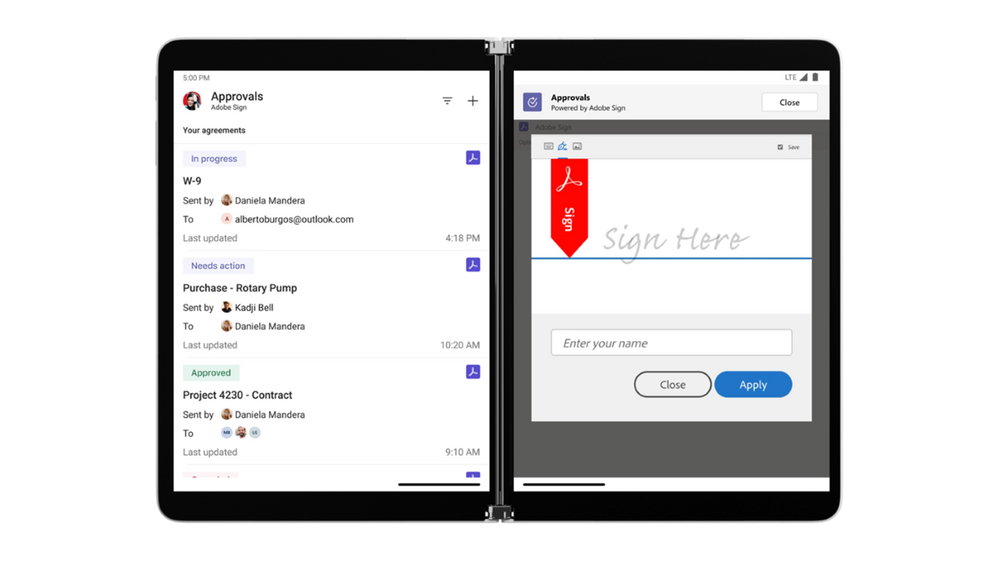
When a frontline worker needs something approved and recorded with more formal attestation, they can easily create an electronic signature approval using Adobe Sign, DocuSign, and other third-party providers natively within the Approval app. Simply choose your electronic signature provider, sign in with your credentials, and add the details. Once submitted, signers are notified by email, and they can easily review and sign. Approvals will keep track of the entire workflow right in context within Teams.
Bring all your approvals in one place
Approvals in Teams is built on top of Power Platform, so you can bring all your approval flows across the company together in one place using the simple workflow and extensibility capabilities of Power Automate.
- From the Power Automate design studio, you can create a new flow and select a trigger, such as a system-driven event from one of our 350+ connectors, including the Azure DevOps and ServiceNow connectors that were recently updated to easily be plugged into the Approvals App in Teams.
- Add a workflow step to create a Start and Wait Approval by using the Approvals block as an action and fill in the relevant approval details like approvers, attachments, etc. By adding this step, you will automatically start seeing approval status updates and notifications directly in Teams via the Approvals hub.
- Add a condition to monitor whether the request was approved or denied to complete the next step in your workflow.
Resources
Get the most out of approvals in Microsoft Teams using these helpful resources:
- Teams Approvals Training videos
- Teams Approvals app availability
- Extending Approvals
- Installing the Approvals app manually
- Approvals Look Book
Continue the conversation by joining us in the Microsoft 365 Tech Community! Whether you have product questions or just want to stay informed with the latest updates on new releases, tools, and blogs, Microsoft 365 Tech Community is your go-to resource to stay connected!
Published on:
Learn moreRelated posts
Announcing the General Availability of the Microsoft 365 Document Collaboration Partner Program
Empowering Seamless Collaboration for Modern Workforces We are thrilled to announce the general availability of the Microsoft 365 Docume...
Favorite Microsoft 365 Copilot Prompts
(Amber Plumb interviewing Michael Morales and Allison Sweet) The power of M365 Copilot is transforming the way our support team operates...
Favorite Copilot Prompts
(Amber Plumb interviewing Michael Morales and Allison Sweet) The power of M365 Copilot is transforming the way our support team operates...
Boost digital event engagement with Voting and Archiving in Teams Q&A
Managing and delivering effective town halls is key to enabling two-way dialogue with leaders in today’s hybrid world. Microsoft Teams Q&A...
Prepare now for key end of support moments in 2025
One year from today, on October 14, 2025, support will end for all Office 2016 and 2019 suites, standalone apps, and servers. This includes:&n...
Everything you should know about Visio 2016 and Visio 2019 end of support
On October 14, 2025, Visio 2016 and Visio 2019 will reach end of support. After this date, Visio 2016 and Visio 2019 will no longer receive se...
Limit frontline worker access to Teams when off shift
We’re excited to announce that the frontline working time feature is now generally available! This feature allows admins to block or warn acce...
We are removing Feed on Microsoft 365 (Office)
As part of our ongoing efforts to streamline and enhance user experiences, we will be retiring the Feed feature (shown in figure 1 below) on t...
NOW ON DEMAND | Microsoft Loop Learning Series [Six webinars]
UPDATE | All parts of the Loop Learning Series have aired and are now available to watch on demand, playable below in this blog post. Ar...
Leveraging Partner Apps to Deliver on the Promise of AI-Led Productivity
The advent of generative AI is driving a rethink of what outcomes we deserve from our productivity software – from gains in efficiency to more...