
Getting started with your first Microsoft Azure Synapse Analytics project

Azure Synapse Analytics is a limitless analytics service that brings big data analytics and an enterprise data warehouse into a unified platform. The Azure Synapse platform provides a unified experience to help you discover and explore your data quickly, so that you can find meaningful insights at scale.
Let’s create our first Azure Synapse workspace to dive deeper into this enterprise-grade platform.
Creating an Azure Synapse workspace
Follow these steps to create your first Azure Synapse workspace:
- Go to the Azure portal, provide your credentials, and log in.
- Click on the Create a resource link on the home page.
- Select Azure Synapse Analytics from the list of all available resources and click on Create.

Figure 1: Azure Synapse Analytics page in Azure Marketplace
- You need to provide some basic details to create your workspace:
- Subscription: You need to select your subscription. If you have many subscriptions in your Azure account, you need to select the specific one that you are going to use to create the Azure Synapse workspace.
- Resource group: Select a resource group for your Azure Synapse workspace. If you do not already have a resource group created, click on Click new right below the text field for the resource group.
- Workspace name: Provide an appropriate name for the workspace that you are going to create.

Figure 2: Providing various details in the Create Synapse workspace window
- Region: You can see many options in the dropdown. Select the most appropriate region for your Azure Synapse workspace.
- Select Data Lake Storage Gen2: This will be the primary storage account for the workspace, holding catalog data and metadata associated with the workspace.
- Account name: You can select from the dropdown, or you can create a new one. Only Data Lake Gen2 accounts with a hierarchical namespace enabled will appear in the dropdown. However, if you click on Create new, it will create a Data Lake Gen2 account with a hierarchical namespace enabled.
- File system name: Again, you can select from the dropdown, or you can create a new one. To create a new file system name, click on Create new and provide an appropriate name for it.
- Click on Next: Security > to configure security options and networking settings for your workspace. Provide SQL administrator credentials that can be used for administrator access to the workspace's SQL pools.
- Click on Tags to provide a name-value pair to this resource.
- Go to the next page to review the summary and click on Create after verifying all the details on the summary page.
- In your Azure Synapse workspace in the Azure portal, click on Launch Synapse Studio.
Exploring Synapse Studio
Synapse Studio is an integrated tool to access your Azure Synapse workspace. You can access all components using Synapse Studio. As you can see in the following image, you are able to ingest, explore, analyze, and visualize data in Azure Synapse. Synapse Studio gives you the flexibility to connect to your Power BI workspace directly without navigating to the Power BI portal:
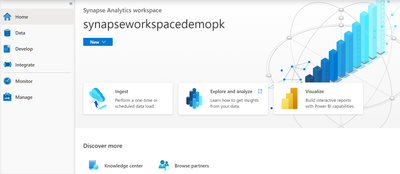
Figure 3: Synapse Studio Home page
You can connect to your workspace using Synapse Studio. Synapse Studio is a free web tool provided by Azure Synapse for all data engineers, data scientists, and report developers. Synapse Studio also enables you to manage and monitor all your resources created under your Synapse workspace.
If you are new to Azure Synapse, it is highly recommended that you explore all the resources available under Knowledge center in Synapse Studio. Go to Browse gallery in Knowledge center and go through the available templates, datasets, notebooks, SQL scripts, and pipelines to get yourself acquainted with Azure Synapse. To learn more about Knowledge center, you can go through the Explore the Synapse Knowledge center documentation.
Creating SQL pools, Apache Spark pools, and Data Explorer pools
You can create three different types of pools within your Synapse workspace: SQL pools, Apache Spark pools, and Data Explorer pools:
- The serverless SQL pool, built-in, is immediately available for your workspace. Dedicated SQL pools can be configured to adapt to team or organizational requirements and constraints.
- Apache Spark pools can be tuned to run different kinds of Apache Spark workloads using specific configuration libraries, permissions, and so on.
- Data Explorer pools can be used to run near real-time analytics on large volumes of logs and time series data streaming from applications, websites, IoT devices, and more.
Under the Manage hub of Synapse Studio, choose which compute engine you want to use that best fits your business scenario:

Figure 4: SQL pools under the Manage hub of Synapse Studio
Endpoints for connecting to different pools in Azure Synapse
Different endpoints can be used to connect to various resources within Azure Synapse.
These are generic URLs where you just need to replace the * character with your Azure Synapse workspace name:
- https://web.azuresynapse.net: This will redirect you to your Azure Synapse workspace and you need to fill in Azure Active Directory, Subscription, and Workspace name to access your workspace:
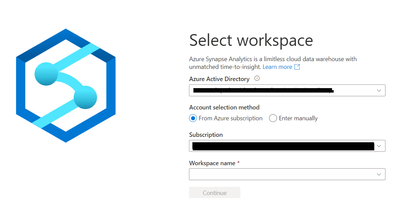
Figure 5: Providing the details to access your Azure Synapse workspace
- https://*.dev.azuresynapse.net: This is a development endpoint, and you can ascertain the URL for this endpoint in the Overview section of your Azure Synapse workspace within the Azure portal:
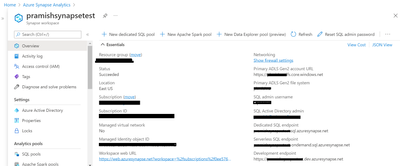
Figure 6: Azure Synapse workspace in the Azure portal highlighting different endpoints
- https://*.database.windows.net: This endpoint can be used to access the provisioned SQL pool from any application; you just need to provide your Azure Synapse workspace name in place of *.
- https://*-ondemand.database.windows.net: This endpoint is similar to the preceding endpoint. However, this endpoint will connect to a serverless SQL pool in Azure Synapse. Make sure you replace * with your Azure Synapse workspace name.
- https://*.sql.azuresynapse.net: This endpoint can also be used to access the provisioned SQL pool from any application. This is also known as a dedicated SQL endpoint. You can find the endpoint available in your Synapse workspace within the Azure portal.
- https://*-ondemand.sql.azuresynapse.net: This endpoint can also be used to access a serverless SQL pool in Azure Synapse. This is also known as a serverless SQL endpoint, and you can find the endpoint available in your Synapse workspace within the Azure portal.
Now that you have created your Synapse workspace and know how to navigate to Synapse Studio, you are all set to build your enterprise-grade analytics solution. Go through the different hubs of Synapse Studio, Data, Develop, Integrate, Monitor, and Manage, to get yourself acquainted with all the supported capabilities.
Conclusion
Unlike an on-premises data warehouse, Azure Synapse provides you with a cloud-based data warehouse that is integrated with big data analytics under one unified platform. And it takes just a few clicks to set up your environment. You can also generate meaningful insights using Power BI within Synapse Studio itself. The Integrate hub provides you with code-free data integration capabilities within Synapse Studio.
To learn more:
- Read the full version of Limitless Analytics with Azure Synapse.
- Get started on Azure Synapse Analytics with an Azure account.
- Visit the Azure Synapse Analytics documentation webpage for tutorials.
- Request a call from an Azure Synapse Analytics sales specialist when you’re ready.
Published on:
Learn moreRelated posts
We're moving!
We’re moving to the Analytics on Azure Tech Community! All new Azure Synapse Analytics content will be published there. In the next few days a...
Upgrade to Azure Synapse runtimes for Apache Spark 3.4 & previous runtimes deprecation
It is important to stay ahead of the curve and keep services up to date. That's why we encourage all Azure Synapse customers with Apache ...
ADF\Synapse Analytics - Replace Columns names using Rule based mapping in Mapping data flows
In real time, the column names from source might not be uniform, some columns will have a space in it, some other columns will not. For exampl...
Interpreting Script activity output json with Azure Data Factory\Synapse analytics
Script activity in Azure Data Factory\ Synapse analytics is very helpful to run queries against data sources mentioned here in this document.&...
Synapse Connectivity Series Part #4 - Advanced network troubleshooting and network trace analysis
Continuing the series of this blog posts I would like to go more advanced on troubleshooting connectivity issues. I would like to thank also&n...
Boost your CICD automation for Synapse SQL Serverless by taking advantage of SSDT and SqlPackage CLI
Introduction Azure Synapse Analytics Serverless SQL is a query service mostly used over the data in your data lake, for data discovery,...
Metadata-Based Ingestion in Synapse with Delta Lake
Overview The crucial first step in any ETL (extract, transform, load) process or data engineering program is ingestion, w...
Missing Fields Added to Dedicated SQL pool Diagnostic Settings Logs
Over the past year, customers have informed the team there were a set of key columns missing in the standalone Dedicated SQL pools (formerly S...
Using Azure DevOps with Synapse Workspaces to create hot fixes in production environments
Have you ever deployed a release to production only to find out a bug has escaped your testing process and now users are being severely impact...
Azure Synapse MVP Corner - March 2023
About this blog series Microsoft Most Valuable Professionals, or MVPs, are technology experts who passionately share their knowledge with the ...