We are excited to announce the release of cross-subscription restore. This has been one of our top requested features from customers as it unlocks multiple scenarios from dev/test to simplified billing at the subscription level for restored data warehouses.

Customers can leverage this feature whether they want to restore a standalone dedicated SQL pool (formerly SQL DW) or a dedicated SQL pool in a synapse workspace. End-to-end examples for each are provided below.
Restore a dedicated SQL pool (formerly SQL DW) to a different subscription
Until now, for standalone Synapse SQL pools (formerly SQL DW) you had to restore to a server in the same subscription and then perform a move operation.
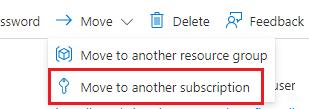
With this update, you can leverage the Restore-AzSqlDatabase PowerShell cmdlet used for same subscription restore.
Update Az.Sql PowerShell module
Cross-subscription restore capability was introduced with Az.Sql module version 3.8.0.
# Update Az.Sql module to the latest version (3.8.0 or above)
Update-Module -Name Az.Sql -Force
#Update-Module -Name Az.Sql -RequiredVersion 3.8.0 -Force
Ensure you are using 3.8.0 or greater version prior to running the below PowerShell.
Set variables and create source data warehouse
Create an empty standalone sql data warehouse on a new server. The creation cmdlets can be commented out if the $SourceServerName and $SourceDatabaseName already exist.
$TenantId = "<yourtenantid>"
$SourceSubscriptionId = "<sourcesubscriptionid>"
$DestinationSubscriptionId = "<targetsubscriptionid>"
Connect-AzAccount -TenantId $TenantId
Set-AzContext -SubscriptionId $SourceSubscriptionId
# The data center and resource name for your resources
$SourceResourceGroupName = "<resourcegroup>"
$Location = "<location>" # ex. eastus
# The server name: Use a random value or replace with your own value (dont capitalize)
$SourceServerName = "server-$(Get-Random)"
# Set an admin name and password for your database
# The sign-in information for the server
$AdminLogin = "<adminuser>"
$Password = "<password>"
# The ip address range that you want to allow to access your server - change as appropriate
$Startip = "0.0.0.0"
$Endip = "255.255.255.255"
# The database name
$SourceDatabaseName = "originalDW"
$TargetResourceGroupName = "<targetresourcegroup>"
$TargetServerName = "server-$(Get-Random)"
$TargetDatabaseName = "restoredDW"
# if resource group doesn't exist, uncomment the below line
# New-AzResourceGroup -Name $resourcegroupname -Location $Location
New-AzSqlServer -ResourceGroupName $SourceResourceGroupName `
-ServerName $SourceServerName `
-Location $Location `
-SqlAdministratorCredentials $(New-Object -TypeName System.Management.Automation.PSCredential `
-ArgumentList $AdminLogin, $(ConvertTo-SecureString -String $Password -AsPlainText -Force))
New-AzSqlServerFirewallRule -ResourceGroupName $SourceResourceGroupName `
-ServerName $SourceServerName `
-FirewallRuleName "AllowSome" -StartIpAddress $Startip -EndIpAddress $Endip
New-AzSqlDatabase `
-ResourceGroupName $SourceResourceGroupName `
-ServerName $SourceServerName `
-DatabaseName $SourceDatabaseName `
-Edition "DataWarehouse" `
-RequestedServiceObjectiveName "DW100c" `
-CollationName "SQL_Latin1_General_CP1_CI_AS" `
-MaxSizeBytes 10995116277760
Create restore point and retain variables to be used in destination subscription
In this scenario, a restore point needs to be created. Also, the source data warehouse resource id will be required after context is switched to the destination subscription in the next step. The $Database variable will be used to retrieve the Resource Id.
#Create restore point if needed
New-AzSqlDatabaseRestorePoint -ResourceGroupName $SourceResourceGroupName -ServerName $SourceServerName `
-DatabaseName $SourceDatabaseName -RestorePointLabel "UD-001"
# Need the ResourceId of the sql dw to reference in the destination subscription
$Database = Get-AzSqlDatabase -ResourceGroupName $SourceResourceGroupName -ServerName $SourceServerName `
-DatabaseName $SourceDatabaseName
# Gets the last restore point of the sql dw (will use the RestorePointCreationDate property)
$RestorePoint = Get-AzSqlDatabaseRestorePoint -ResourceGroupName $SourceResourceGroupName `
-ServerName $SourceServerName -DatabaseName $SourceDatabaseName | Select -Last 1
Set Context
Set the azure context to the destination subscription.
Set-AzContext -SubscriptionId $DestinationSubscriptionId
Create destination data warehouse
As in the originating subscription, if the $TargetServerName already exists, comment out the cmdlets.
New-AzSqlServer -ResourceGroupName $TargetResourceGroupName `
-ServerName $TargetServerName `
-Location $Location `
-SqlAdministratorCredentials $(New-Object -TypeName System.Management.Automation.PSCredential `
-ArgumentList $AdminLogin, $(ConvertTo-SecureString -String $Password -AsPlainText -Force))
New-AzSqlServerFirewallRule -ResourceGroupName $TargetResourceGroupName `
-ServerName $TargetServerName `
-FirewallRuleName "AllowSome" -StartIpAddress $Startip -EndIpAddress $Endip
Perform the cross-subscription restore
Resource Id required for the source data warehouse should be in format below:
/subscriptions/<SourceSubscriptionId>/resourceGroups/<SourceResourceGroupName>/providers/Microsoft.Sql/servers/<SourceServerName>/databases/<SourceDatabaseName>
# uncomment if there is a specific restore point to be used rather than the last one retrieved above
# $PointInTimeFormat=”2022-04-05T18:14:53Z”
# $PointInTime = Get-Date -Date $PointInTimeFormat
$PointInTime = $RestorePoint.RestorePointCreationDate
Restore-AzSqlDatabase -FromPointInTimeBackup -PointInTime $PointInTime -ResourceGroupName $TargetResourceGroupName `
-ServerName $TargetServerName -TargetDatabaseName $TargetDatabaseName -ResourceId $Database.ResourceID `
-Edition "DataWarehouse" `
-ServiceObjectiveName "DW100c"
Verify restore
Check the status.
# Verify the status of restored database
$RestoredDatabase.status
You should see the server restored in the Azure portal under the destination server

Clean-up Resources
If you do not want to keep the newly created resources from this example, be sure to delete them to not incur unintended charges.
# remove the target resources while the context is still set for the destination subscription
Remove-AzSqlServer -ResourceGroupName $TargetResourceGroupName -ServerName $TargetServerName
# set context to the source subscription
Set-AzContext -SubscriptionId $SourceSubscriptionId
# remove the source resources
Remove-AzSqlServer -ResourceGroupName $SourceResourceGroupName -ServerName $SourceServerName
For more information on this scenario, please see Microsoft Docs for dedicated SQL pool (formerly SQL DW) restore.
Restore a Synapse dedicated SQL pool to a different subscription
Until now, a dedicated SQL pool that resided in a Synapse workspace couldn’t be restored to another subscription without many steps. With this update, if you simply want to restore your Synapse dedicated SQL pool to a standalone SQL pool (formerly SQL DW) there are just a few changes to the above PowerShell. If you would like to restore to an existing Synapse workspace in your destination subscription however, it will require one additional restore step as illustrated in the below diagram.

In the below example, in the originating sql pool, we will use the Az.Synapse cmdlets. In the destination subscription however the sql pool is still created using the Az.Sql cmdlets (The pool depicted in DB server box in the above diagram).
Create resources and perform cross-subscription restore
# Update Az.Sql module to the latest version (3.8.0 or above)
Update-Module -Name Az.Sql -Force
#Update-Module -Name Az.Sql -RequiredVersion 3.8.0 -Force
$TenantId = ‘<yourtenantid>’
$SourceSubscriptionId = ‘<sourcesubscriptionid>’
$DestinationSubscriptionId = ‘<destinationsubscriptionid>’
Connect-AzAccount -TenantId $TenantId
Set-AzContext -SubscriptionId $SourceSubscriptionId
# The data center and resource name for your resources
$SourceResourceGroupName = "<resourcegroup>"
$Location = "<location>"
# The server name: Use a random value or replace with your own value
$SourceWorkspaceName = "server-$(Get-Random)"
# Set an admin name and password for your database
# The sign-in information for the server
$AdminLogin = "<adminuser>"
$Password = "<password>"
$Storage = "synapsestorage$(Get-Random)"
$Files = "synapsefiles$(Get-Random)"
# The ip address range that you want to allow to access your server - change as appropriate
$Startip = "0.0.0.0"
$Endip = "255.255.255.255"
# The database name
$SourceDatabaseName = "myOriginalDW"
$TargetResourceGroupName = "<targetresourcegroup>"
$TargetServerName = "server-$(Get-Random)"
$TargetDatabaseName = "restoredDW2"
# if resource group doesn't exist, uncomment the below line
# New-AzResourceGroup -Name $resourcegroupname -Location $location
$password = ConvertTo-SecureString $Password -AsPlainText -Force
$creds = New-Object System.Management.Automation.PSCredential ($AdminLogin, $password)
New-AzSynapseWorkspace -ResourceGroupName $SourceResourceGroupName `
-Name $SourceWorkspaceName `
-Location $Location `
-DefaultDataLakeStorageAccountName $Storage `
-DefaultDataLakeStorageFilesystem $Files `
-SqlAdministratorLoginCredential $creds
#create new synapse sql pool
New-AzSynapseSqlPool -WorkspaceName $SourceWorkspaceName -Name $SourceDatabaseName -PerformanceLevel DW100c
#create user defined restore point
New-AzSynapseSqlPoolRestorePoint -WorkspaceName $SourceWorkspaceName -Name $SourceDatabaseName `
-RestorePointLabel "UserDefined-01"
$Database = Get-AzSynapseSqlPool -ResourceGroupName $SourceResourceGroupName -WorkspaceName $SourceWorkspaceName `
-Name $SourceDatabaseName
$RestorePoint = $Database | Get-AzSynapseSqlPoolRestorePoint | Select -Last 1
Set-AzContext -SubscriptionId $DestinationSubscriptionId
New-AzSqlServer -ResourceGroupName $TargetResourceGroupName `
-ServerName $TargetServerName `
-Location $Location `
-SqlAdministratorCredentials $(New-Object -TypeName System.Management.Automation.PSCredential `
-ArgumentList $AdminLogin, $(ConvertTo-SecureString -String $Password -AsPlainText -Force))
New-AzSqlServerFirewallRule -ResourceGroupName $TargetResourceGroupName `
-ServerName $TargetServerName `
-FirewallRuleName "AllowSome" -StartIpAddress $Startip -EndIpAddress $Endip
# uncomment if there is a specific restore point to be used rather than the last one retrieved above
# $PointInTimeFormat=”2022-04-05T18:14:53Z”
# $PointInTime = Get-Date # -Date $PointInTimeFormat
$PointInTime = $RestorePoint.RestorePointCreationDate
$RestoredDatabase = Restore-AzSqlDatabase -FromPointInTimeBackup -PointInTime $PointInTime `
-ResourceGroupName $TargetResourceGroupName `
-ServerName $TargetServerName -TargetDatabaseName $TargetDatabaseName `
-ResourceId $Database.ID -Edition "DataWarehouse" `
-ServiceObjectiveName "DW100c"
Restore from the Destination DB Server to a Synapse Workspace
The final step for a restore to a Synapse Workspace is to perform one last restore. In this example we will go ahead and create the resource in the destination subscription. The Synapse Workspace creation cmdlet can be commented out if $TargetWorkspaceName already exists.
#create workspace
$TargetWorkspaceName = "server-$(Get-Random)"
$Storage = "synapsestorage$(Get-Random)"
$Files = "synapsefiles$(Get-Random)"
$password = ConvertTo-SecureString $Password -AsPlainText -Force
$creds = New-Object System.Management.Automation.PSCredential ($AdminLogin, $password)
New-AzSynapseWorkspace -ResourceGroupName $TargetResourceGroupName `
-Name $TargetWorkspaceName `
-Location $Location `
-DefaultDataLakeStorageAccountName $Storage `
-DefaultDataLakeStorageFilesystem $Files `
-SqlAdministratorLoginCredential $creds
# Create Restore Point
New-AzSqlDatabaseRestorePoint -ResourceGroupName $RestoredDatabase.ResourceGroupName -ServerName $RestoredDatabase.ServerName `
-DatabaseName $RestoredDatabase.DatabaseName -RestorePointLabel "UserDefined-01"
# Gets the last restore point of the sql dw (will use the RestorePointCreationDate property)
$RestorePoint = Get-AzSqlDatabaseRestorePoint -ResourceGroupName $RestoredDatabase.ResourceGroupName -ServerName $RestoredDatabase.ServerName `
-DatabaseName $RestoredDatabase.DatabaseName | Select -Last 1
# Restore to destination synapse workspace
$FinalRestore = Restore-AzSynapseSqlPool –FromRestorePoint -RestorePoint $RestorePoint.RestorePointCreationDate -ResourceGroupName $TargetResourceGroupName `
-WorkspaceName $TargetWorkspaceName -TargetSqlPoolName $TargetDatabaseName –ResourceId $RestoredDatabase.ResourceID -PerformanceLevel DW100c
Clean-up Resources
If you do not want to keep the newly created resources from this example, be sure to delete them to not incur unintended charges.
# remove the target resources while the context is still set for the destination subscription
Remove-AzSqlServer -ResourceGroupName $TargetResourceGroupName -ServerName $TargetServerName
Remove-AzSynapseWorkspace -ResourceGroupName $TargetResourceGroupName -Name $TargetWorkspaceName -Force
# set context to the source subscription
Set-AzContext -SubscriptionId $SourceSubscriptionId
# remove the source resources
Remove-AzSynapseWorkspace -ResourceGroupName $SourceResourceGroupName -Name $SourceWorkspaceName -Force
For more information on this scenario, please see Microsoft Docs for Synapse dedicated SQL pool restore.
Conclusion
We hope that this feature will reduce restore complexity as well as restore time. Let us know your feedback so we can continue to improve our capabilities in this area.

