
How to use Azure DevOps to publish cloud service extended support
Azure cloud service extended support(CSES) is a new Azure Resource Manager based deployment model for Azure Cloud Services product. Cloud Services (extended support) has the primary benefit of providing regional resiliency along with feature parity with Azure Cloud Services deployed using Azure Service Manager. It also offers some ARM capabilities such as role-based access and control (RBAC), tags, policy, and supports deployment templates.
For the classic cloud service, we have Azure DevOps built-in pipeline task Azure Cloud Service Deployment task - Azure Pipelines | Microsoft Learn to help us manage the CI/CD progress easily and the task for CSES is not ready yet. In this blog, I have a brief guide on how to use the Azure ARM template to create or update the CSES deployment.
The main points are like below.
- Define couple of variables for the storage account to prepare the ARM template deployment.
- Use the VSBuild@1 to build the cloud service project and output the cloud service package file or configuration file.
- Use built in task AzureFileCopy@5 to upload a build directory to the blob storage.
- Using the storage reference including the access key to generate a SAS token by AzurePowerShell@5, and output to variable which will be used in the next task.
- Using the output of previous task and utilize the value for the ARM template deployment task AzureResourceManagerTemplateDeployment@3
Workflow:
1. Firstly, we can create a starter pipeline and need to prepare the upload to the storage account. The variables below can help on the further operation below.
stg_account <the name of storage account>
stg_key <access key of storage account>
stg_container <container name of storage account>
stg_prefix $[format('{0:yyyyMMddHHmm}', pipeline.startTime)]
stg_url https://$(stg_account).blob.core.windows.net/$(stg_container)
cscfg_name <name of configuration file>
cspkg_name <name of package file>
url_cscfg $(stg_url)/$(stg_prefix)/$(cscfg_name)
url_cspkg $(stg_url)/$(stg_prefix)/$(cspkg_name)

2. Use the Visual studio build task to build your task based on your cloud service project solution file and output to the local path on the agent.
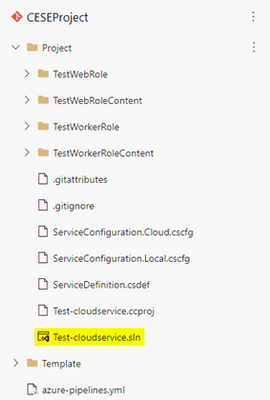
For more detail, reference to document MSBuild - MSBuild | Microsoft Learn.
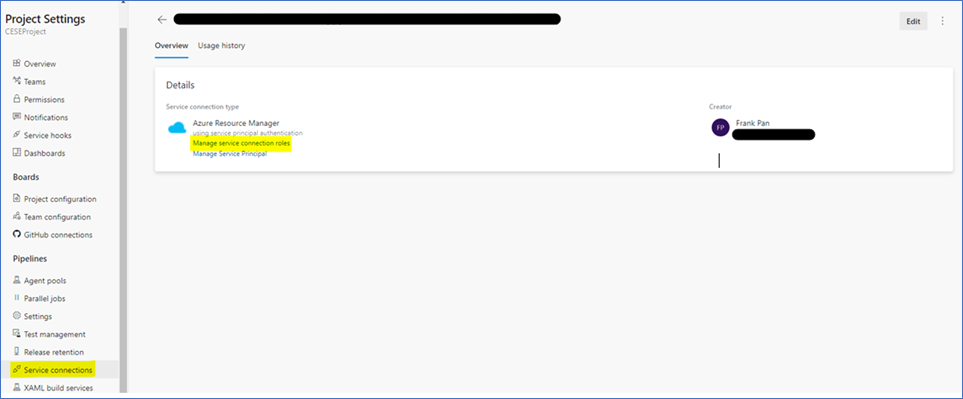
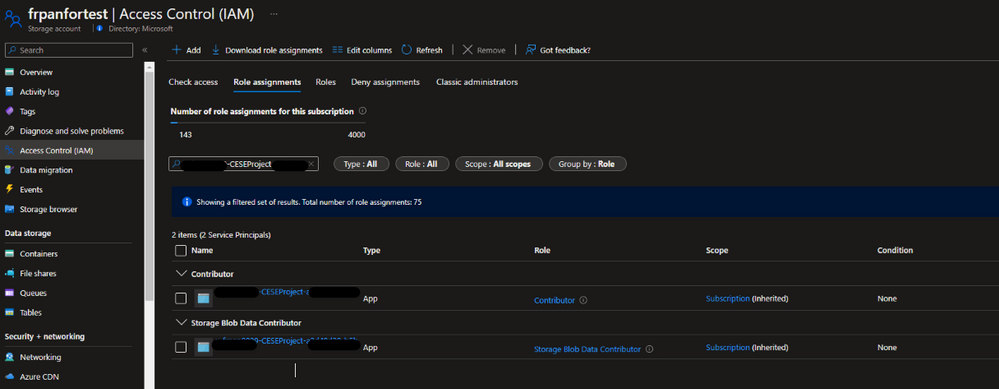
3. Use the pipeline task Azure File Copy to upload configuration, definition and package file of cloud service. (Azure File Copy task - Azure Pipelines | Microsoft Learn). The task supports authentication based on Azure Active Directory. Authentication using a service principal and managed identity are available. You can assign the permission Contributor and Storage Blob Data Contributor to allow the access of service connection. (Service connections in Azure Pipelines - Azure Pipelines | Microsoft Learn)
Find the service principle in the project setting:
YAML version of File copy:
After copying the file, you will see the cloud service package copied in the storage.

4. Use the Azure powershell pipeline task to generate a temporary SAS token for 5 minutes
5. Use the ARM template pipeline task to deploy the CSES deployment. The sample template is referring to cloud-services-extended-support/101-cses-multirole-rdp at main · Azure-Samples/cloud-services-extended-support (github.com)
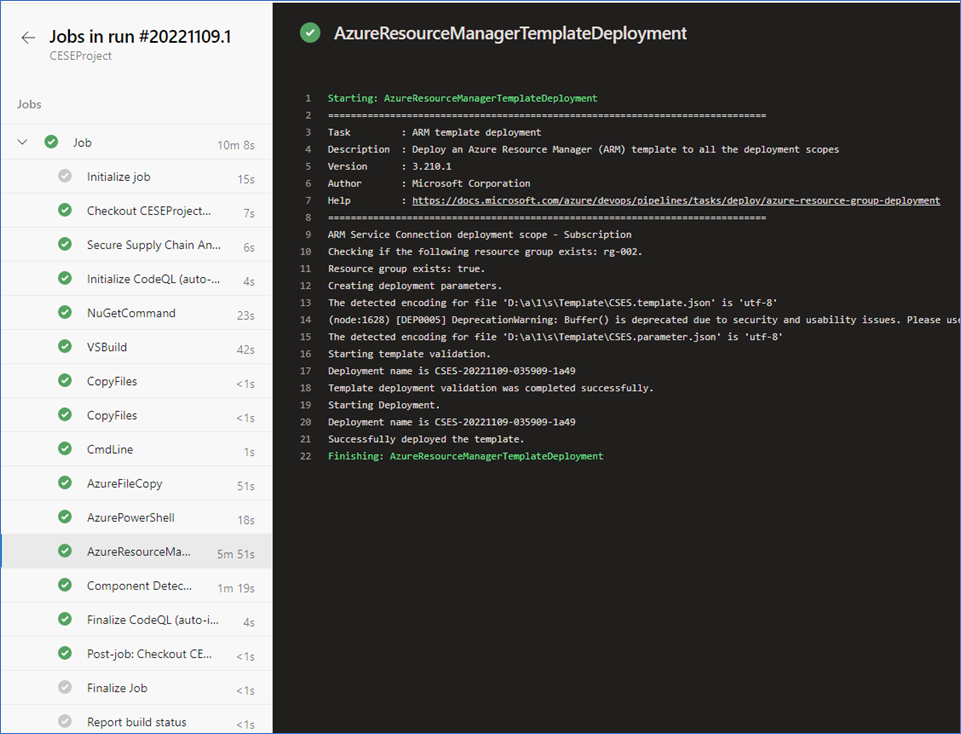
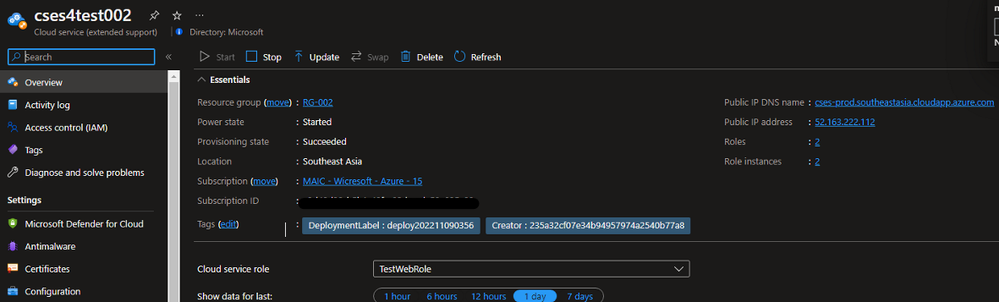
6. After deployment, you should see the task result like below and the cloud service with the tag below. You can update the code and configuration to make update to the current deployment.
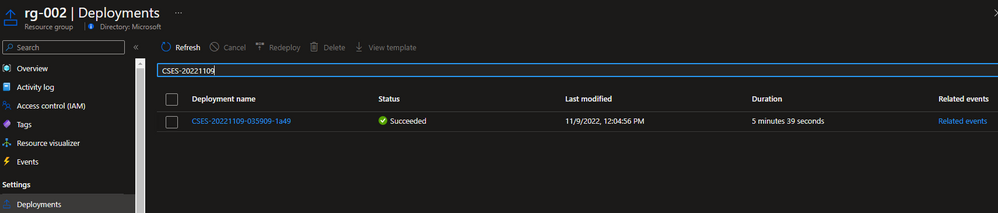
In the Azure portal, you can find the deployment result in the cloud service resource group.
The deployment label should be the same as your defined timestamp.
Published on:
Learn moreRelated posts
Azure Storage - TLS 1.0 and 1.1 retirement
Overview TLS 1.0 and 1.1 retirement on Azure Storage was previously announced for Nov 1st, 2024, and it was postponed recently to 1 year later...
Efficient Management of Append and Page Blobs Using Azure Storage Actions
Overview In Azure Storage, Blob Lifecycle Management (BLM) allows you to automate the management of your data based on rules defined by...
[Azure AI Search] Internal Server Error when creating CMK encrypted objects
Scenario Customers follow the Microsoft doc to create CMK encrypted objects (data source, index etc.), but get the 500 Internal Serv...
Optimizing Azure Table Storage: Automated Data Cleanup using a PowerShell script with Azure Automate
Scenario This blog’s aim is to manage Table Storage data efficiently. Imagine you have a large Azure Table Storage that accumulates logs from ...
Optimizing Azure Table Storage: Automated Data Clean-up using a PowerShell script with Azure Automat
Scenario This blog’s aim is to manage Table Storage data efficiently. Imagine you have a large Azure Table Storage that accumulates logs from ...
Restoring Soft-Deleted Blobs with multithreading in Azure Storage Using C#
Blob soft delete is an essential feature that safeguards your data against accidental deletions or overwrites. By retaining deleted data for a...
Performing simple Azure Table Storage REST API operations using curl command.
The blog provides guidance to perform simple Table Storage REST API operations such as Create table, Delete Table, Insert entity, Delete entit...
Bulk delete all the old jobs from the batch account
Deleting a Job also deletes all Tasks that are part of that Job, and all Job statistics. This also overrides the retention period for Task dat...
Utilizing Azure Storage and Runbooks for scheduled automated backups of Azure SQL Databases
In this article, we are going to provide detailed steps to create a scheduled Azure SQL Database backup to storage account using automation. T...
[Azure Service Bus] JMS messages getting dead-lettered
The article discusses a problem where numerous messages end up in the dead letter queue (DLQ) when the JMS service bus consumer connects to th...