
Directly Connected Mode v. Indirectly Connected Mode for Azure Arc-enabled Data Services

Azure Arc-enabled Data Services offers two different connectivity modes to customers – directly connected mode and indirectly connected mode. Today we will explore what each of these modes are, the capabilities they open up and which scenarios are best fit for each mode.
At a high level, the goal of the different connectivity modes is to provide customers with the option to run data services for their specific scenario. We are providing customers with the ability to be able to run data services in environments that may not have connectivity due to compliance requirements or environmental limitations. In this blog, we discuss how you can use the essential features in both modes without disruption.
Directly Connected Mode
Directly Connected Mode is best fit for customers who want to be connected to Azure at all times which allows them to consume Azure services on-premises outside of Azure like:
- Azure Monitor
- Access features like evergreen SQL
- Usage and monitoring
Typical use cases for directly connected mode:
- Organizations who use public clouds like Azure, AWS or Google Cloud
- Edge locations which normally have Internet connectivity
- Some examples of this can be seen with retail and manufacturing
- Corporate data centers are also a good fit for directly connected mode as they have more permissive policies for connectivity
Customers can configure a directly connected mode data controller in three ways:
- az CLI
- Azure Portal
- Azure Data Studio
This mode uses Azure Resource Manager API’s to operate Azure Arc data services.
Indirectly Connected Mode
Indirectly connected mode is a good option for customers who can not be connected to Azure at all times for reasons like:
- Internet connectivity constraints
- Regulatory, security or compliance reasons
In this scenario, customers can access core management services in their local environment without having a direct connection to Azure and still access all the built-in capabilities of Arc enabled Data Services such as built in HA, built in DR, built in backups, build in monitoring, built in logging, etc.
Typical use cases for indirectly connected mode:
- On-premises data centers that do not allow connectivity in the data region due to governmental and compliance regulations
- Edge locations with minimal or no Internet connectivity
- Locations with frequent power outages
Customers can configure a indirectly connected mode data controller in two ways:
- az CLI
- Azure Data Studio
Management Capabilities for Both Connectivity Modes
Core Capabilities:
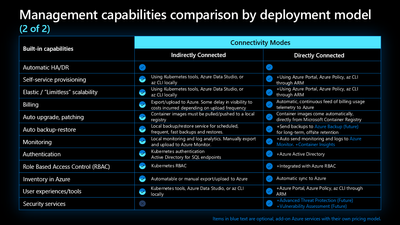
As can be seen in the diagram below, both indirectly connected mode and directly connected mode offer the core management capabilities to customers. Customers can take advantage of built in management capabilities like automatic HA/DR, self-service provisioning, elastic scale, authentication, etc.
In indirect mode, resources need to be created directly on the cluster, and manually projected into Azure using the az arcdata dc export command. All deployments and management are done locally using az CLI, kubectl and Azure Data Studio.
In the direct connected mode, the Arc resources such as Arc data controller, Arc SQL MI can also be created using Azure portal, in addition to using az CLI, kubectl and Azure Data Studio.
Upgrades:
Upgrades works exactly the same for both direct and indirect mode. For indirect mode upgrades, customers can use the az CLI, Kubernetes native tools and Azure Data Studio. For direct mode, in addition to using the kubectl, az CLI and Azure Data Studio, you can also use the Azure Portal for upgrading your Azure Arc data controller and Azure Arc SQL Managed Instance.
Billing and Monitoring:
Usage information needs to be uploaded to Azure for billing purposes at least once every 30 days. In indirect mode, this is a manual two step process requiring you to (1) export the usage to a json file and (2) uploading this usage file to Azure using az CLI commands. In direct mode, these steps are automatically performed by a built-in backend service.
Optionally, Monitoring metrics and logs can also be uploaded to Azure, in both direct and indirect modes. In the indirect mode, this can be done manually by running az arcdata dc export command followed by an az arcdata dc upload command, for both metrics and logs. In the direct mode, this can be automated by configuring automatic uploads of metrics and/or logs. This automatic upload can either be set during the Azure Arc data controller deployment, or by updating the Arc data controller post deployment.
The choice of connectivity mode is intentional and should be made prior to the deployment and this setting cannot be changed post deployment. We encourage customers to use the connectivity mode that best supports their use case. Data Services provides customers with the choice to use both modes for their specific needs. In both direct and indirect mode, the core SQL functionality remains the same and the management features work differently. As a result, the Arc Data Services platform provides you with a broad range of options for now or in the future.
Get started with a directly connected mode deployment and indirectly connected mode deployment today.
Nikita Takru
Product Manager at Microsoft, Azure Data
Published on:
Learn moreRelated posts
Azure Adaptive Cloud Pre-Days at Microsoft Ignite 2024
As the excitement builds for Microsoft Ignite 2024, tech enthusiasts and professionals worldwide are eagerly anticipating the Azure Adaptive C...
Launching the Arc Jumpstart Newsletter: October 2024 Edition
👋 Welcome! We are excited to kick off this monthly newsletter, where you can get the latest updates on everything happening in the Arc Jumpst...
Announcing Public Preview of Windows Server Hotpatch enabled by Azure Arc
We’re excited to announce the Public Preview of Hotpatch enabled by Azure Arc for Windows Sever 2025 Datacenter and Standard editions! ...
Public Preview of Azure Container Storage enabled by Azure Arc Edge Volumes
Release Summary We are thrilled to announce the Public Preview of Azure Container Storage enabled by Azure Arc Edge Volumes, a groundbre...
Introducing ArcBox 3.0 General Availability
Today, the Arc Jumpstart team is excited to announce the general availability of ArcBox 3.0! Since it was first introduced in 2021, Ar...
CloudCasa for Azure Arc
Azure Arc is a platform that helps users build and develop their applications by extending Azure to their datacenters, edge, or even to multic...
Generally Available: Transition to WS2012 / R2 ESUs enabled by Azure Arc from Volume Licensing
Customers that have enrolled in WS2012/ R2 ESUs through Volume Licensing for Year 1 can transition to Azure Arc for Year 2 of the program. Ext...
Comparing feature sets for AKS enabled by Azure Arc deployment options
This article shows a comparison of features available for the different deployment options under AKS enabled by Azure Arc. ...
Increasing Security for SQL Server Enabled by Azure Arc
Back in November 2023, the least privileges deployment model was introduced as a public preview. After thorough testing, we are excited to ann...
Five Key Updates on WS2012 ESUs enabled by Azure Arc
We have a myriad of key updates for customers enrolled in WS2012/R2 ESUs enabled by Azure Arc! As we continue to refine and expand the offer, ...