
Transforming Your Data Lake: Implementing Slow Change Dimension with Synapse
As organizations continue to collect and store large volumes of data in their data lakes, managing this data effectively becomes increasingly important. One key aspect of this is implementing Slow Change Dimension type 2, which allows organizations to track historical data by creating multiple records for a given natural key in the dimensional tables with separate surrogate keys and/or different version numbers. In this blog post we will address the following scenario: a customer wants to implement Slow Change Dimension type 2 on top of their data lake.
For this example, we will use Serverless SQL Pool to demonstrate how this can be done. Additionally, in the next post, we will explore how the same approach can be used with Spark.
What is Slow Change Dimension Type 2?
Slow Change Dimension type 2: This method tracks historical data by creating multiple records for a given natural key in the dimensional tables with separate surrogate keys and/or different version numbers. Check out this wiki to learn more, https://en.wikipedia.org/wiki/Slowly_changing_dimension
When implementing Slow Change Dimension type 2, there are various approaches that can be used depending on how the data is handled at the source. For example, if the source includes row version information or columns with flags for deleted or updated records, a different approach may be used compared to scenarios where this information is not available. In this particular scenario, we will follow a specific approach to address the challenges that are present.
Considerations for this Scenario:
- This scenario is managing UPSERT and file versioning. Please note, updates are not supported on Serverless so I am workaround this with the external tables.
- The files are not coming from the source with version, or information if the row was updated or deleted.
- Deleted rows are not been handled on this solution, only inserted and updated ones.
- Those files have a key value that is used to filter if they already exist or not on the destination. If you do not have a key column to compare. You will need to compare all the columns that the business considers as key values to determine if the information is new or not.
- The source will send the information on the file regardless if it is a new row to be inserted or updated. In other words, the process of transformation and cleansing needs to understand if the value on the file refers to an updated row or a new row. So this solution tries to understand that scenario and based on that version it accordingly. If your source can send the rows in an accurate way in which it is clear which row is updated, you can change the steps accordingly.
Solution:
Consider as in the example below the folder sourcefiles_folder with all files in parquet format which were sent from the source to be compared to a destination. My destination is the external table: SCD_DimDepartmentGroup.
The file has the following columns:
|
Column |
Datatype |
|
|
DepartmentGroupKey |
int |
Not Null |
|
ParentDepartmentGroupKey |
int |
NULL |
|
DepartmentGroupName |
nvarchar |
Not Null |
Here are the current values for this table - SCD_DimDepartmentGroup as Fig. 1, shows:
The last surrogate key is of the value of 8:
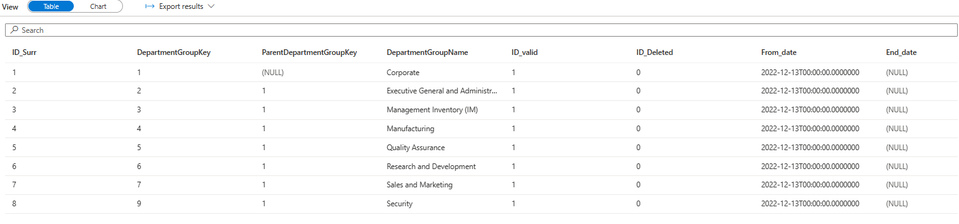
Fig. 1
Code - First Load and Dimension Creation:
Slow Change Dimension in 5 steps:
The implementation of the SCD is quite simple is basically filtering, persisting the data filtered, and comparing.
Current values on the table:
- ID_Valid column will show if the row was versioned or not. 1 for a new row, 0 for a versioned row.
- ID_Delete column will show if the row is still valid or not. 0 for a new not, 1 for an invalid
- Curr_date is the date where the row was inserted into the table, a column on the SCD will be FromDate
- ID_Surr is a surrogate key created for this table.
- EndDate will manage the version per date
1) Step 1 - Create a CETAS for new values
TableA_SCD_DimDepartmentGroup_NEW - In this example, this step will basically insert all the values that exist on the files and do not exist on the destination into an External Table.
The column DepartmentGroupKey defines if the row is new or not. You will need a column or columns to understand if this is considered new information or not in your dimension.
Please note three columns were added to this example:
- As Curr_date is the date where the row was inserted into the table. So we are using getdate()
- 1 ID_Valid which means this is a new valid row
- 1 ID_Delete which means this row was not deleted Or versioned.
Code - First, let's create the data source that will be used across all the external tables:
Now, let's create the external table for Step 1:
Please note that I am using the maximum value of the surrogate key column ID_Surr from the main table SCD_DimDepartmentGroup and adding 1 to it to generate new surrogate values for rows that require them. If some values repeat at this point, it is okay because I will reuse this information with the Department Key to create a new surrogate key in the last step (Step 5), thus ensuring a unique value for each row. I am using the max+1 approach to ensure that existing surrogate keys are not affected.
Results in Fig. 2 - Step 1:

Fig. 2 - Step 1.
2) Step 2 - Create a CETAS for values that will be updated/versioned.
TableB_SCD_DimDepartmentGroup_OLD will be the next external table to be created by inserting all values that exist on the file exported from the source and do exist on the destination. Those value also should not exist on the external table created in Step 1 (A).
In this scenario, the data that will be versioned is not a new row (Step 1); it is rows that already exist in the destination, but something has changed. The DepartmentGroupKey is the key that will always remain the same, so if there is a new key, it means a new row, and the comparison will happen for any other column. Additionally, in this scenario, it is possible that the source may send the same information again without any changes. Therefore, comparing the data is necessary to ensure that the row sent is indeed a row to be versioned.
Please note for the rows to be versioned:
- Flag ID_Valid was changed to 0
- ID_Deleted was invalidated by changing the value to 1.
- Curr_date here is the date the row was inserted on the table SCD_DimDepartmentGroup, so the From_date column is re-used.
- NULL columns are been handled properly(ISNULL) to find the ones that in fact changed.
Code:
Please note I re-used my surrogate key column ID_Surr of the main table SCD_DimDepartmentGroup for the values that will be versioned.
Results are Fig. 3 - Step 2 :

Fig. 3 - Step 2
3) Step 3 - Only updated values are to be versioned
TableC_SCD_DimDepartmentGroup_GOLD_OLD_INS - The next external table will get the new rows from the source file. The filter will be the rows that we already know something changed and needs to be versioned from Step 2.
Code:
Please note that I am using the maximum value of the surrogate key column ID_Surr from the main table SCD_DimDepartmentGroup and adding 1 to it to generate new surrogate values for rows that require them. If some values repeat at this point, it is okay because I will reuse this information with the Department Key to create a new surrogate key in the last step (Step 5), thus ensuring a unique value for each row. I am using the max+1 approach to ensure that existing surrogate keys are not affected.
The results are in Fig. 4 - Step 3:

Fig. 4 - Step 3
4) Step 4 - Create another external table by Union
For all those external tables that were created on the last steps.
- EndDatate should be null for new rows or new values versioned. If the value was versioned the respective row will contain until when it was valid.
- ID_valid will be 1 if the row is not versioned, 0 if this row is no longer valid
-
ID_Deleted will be 0 if the row is not versioned, 1 if this row is no longer valid
Results are - Fig. 5 - Union :

Fig. 5 - Union
Here we have the new rows, new versioned rows consolidated on the external table.
5) Step 5.
Next, we need to transfer this to our main table, by recreating an external table with the new information and dropping the old one.
1) I need the data from the main table excluding the rows that were versioned on this round
2) I need the data from the external tables Union.
3) I need to keep the historical changes of the old/main table
4) On top of that I will recreate the surrogate key. But for this, we will order per ID_Surr and DepartmentGroupKey. So, the new surrogate key values will start from the max surrogate+1 as we defined in the first Steps.
Results are in Fig. 6 - New Table. Please note in green there are the rows that are versioned, and in blue are the new rows:

Fig. 6 - New Table
This new table should replace the current SCD_DimDepartmentGroup, by recreating a new external table and dropping this old one.
Summary
Please review the considerations for the scenario to understand what was relevant for this implementation. As I mentioned earlier, there are different approaches that can be used to create a Slow Change Dimension, depending on how the data is handled at the source. In this post, I have provided examples of how to read new data, version the old data that has changed, and recreate new external tables with the updated information for a Slow Change Dimension type 2.
In the next post, I will demonstrate how to achieve the same using Spark. Stay tuned for more!
Liliam, UK.
Published on:
Learn moreWe can help you with Transforming Your Data Lake: Implementing Slow Change Dimension with Synapse
If you want help implementing, troubleshooting, or improving this product, contact us and we’ll point you in the right direction.
Related posts
We're moving!
We’re moving to the Analytics on Azure Tech Community! All new Azure Synapse Analytics content will be published there. In the next few days a...
Upgrade to Azure Synapse runtimes for Apache Spark 3.4 & previous runtimes deprecation
It is important to stay ahead of the curve and keep services up to date. That's why we encourage all Azure Synapse customers with Apache ...
ADF\Synapse Analytics - Replace Columns names using Rule based mapping in Mapping data flows
In real time, the column names from source might not be uniform, some columns will have a space in it, some other columns will not. For exampl...
Interpreting Script activity output json with Azure Data Factory\Synapse analytics
Script activity in Azure Data Factory\ Synapse analytics is very helpful to run queries against data sources mentioned here in this document.&...
Synapse Connectivity Series Part #4 - Advanced network troubleshooting and network trace analysis
Continuing the series of this blog posts I would like to go more advanced on troubleshooting connectivity issues. I would like to thank also&n...
Boost your CICD automation for Synapse SQL Serverless by taking advantage of SSDT and SqlPackage CLI
Introduction Azure Synapse Analytics Serverless SQL is a query service mostly used over the data in your data lake, for data discovery,...
Metadata-Based Ingestion in Synapse with Delta Lake
Overview The crucial first step in any ETL (extract, transform, load) process or data engineering program is ingestion, w...
Missing Fields Added to Dedicated SQL pool Diagnostic Settings Logs
Over the past year, customers have informed the team there were a set of key columns missing in the standalone Dedicated SQL pools (formerly S...
Using Azure DevOps with Synapse Workspaces to create hot fixes in production environments
Have you ever deployed a release to production only to find out a bug has escaped your testing process and now users are being severely impact...
Azure Synapse MVP Corner - March 2023
About this blog series Microsoft Most Valuable Professionals, or MVPs, are technology experts who passionately share their knowledge with the ...