
Troubleshooting Azurite and Azure Storage Emulator issues

The Azure Storage Emulator is deprecated, and it is recommended to make use of Azurite.
Azurite is an open-source Azure Storage API compatible server (emulator). Based on Node.js, Azurite provides cross platform experiences for customers wanting to try Azure Storage easily in a local environment.
Troubleshooting Azurite issues:
If you face any issues with Azurite, you can follow the below troubleshooting steps:
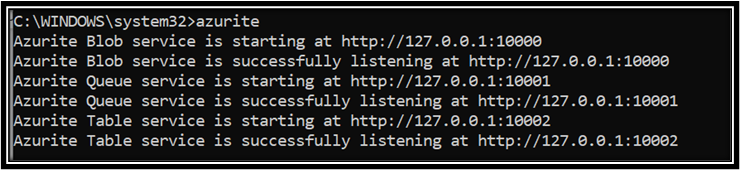
1. If you face issue during launch check in the cmd prompt if the Blob, Table and Queue service are started and listening as shown below:
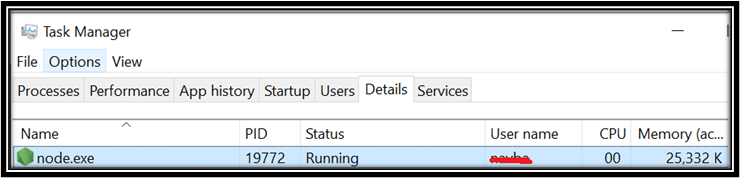
2. You need to then check if node.exe process is in running state in the Task Manager:
3. You can try to connect using Storage explorer and check if you are able to connect and perform the tests as explained here.
4. By default, the Azurite shows the access logs in the cmd prompt from where it is launched as shown below:

If you want to disable the access log you can run it with --silent switch. This doesn’t display any access logs in the cmd prompt.
5. If you need detailed error information, you can also run the command with --debug switch and the path where you need the logs to be saved as shown below:
6. If you are running Azurite within the docker you can follow this article and run the command with right switch to gather the debug logs.

Troubleshooting Storage Emulator issues:
If you are still using Storage emulator and facing the issue during its launch and installation you can follow the below steps:
1. You need to make sure that the Storage emulator is started and running fine. Once you launch the Storage emulator you should see the below message in the cmd prompt:

Also the process should be running in the TaskManager:

2. Make sure there are no other processes listening on the Azure Storage emulator ports.
- Browse to “C:\Program Files (x86)\Microsoft SDKs\Azure\Storage Emulator”.
- Open the file ‘AzureStorageEmulator.exe.config’ in a text editor. Note the ports being used by the service. The default config uses ports 10000, 10001, 10002
e.x. <service name="Blob" url="http://127.0.0.1:10000/"/>
<service name="Queue" url="http://127.0.0.1:10001/"/>
<service name="Table" url="http://127.0.0.1:10002/"/>
- Now using these ports, from an administrator command prompt query to see if any ports are in use.
netstat -p tcp -ano | findstr :10000
netstat -p tcp -ano | findstr :10001
netstat -p tcp -ano | findstr :10002
If you see any output then note the process that is using this port. You will either need to stop this process or reconfigure the ports in
the AzureStorageEmulator.exe.config file so that it is using a port not being used by another application.
3. Open an elevated command prompt and initialize the Azure Storage Emulator.
- Right-click the Start button and choose ‘Command Prompt(Admin’.
- From the command prompt cd to the directory “C:\Program Files (x86)\Microsoft SDKs\Azure\Storage Emulator”.
- Run the command: AzureStorageEmulator.exe init
If this is successful, you will see the output ‘The storage emulator was successfully initialized and is ready to use.’ If this is not successful,
then check the error details displayed in the cmd prompt.
4. You can check the status of the Azure Storage Emulator by executing the command below:
‘AzureStorageEmulator.exe status’. You should see output like the following:
C:\Program Files (x86)\Microsoft SDKs\Azure\Storage Emulator>AzureStorageEmulator.exe status
Windows Azure Storage Emulator 5.10.0.0 command line tool
IsRunning: True
BlobEndpoint: http://127.0.0.1:10000/
QueueEndpoint: http://127.0.0.1:10001/
TableEndpoint: http://127.0.0.1:10002/
IsRunning will show if the emulator is currently running. You can use ‘AzureStorageEmulator.exe start’ and ‘AzureStorageEmulator.exe
stop’ to start and stop the emulator.
4. If (1) or (2) does not resolve the issue, then check the Application Event log for any errors (right-click the Start button and go to ‘Event
Viewer’).
5. Try to Delete/Reinitialize the Azure Storage Emulator dataset. NOTE that this will delete all contents in the local storage.
AzureStorageEmulator.exe init -forcecreate
Install or Uninstall Issues
If it's an MSI install, so we can turn on verbose logging in the registry:
[HKEY_LOCAL_MACHINE\SOFTWARE\Policies\Microsoft\Windows\Installer]
"Logging"= "voicewarmup!"
The Installer will create a log file in the temp directory with the random name MSI*.LOG. Review the log which will have more details about the issue.
Relevant Articles:
https://docs.microsoft.com/en-us/azure/storage/common/storage-use-azurite?tabs=visual-studio
https://docs.microsoft.com/en-us/azure/storage/blobs/use-azurite-to-run-automated-tests
https://hub.docker.com/_/microsoft-azure-storage-azurite
Hope this helps.
Published on:
Learn moreRelated posts
Azure Storage - TLS 1.0 and 1.1 retirement
Overview TLS 1.0 and 1.1 retirement on Azure Storage was previously announced for Nov 1st, 2024, and it was postponed recently to 1 year later...
Efficient Management of Append and Page Blobs Using Azure Storage Actions
Overview In Azure Storage, Blob Lifecycle Management (BLM) allows you to automate the management of your data based on rules defined by...
[Azure AI Search] Internal Server Error when creating CMK encrypted objects
Scenario Customers follow the Microsoft doc to create CMK encrypted objects (data source, index etc.), but get the 500 Internal Serv...
Optimizing Azure Table Storage: Automated Data Cleanup using a PowerShell script with Azure Automate
Scenario This blog’s aim is to manage Table Storage data efficiently. Imagine you have a large Azure Table Storage that accumulates logs from ...
Optimizing Azure Table Storage: Automated Data Clean-up using a PowerShell script with Azure Automat
Scenario This blog’s aim is to manage Table Storage data efficiently. Imagine you have a large Azure Table Storage that accumulates logs from ...
Restoring Soft-Deleted Blobs with multithreading in Azure Storage Using C#
Blob soft delete is an essential feature that safeguards your data against accidental deletions or overwrites. By retaining deleted data for a...
Performing simple Azure Table Storage REST API operations using curl command.
The blog provides guidance to perform simple Table Storage REST API operations such as Create table, Delete Table, Insert entity, Delete entit...
Bulk delete all the old jobs from the batch account
Deleting a Job also deletes all Tasks that are part of that Job, and all Job statistics. This also overrides the retention period for Task dat...
Utilizing Azure Storage and Runbooks for scheduled automated backups of Azure SQL Databases
In this article, we are going to provide detailed steps to create a scheduled Azure SQL Database backup to storage account using automation. T...
[Azure Service Bus] JMS messages getting dead-lettered
The article discusses a problem where numerous messages end up in the dead letter queue (DLQ) when the JMS service bus consumer connects to th...