
Leveraging Blob Inventory Report for calculating Storage Capacity with the help of Azure Synapse

Background:
There would be scenarios where Customers would require to find the Storage Account capacity with segregation of soft delete, Version, snapshot and Active data.
Calculate the size of a Blob storage Blob Inventory:
The Azure Storage blob inventory feature provides an overview of your containers, blobs, snapshots, and blob versions within a storage account. Use the inventory report to understand various attributes of blobs and containers such as your total data size, age, encryption status, immutability policy, and legal hold and so on. The report provides an overview of your data for business and compliance requirements.
For more details, please visit here : Azure Storage blob inventory | Microsoft Learn
We can make use of the Blob Inventory report and Azure Synapse Workspace to calculate Capacity of storage account to understand how much soft deleted capacity , Active data capacity and version capacity . This approach would be advisable if there is Soft Delete, versioning or snapshots enabled on the Storage Account. For this approach, we need to first enable the Blob Inventory report on the storage account and the next step would be to calculate the capacity using Azure Synapse Workspace.
Step 1: - Enable Inventory Report
- Sign in to the Azure portal to get started.
- Locate your storage account and display the account overview.
- Under Data management, select Blob inventory.
- Select Add your first inventory rule.
The Add a rule page appears.
- In the Add a rule page, name your new rule.
- Choose a container.
- Under Object type to inventory, choose Blobs as this include below subtypes
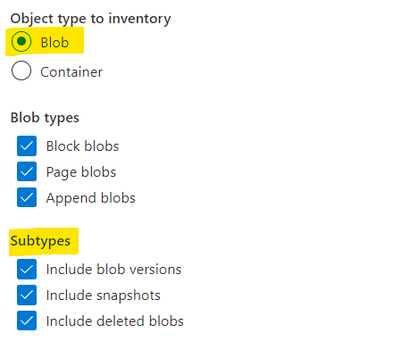
If you select Blob, then under Blob subtype, choose the types of blobs that you want to include in your report, and whether to include blob versions, snapshots, deleted blobs in your inventory report.
- Select the fields that you would like to include in your report and the format of your reports. Please make sure to include Content-Length from the fields and below fields for Version, snapshot and soft delete


- Choose how often you want to generate reports.
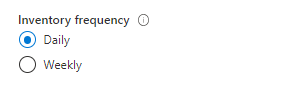
- Optionally, add a prefix match to filter blobs in your inventory report.
- Select Save.
Inventory output :
Each inventory rule generates a set of files in the specified inventory destination container for that rule. The inventory output is generated under the following path: https://<accountName>.blob.core.windows.net/<inventory-destination-container>/YYYY/MM/DD/HH-MM-SS/<rulename. where:
- accountName is your Azure Blob Storage account name.
- inventory-destination-container is the destination container you specified in the inventory rule.
- YYYY/MM/DD/HH-MM-SS is the time when the inventory began to run.
- ruleName is the inventory rule name.
Step 2:- Azure Synapse Workspace
Create an Azure Synapse workspace where you will execute a SQL query to report the inventory results.
After you create your Azure Synapse workspace, do the following steps.
- Navigate to https://web.azuresynapse.net.
- Select the Develop tab on the left edge.
- Select the large plus sign (+) to add an item.
- Select SQL script.
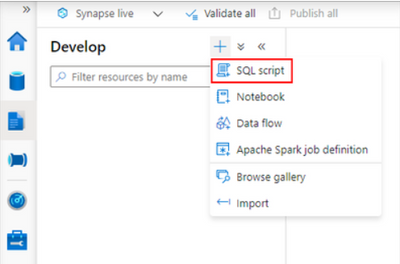
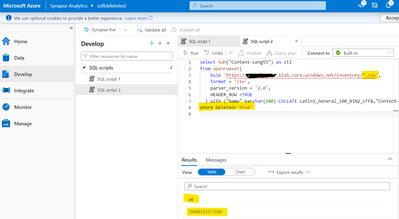
Sample query to find the Soft deleted Data.
If you have single csv file give the complete path of the same and in case multiple csv files give the path till where CSV file is present and add *.csv instead of specific file name
select SUM("Content-Length") as ctl
from openrowset(
bulk 'https://Storageaccountname.blob.core.windows.net/Conatinername/*.csv',
format = 'csv',
parser_version = '2.0',
HEADER_ROW =TRUE
) with ("Name" Varchar(200) COLLATE Latin1_General_100_BIN2_UTF8,"Content-Type" varchar(100) COLLATE Latin1_General_100_BIN2_UTF8,"Content-Encoding" varchar(100) COLLATE Latin1_General_100_BIN2_UTF8,"Content-Language" varchar(100) COLLATE Latin1_General_100_BIN2_UTF8,"Content-CRC64" varchar(100) COLLATE Latin1_General_100_BIN2_UTF8,"Content-MD5" varchar(100) COLLATE Latin1_General_100_BIN2_UTF8,"Cache-Control" varchar(100) COLLATE Latin1_General_100_BIN2_UTF8, "Content-Disposition" VARCHAR(100) COLLATE Latin1_General_100_BIN2_UTF8, BlobType VARCHAR(100) COLLATE Latin1_General_100_BIN2_UTF8,AccessTier varchar(100) COLLATE Latin1_General_100_BIN2_UTF8, "Snapshot" VARCHAR(100) COLLATE Latin1_General_100_BIN2_UTF8, VersionId VARCHAR(100) COLLATE Latin1_General_100_BIN2_UTF8,IsCurrentVersion varchar(100) COLLATE Latin1_General_100_BIN2_UTF8, AccessTierChangeTime varchar(100) COLLATE Latin1_General_100_BIN2_UTF8,"Deleted" Varchar(100) COLLATE Latin1_General_100_BIN2_UTF8 ,"Content-Length" BigInt) as rows
where Deleted='true'
Sample query to find the active data
select SUM("Content-Length")
from openrowset(
bulk 'https://Storageaccountname.blob.core.windows.net/conatinername/*.csv',
format = 'csv',
parser_version = '2.0',
HEADER_ROW =TRUE
) with ("Name" Varchar(200) COLLATE Latin1_General_100_BIN2_UTF8,"Content-Type" varchar(100) COLLATE Latin1_General_100_BIN2_UTF8,"Content-Encoding" varchar(100) COLLATE Latin1_General_100_BIN2_UTF8,"Content-Language" varchar(100) COLLATE Latin1_General_100_BIN2_UTF8,"Content-CRC64" varchar(100) COLLATE Latin1_General_100_BIN2_UTF8,"Content-MD5" varchar(100) COLLATE Latin1_General_100_BIN2_UTF8,"Cache-Control" varchar(100) COLLATE Latin1_General_100_BIN2_UTF8, "Content-Disposition" VARCHAR(100) COLLATE Latin1_General_100_BIN2_UTF8, BlobType VARCHAR(100) COLLATE Latin1_General_100_BIN2_UTF8,AccessTier varchar(100) COLLATE Latin1_General_100_BIN2_UTF8, "Snapshot" VARCHAR(100) COLLATE Latin1_General_100_BIN2_UTF8, VersionId VARCHAR(100) COLLATE Latin1_General_100_BIN2_UTF8,IsCurrentVersion varchar(100) COLLATE Latin1_General_100_BIN2_UTF8, AccessTierChangeTime varchar(100) COLLATE Latin1_General_100_BIN2_UTF8,"Deleted" Varchar(100) COLLATE Latin1_General_100_BIN2_UTF8 ,"Content-Length" BigInt) as rows
where "Deleted" is null
Published on:
Learn moreRelated posts
Azure Storage - TLS 1.0 and 1.1 retirement
Overview TLS 1.0 and 1.1 retirement on Azure Storage was previously announced for Nov 1st, 2024, and it was postponed recently to 1 year later...
Efficient Management of Append and Page Blobs Using Azure Storage Actions
Overview In Azure Storage, Blob Lifecycle Management (BLM) allows you to automate the management of your data based on rules defined by...
[Azure AI Search] Internal Server Error when creating CMK encrypted objects
Scenario Customers follow the Microsoft doc to create CMK encrypted objects (data source, index etc.), but get the 500 Internal Serv...
Optimizing Azure Table Storage: Automated Data Cleanup using a PowerShell script with Azure Automate
Scenario This blog’s aim is to manage Table Storage data efficiently. Imagine you have a large Azure Table Storage that accumulates logs from ...
Optimizing Azure Table Storage: Automated Data Clean-up using a PowerShell script with Azure Automat
Scenario This blog’s aim is to manage Table Storage data efficiently. Imagine you have a large Azure Table Storage that accumulates logs from ...
Restoring Soft-Deleted Blobs with multithreading in Azure Storage Using C#
Blob soft delete is an essential feature that safeguards your data against accidental deletions or overwrites. By retaining deleted data for a...
Performing simple Azure Table Storage REST API operations using curl command.
The blog provides guidance to perform simple Table Storage REST API operations such as Create table, Delete Table, Insert entity, Delete entit...
Bulk delete all the old jobs from the batch account
Deleting a Job also deletes all Tasks that are part of that Job, and all Job statistics. This also overrides the retention period for Task dat...
Utilizing Azure Storage and Runbooks for scheduled automated backups of Azure SQL Databases
In this article, we are going to provide detailed steps to create a scheduled Azure SQL Database backup to storage account using automation. T...
[Azure Service Bus] JMS messages getting dead-lettered
The article discusses a problem where numerous messages end up in the dead letter queue (DLQ) when the JMS service bus consumer connects to th...