
How to use Azure Table Storage with C#
How to use Azure Table Storage with C#
Azure Table Storage is a very useful solution present in the Azure Storage Account component. The service is a NoSQL datastore which accepts authenticated calls from inside and outside the Azure cloud. While remaining scalable and maintained by the Azure Cloud.
It is therefore a real accelerator for projects that need to store unstructured data.
You can obviously manipulate the data manually from the Azure portal, however, here I will show you that you can mainly use the API to manipulate the data from your C# code.
The first thing to do is to go to your Azure Portal on your Storage Account to retrieve its name and AccessKey.
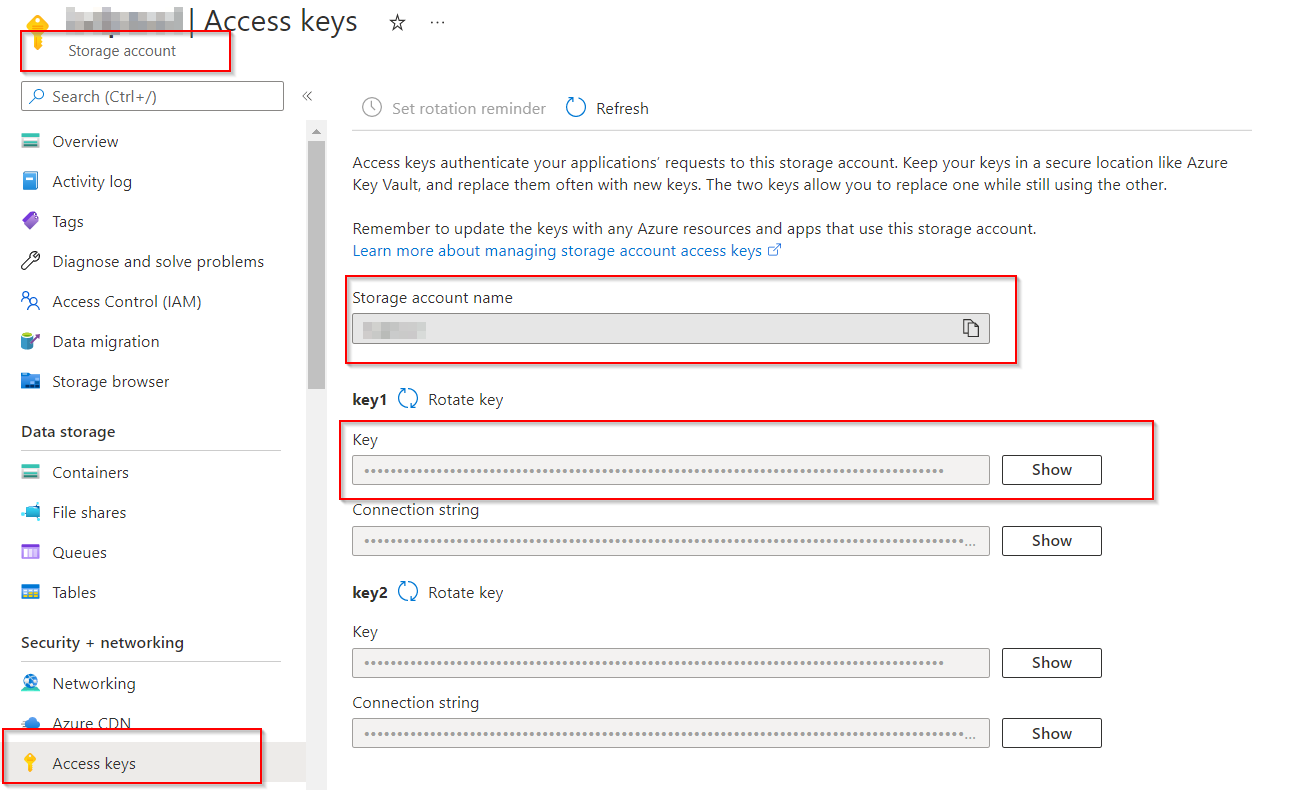
Then you can go into your code to do the following CRUD: Don't forget to use the NuGet package : Microsoft.WindowsAzure.Storage.
Using and Auth :
using Microsoft.WindowsAzure.Storage;
using Microsoft.WindowsAzure.Storage.Auth;
using Microsoft.WindowsAzure.Storage.Table;

// Get Storage Information
var accountName = "YourAzureStorageAccountName";
var creds = "AccessKeyOfYourStorageAccount";

// Set Auth
var creds = new StorageCredentials(accountName, accountKey);
var account = new CloudStorageAccount(creds, useHttps: true);

// Connect to Storage
var client = account.CreateCloudTableClient();
var table = client.GetTableReference("YourAzureTableName");
Retrieve Data :
// RETRIEVE DATA FROM AZURE TABLE
var condition = TableQuery.GenerateFilterCondition("ColumnA", QueryComparisons.Equal, "Something");
var condition2 = TableQuery.GenerateFilterCondition("ColumnB", QueryComparisons.Equal, "Anotherthing");
var finalFilter = TableQuery.CombineFilters(condition, TableOperators.And, condition2);
var query = new TableQuery().Where(condition).Where(finalFilter);
var result = table.ExecuteQuery(query);

var obj = result.FirstOrDefault();
obj.ColumnC;
Create Data :
// INSERT DATA IN AZURE TABLE
var obj = new YourCustomClassThatRepresentTheObject()
{
	PartitionKey = Guid.NewGuid().ToString(), // Must be unique
	RowKey = Guid.NewGuid().ToString(), // Must be unique
    ColumnA = "ValueA",
    ColumnB = true,
    ColumnC = "ValueB"
};
var insertOperation = TableOperation.Insert(obj);
table.Execute(insertOperation);
Update Data :
// UPDATE DATA IN AZURE TABLE
var obj = new YourCustomClassThatRepresentTheObject()
{
	PartitionKey = PartitionKeyValue, // Must be the one of the record you want to update. You can retrieve it before.
	RowKey = RowKeyValue, // Must be the one of the record you want to update. You can retrieve it before.
    ColumnA = "UpdateValueA",
    ColumnB = false,
    ColumnC = "UpdateValueB"
	ETag = "*"
};
var mergeOperation = TableOperation.Merge(obj);
table.Execute(mergeOperation);
Class definition :
// YourCustomClassThatRepresentTheObject Class definition
public class CustomerEntity : TableEntity
{
	public string PartitionKey { get; set; }
	public string RowKey { get; set; }
    public string ColumnA { get; set; }
    public Boolean ColumnB { get; set; }
    public string ColumnC { get; set; }
}
Voila ! Your code can now communicate with Azure Table and manipulate the data.
How to use Azure Table Storage with C#
Published on:
Learn more