
Azure Tips and Tricks - How to get started with Azure Container Apps

How to get started with Azure Container Apps
A simple way to run containers in Azure
Containers offer a great way to develop and run applications in a consistent environment. You can develop your app in a container on your local development machine, and run that same container in production, thereby eliminating differences in infrastructure between environments. And now, you can easily run containers in Azure with Azure Container Apps. Azure Container Apps abstracts the overhead of infrastructure and orchestration, making it easy for you to deploy and run a container.
In this post, we'll deploy a sample container to Azure Container Apps.
Prerequisites
If you want to follow along, you'll need the following:
- An Azure subscription (If you don't have an Azure subscription, create a free account before you begin)
Create a simple hello world container
We'll start by creating an Azure Container Apps resource from the Azure portal.
- Go to the Azure portal
- Click the Create a resource button (the plus-sign in the top left corner)
- Search for Container App, select the "Container App" result and click Create
- Select a Resource Group
- Enter a Name
- Click Create new for the Container App environment. This environment houses the Log Analytics Workspace that will be used for monitoring and can contain one or more Container Apps which all write to this Log Analytics Workspace
- Fill in an Environment name
- Select a Region for the environment
- Click the Monitoring tab
- Select an existing Log analytics workspace or create a new one
- Click Create to return to the Create Container App wizard

- Click Next: App settings
- You can specify a container in a container registry to run in the Container App. We will use a quickstart image, so check the "Use quickstart image" checkbox. This will also set the Container App CPU and memory and network settings
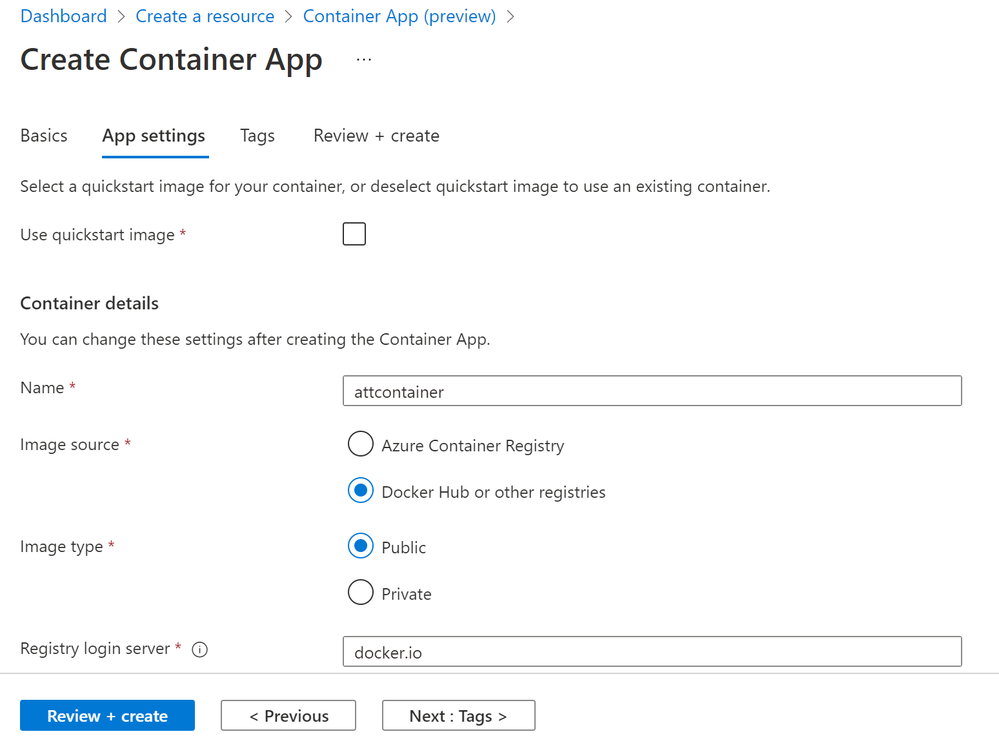
- Click Review + create and then Create
When the Container App is deployed, navigate to it in the Azure portal. You'll see that it has an Application URL.
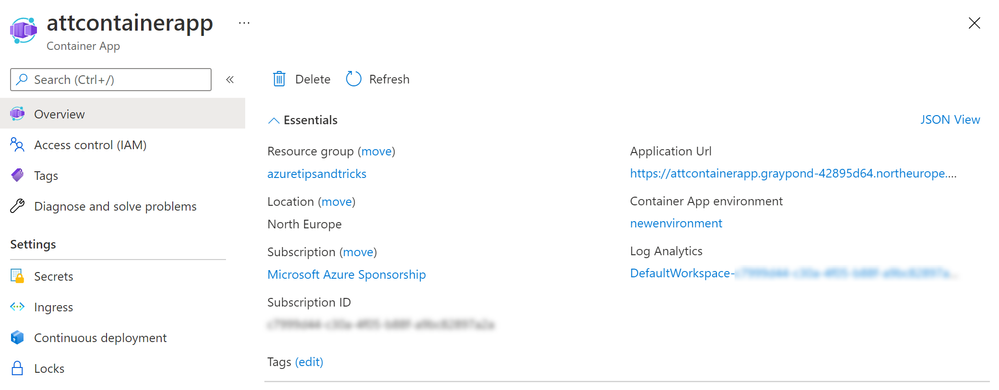
Click on the Application URL to open the sample application that is now running in the Container App.

You can configure the Container App by changing the ingress settings, to enable or disable incoming traffic and the target network port. You can also configure secrets that the container can use, and setup continuous deployment with GitHub Actions to automatically build and deploy code to the Container App. Pretty cool.
Conclusion
Azure Container Apps offers an easy way to run containers in Azure with minimal configuration and management overhead. Azure does the heavy lifting for you. Create a trial account today and go and check it out!
Published on:
Learn moreWe can help you with Azure Tips and Tricks - How to get started with Azure Container Apps
If you want help implementing, troubleshooting, or improving this product, contact us and we’ll point you in the right direction.
Related posts
This Month in Azure Static Web Apps | 09/2024
We are back with another edition of the Azure Static Web Apps Community! :party_popper: September was yet another month ...
GitHub Copilot for Azure: 6 Must-Try Features
As developers, we are constantly seeking tools that streamline our workflows and boost productivity. … Enter GitHub Copilot for Azure, now in ...
Responsible AI Mitigation Layers
Generative AI is increasingly being used in various kinds of systems to augment humans and infuse intelligent behavior into existing and new a...
Streamline Your Azure Workflow: Introducing GitHub Copilot for Azure in VS Code
I'm excited to announce the public preview of GitHub Copilot for Azure - a new addition to your toolkit that seamlessly integrates with G...
Build Intelligent Apps Code-First with Prompty and Azure AI
Building Generative AI applications can feel daunting for traditional app developers. What does the end-to-end applicati...
Certificación AI-900 (Fundamentos de IA) con Chicas en IA
La inteligencia artificial ha llegado para quedarse, ¡y más aún con la revolucionaria IA generativa! Para ayudar a los profesionales a especia...
Get certified with Learn Live GitHub series!
GitHub Universe is coming, and Microsoft and GitHub are partnering to offer a new special Learn Live series in Brazilian Portuguese, English a...
Certifícate con Learn Live GitHub en Español
Microsoft y GitHub se han unido para ofrecer una nueva serie especial de Learn Live en inglés y español: GitHub 2024. Del 10 al 24 de Octubre,...
Evaluating generative AI: Best practices for developers
As a developer working with generative AI, you've likely marveled at the impressive outputs your models can produce. But how do you ensure the...
Introducing Azure Product Retirement Livestreams
The Azure Retirements team, in collaboration with key partner groups, is excited t...