
Securely uploading blob files to Azure Storage from API Management

Agenda
This article will provide a demonstration on how to utilize either SAS token authentication or managed identity from API Management to make requests to Azure Storage. Furthermore, it will explore and compare the differences between these two options.
Comparision
The choice between Managed Identity and SAS Token depends on factors such as the level of control required, the duration of access, and the specific security requirements of your application. Both options offer different levels of access control and security features for accessing Azure Storage.
Azure Managed Identity vs. SAS (Shared Access Signature) Token
| Authentication | Advantage | Disadvantage |
| Azure Managed Identity |
|
|
| SAS Token |
|
|
It is crucial to select the appropriate authentication method for accessing Azure Storage based on your specific use cases. For instance, if the permission for your client applications is permanent and long-term, it may be preferable to leverage Azure Managed Identity, as the assigned permission remains in place indefinitely. On the other hand, if you only need to grant temporary access to your client applications, it is more suitable to use SAS Token. SAS tokens can be created with an expiration date, and the permission will automatically expire once the token becomes invalid. This grants more control over the duration of access for temporary scenarios.
Below are the instructions to implement both Azure Managed Identity and SAS Token authentication options.
OPTION 1: Authentication via managed identity
This shows you how to create a managed identity for an Azure API Management instance and how to use it to access Azure Storage. A managed identity generated by Microsoft Entra ID allows your API Management instance to easily and securely access Azure Storage which is protected by Microsoft Entra ID. Azure manages this identity, so you don't have to provision or rotate any secrets.
Configuration
The initial step involves enabling the managed identity for your APIM service, followed by assigning the appropriate permissions for blob uploading. You must go to the "Managed identities" blade to enable the system assigned identity firstly.
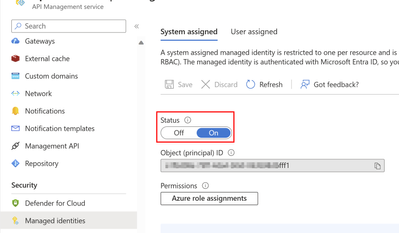
To add the storage permission, you can navigate to the same blade and click on the "Azure role assignments" button. It is important to carefully consider the role assignment based on your specific use cases, as there are multiple built-in roles available for authorizing access to blob data using Microsoft Azure Active Directory. For testing purposes, you can grant the "Storage Blob Data Contributor" permission to the managed identity.
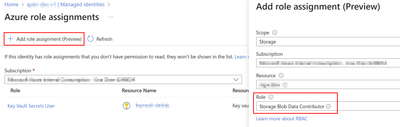
For more detailed information regarding the built-in roles for blobs, please refer to the documentation provided below.
Assign an Azure role for access to blob data - Azure Storage | Microsoft Learn
Authorize access to blobs using Microsoft Entra ID - Azure Storage | Microsoft Learn
Policy
In the <inbound> section, I included a policy for authentication with managed identity and also for rewriting the blob path. This example utilizes the name of the storage account that is set within the named values.
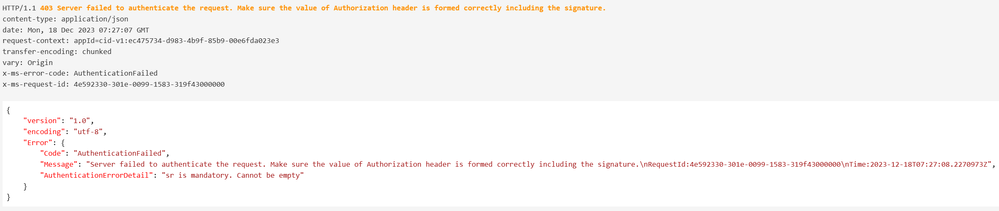
Within the <outbound> section, to make the error response from Storage side easier to troubleshoot, I use the policy<xml-to-json> to convert the response format, because it is generated in XML format.
Error example:
Test
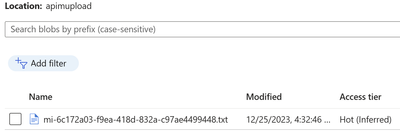
Simply using the test panel to do a test and check if everything works fine. The response will come back with 201-Created when the file has been uploaded successfully.
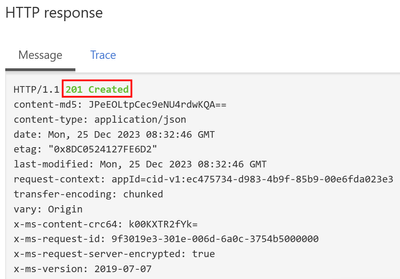
The file upload to the storage container was successful.
OPTION 2: Access Storage through SAS token
This is a method to access Storage Account from APIM service using SAS token. By setting the SAS token as named values, it can help reuse the SAS token.
One thing you might need to be careful about is that the SAS token should be handled and maintained manually because there is no integration between Storage Account and Key Vault for key re-creation.
Prerequisite
A SAS token is required before implementation. There are some ways to create a SAS token. You can generate the token from the Azure portal by selecting "Shared Access Signature" from the menu and providing the necessary information.
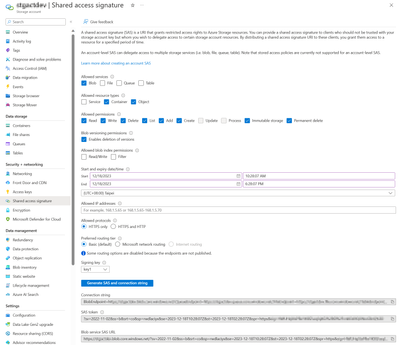
Additionally, both Azure PowerShell and Azure CLI can be utilized to generate the token.
- By using the Azure PowerShell, the examples within the below documentation can help you to create the SAS token.
New-AzStorageAccountSASToken (Az.Storage) | Microsoft Learn
- By using Azure CLI
az storage account | Microsoft Learn
Example:

Configuration
After generating the SAS token, let’s move forward to API management service to set up the required configurations to restore the SAS token in the Named values on for API reference.
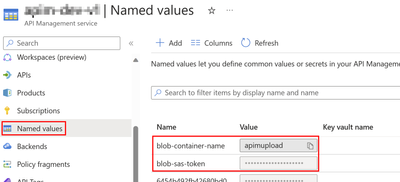
Policy
In the <inbound> section, I added the policy for rewriting the blob path as well as assigning the SAS token. This example uses the name of Storage Account that is set in the named values.
Within the <outbound> section, to make the error response from Storage side easier to troubleshoot, I use the policy<xml-to-json> to convert the response format, because it is generated in XML format.
Error example:
Test
Simply using the test panel to do a test and check if everything works fine. The response will come back with 201-Created when the file has been uploaded successfully.
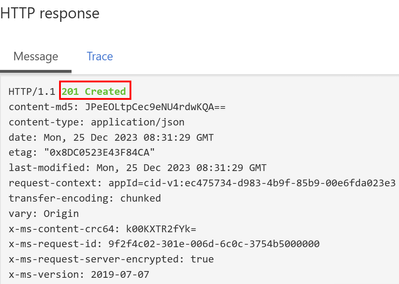
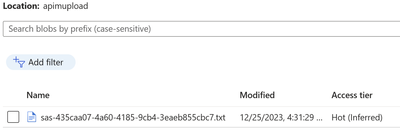
The file upload to the storage container was successful.
Conclusion
In conclusion, both Azure Managed Identity and SAS Token authentication methods offer secure ways to upload blob files to Azure Storage from API Management.
Azure Managed Identity provides seamless authentication and eliminates the need to store and manage credentials, improving security. It allows for granular access control through RBAC and is suitable for permanent permission scenarios. However, it is limited to Azure services and requires dependency on Azure AD.
SAS Token authentication offers greater flexibility with temporary access and fine-grained control over permissions. It allows for the generation of tokens with specific expiration dates, providing enhanced security. However, SAS token management can be more complex, requiring manual generation and distribution of tokens.
When choosing between the two methods, consider the longevity of permissions needed and the level of control required. Azure Managed Identity is ideal for long-term permissions. Assess your specific use case to determine the most secure and convenient authentication approach for uploading blob files to Azure Storage from API Management.
Published on:
Learn moreRelated posts
Azure Storage - TLS 1.0 and 1.1 retirement
Overview TLS 1.0 and 1.1 retirement on Azure Storage was previously announced for Nov 1st, 2024, and it was postponed recently to 1 year later...
Efficient Management of Append and Page Blobs Using Azure Storage Actions
Overview In Azure Storage, Blob Lifecycle Management (BLM) allows you to automate the management of your data based on rules defined by...
[Azure AI Search] Internal Server Error when creating CMK encrypted objects
Scenario Customers follow the Microsoft doc to create CMK encrypted objects (data source, index etc.), but get the 500 Internal Serv...
Optimizing Azure Table Storage: Automated Data Cleanup using a PowerShell script with Azure Automate
Scenario This blog’s aim is to manage Table Storage data efficiently. Imagine you have a large Azure Table Storage that accumulates logs from ...
Optimizing Azure Table Storage: Automated Data Clean-up using a PowerShell script with Azure Automat
Scenario This blog’s aim is to manage Table Storage data efficiently. Imagine you have a large Azure Table Storage that accumulates logs from ...
Restoring Soft-Deleted Blobs with multithreading in Azure Storage Using C#
Blob soft delete is an essential feature that safeguards your data against accidental deletions or overwrites. By retaining deleted data for a...
Performing simple Azure Table Storage REST API operations using curl command.
The blog provides guidance to perform simple Table Storage REST API operations such as Create table, Delete Table, Insert entity, Delete entit...
Bulk delete all the old jobs from the batch account
Deleting a Job also deletes all Tasks that are part of that Job, and all Job statistics. This also overrides the retention period for Task dat...
Utilizing Azure Storage and Runbooks for scheduled automated backups of Azure SQL Databases
In this article, we are going to provide detailed steps to create a scheduled Azure SQL Database backup to storage account using automation. T...
[Azure Service Bus] JMS messages getting dead-lettered
The article discusses a problem where numerous messages end up in the dead letter queue (DLQ) when the JMS service bus consumer connects to th...