
Azure Tips and Tricks - Working With Azure Functions in VS Code and GitHub

Working With Azure Functions in VS Code and GitHub
Overview
Azure Functions is a Serverless component from Microsoft that allows you to create event-based functions that can be dynamically scaled to meet the demand. We can work with all kinds of events such as when a file is uploaded to storage, a message appears in the queue or a HTTP request is received.
Using GitHub we can take an existing application, fork it to our account and then create our own version of the application, all from within VS Code.
What's covered in this lab
In this lab, you will:
- Fork an existing Azure Functions project on GitHub
- Learn how to create and merge branches in VS Code
- Debug Functions with VS Code
- Deploy Functions to Azure from VS Code
Prerequisites
- You'll need VS Code with Azure Functions extension, Node.js and the Azure Functions Core Tools npm module.
- You are using a GitHub account and an Azure account made for the purpose of this lab. These have already been logged into your machine and the account info is saved.
Setting up the GitHub repo
- Navigate to the example app repository.
- Click the "Fork" button in the upper-right hand corner of the repository.
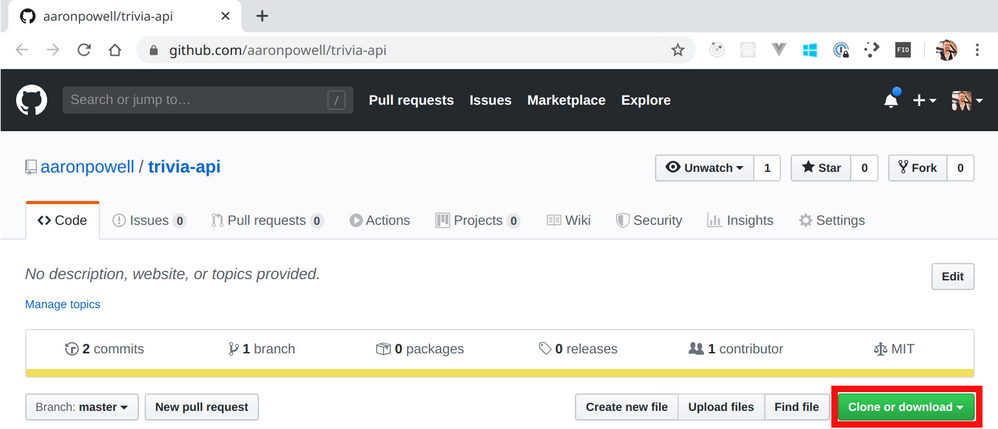
- In VS Code open the Command Pallet (Ctrl/Cmd + Shift + P) and type Git clone, select the command and paste in the URL copied in step 3 and select a folder on disk to clone to.

Running and Debugging with VS Code
- Click "Run and Debug" from the Activity Bar (Ctrl/Cmd + Shift + D)

- Click "Start Debugging" (F5)

- Add a breakpoint to line 4 of
GetAllQuestions/index.js - Open a browser and navigate to http://localhost:7071/api/GetAllQuestions
- Observe the breakpoint being hit in VS Code, then press F5 to continue execution
Create a branch
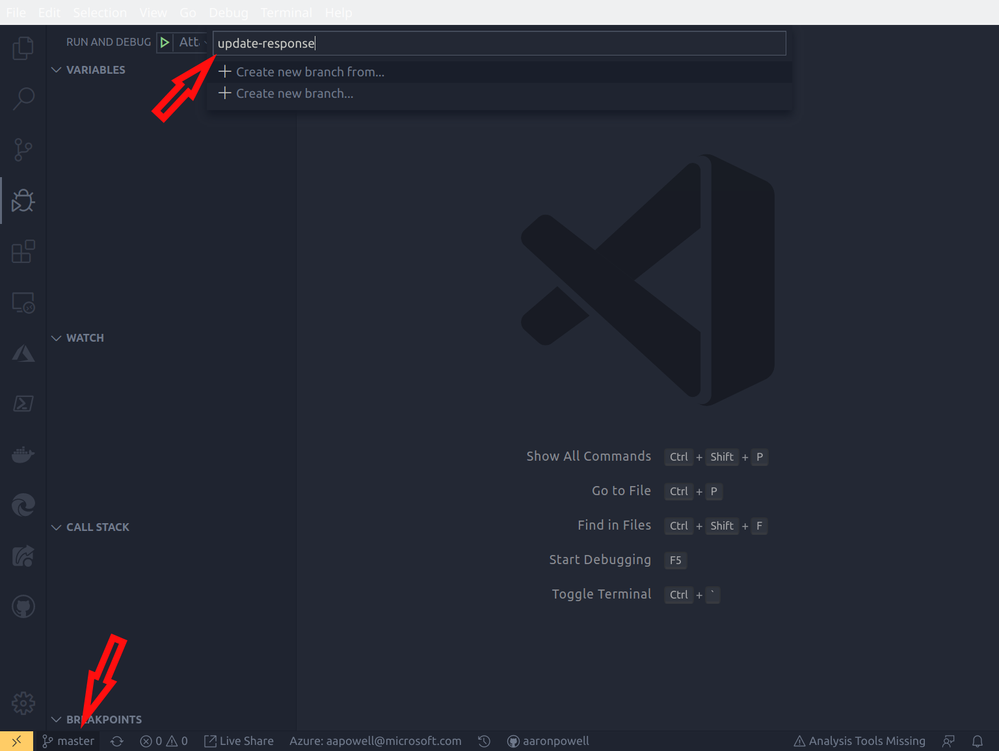
- Click 'master' in the Status Bar and enter the name for a new branch (e.g.: update-response)
- Edit
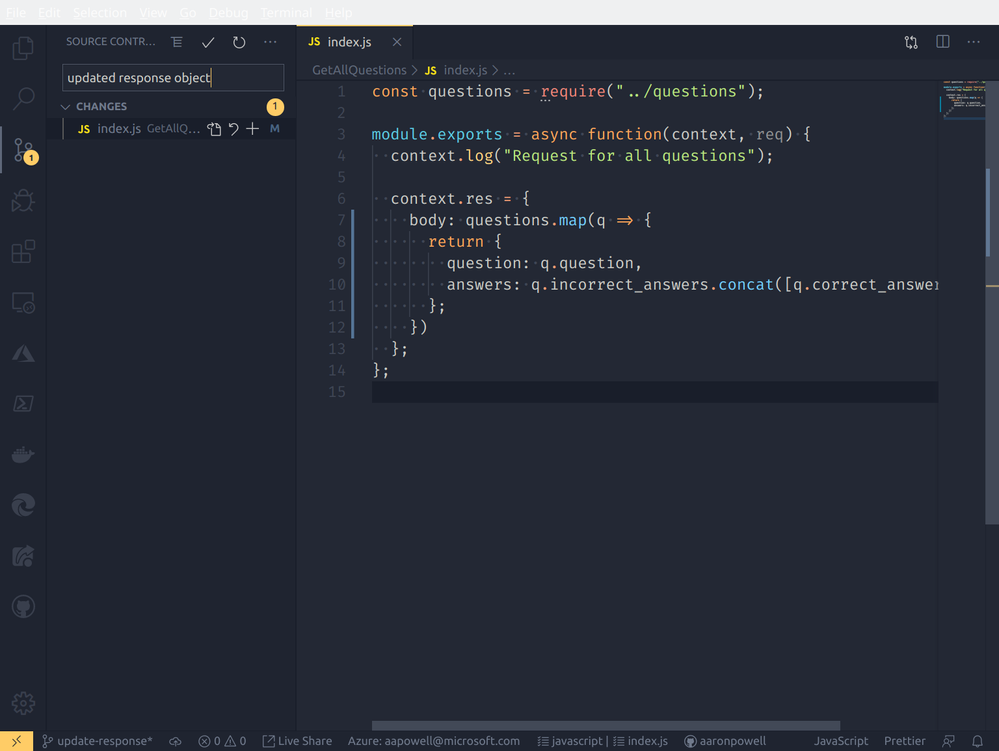
GetAllQuestions/index.jsto return the question and possible answers, without indicating the correct answer

- Click "Source Control" from the Activity Bar (Ctrl/Cmd + Shift + G) and enter a commit message for the change
Update master branch
- Use the Status Bar to navigate back to the 'master' branch
- Edit GetAllQuestions/index.js to only return the first 5 questions in the response
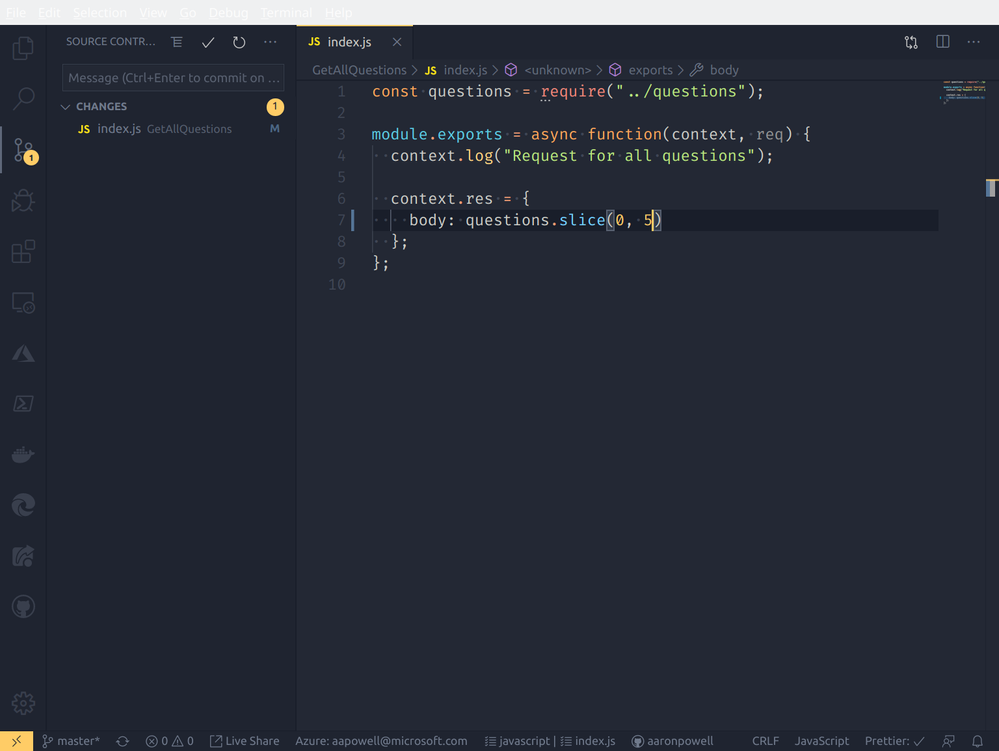
- Click "Source Control" from the Activity Bar (Ctrl/Cmd + Shift + G) and enter a commit message for the change
- Open the Command Pallet (Ctrl/Cmd + Shift + P) and select "Git: Merge Branch", selecting your branch from the previous exercise
- Select "Accept incoming Changes" in the Merge Conflict window
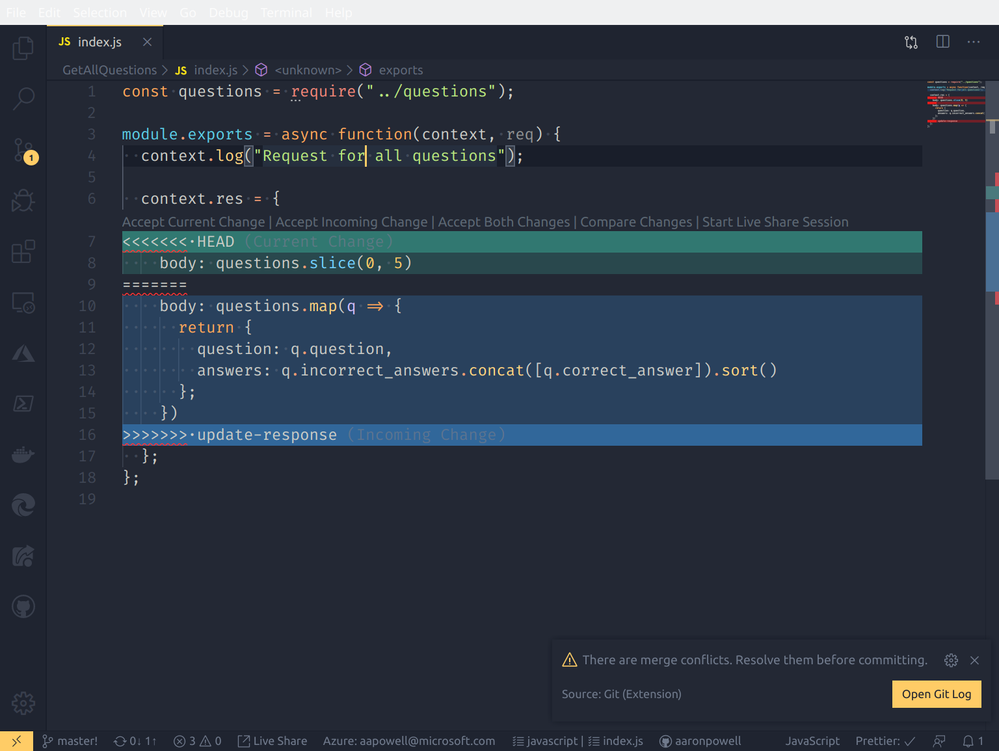
- Open the Command Pallet (Ctrl/Cmd + Shift + P) and select "Git: Delete Branch", selecting your branch from the previous exercise
- Click "Source Control" from the Activity Bar (Ctrl/Cmd + Shift + G) and commit the merge to the git repo
- Open the Command Pallet (Ctrl/Cmd + Shift + P) and select "Git: Push" to publish to GitHub
Deploying to Azure
- Open the Command Pallet (Ctrl/Cmd + Shift + P) and select "Azure Functions: Deploy to Function App"
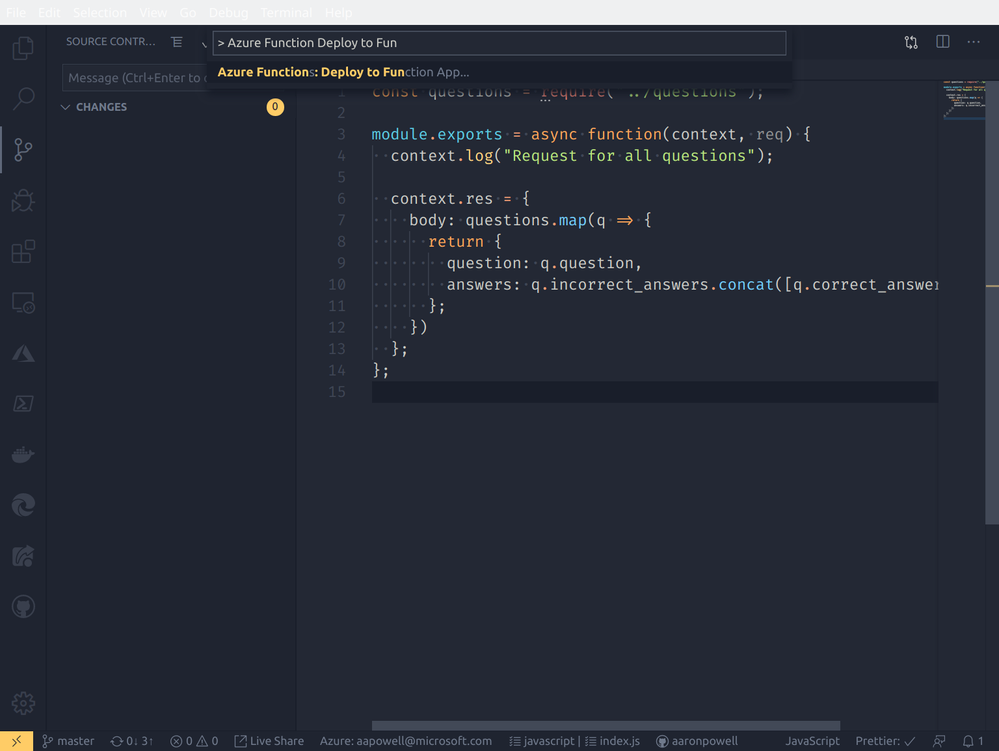
- Follow the wizard providing information along the way for:
- Select your subscription
- Function App Name (eg: YOUR_NAME-jsghfunctions)
- Node.js runtime (12.x)
- Azure Region (Pick one close to you, e.g.: Australia East)
- It will take a minute or two to create the app. Once it's done, you'll get prompted with the URL of the deployed app, which you can navigate to in the browser
- Open up the Azure Portal and navigate to your subscription -> resource group -> Function App to view the deployed app in Azure
Conclusion
To learn more on Azure Functions, create a trial account today and go and check it out!
Published on:
Learn moreRelated posts
This Month in Azure Static Web Apps | 09/2024
We are back with another edition of the Azure Static Web Apps Community! :party_popper: September was yet another month ...
GitHub Copilot for Azure: 6 Must-Try Features
As developers, we are constantly seeking tools that streamline our workflows and boost productivity. … Enter GitHub Copilot for Azure, now in ...
Responsible AI Mitigation Layers
Generative AI is increasingly being used in various kinds of systems to augment humans and infuse intelligent behavior into existing and new a...
Streamline Your Azure Workflow: Introducing GitHub Copilot for Azure in VS Code
I'm excited to announce the public preview of GitHub Copilot for Azure - a new addition to your toolkit that seamlessly integrates with G...
Build Intelligent Apps Code-First with Prompty and Azure AI
Building Generative AI applications can feel daunting for traditional app developers. What does the end-to-end applicati...
Certificación AI-900 (Fundamentos de IA) con Chicas en IA
La inteligencia artificial ha llegado para quedarse, ¡y más aún con la revolucionaria IA generativa! Para ayudar a los profesionales a especia...
Get certified with Learn Live GitHub series!
GitHub Universe is coming, and Microsoft and GitHub are partnering to offer a new special Learn Live series in Brazilian Portuguese, English a...
Certifícate con Learn Live GitHub en Español
Microsoft y GitHub se han unido para ofrecer una nueva serie especial de Learn Live en inglés y español: GitHub 2024. Del 10 al 24 de Octubre,...
Evaluating generative AI: Best practices for developers
As a developer working with generative AI, you've likely marveled at the impressive outputs your models can produce. But how do you ensure the...
Introducing Azure Product Retirement Livestreams
The Azure Retirements team, in collaboration with key partner groups, is excited t...