
Search service – add data source from SQL database in private network

Pre-requirements:
Before we start, please read these documents Introduction to Azure Cognitive Search and Data sources gallery - Azure Cognitive Search.
Referred from these documents above you should understand the relationship between Azure Search service, Index and Data source. The Search Service saves un-indexed data from data sources to its indexes, then client application could search the results from index through queries. The highlight part in below image shows the process of the indexing.

But how about the data sources under private network, how could we set the connection between them? According to our document Connect through a private endpoint - Azure Cognitive Search | Microsoft Docs we have shared private endpoint as the outbound of Search service.
Below is the test I did to explain how we use shared private endpoint between Azure search with SQL Database.
Test steps:
- SQL Server- At first, I created a SQL server which had SQL DB in selected network with a Virtual network.

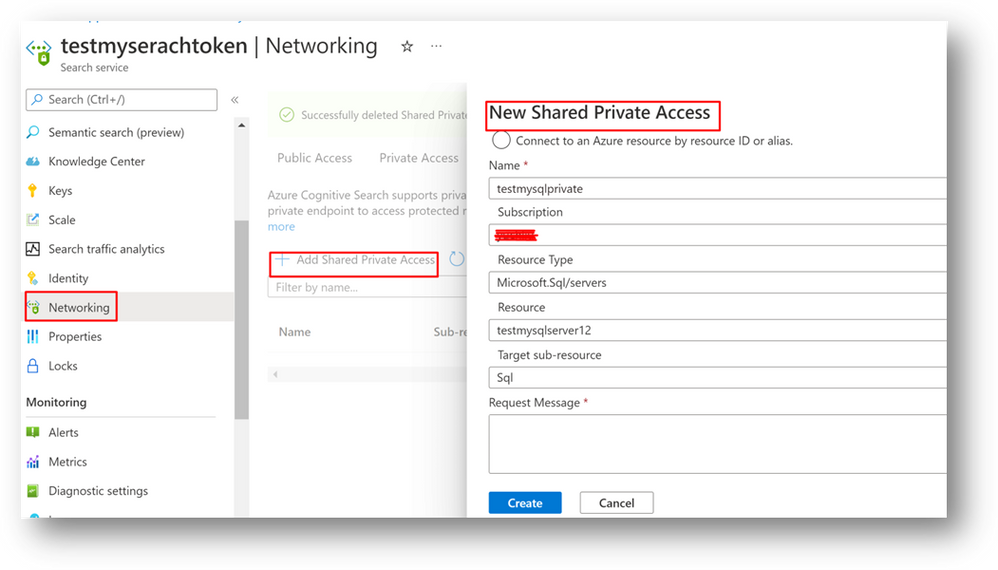
- Add shared private endpoint- As this SQL server in a selected network, then follow the document Connect through a private endpoint - Azure Cognitive Search | Microsoft Docs I wanted to add a shared private endpoint. I went to Azure portal, found my search service. And then selected “Networking” in the left menu. Clicked the third tab “Shared Private Access”, created a new shared private endpoint.
- Approve Private endpoint- Then I backed to Azure SQL server, found the networking->private access. There was a private endpoint need to be approved.
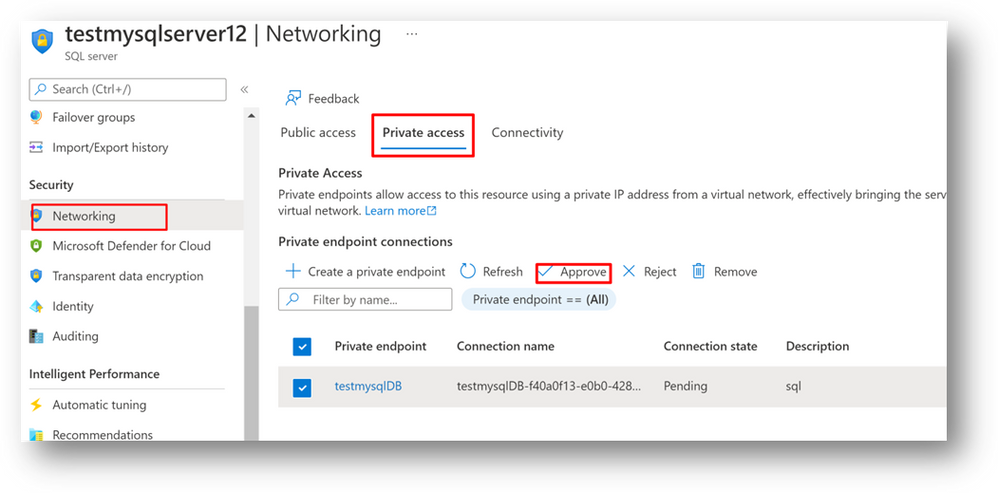
So I approved it, after that I backed to my Search Service shared private access again, this shared private endpoint showed connection state “Approved”.

- Add in data source--After above steps to add a shared private endpoint, I tried to add this SQL database as a data source of Search Service. But it got an error like this in below screenshot.
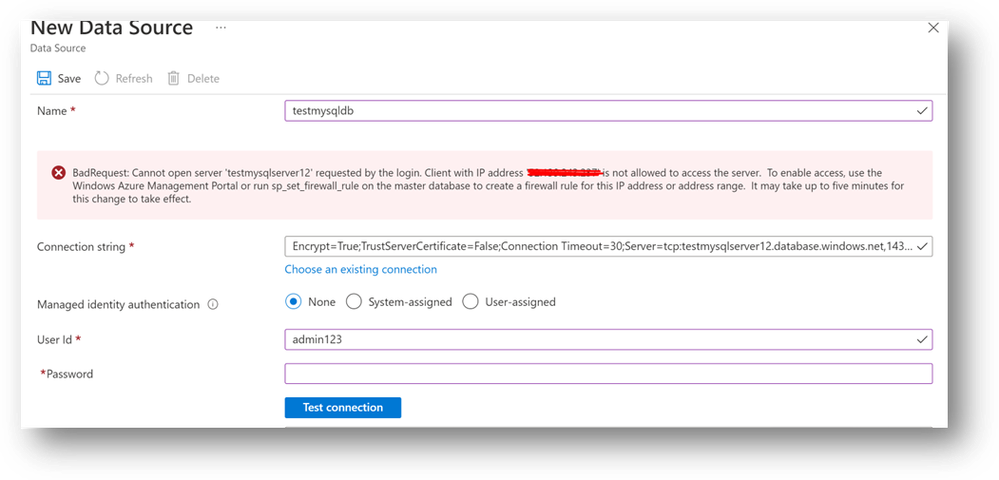
What’s the reason? Here please be careful, before we add this SQL DB as the data source of Search Service, we need to test the connection through that button “Test connection”. Here we test between the Azure portal and Azure SQL database. Like this error messages in the screenshot, we need to add the client IP of portal in SQL server firewall list.
Thus, I added the Client Ip in my SQL server firewall list. After that tested add data source again. It passed the test connection and added my table in the SQL DB.

- Create Index and indexer- We can create index, indexer in Azure portal or reset API from Create Indexer (Azure Cognitive Search REST API. Please remember to add the red color words part of “executionEnvironment” in your Indexer parameter to make sure the data in private.
{
"name": "indexer",
"dataSourceName": "sql-datasource",
"targetIndexName": "index",
"parameters": {
"configuration": {
" executionEnvironment ": "private"
}
},
"fieldMappings": []
}
In conclusion to add a SQL Database from private network please remember these steps in below:
- Add shared private endpoint in search service.
- Approve the shared private endpoint in SQL server.
- Add client IP of Azure portal in SQL server firewall list (If you know the IP you can add it as the first step)
- Test connection and add the data source.
- Add index and indexer. Set the indexer parameters configuration “executionEnvironment” to private.
If you want to add other data source like Storage Account, it doesn’t have the step to test connection. Then it’s not necessary to add Azure portal IP in the firewall list to set up Search Service data source.
Published on:
Learn moreRelated posts
Azure Storage - TLS 1.0 and 1.1 retirement
Overview TLS 1.0 and 1.1 retirement on Azure Storage was previously announced for Nov 1st, 2024, and it was postponed recently to 1 year later...
Efficient Management of Append and Page Blobs Using Azure Storage Actions
Overview In Azure Storage, Blob Lifecycle Management (BLM) allows you to automate the management of your data based on rules defined by...
[Azure AI Search] Internal Server Error when creating CMK encrypted objects
Scenario Customers follow the Microsoft doc to create CMK encrypted objects (data source, index etc.), but get the 500 Internal Serv...
Optimizing Azure Table Storage: Automated Data Cleanup using a PowerShell script with Azure Automate
Scenario This blog’s aim is to manage Table Storage data efficiently. Imagine you have a large Azure Table Storage that accumulates logs from ...
Optimizing Azure Table Storage: Automated Data Clean-up using a PowerShell script with Azure Automat
Scenario This blog’s aim is to manage Table Storage data efficiently. Imagine you have a large Azure Table Storage that accumulates logs from ...
Restoring Soft-Deleted Blobs with multithreading in Azure Storage Using C#
Blob soft delete is an essential feature that safeguards your data against accidental deletions or overwrites. By retaining deleted data for a...
Performing simple Azure Table Storage REST API operations using curl command.
The blog provides guidance to perform simple Table Storage REST API operations such as Create table, Delete Table, Insert entity, Delete entit...
Bulk delete all the old jobs from the batch account
Deleting a Job also deletes all Tasks that are part of that Job, and all Job statistics. This also overrides the retention period for Task dat...
Utilizing Azure Storage and Runbooks for scheduled automated backups of Azure SQL Databases
In this article, we are going to provide detailed steps to create a scheduled Azure SQL Database backup to storage account using automation. T...
[Azure Service Bus] JMS messages getting dead-lettered
The article discusses a problem where numerous messages end up in the dead letter queue (DLQ) when the JMS service bus consumer connects to th...