
Exploring the New Resource Specific Structured Logging in Azure Firewall
Written in collaboration with @ShabazShaik and @gusmodena.
Introduction:
Azure Firewall is a cloud-native and intelligent network firewall security that provides the best of breed threat protection for your cloud workloads running in Azure. It’s a fully stateful firewall with built-in high availability and unrestricted cloud scalability. With any firewall solution, it is imperative to log the traffic that is being processed by the firewall for auditing and troubleshooting purposes. To achieve this goal, you have Diagnostic Logs that you can configure on the firewall which helps you with monitoring of all the traffic and metrics on the firewall.
Today we see many IT Teams concerned about having better visibility of all the traffic passing through their firewalls and identifying vulnerabilities to act quickly.
In this blog we will discuss in detail about the new Structured Firewall Logs feature which helps you with enhanced logging capabilities.
Structured Firewall Logs:
The following diagnostic log categories are currently available in Azure Firewall:
- Application rule log
- Network rule log
- DNS proxy log
These log categories use Azure diagnostics mode in which all data from any diagnostic setting will be collected in the AzureDiagnostics table. Whereas with this new feature of Structured Firewall logs, you’ll be able to choose to use Resource Specific tables instead of existing AzureDiagnostics table. Structured Firewall logs is required for Policy Analytics. This new method helps you with better log querying and is recommended since it’s:
- Makes it much easier to work with the data in the log queries
- Makes it easier to discover schemas and their structure
- Improves performance across both ingestion latency and query times
- Allows you to grant Azure RBAC rights on a specific table
In Resource specific mode, individual tables in the selected workspace are created for each category selected in the diagnostic setting. This new mode helps you with better log querying capabilities along with reduction in ingestion latencies and query times.
The following are the new Resource Specific Tables that are now available in the Diagnostic Setting. Each link will take you to the public docs, giving details of the schema of each table.
- Network rule log - Contains all Network Rule log data. Each match between data plane and network rule creates a log entry with the data plane packet and the matched rule's attributes.
- NAT rule log - Contains all DNAT (Destination Network Address Translation) events log data. Each match between data plane and DNAT rule creates a log entry with the data plane packet and the matched rule's attributes.
- Application rule log - Contains all Application rule log data. Each match between data plane and Application rule creates a log entry with the data plane packet and the matched rule's attributes.
- Threat Intelligence log - Contains all Threat Intelligence events.
- IDPS log - Contains all data plane packets that were matched with one or more IDPS signatures.
- DNS proxy log - Contains all DNS Proxy events log data.
- Internal FQDN resolve failure log - Contains all internal Firewall FQDN resolution requests that resulted in failure.
- Application rule aggregation log - Contains aggregated Application rule log data for Policy Analytics.
- Network rule aggregation log - Contains aggregated Network rule log data for Policy Analytics.
- NAT rule aggregation log - Contains aggregated NAT rule log data for Policy Analytics.
Configuring Structured Firewall Logs:
By default, the new resource specific tables are disabled. You need to run the following Azure PowerShell commands to enable Azure Firewall Structured Logs:
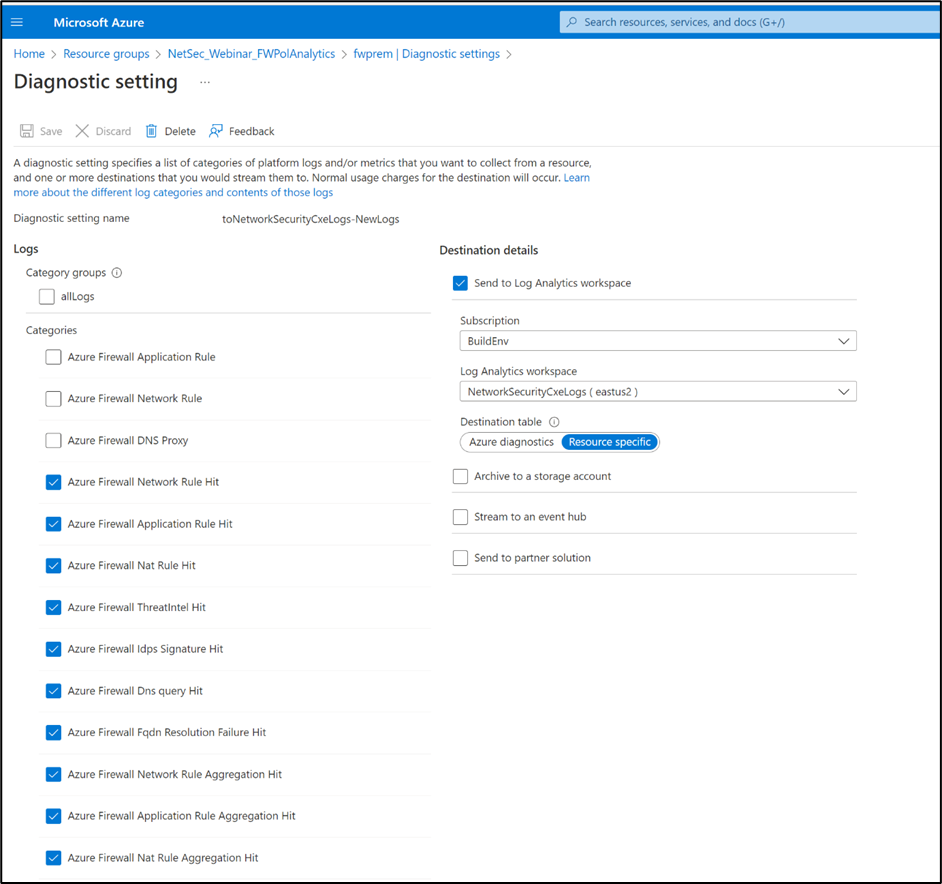
As you can see, these commands are run at the subscription level and will be applicable to all the firewalls deployed under the Subscription. Once you have enabled this feature on the Subscription, you need to go to the diagnostic setting of the respective firewall and choose the Destination Table as ‘Resource Specific’ and select all the required categories as shown below.

Now, you can query the logs in a more granular and efficient way using the resource specific tables. You can clearly see the difference between the logs with Azure Diagnostics Table and Resource Specific Tables in the images below.
Note: To disable this feature, you can run the following command:
Logs with AzureDiagnostics Table
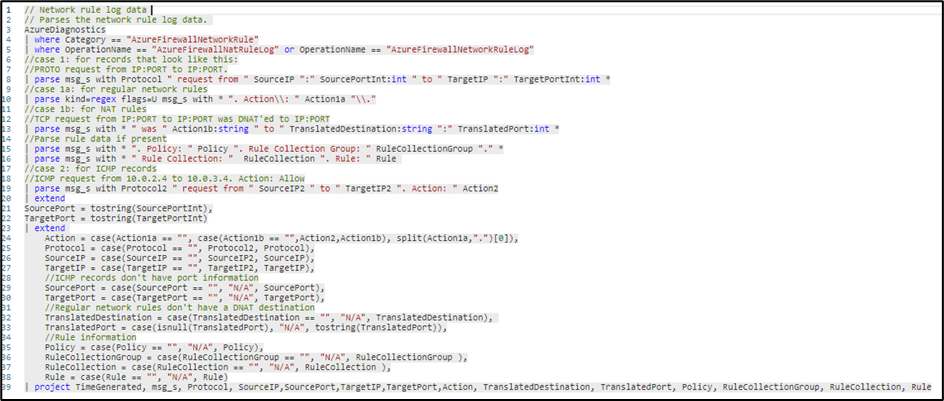
When querying the AzureDiagnostic you need to specify what category you want to look for, as ‘AzureFirewallNetworkRuleLog’. Then all the important information as source/destination IPs and ports, protocol, rule name and action are located at the column ‘msg_s’.

So, if you want to split the data in different columns, you will have to parse it by using a more complex KQL query as below:
Parsing the data may take longer depending on the amount of data available.
Logs with Resource Specific Table
To query the new resource specific tables, you don’t need to parse any data as each one of the tables have its own schema and the data is structured following the same.
So, if you want to query the network logs, the only thing you need is to know the columns and what data you are looking for. For example, if you want to look for all the deny logs on the port TCP 389 you can use the following query:

You can also use similar query to look for logs within AZFWApplicationRule table. Below you will find a query to looking for all the logs where the action is Allow. So, that way you will get to know all the FQDNs accessed in a period of time.

Or if you are looking for IDPS alerts, and you want to know what the source/destination IPs and what categories and severity are, you can easily query the table AZFWIdpsSignature.

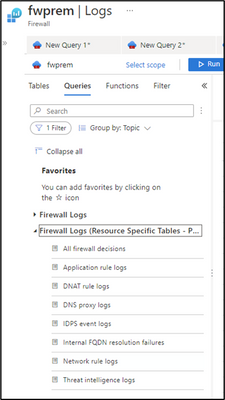
If you are not sure how to write queries using the Resource Specific tables, you can check the built-in queries available in the Azure Portal, under Logs > Queries.
Conclusion:
With the new Structured Firewall logs you will have more control over the logs available for Azure Firewall, by enabling only what you really need. The new schemas will help you running queries faster with no parsing required and you can also use RBAC to restrict access based on your security requirements.
Published on:
Learn moreWe can help you with Exploring the New Resource Specific Structured Logging in Azure Firewall
If you want help implementing, troubleshooting, or improving this product, contact us and we’ll point you in the right direction.
Related posts
IPv6 Adoption: Enhancing Azure WAF on Front Door
The transition to IPv6 is a significant step for enterprise corporations, reflecting the evolution of internet technology and the need for a l...
Azure WAF’s Bot Manager 1.1 and JavaScript Challenge (Preview): Navigating the Bot Threat Terrain
Introduction Bots are a common presence on the internet, serving a range of functions from automating customer service to indexing page...
Private IP DNAT Support (Preview) and Scenarios with Azure Firewall
Introduction Azure Firewall is a cloud native security service to protect your workloads running in Azure. It is a stateful firewall as a serv...
Getting Started with Azure DDoS Protection REST API: A Step-by-Step Guide
REST API is a cornerstone in the management of resources on Azure, providing a streamlined and efficient approach for executing create, read, ...
Monitoring Azure DDoS Protection Mitigation Triggers
Monitoring Azure DDoS Protection Mitigation Triggers In today’s digital landscape, Distributed Denial of Service (DDoS) attacks pose a signifi...
Azure WAF’s Bot Manager 1.1 and JavaScript Challenge: Navigating the Bot Threat Terrain
Introduction Bots are a common presence on the internet, serving a range of functions from automating customer service to indexing page...
Utilizing Azure DDoS Protection Workbook for DDoS attack traffic Analysis
In today's digital age, the security of applications, servers, and networks is paramount. One of the most significant threats to this security...
Independent Configuration of Size Enforcement and Inspection Limits in Application Gateway WAF
Introduction In the constantly changing world of cybersecurity, both flexibility and effective security are essential for safeguarding ...
Private IP DNAT Support and Scenarios with Azure Firewall
Introduction Azure Firewall is a cloud native security service to protect your workloads running in Azure. It is a stateful firewall as a serv...
Monitoring traffic flows in Azure Firewall using Virtual Network Flow Logs
Azure Firewall is a managed service designed to protect your Azure Virtual Network resources, providing advanced threat protection and advance...