
Step-by-Step Guide to Identify Inactive Users by using Microsoft Entra ID Governance Access Reviews
Within an organization, inactive user accounts can persist for various reasons, including former employees, service providers, and service accounts associated with products or services. These accounts may remain inactive temporarily or for extended periods. If an account remains inactive for 90 days or more, it is more likely to remain inactive. It’s crucial to periodically review these inactive accounts and eliminate any that are unnecessary. Microsoft Entra ID Governance Access Reviews now offers the capability to detect inactive accounts effectively.
Using the Entra ID Governance Access Review feature, it’s possible to identify accounts that have not been actively used to sign into Entra ID, either interactively or non-interactively, for up to 720 days.
Accounts that are left inactive are susceptible to being targeted by cybercriminals for several reasons:
- Inactive accounts may still use well-known passwords or credentials that have been compromised.
- Inactive accounts are less likely to have multifactor authentication (MFA) enabled.
- Due to their inactivity, these accounts may go unnoticed by advanced security controls in place.
While organizations with a formal JML (Joiners, Movers, and Leavers) process in place can mitigate some of these risks, regular reviews are still essential to ensure that security measures are effective.
Understanding the standards for monitoring accounts
According to CIS Control V8 Safe guard 5.3 it’s recommended to delete or disable any dormant accounts after a period of 45 days of inactivity, where supported. This is also aligned with Azure Security Benchmark v3 PA-4 Control - Review and reconcile user access regularly.
NIST SP 800-53 Revision 5 Moderate Baseline - AC-2(3) Control - https://nvlpubs.nist.gov/nistpubs/SpecialPublications/NIST.SP.800-53r5.pdf
Account Management | Disable Accounts - Disable accounts within [Assignment: organization-defined time period] when the accounts: (a) Have expired; (b) Are no longer associated with a user or individual; (c) Are in violation of organizational policy; or (d) Have been inactive for [Assignment: organization-defined time period].
These standards serve as additional confirmation of the importance of monitoring inactive or dormant accounts. Let's proceed to explore how Microsoft Entra ID Governance Access Reviews can assist in identifying these inactive accounts.
Setting up Entra ID Governance Access Reviews
Please note that it's essential to review the licensing requirements for Microsoft Entra ID Governance before proceeding. Check out this blog about Microsoft Entra ID Governance to learn more.
To set up an access review for inactive accounts, follow these steps:
1. Log in to Entra as the Identity Governance administrator at https://entra.microsoft.com/.
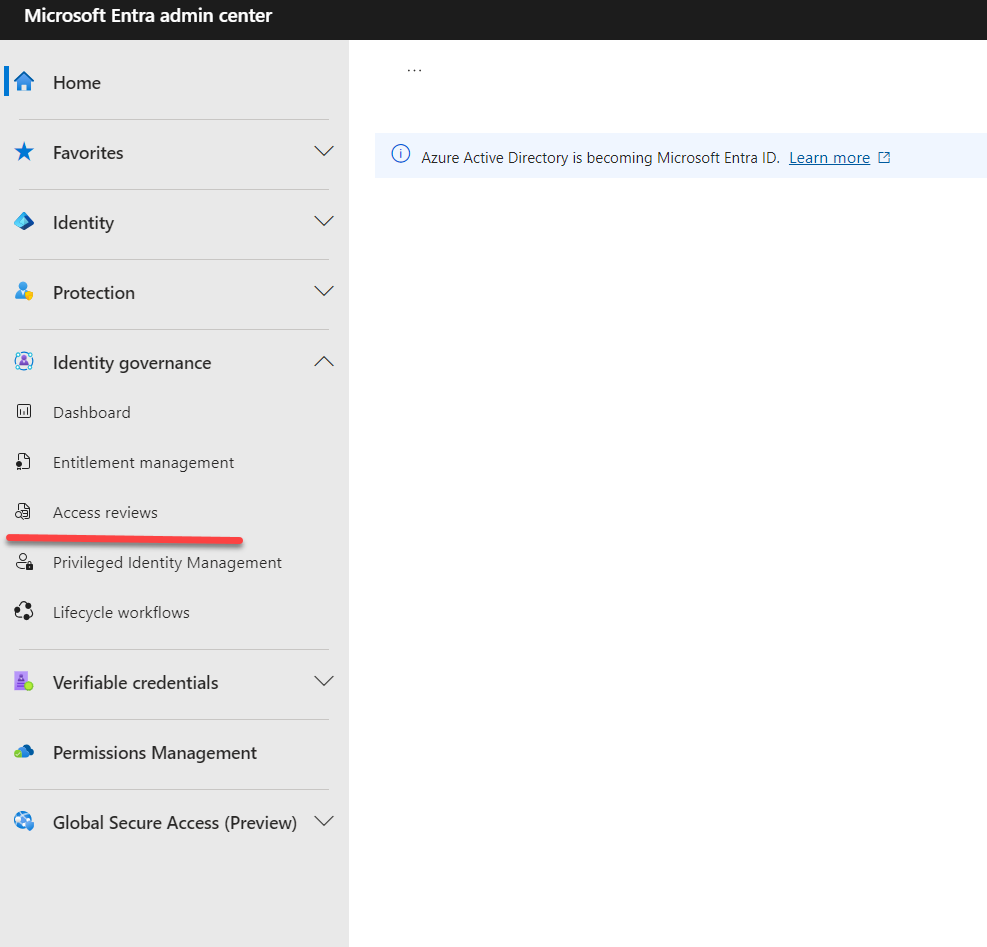
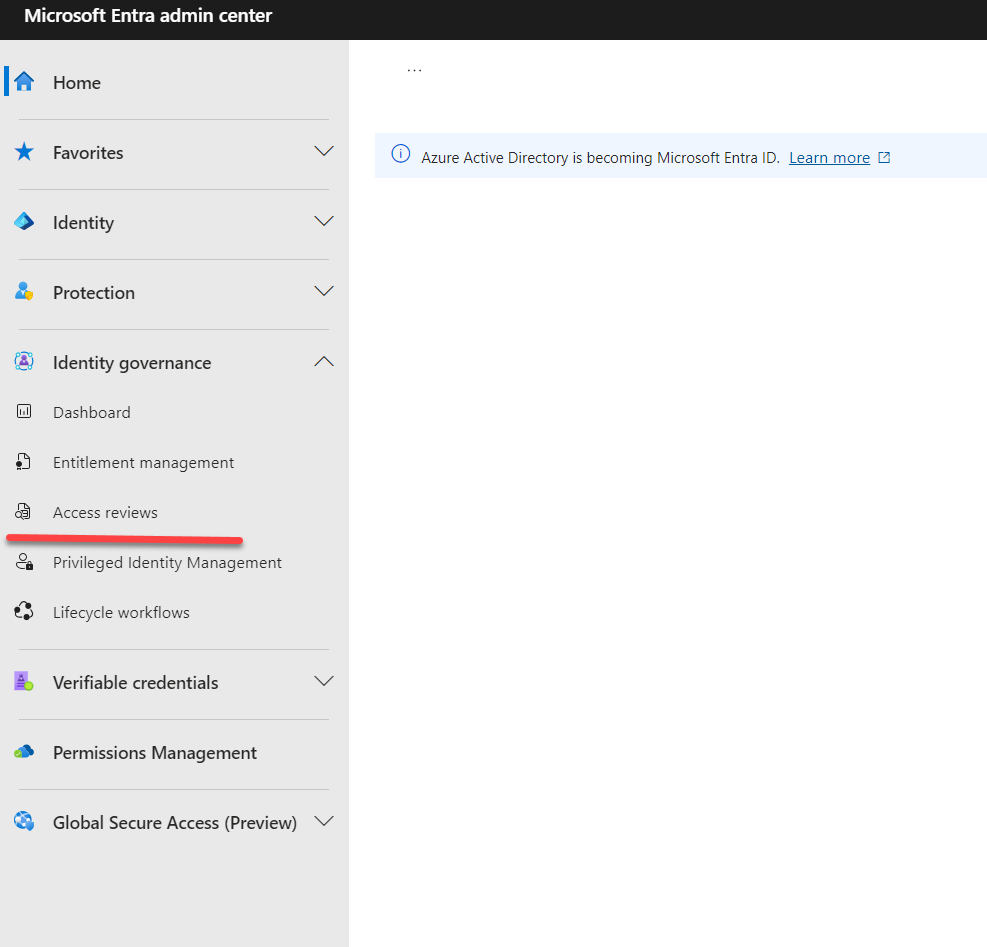
2. Navigate to Identity Governance and select Access Reviews.
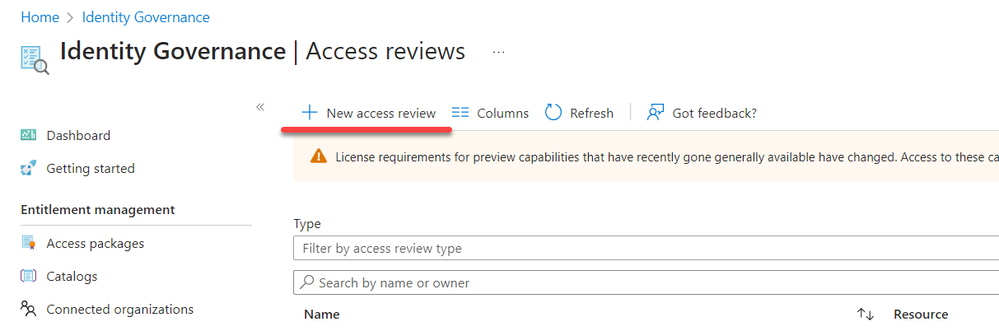
3. Select '+ New access review' to proceed.
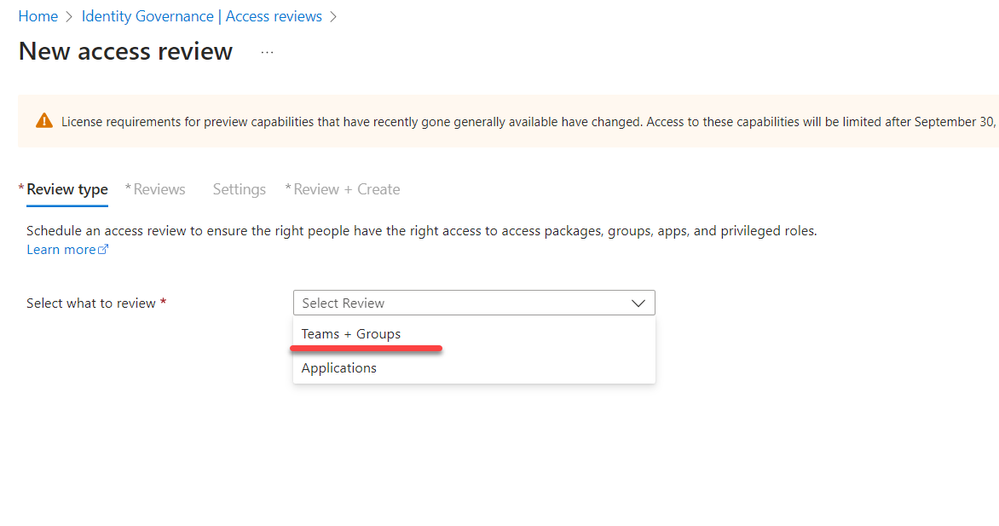
4. On the next page, choose 'Teams + Groups' as the review type.
5. For the review scope, choose 'Select Teams + groups.'
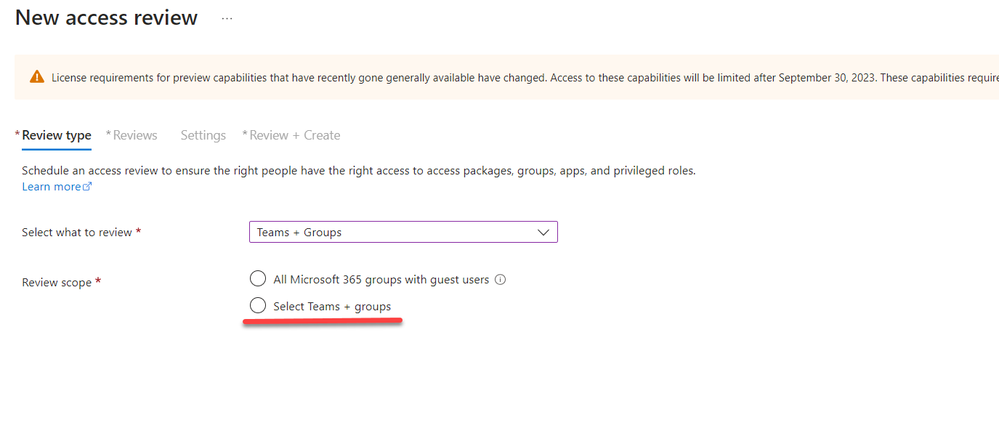
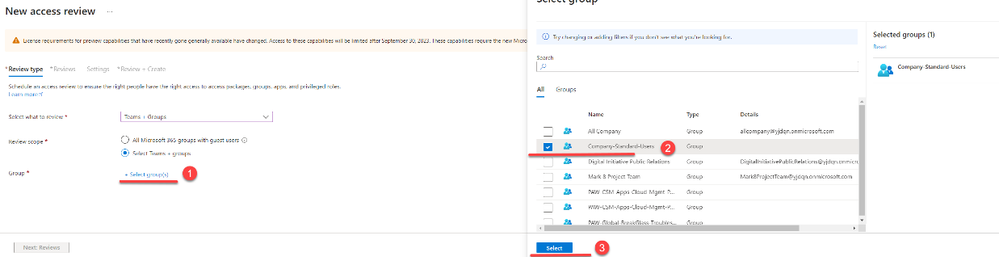
6. Then, visit the link under '+ Select group(s)' and choose the desired group from the list. In this demo, we are using a group that includes all standard users.
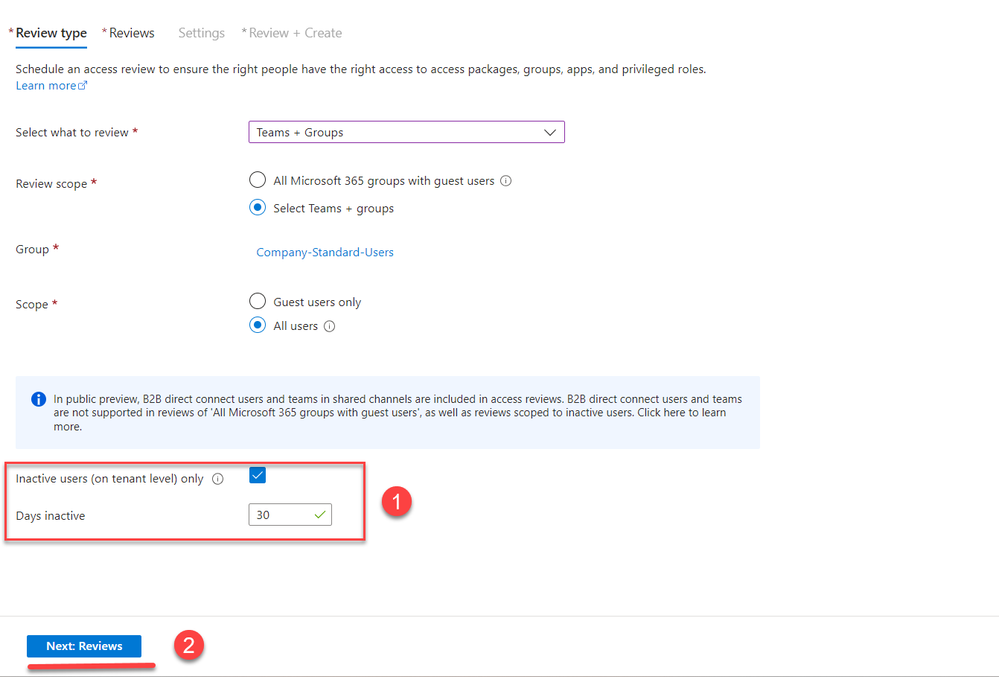
7. Select the option 'Inactive users (on tenant level) only' and specify the number of days an account should be inactive; this can range up to 720 days. Once the settings are configured, choose 'Next: Reviews.'
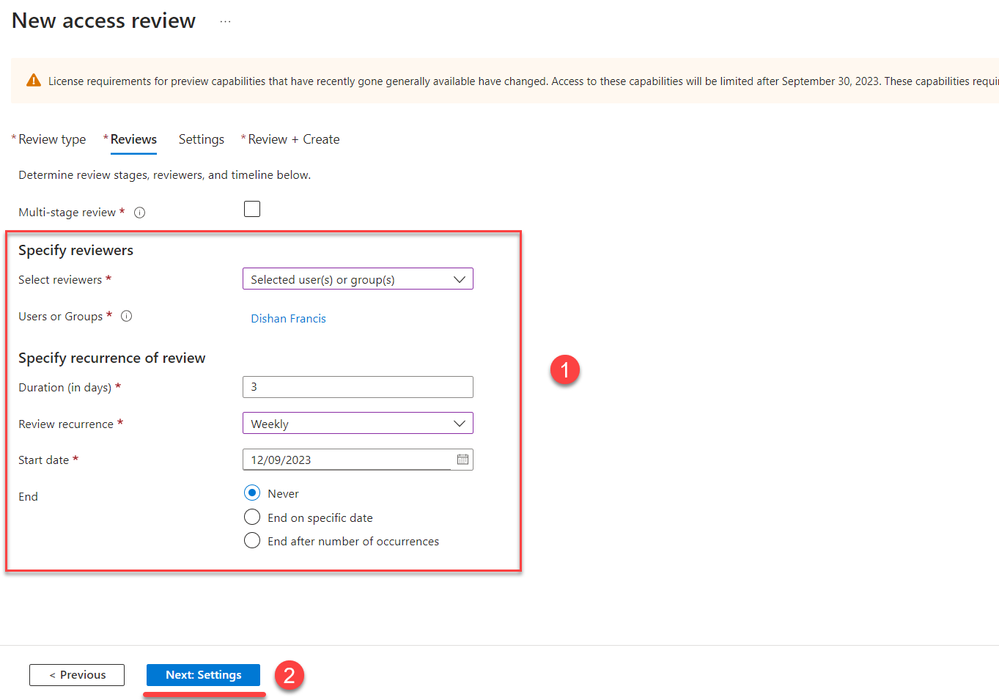
8. In the review pages, select the reviewers for the task. You can also configure a multi-stage review process to align with your organization's requirements. Once the review settings are defined, use 'Next: Settings.'
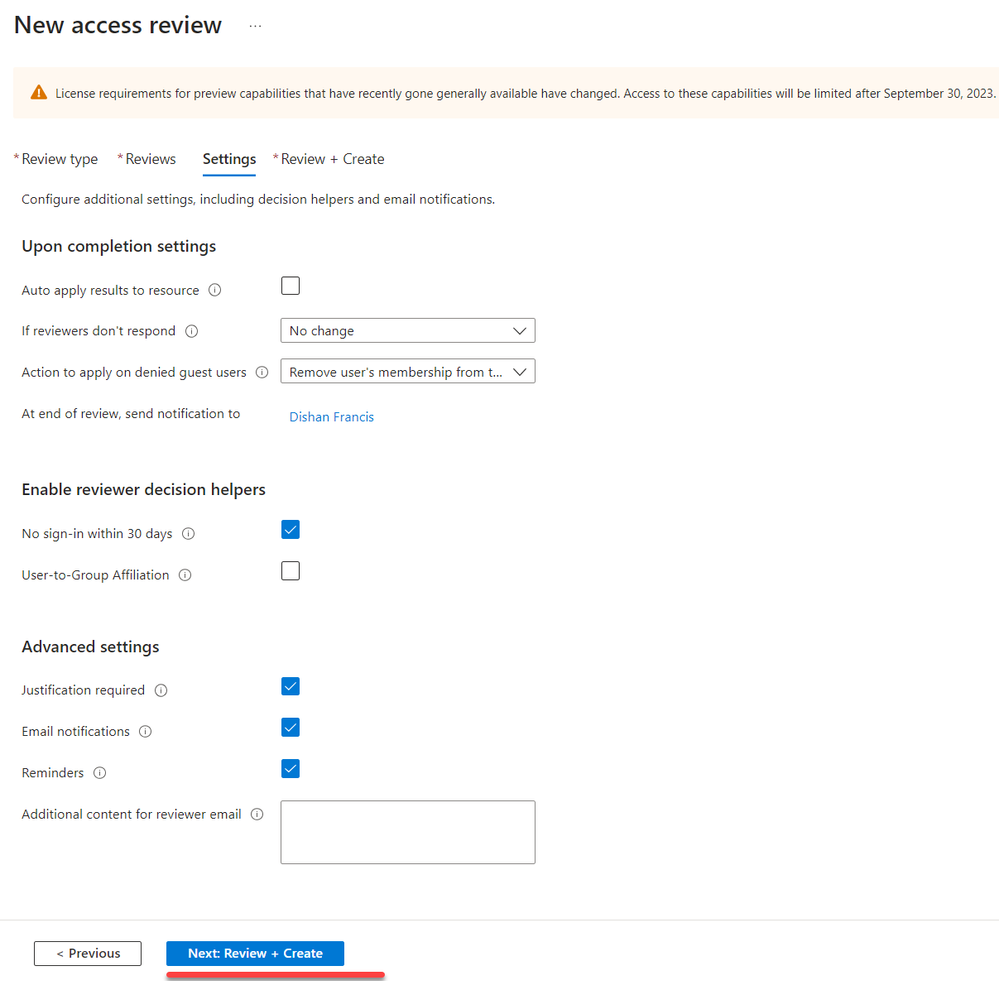
9. Under the settings page, you can specify what actions should occur upon completion of the review. You can choose to auto-apply results or leave it for manual review. Additionally, you can utilize 'No sign-in within 30 days' data as a decision-making aid. After configuring the settings, use 'Next: Review + Create.'
10. On the last page, define a name for the review task and then choose 'Create' to finalize the setup process.
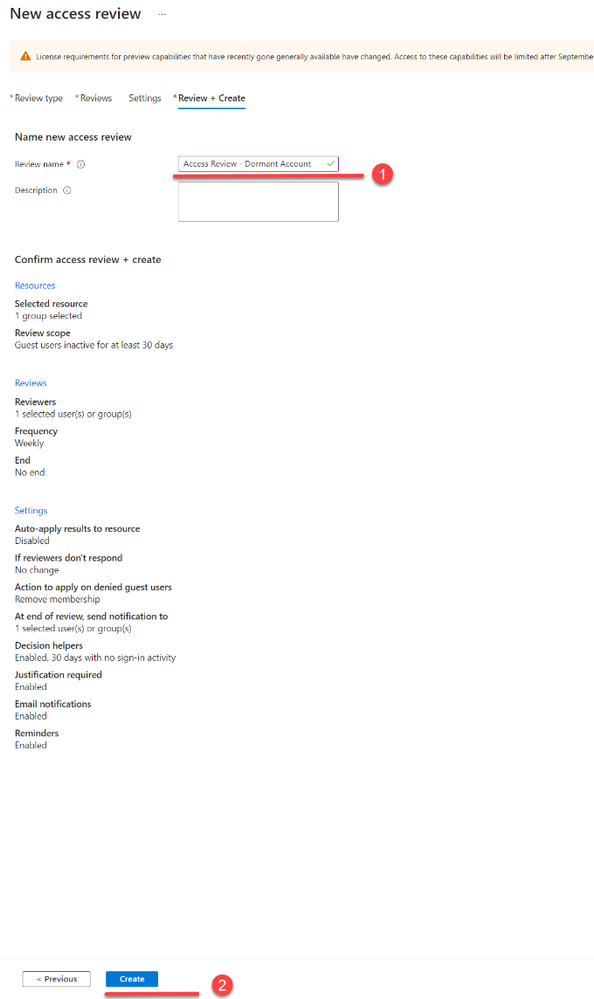
This completes the setup process for an Access Review targeting inactive accounts. The next step is to review the results of the access review.
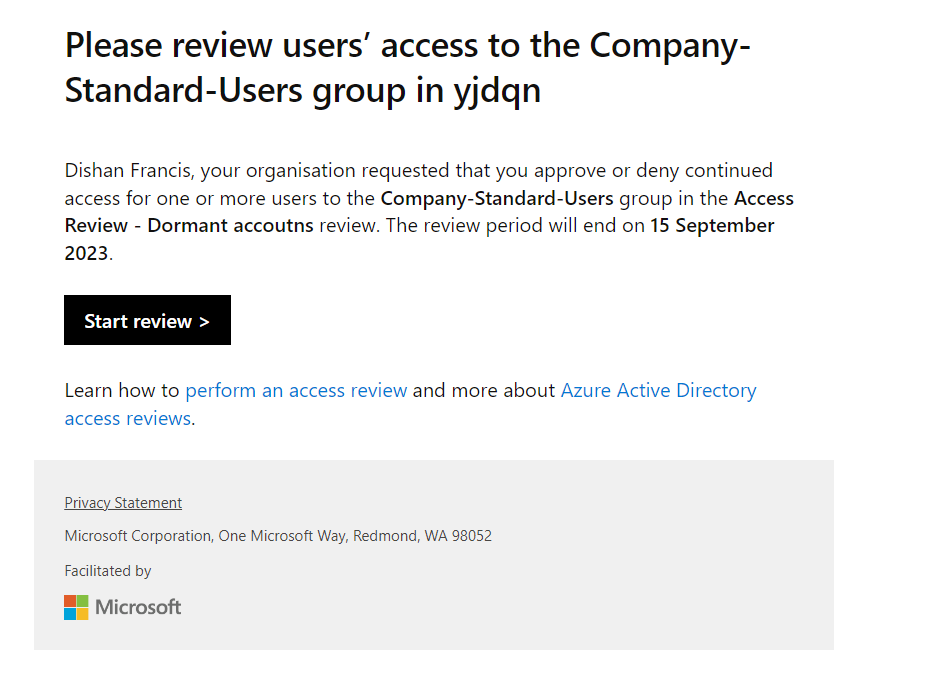
After the review is complete, the assigned reviewers will receive an email notification:
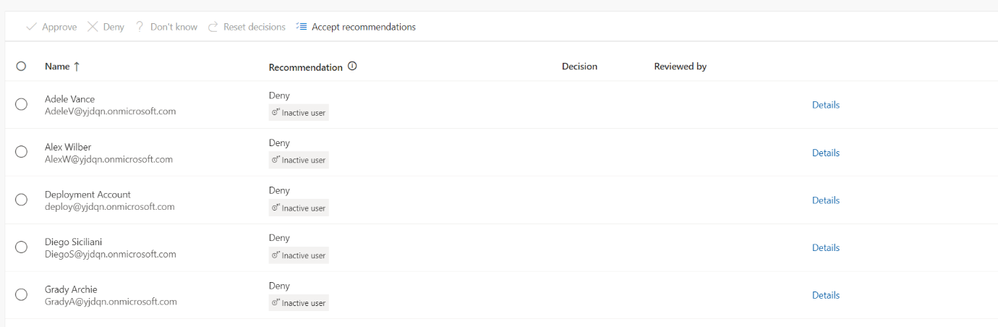
In the review results, reviewers can access details about the users and recommended actions:
By using the link for the details, reviewers can access additional information:
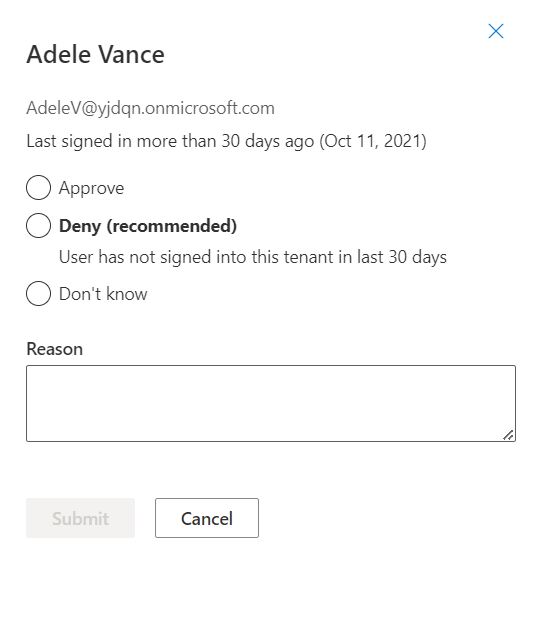
Based on the findings, reviewers can choose to approve or deny access for the identified accounts.
Microsoft Entra ID Governance Access Reviews provide a valuable tool for identifying and managing inactive accounts within the organization. This can be seamlessly integrated into the Just-in-Time (JML) process, ensuring regular reviews to identify and address inactive accounts.
To learn more about Manage inactive user accounts, check out the documentation -
To learn more about Privileged Access, see the Azure Security Benchmark v3 Controls documentation.
Dishan Francis
Learn more about Microsoft Entra:
- Related Articles: Microsoft Entra ID Governance is generally available - Microsoft Community Hub
- See recent Microsoft Entra blogs
- Dive into Microsoft Entra technical documentation
- Join the conversation on the Microsoft Entra discussion space and Twitter
- Learn more about Microsoft Security
Published on:
Learn moreRelated posts
Sync identities from Rippling to Microsoft Entra ID
Today, we’re thrilled to announce that customers using Rippling HCM can now automatically provision users to on-premises Active Directory and ...
Microsoft Entra ID Governance for government
I’m pleased to announce that as of November 1, 2024, Microsoft Entra ID Governance is available for federal agencies, state and local governme...
Update to security defaults
As part of the Secure Future Initiative, we’ve evolved our security approach to align with three security principles: secure by design, secure...
Meet Microsoft Entra at Ignite 2024: November 18-22
Microsoft Ignite is just around the corner, taking place from Monday, November 18, 2024 through Friday, November 22, 2024, in Chicago, Illinoi...
Manage Microsoft Entra ID role assignments with Microsoft Entra ID Governance
I’m excited to announce that we now support Microsoft Entra role assignments in Microsoft Entra ID Governance's Entitlement Management feature...
The latest enhancements in Microsoft Authenticator
Hi folks, I'm thrilled to announce three major Microsoft Entra ID advancements that will help you protect your users with phishing-resi...
Microsoft Security announcements and demos at Authenticate 2024
The Microsoft Security team is excited to connect with you next week at Authenticate 2024 Conference, taking place October 14 to 16 in Carlsba...
What's new in Microsoft Entra - September 2024
We’re excited to announce the general availability of Microsoft Entra Suite—one of the industry’s most comprehensive secure access solutions f...
Explore the key benefits of Microsoft Entra Private Access
The traditional network security models are becoming increasingly ineffective in a world where remote work and cloud services are the norm. Co...
Join us at the Microsoft Entra Suite Showcase!
This fall, we are bringing the Microsoft Entra Suite Showcase to cities worldwide. Join us to explore how our latest advancements in secure id...