
Create BPMN 2.0 compliant processes in Visio for the web

Business Process Model and Notation (BPMN) is a standard way to represent business processes visually. It gives organizations a simple means to communicate process information to other business users and process implementers and can help improve efficiency.
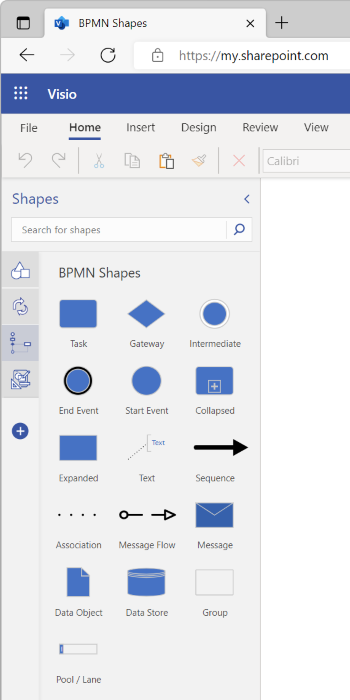
Today, we’re excited to bring that standard to Visio for the web by introducing BPMN Shapes, one of your most requested features. The new BPMN Shapes stencil is now available for Visio Plan 2 subscribers only and includes basic BPMN 2.0 shapes for:
- Flow objects: Events, Activities, and Gateways
- Artifacts: Text Annotations and Groups
- Connecting objects: Sequence Flows, Message Flows, and Associations
- Data: Data Objects and Data Stores
- Swimlanes: Pools and Lanes
Getting started
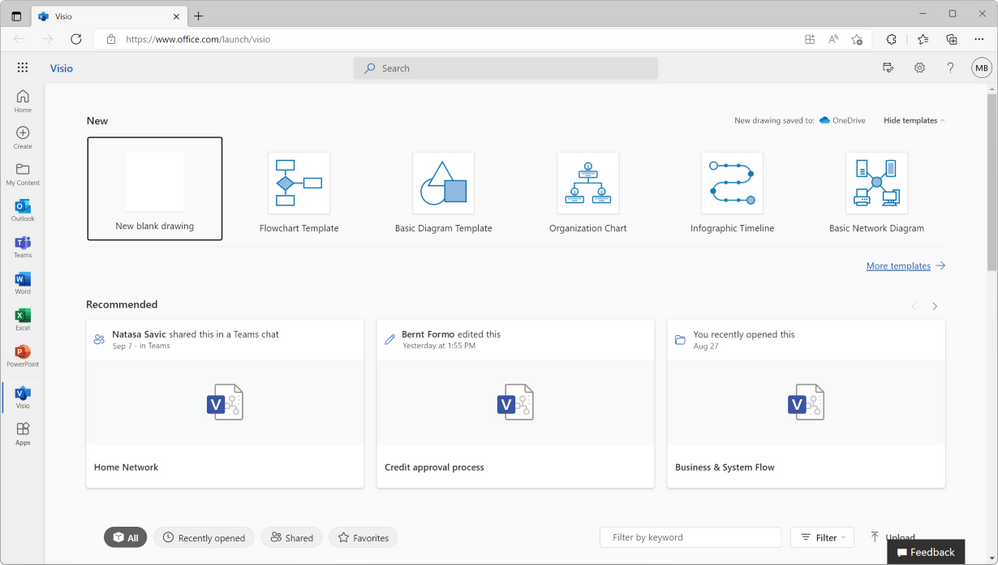
To find the new shapes, open a New blank drawing from the Visio home page at visio.office.com.
A new blank canvas will open in the web app. From here, type “BPMN” in the search box and select the search result for BPMN Shapes.
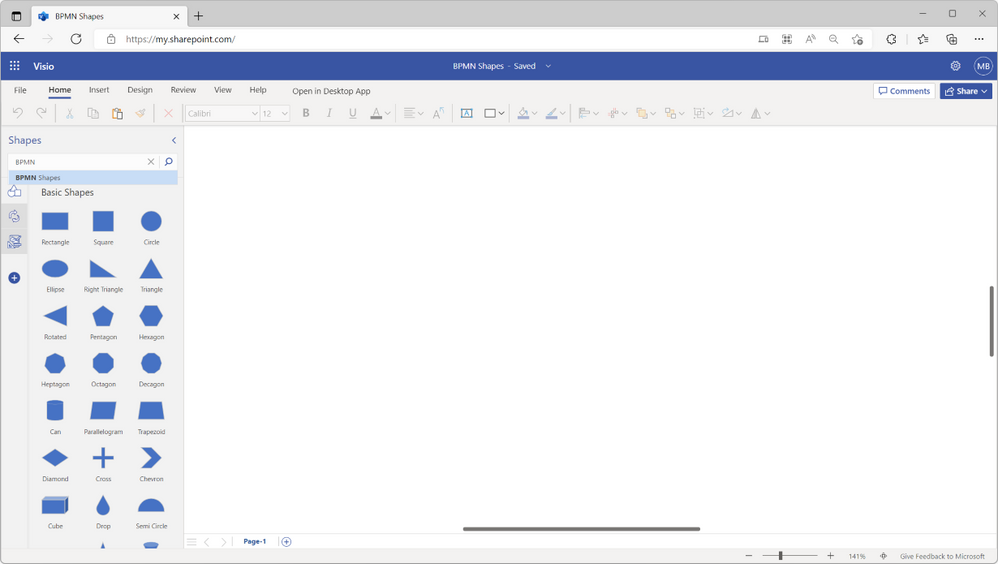
Select the magnifying glass to see a preview of the BPMN Shapes stencil, then select the Add button to pin the stencil to your Shapes pane.


Select the BPMN Shapes icon to open the stencil, then select and drag the shapes you want from the stencil onto the canvas and connect them using one of the three available connector types.
Adding pools and swimlanes to your BPMN diagram
Pools are used to represent entities—such as partner companies or external organizations—involved in a process. Swimlanes are subdivisions of a pool; they clearly designate who’s responsible for what.
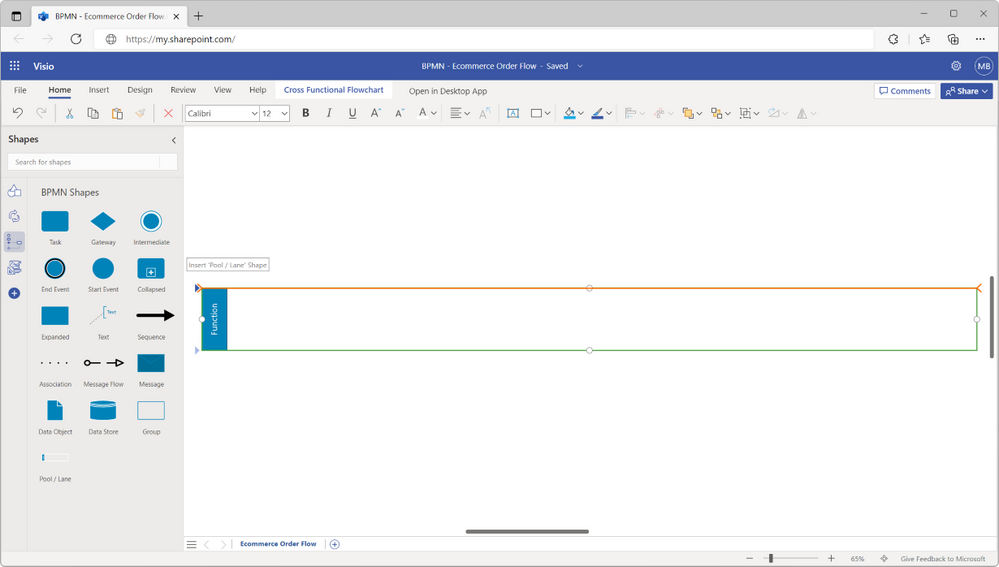
To add a swimlane to your diagram, simply select the Pool/Lane shape and drag it to the blank canvas. The new swimlane comes with a label bar, which says “Function” by default. To change the label, double-click the bar.

Once the initial swimlane has been added to the canvas, there are three ways to add more swimlanes to your diagram:
- Drag the Pool/Lane shape from the Shapes pane, and when you see the orange connection indicator appear, drop it on the canvas.
- Select the swimlane, then select one of the two triangles that appear to the left of the swimlane on selection.
- From the Cross Functional Flowchart tab, select Swimlane.
Note: The new lanes will be added at a default size to maintain consistency.
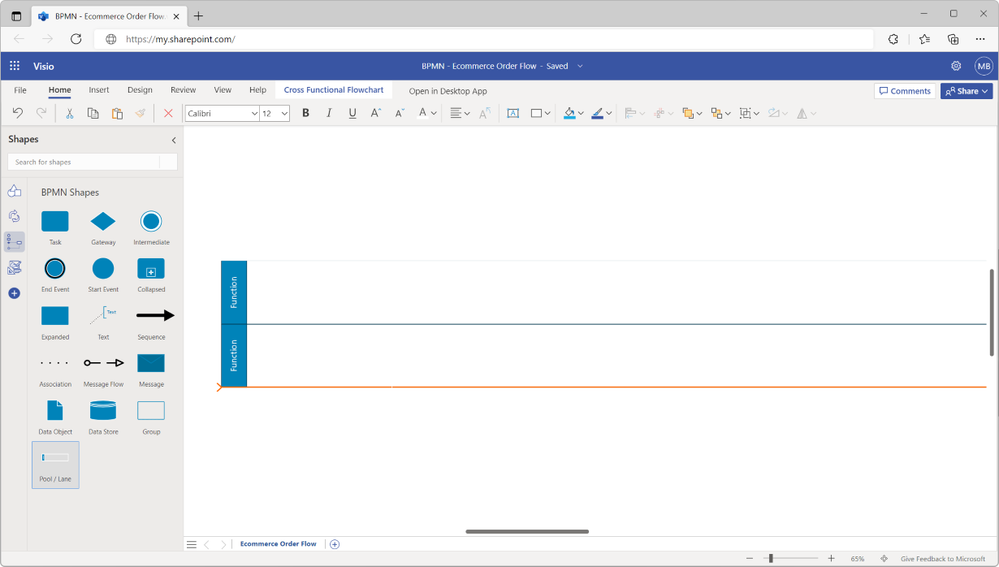
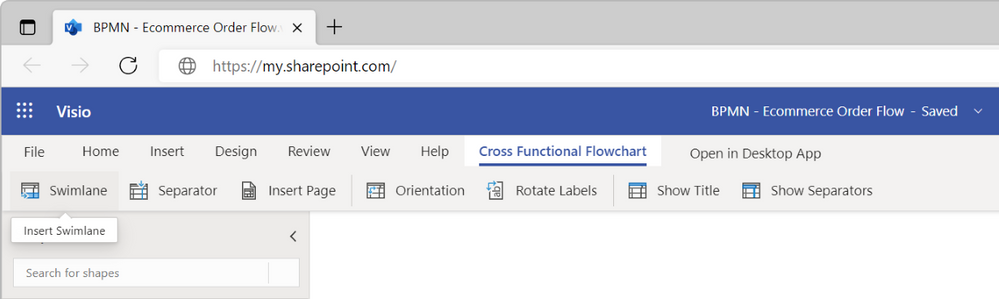
From the Cross Functional Flowchart tab, you can also:
- Insert separator lines to show different phases of the process.
- Insert a new page in your Visio file, which replicates the swimlanes from your existing diagram.
- Change the orientation of your swimlanes from horizontal to vertical, and vice versa.
- Rotate the labels of your swimlanes from vertical to horizontal, and vice versa.
- Show or hide pool titles.
Adding flow objects to your BPMN diagram
Flow objects represent the major steps in a business process. The BPMN Shapes stencil includes the following flow objects:
- Start event: Represents the first step of a process.
- Intermediate event: Represents any event that occurs between the start and end event.
- End event: Represents the final step in a process.
- Activity: Describes the activity being performed at a certain point in the process. There are different types of activities, including tasks, sub-processes, and call activities.
- Gateway: Determines how business processes flow. There are multiple types of gateways, including exclusive, inclusive, parallel, and complex.
To add flow objects to your diagram, select the desired shape in the Shapes pane and drag it to the swimlane. Drop the shape when you see that the corresponding swimlane is highlighted. This indicates that the shape (or flow object) is successfully grouped with the swimlane; any objects that are grouped with a swimlane can be moved on the canvas as a single unit.

Adding symbols to flow objects in your BPMN diagram
Within the flow objects, symbols can be added to support the requirements for complexity without changing the look of the diagram. For example, you can add one of the following trigger or result symbols to an intermediate event: Message, Timer, Error, Cancel, Compensation, Conditional, Link, Signal, Multiple, Escalation, or Parallel Multiple. To add a symbol, right-click on the shape and select from the options in the shortcut menu. To remove the symbol, right-click on the shape again and select None.

Connecting flow objects in your BPMN diagram
As mentioned previously, there are three different types of connecting objects: sequence flows, message flows, and associations. Sequence flows (the solid line with an arrow) are used to show the order of activities in a process. Message flows (the dashed line with an arrow) are used to show the flow of messages from one group, person, department, or company to another. Associations (the dotted line) show the connection between an artifact or text and an event, activity, or gateway.
By default, connectors added using the Connector tool are sequence flow connectors. You can change the type by right-clicking on the connector and selecting the desired type from the shortcut menu.
Learn more about how to create BPMN-compliant processes in Visio for the web.
Give us your feedback! Please tell us what you think of the new BPMN shapes in the comments below. You can also send feedback via the Visio Feedback Portal or directly in the Visio web app using “Give Feedback to Microsoft” in the bottom right corner.
Did you know? The Microsoft 365 Roadmap is where you can get the latest updates on productivity apps and intelligent cloud services. Check out what features are in development or coming soon on the Microsoft 365 Roadmap, or view roadmap item BPMN shapes in Visio for the web [Visio Plan 2].
Published on:
Learn moreRelated posts
Announcing the General Availability of the Microsoft 365 Document Collaboration Partner Program
Empowering Seamless Collaboration for Modern Workforces We are thrilled to announce the general availability of the Microsoft 365 Docume...
Favorite Copilot Prompts
(Amber Plumb interviewing Michael Morales and Allison Sweet) The power of M365 Copilot is transforming the way our support team operates...
Favorite Microsoft 365 Copilot Prompts
(Amber Plumb interviewing Michael Morales and Allison Sweet) The power of M365 Copilot is transforming the way our support team operates...
Boost digital event engagement with Voting and Archiving in Teams Q&A
Managing and delivering effective town halls is key to enabling two-way dialogue with leaders in today’s hybrid world. Microsoft Teams Q&A...
Prepare now for key end of support moments in 2025
One year from today, on October 14, 2025, support will end for all Office 2016 and 2019 suites, standalone apps, and servers. This includes:&n...
Everything you should know about Visio 2016 and Visio 2019 end of support
On October 14, 2025, Visio 2016 and Visio 2019 will reach end of support. After this date, Visio 2016 and Visio 2019 will no longer receive se...
Limit frontline worker access to Teams when off shift
We’re excited to announce that the frontline working time feature is now generally available! This feature allows admins to block or warn acce...
We are removing Feed on Microsoft 365 (Office)
As part of our ongoing efforts to streamline and enhance user experiences, we will be retiring the Feed feature (shown in figure 1 below) on t...
Leveraging Partner Apps to Deliver on the Promise of AI-Led Productivity
The advent of generative AI is driving a rethink of what outcomes we deserve from our productivity software – from gains in efficiency to more...
What’s new in FLW shared devices
Discover the Latest Enhancements in Shared Device Mode (SDM) We are excited to announce a series of new features in Shared Device Mode ...