
How To: Send requests to Azure Storage from Azure API Management

Overview
In this How To, I will show a simple mechanism for writing a payload to Azure Blob Storage from Azure API Management (APIM). Some examples where this approach is useful:
- Claim-Check
Claim-Check pattern is used to split a large message into a claim check and a payload. The claim check is sent to a downstream system which has a reference to the location of the payload. The downstream system then retrieves the payload for handling. You might want to do this when working with technology that are not optimised suited for very large messages (Service Bus) either by a size limitation or associated cost, or when you do not need to process all messages. - Message Logging
Application Insights is awesome, and though you can send payloads as part of your telemetry, this can result in a surprisingly high usage charge. As a way to address this, you might want to store the payloads in Azure Storage instead.
There are more scenarios of course, but those are the two top ones that jump out at me.
Example Use Case
In this example, I will amend the policy of an API to write the payload received to a storage account blob container. This example will show how to modify the payload as well as how to establish the required permission using service identity and RBAC permissions. This is my preferred way of handling authentication and authorisation when working with Azure Storage. API Keys and SAS tokens are possible but I find them challenging for most teams to manage and code.
Setup
This How To starts after an Azure Storage service and a APIM service have been provisioned. Thanks to the APIM team, the service provides a sample API, Echo API, that is suitable for a our purposes.

This example will update the POST operation Create resource.
Permissions
The next step is to enable the APIM to access blob storage. To do this, navigate to the Managed identities blade:
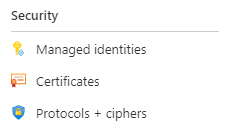
You will want the System assigned on:

Using Azure role assignments, create a assignment for Storage Blob Data Contributor over your storage account.

The entry above shows access for my APIM, tmp-apim-ase, over the sttempase Azure Storage account.
Policy
Now back on the Echo API, select the Create resource operation and click the Policy code editor:
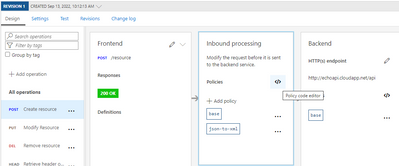
This will provide an xml editor. Insert the following xml in the inboud element.
You will need to update the value for [yourstorage] to your Azure Blob Storage account. The result should look something like this:
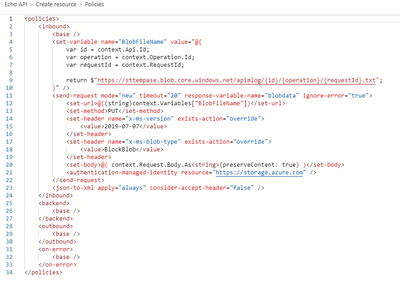
A couple things to note. I set the file name to use the unique RequestId generated by APIM, and I created a folder structure to reflect the api and operation called. Have a look at the supported Context Variables to suit your purpose.
Also note the ignore-error attribute is set to true. In my case, I do not want to fail the message but this might not be suitable if implementing the Claim-Check pattern. Also, when reading the request body, be sure to preserveContent.
Test
Testing the API is nice and simple using the Test tab.

If the Azure gods are with you, you should not see an error and instead see a new file created in your storage account.
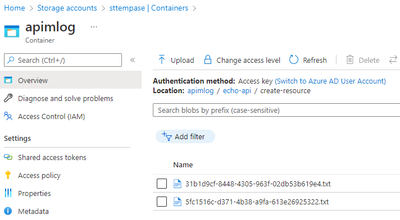
Now, what if something goes wrong, or if you are not familiar with the Trace feature, read on.
Troubleshooting
The best way to troubleshoot is using Trace. This is located next to the send button.

This provides more detail as to the steps involved. For example, you can investigate the step where the file is created:

Trace is your friend 
Summary
This How To illustrated a simple way to publish to Azure Storage. There are other ways I explored including publishing the claim to Event Hub and the payload to the backend, but I thought this approach was simplest and made for a good How To. Let me know if this saves you some time!
Cheers
Published on:
Learn moreRelated posts
This Month in Azure Static Web Apps | 09/2024
We are back with another edition of the Azure Static Web Apps Community! :party_popper: September was yet another month ...
GitHub Copilot for Azure: 6 Must-Try Features
As developers, we are constantly seeking tools that streamline our workflows and boost productivity. … Enter GitHub Copilot for Azure, now in ...
Responsible AI Mitigation Layers
Generative AI is increasingly being used in various kinds of systems to augment humans and infuse intelligent behavior into existing and new a...
Streamline Your Azure Workflow: Introducing GitHub Copilot for Azure in VS Code
I'm excited to announce the public preview of GitHub Copilot for Azure - a new addition to your toolkit that seamlessly integrates with G...
Build Intelligent Apps Code-First with Prompty and Azure AI
Building Generative AI applications can feel daunting for traditional app developers. What does the end-to-end applicati...
Certificación AI-900 (Fundamentos de IA) con Chicas en IA
La inteligencia artificial ha llegado para quedarse, ¡y más aún con la revolucionaria IA generativa! Para ayudar a los profesionales a especia...
Get certified with Learn Live GitHub series!
GitHub Universe is coming, and Microsoft and GitHub are partnering to offer a new special Learn Live series in Brazilian Portuguese, English a...
Certifícate con Learn Live GitHub en Español
Microsoft y GitHub se han unido para ofrecer una nueva serie especial de Learn Live en inglés y español: GitHub 2024. Del 10 al 24 de Octubre,...
Evaluating generative AI: Best practices for developers
As a developer working with generative AI, you've likely marveled at the impressive outputs your models can produce. But how do you ensure the...
Introducing Azure Product Retirement Livestreams
The Azure Retirements team, in collaboration with key partner groups, is excited t...