
Get more done in less time with these 10 popular Word add-ins

Are you looking to streamline your Word processing experience and boost your productivity? Look no further than these 10 popular Word JavaScript add-ins. In this article, we'll introduce you to some of the popular add-ins in Microsoft AppSource that can assist with both writing and inserting new content in Microsoft Word.

Writing assistance
One of the most challenging aspects of writing is ensuring that your language usage and overall writing mechanics are correct. These writing assistance add-ins are great options to help you get your message across skillfully and with clarity.
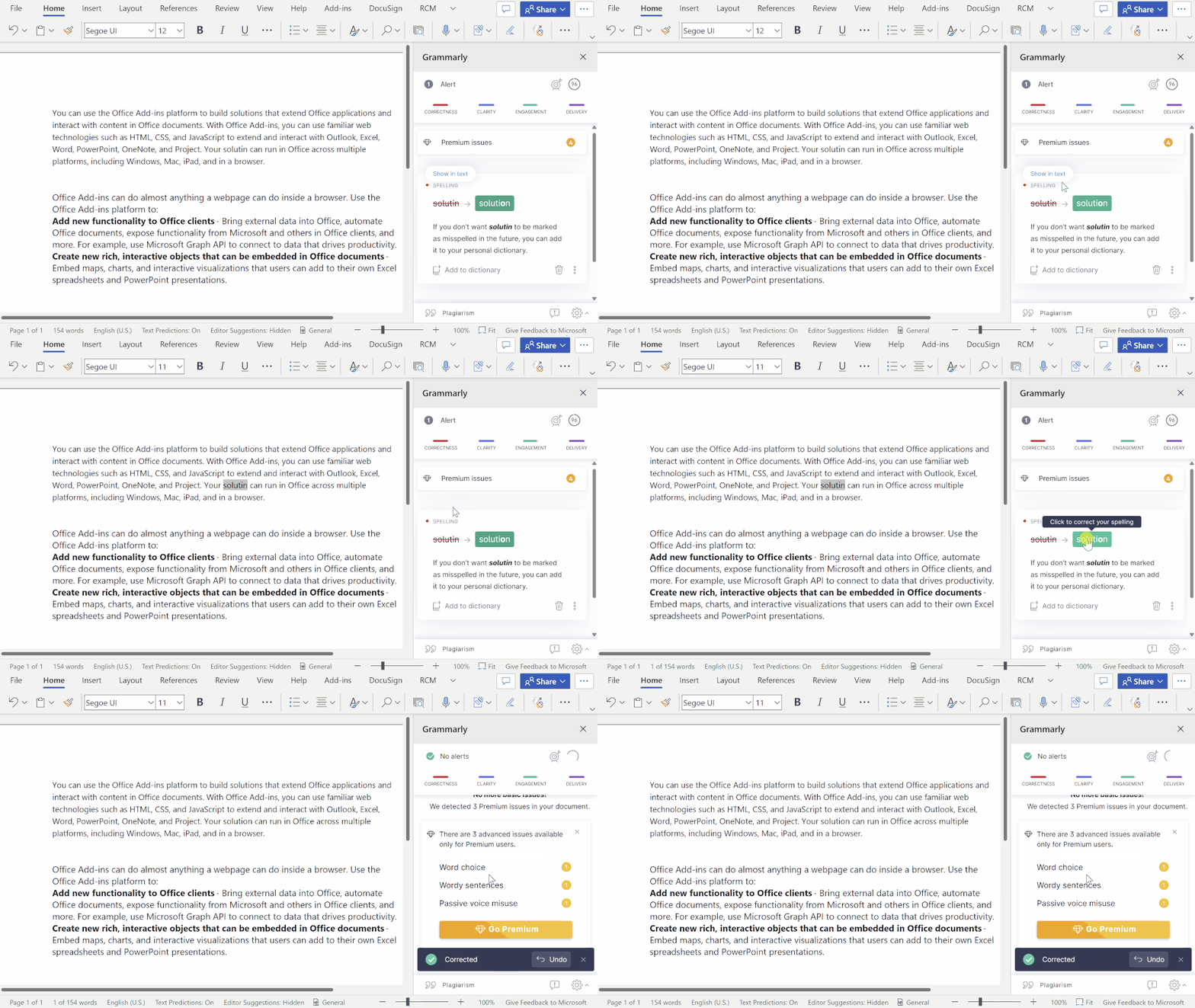
Grammarly for Microsoft Word allows you to check your grammar, spelling, and punctuation as you type, helping you to avoid errors and improve your writing.
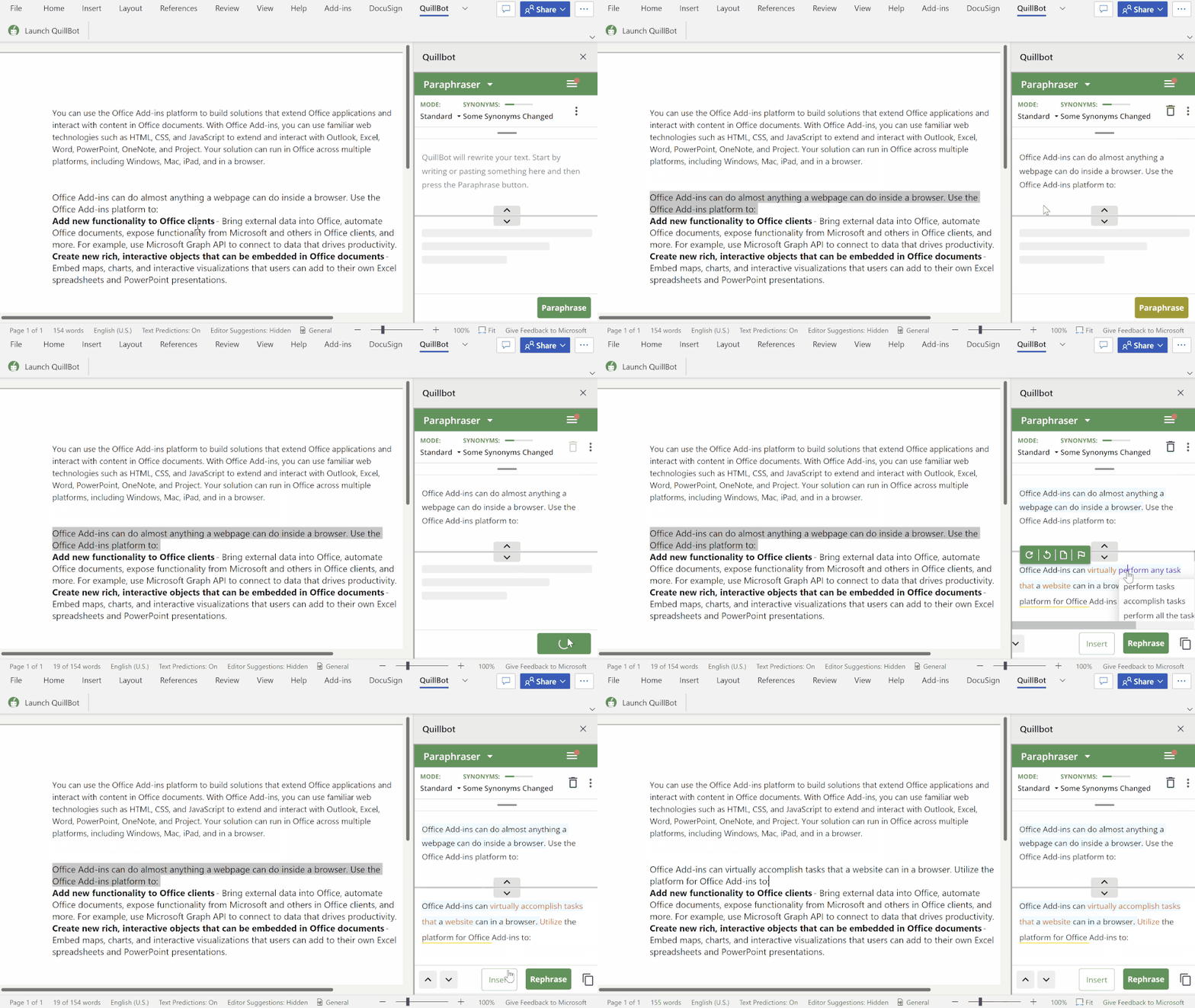
Quillbot provides you with a natural writing experience by rephrasing your sentences and suggesting alternative words and phrases.
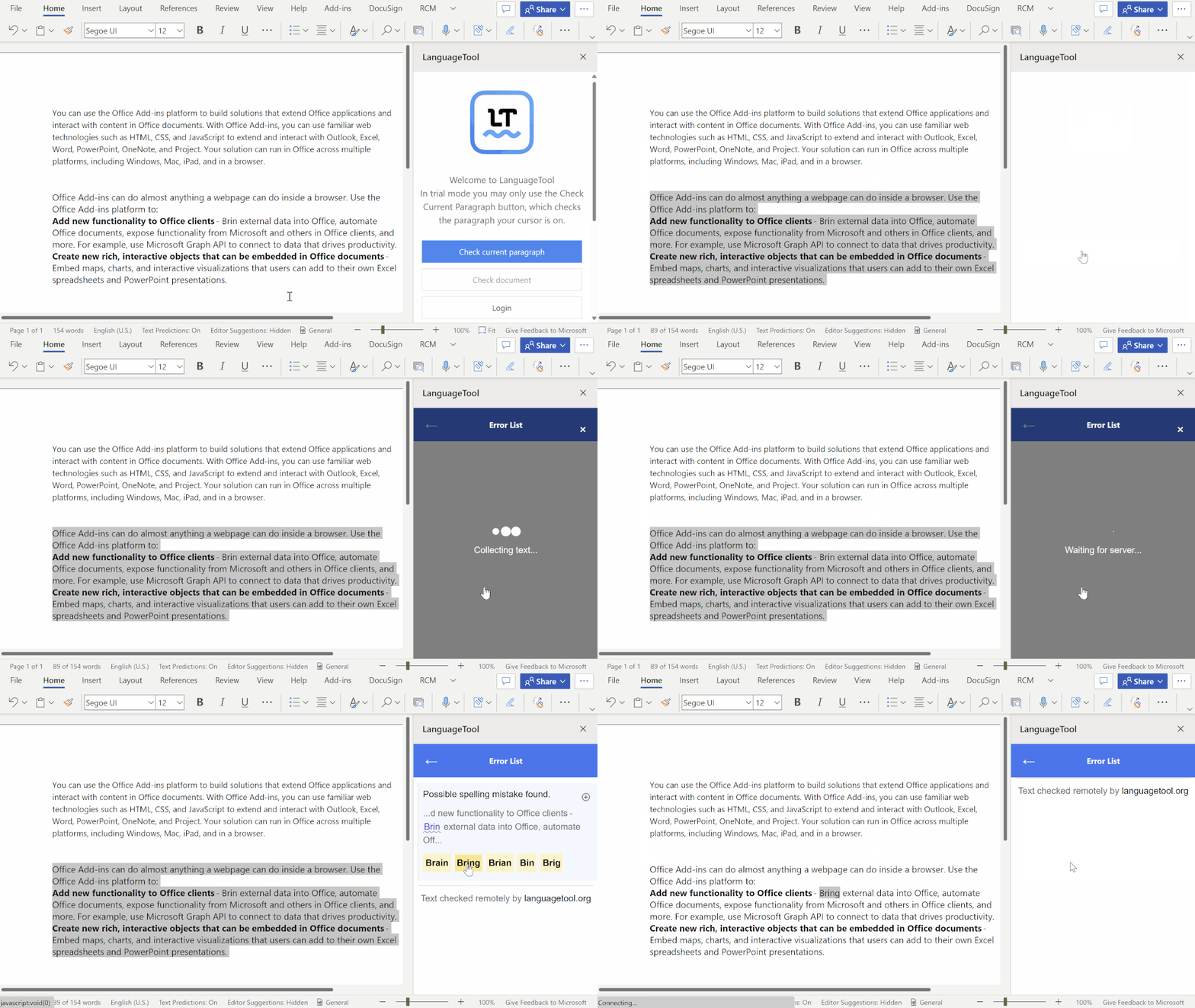
LanguageTool is a proofreading tool for ten languages, including English, German, French, and Polish, which analyzes your writing for spelling, grammar, and style.
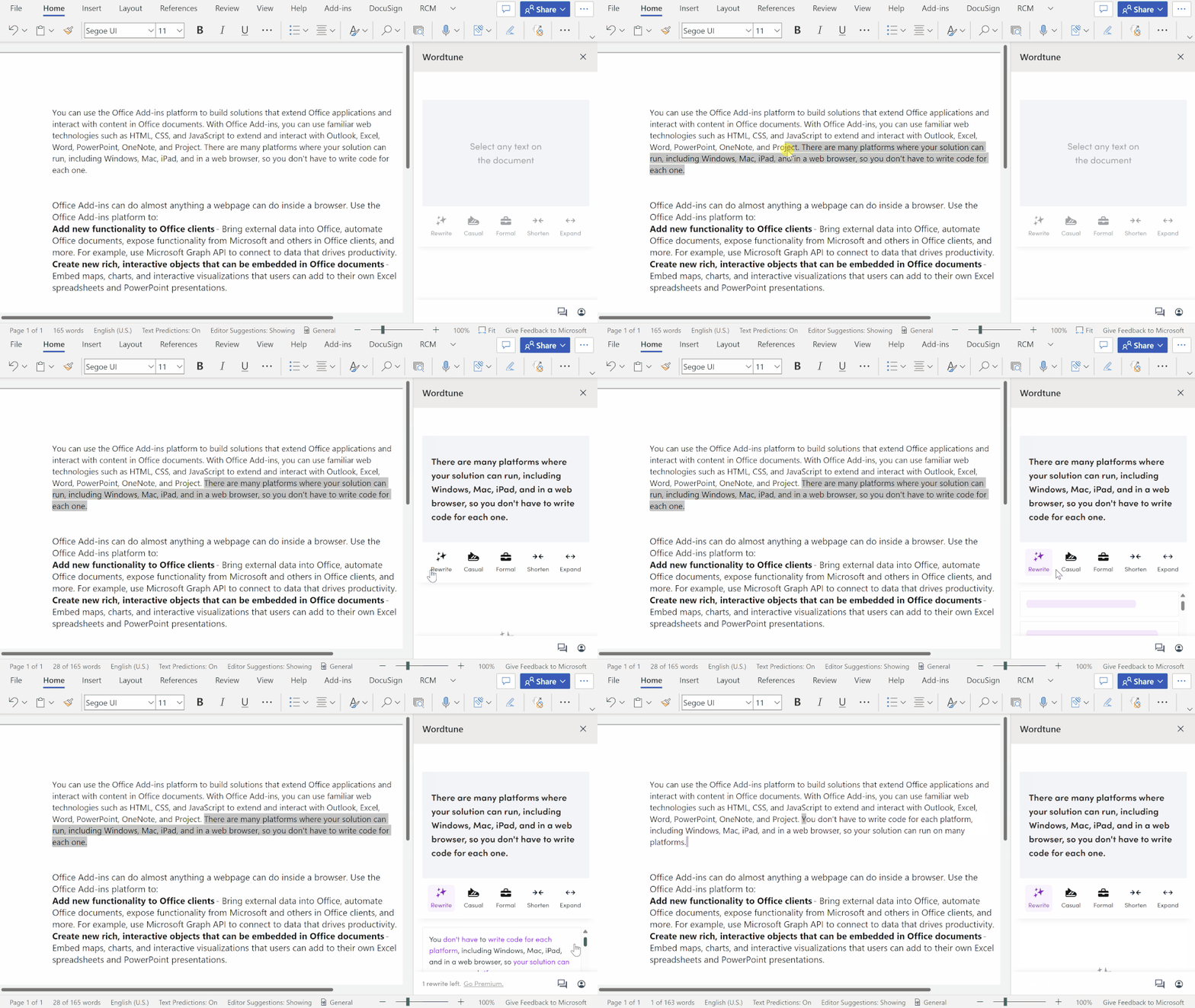
Wordtune is an AI-powered writing companion that improves your writing with its advanced understanding of context and semantics to offer capabilities, such as rephrasing suggestions, tone, and length adjustments.
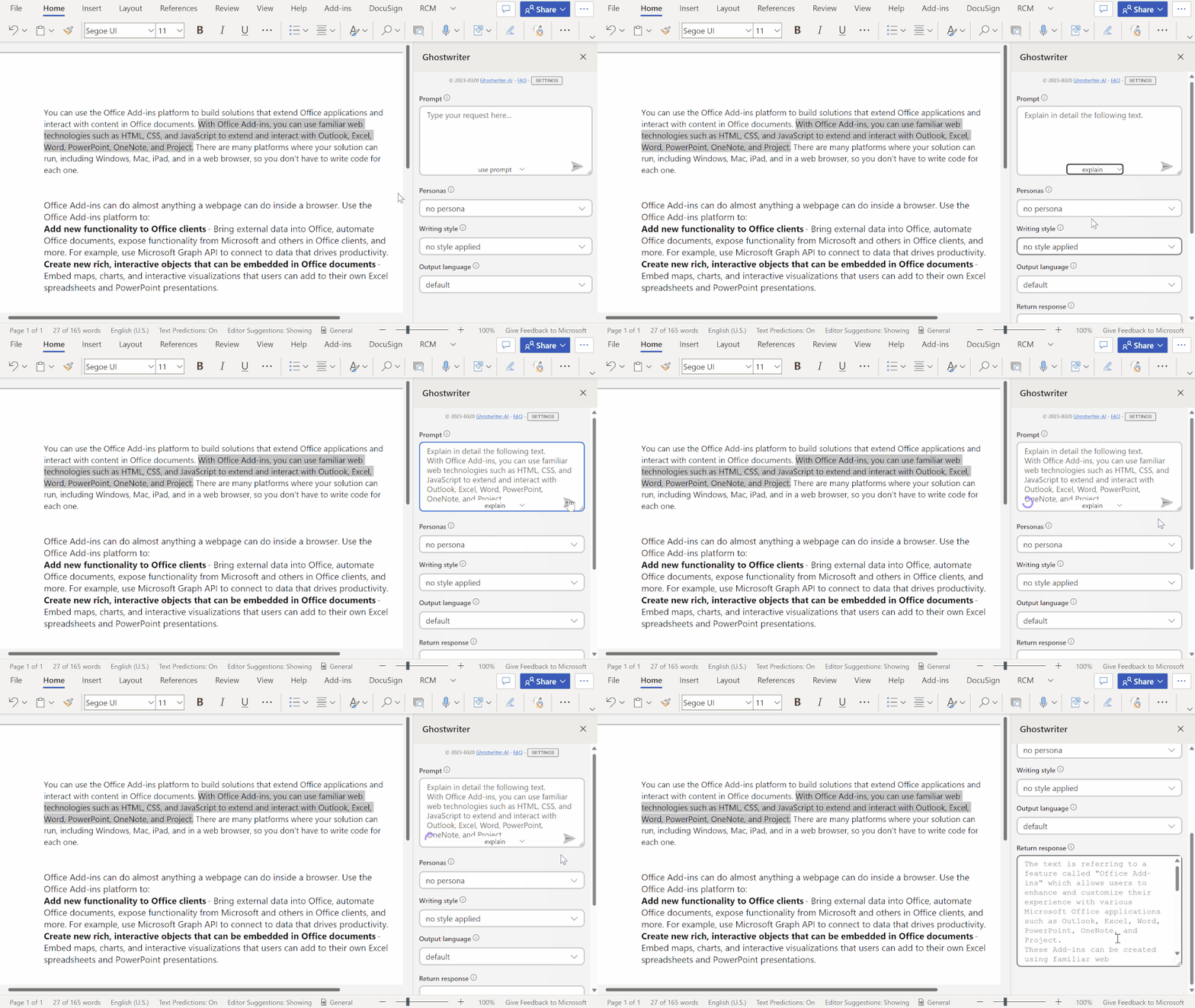
Ghostwriter uses advanced natural language processing (NLP) and machine learning (ML) technology to help users brainstorm, plan, and create content efficiently.
Content insertion
If you're looking to add content to your document to save time and make documents more engaging, content insertion tools are useful extensions to Word.
QR4Office helps you quickly insert a QR code into your document, so you can easily share links and information with others.

Pickit provides easy access to a diverse and legally compliant selection of images, rather than having to rely upon time-consuming searches for the perfect illustration.

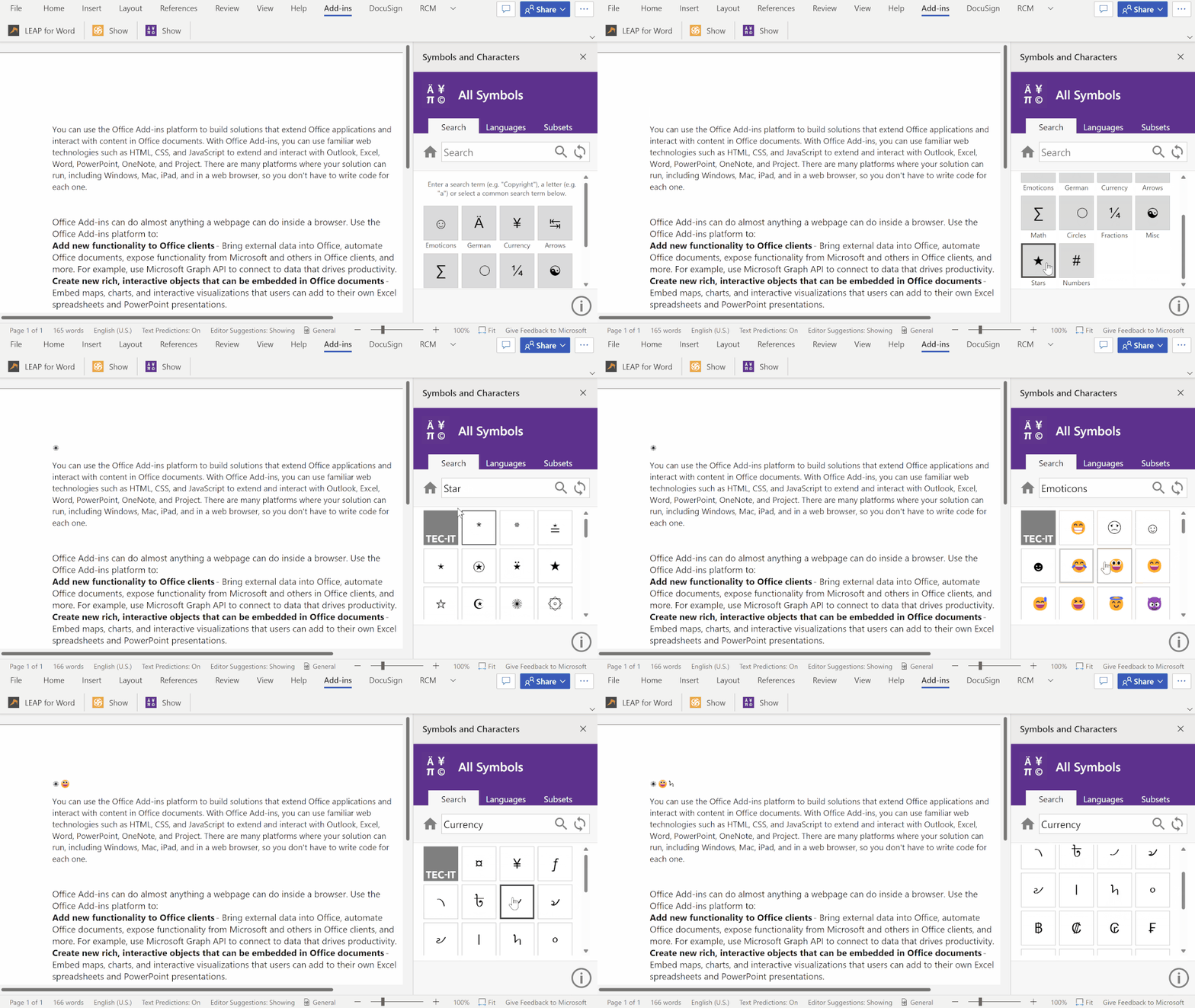
Symbols and Characters allows you to insert special characters and symbols quickly and easily into your documents, without having to copy and paste them from another source or remembering the keyboard shortcuts.
More Microsoft Word add-ins
In addition to writing assistance and content insertion add-ins, there are other kinds of popular add-ins that help streamline your workflow and make you more efficient and effective.
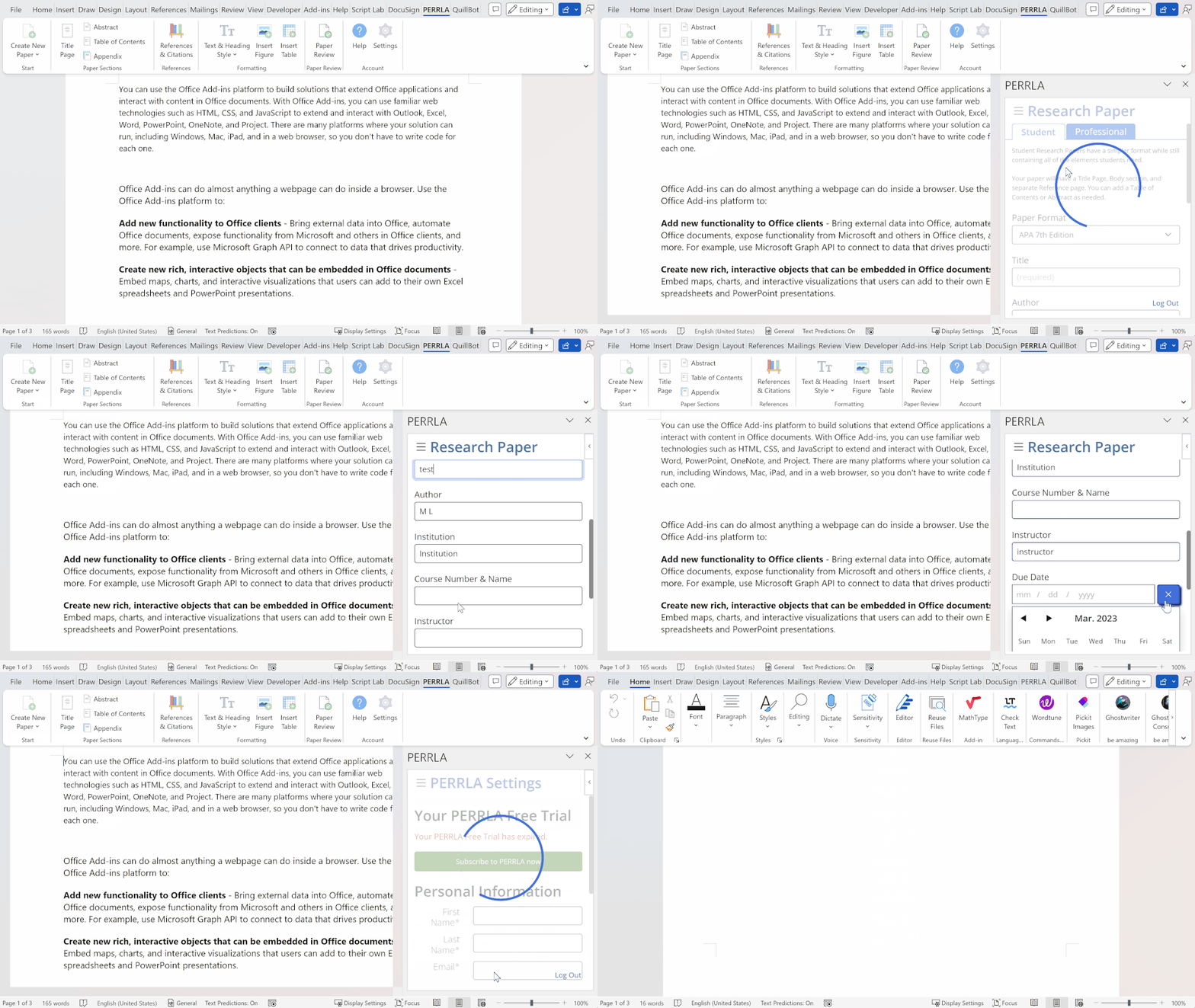
Perrla handles American Psychological Association (APA) and Modern Language Association (MLA) formatting in your paper while you write, so you can focus on writing your paper instead of formatting it.
DocuSign for Word saves time by securely signing or sending any document from Word, strengthening your document management process.

Explore the add-in store from your Office app
Other than AppSource, you can also go to the store from your Office application and get add-ins you wish. Here are the steps:
- Go to the "Insert" menu and select Add-ins > Get Add-ins.
- From the store page, you can browse the available add-ins or search for the add-in you wish.
- Click Add to install add-ins. Once you install them, they are available to use whenever you need them.

Manage add-ins in the Microsoft 365 admin center
In some cases, the add-in store may be blocked by your organization's IT admin. If this is the case, you'll need to reach out to your admin for access.
If you’re an admin, you can centrally deploy add-ins in the Microsoft 365 admin center so the users in your organization can access them. For more information, see Deploy add-ins in the Microsoft 365 admin center.
Have any feedback? Share it with us!
We always looking forward to improving your experience. If you have any questions or feedback while using Office add-ins, please let us know in this survey.
If you are interested in developing add-ins yourself, check out this helpful article: Word add-ins overview
Continue the conversation by joining us in the Microsoft 365 community! Want to share best practices or join community events? Become a member by "Joining" the Microsoft 365 community. For tips & tricks or to stay up to date on the latest news and announcements directly from the product teams, make sure to Follow or Subscribe to the Microsoft 365 Blog space!
Published on:
Learn moreRelated posts
Announcing the General Availability of the Microsoft 365 Document Collaboration Partner Program
Empowering Seamless Collaboration for Modern Workforces We are thrilled to announce the general availability of the Microsoft 365 Docume...
Favorite Copilot Prompts
(Amber Plumb interviewing Michael Morales and Allison Sweet) The power of M365 Copilot is transforming the way our support team operates...
Favorite Microsoft 365 Copilot Prompts
(Amber Plumb interviewing Michael Morales and Allison Sweet) The power of M365 Copilot is transforming the way our support team operates...
Boost digital event engagement with Voting and Archiving in Teams Q&A
Managing and delivering effective town halls is key to enabling two-way dialogue with leaders in today’s hybrid world. Microsoft Teams Q&A...
Prepare now for key end of support moments in 2025
One year from today, on October 14, 2025, support will end for all Office 2016 and 2019 suites, standalone apps, and servers. This includes:&n...
Everything you should know about Visio 2016 and Visio 2019 end of support
On October 14, 2025, Visio 2016 and Visio 2019 will reach end of support. After this date, Visio 2016 and Visio 2019 will no longer receive se...
Limit frontline worker access to Teams when off shift
We’re excited to announce that the frontline working time feature is now generally available! This feature allows admins to block or warn acce...
We are removing Feed on Microsoft 365 (Office)
As part of our ongoing efforts to streamline and enhance user experiences, we will be retiring the Feed feature (shown in figure 1 below) on t...
Leveraging Partner Apps to Deliver on the Promise of AI-Led Productivity
The advent of generative AI is driving a rethink of what outcomes we deserve from our productivity software – from gains in efficiency to more...
What’s new in FLW shared devices
Discover the Latest Enhancements in Shared Device Mode (SDM) We are excited to announce a series of new features in Shared Device Mode ...