
Automatically Configure Azure Firewall Rules to Allow Traffic to Office 365 Endpoints
Introduction:
Azure Firewall is Microsoft’s cloud-native, fully stateful firewall as a service that provides the best of breed threat protection for cloud workloads running in Azure. With any firewall solution, the most important factor is the ability to control outbound and inbound network access in any easy, automated method. One common use case we see is customers needing to easily allow traffic communication through Azure Firewall to Office 365 endpoints that their users rely on for their day-to-day productivity. To make the process easier to allow traffic to Office 365, we have created a deployment template (detailed in the Deployment section below) to automate this process for you.
Before we go into the details of how this template works and the resources it creates, we will briefly define some common terms relating to Azure Firewall that will be used throughout this blog.
Terminology:
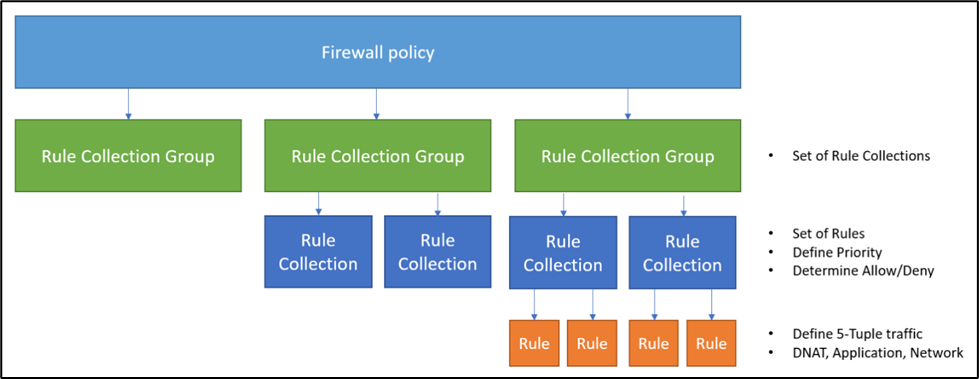
- Firewall policy: a top-level resource that contains security and operational settings for Azure Firewall. You can use Firewall Policy to manage rule sets that the Azure Firewall uses to filter traffic.
- Rule collection groups: used to group one or multiple rule collections. This is the first unit to be processed by the Azure Firewall and they follow a priority order based on your defined values.
- Rule collections: contains one or multiple rules with a defined action (allow or deny) and a priority value. There are three types of rule collections: DNAT, Network, and Application.
- Rules: specifies which traffic is allowed or denied in your network. There are three types of rules: DNAT, Network, and Application.
Figure 1 displays the hierarchy of a Firewall policy. To learn more, see this document.

Figure 1. Firewall policy hierarchy
Workflow Overview:
Now that we have discussed the terminology of Azure Firewall policy, we can better explain how this workflow automation works. The workflow runs every two weeks to collect the newest Office 365 endpoints for Exchange Online, Microsoft Teams, SharePoint Online, and Microsoft 365. It then formats these endpoints into an Azure Resource Manager (ARM) template consisting of a rule collection groups that hosts a Network rule collection and an Application rule collection with the necessary Network and Application rules. The Logic App will store this ARM template and use it to create a new Azure Resource Manager deployment to update an existing Azure Firewall policy.
Deployment:
The automation has been published to the Azure Network Security GitHub repository, from where it can be deployed directly to your environment through the provided ARM template (found in the “Deploy to Azure” button in this blog).
The deployment will create three main resources:
- Automation Account and Runbook: The Azure Automation Account and Runbook will run the Python script o365_rules.py to download the JSON found at https://endpoints.office.com/endpoints/worldwide?clientrequestid=b10c5ed1-bad1-445f-b386-b919946339a7 and generate an ARM template for an Azure Firewall Policy that can be imported to Azure. More information regarding the script can be found here.
- Logic App: The Logic App is scheduled to run every two weeks to trigger the Automation Account's Runbook with the o365_rules.py script, store the ARM template output in a variable, update the ARM template deployment with the updated O365 endpoints, and send an email to notify you upon completion.
- Connections: API connections to Azure Resource Manager, Azure Automation, and Office 365 services are created for the Logic App to run as expected. Learn more about Logic App connectors here.
An important think to note is that in order to deploy the automation, your account needs to have Contributor rights on the target resource group that will contain the Logic App resource (see here for more information). When you are ready, you can click the Deploy to Azure button below to deploy the template.
During the deployment, you must specify some details, including the subscription, resource group, name, and region to host this automation. You must also configure the following:
- Playbook_Name: name of the Logic App that will trigger the workflow to collect the O365 endpoints and deploy a rule collection group.
- Automation_Account_Name: name of the Automation Account that hosts the python script to generate the deployment template.
- Username: email address from which the automation will send notifications to when the run is finished and the new O365 rules have been added to the Firewall Policy and from which the API connections to Azure Resource Manager, Azure Automation, and Office 365 Outlook will be formed. The user deploying the automation must be the owner of this account.
- Recipient_Address: email address to which the automation will send notifications to when the run is finished and the new O365 rules have been added to the Firewall Policy.
- Subscription_ID: name of the subscription that hosts the Firewall Policy that you would like to add the O365 rule collection group to or create for the purpose of including this rule collection group.
- Resource_Group_Name: name of the resource group that hosts the Firewall Policy Firewall Policy that you would like to add the O365 rule collection group to or create for the purpose of including this rule collection group.
- Policy_Name: name of the Firewall Policy that you would like to add the O365 rule collection group to or create for the purpose of including this rule collection group.
- Policy_SKU: SKU of the Firewall that you would like to add the O365 rule collection group to or create for the purpose of including this rule collection group (accepted inputs are Standard or Premium).
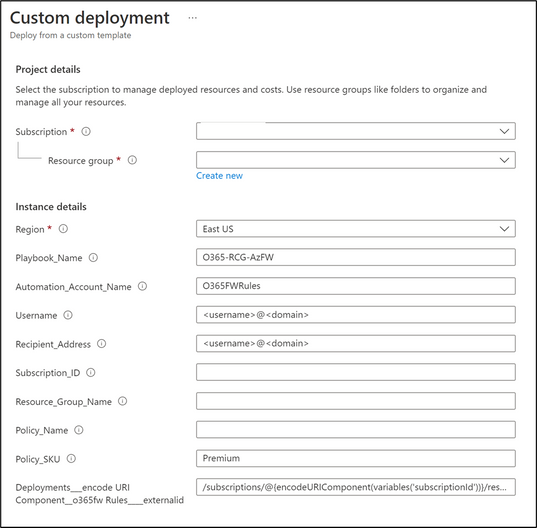
Figure 2. ARM Template input parameters
As shown in Figure 2 above, the ARM template will create the Logic App Playbook and Azure Automation Account. Additionally, the template will create the API connection to Office 365. You must authorize this Office 365 API connection for the sender’s mailbox, from which the rule creation updates email will be sent.
To authorize the API connection:
- Go to the Resource Group you used to deploy the template resources.
- Select the Office365 API connection and press Edit API connection.
- Press the Authorize button.
- Make sure to authenticate against Azure AD.
- Press save.
- Repeat the same steps for the Azure Automation and Azure Resource Manager API connections.
Logic Implemented:
Figure 3 displays the logic built into the Logic App in the designer view.

Figure 3. Logic App designer view
The automation is configured to run every two weeks by using a scheduler (frequency of which can be adjusted to meet your organization’s need). The automation sets the variables provided when the Logic App was deployed (i.e., subscription ID, Resource Group, Firewall Policy Name), runs the Automation Account runbook to generate the new Azure Resource Manager template for the O365 rule collection group, retrieves the output of the runbook job, updates the Azure Policy resource, and then sends an email notifying you upon completion.
In some cases, you may require certain modifications to the Logic App. Examples of how to make these modifications can be found below:
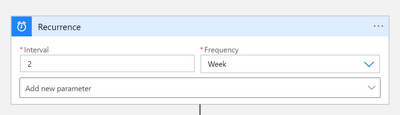
- In the Logic App designer, you can select the ‘Recurrence’ step to configure the recurrence period for the workflow to run.
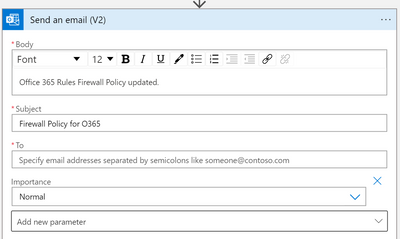
- You may want to adjust the email that gets sent after the Logic App runs successfully. For this, you can navigate to the “Send an email (V2)” action and directly update the Body, Subject, or Importance of this email.
Post-Deployment:
After you have deployed the resources and successfully ran the Logic App, it will create the required rules on your existing Firewall policy that you provided as an input during the initial template deployment.
When you navigate to your Firewall policy in Azure Firewall Manager, you should see the newly added O365_rulecollection group consisting of around 85 rules with one Network Rule Collection and one Application Rule collection as shown in Figure 4 below.

Figure 4. O365_RuleCollectionGroup created in the Azure Firewall policy.
If you drill down into the respective rule tabs in Azure Firewall Manager, like Network Rules for example, you can see all the details of the rules that are created by this Logic App as shown in Figure 5.

Figure 5. O365 Network Rules
One last important thing to note is that all the newly added rules are appended to the existing policy and the rules that you have already configured on the policy will not be affected. You may need to adjust priorities to ensure that the O365 traffic is allowed.
Conclusion:
By using this automation template, you can now easily automate the process of updating rules to Office 365 endpoints at a required frequency without any manual intervention. This solution is the easiest method of grouping together Office 365 endpoints as there is currently no service tag for these services.
Although this blog and deployment was targeting for Office 365 endpoints, you can use the same process to automatically create Rule Collection Groups for additional services that provide a JSON formatted list of destinations.
Published on:
Learn moreRelated posts
IPv6 Adoption: Enhancing Azure WAF on Front Door
The transition to IPv6 is a significant step for enterprise corporations, reflecting the evolution of internet technology and the need for a l...
Azure WAF’s Bot Manager 1.1 and JavaScript Challenge (Preview): Navigating the Bot Threat Terrain
Introduction Bots are a common presence on the internet, serving a range of functions from automating customer service to indexing page...
Private IP DNAT Support (Preview) and Scenarios with Azure Firewall
Introduction Azure Firewall is a cloud native security service to protect your workloads running in Azure. It is a stateful firewall as a serv...
Getting Started with Azure DDoS Protection REST API: A Step-by-Step Guide
REST API is a cornerstone in the management of resources on Azure, providing a streamlined and efficient approach for executing create, read, ...
Monitoring Azure DDoS Protection Mitigation Triggers
Monitoring Azure DDoS Protection Mitigation Triggers In today’s digital landscape, Distributed Denial of Service (DDoS) attacks pose a signifi...
Azure WAF’s Bot Manager 1.1 and JavaScript Challenge: Navigating the Bot Threat Terrain
Introduction Bots are a common presence on the internet, serving a range of functions from automating customer service to indexing page...
Utilizing Azure DDoS Protection Workbook for DDoS attack traffic Analysis
In today's digital age, the security of applications, servers, and networks is paramount. One of the most significant threats to this security...
Independent Configuration of Size Enforcement and Inspection Limits in Application Gateway WAF
Introduction In the constantly changing world of cybersecurity, both flexibility and effective security are essential for safeguarding ...
Private IP DNAT Support and Scenarios with Azure Firewall
Introduction Azure Firewall is a cloud native security service to protect your workloads running in Azure. It is a stateful firewall as a serv...
Monitoring traffic flows in Azure Firewall using Virtual Network Flow Logs
Azure Firewall is a managed service designed to protect your Azure Virtual Network resources, providing advanced threat protection and advance...