
Use Microsoft Lists for your next marketing campaign (+ video)

Every marketing campaign is one part unique, one part “we’ve done this before and simply need to do it again and again in an organized fashion” – to keep everyone in sync and track what matters most. The main goals are to track up-to-date information, loop in the right people at the right time, and automate as much as possible. It will save you time and improve awareness.
The below video provides context for how Microsoft Lists + Power Automate + Teams helps streamline people + information across date-driven milestones. It’s mostly a demo video, to give you a nudge on how to take advantage of the technology. And then, let technology support you and your fellow marketers.
Based on the above video, let’s hit on the main components with further insight plus links to learn more about each capability.
Start with list templates that come with built-in Power Automate flows
For a marketing campaign, we suggest using the “Content scheduler” template. It’s recently got a powerful update: A built-in Power Automate ‘reminder’ flow. That’s right, it’s configured for you as a part of the common list creation process.
Once you create the list, the flow is automatically configured to send reminder three days in advance of the draft or publish date. And the reminder gets sent to the person you added to the “Author” column. Do nothing and it starts working as soon as you add your first list item. And if you wish to further configure the connected flow, go for it. You’ll find is under the Integrate menu > See your flows – and this will take you directly into the Power Automate flow designer.
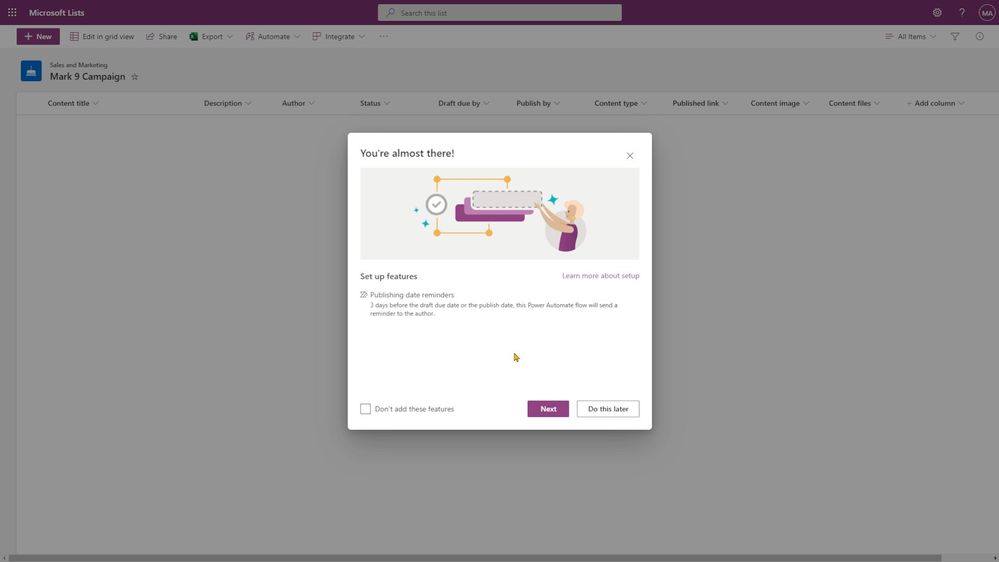
Learn more how to manage a flow that was created from a Lists template.
Add the list to the active Microsoft Teams marketing campaign channel
Adding information to a list is one thing. Collaborating with others is the thing that moves all things forward. It’s not a new feature and it’s a powerful one. You can use the Lists app in Teams to either create a new list or add an existing one as a tab in a Teams channel.
Once in place, you can start a conversation per list item. Just @mention someone and add context to what you are asking them to do or review. They’ll get a notification, and when they click on the list item from the chat, it’ll take them right to the list item with the chat (and context) side-by-side.

Learn more about getting started with Lists in Microsoft Teams.
Create multiple list views to help all your collaborators visualize the information
We know that every marketing campaign involves a bunch of people – from all walks of your organization. Some will want to review the visual elements of the campaign (branding), some will need to review and sign off on all messaging and positioning (PR and legal teams), and some just need to know who’s doing what (product marketing and leadership teams).
So, why not make distinct views of the campaign information tailored for each type of people – so it is customized visually for them to get into the list, see what they need to see, and get out. Thus, consider creating different list views for each group. We’ve got Gallery view for your brand team, Board view for your PR and legal teams, and Calendar view for product marketing and leadership teams.
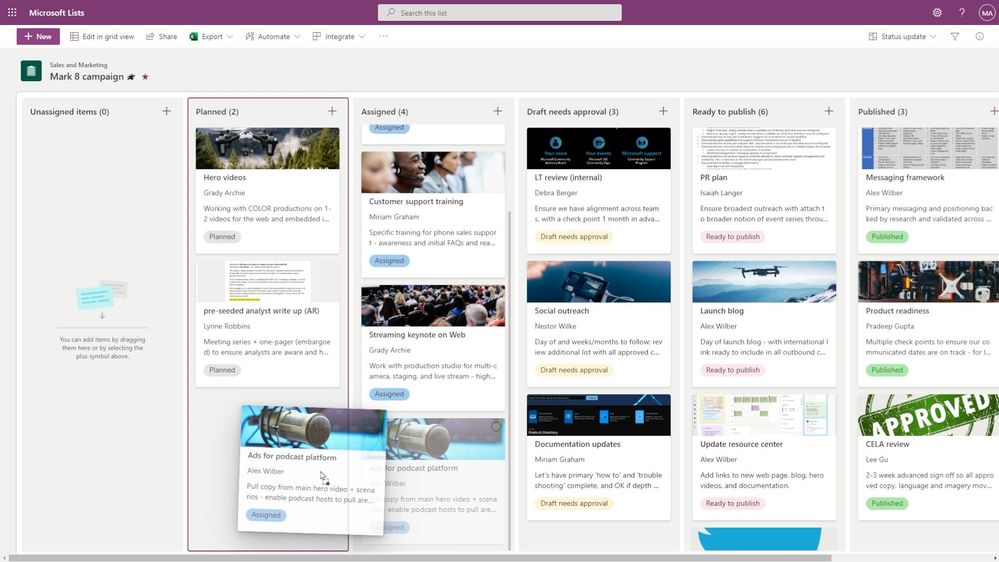
At any time, anyone can select whatever view works best for them to visualize the information and progress.
Learn more about creating or changing a view of a list.
Make the list unique with color coding and rules
Your information can speak to you, visually. Just add a little conditional formatting, and when certain criteria are met, the list item (row, column, or view) will adjust accordingly. And if something changes that is important for someone else to know about (each time it happens), write a simple list rule that triggers each time a status updates, or a list item gets reassigned.
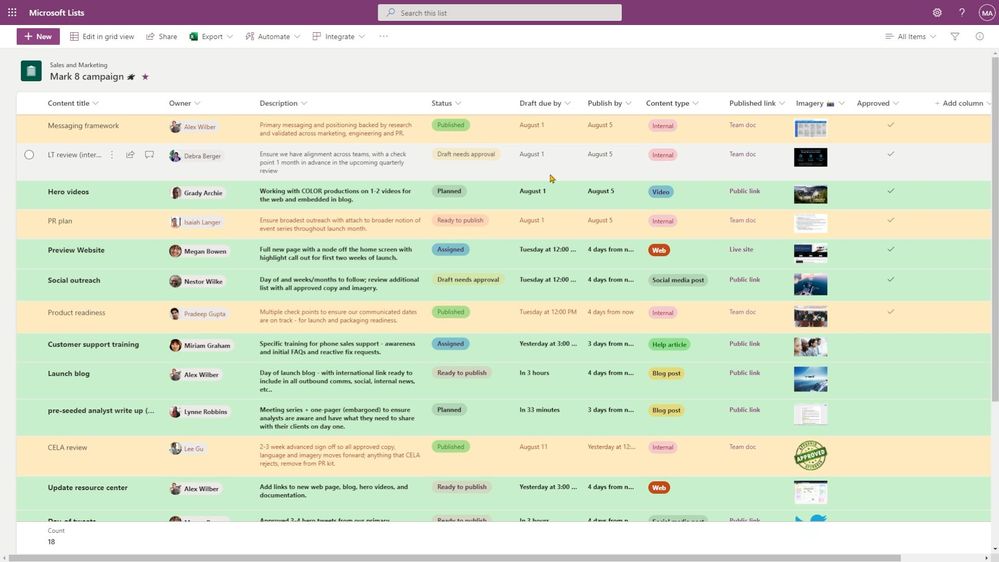
Learn more about formatting the color or a row or column. And learn how to work with Lists rules.
Last, a tip in one short, near run-on sentence…
Once you’ve created a list that looks just right and works for everyone involved, use the “Create a list from a list” feature to do it all over again in the same prescribed fashion (column structure, color coding, rules, and more) – saving you time to configure, to help get you more quickly to where you want to be – making progress on planning and executing your next marketing campaign.
Learn more about creating a list from an existing list.
Make your marketing process easier for everyone…
Good luck with your next marketing campaign – knowing Microsoft Lists has your back as you plan, collaborate, and execute what matters most.
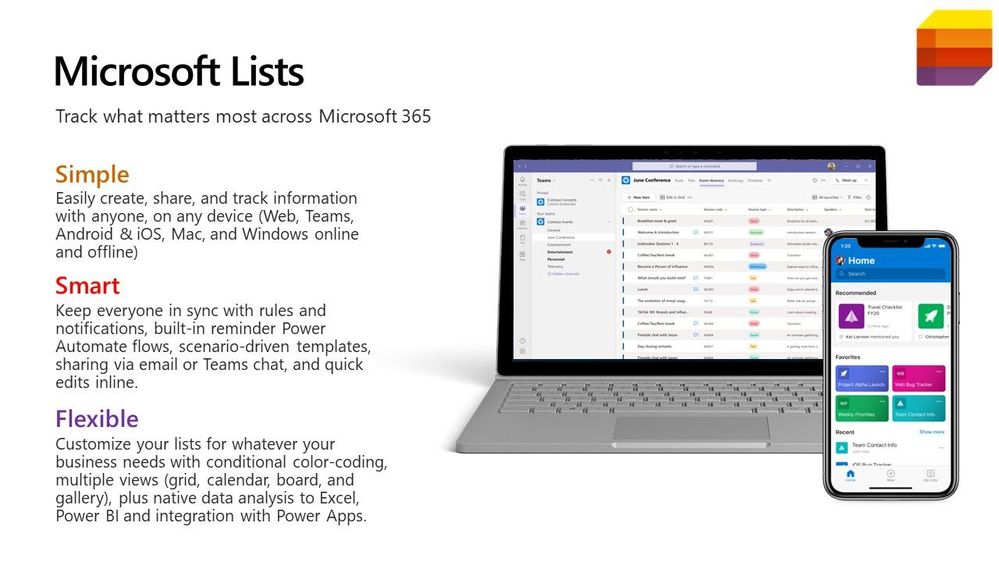
Learn more about Microsoft Lists – visit our Lists resource center and provide feedback on any features or updates you’d like to see in the future.
Cheers, Mark
Published on:
Learn moreRelated posts
Announcing the General Availability of the Microsoft 365 Document Collaboration Partner Program
Empowering Seamless Collaboration for Modern Workforces We are thrilled to announce the general availability of the Microsoft 365 Docume...
Favorite Copilot Prompts
(Amber Plumb interviewing Michael Morales and Allison Sweet) The power of M365 Copilot is transforming the way our support team operates...
Favorite Microsoft 365 Copilot Prompts
(Amber Plumb interviewing Michael Morales and Allison Sweet) The power of M365 Copilot is transforming the way our support team operates...
Boost digital event engagement with Voting and Archiving in Teams Q&A
Managing and delivering effective town halls is key to enabling two-way dialogue with leaders in today’s hybrid world. Microsoft Teams Q&A...
Prepare now for key end of support moments in 2025
One year from today, on October 14, 2025, support will end for all Office 2016 and 2019 suites, standalone apps, and servers. This includes:&n...
Everything you should know about Visio 2016 and Visio 2019 end of support
On October 14, 2025, Visio 2016 and Visio 2019 will reach end of support. After this date, Visio 2016 and Visio 2019 will no longer receive se...
Limit frontline worker access to Teams when off shift
We’re excited to announce that the frontline working time feature is now generally available! This feature allows admins to block or warn acce...
We are removing Feed on Microsoft 365 (Office)
As part of our ongoing efforts to streamline and enhance user experiences, we will be retiring the Feed feature (shown in figure 1 below) on t...
Leveraging Partner Apps to Deliver on the Promise of AI-Led Productivity
The advent of generative AI is driving a rethink of what outcomes we deserve from our productivity software – from gains in efficiency to more...
What’s new in FLW shared devices
Discover the Latest Enhancements in Shared Device Mode (SDM) We are excited to announce a series of new features in Shared Device Mode ...