
Setup Hybrid Joined AVD Single Sign-On
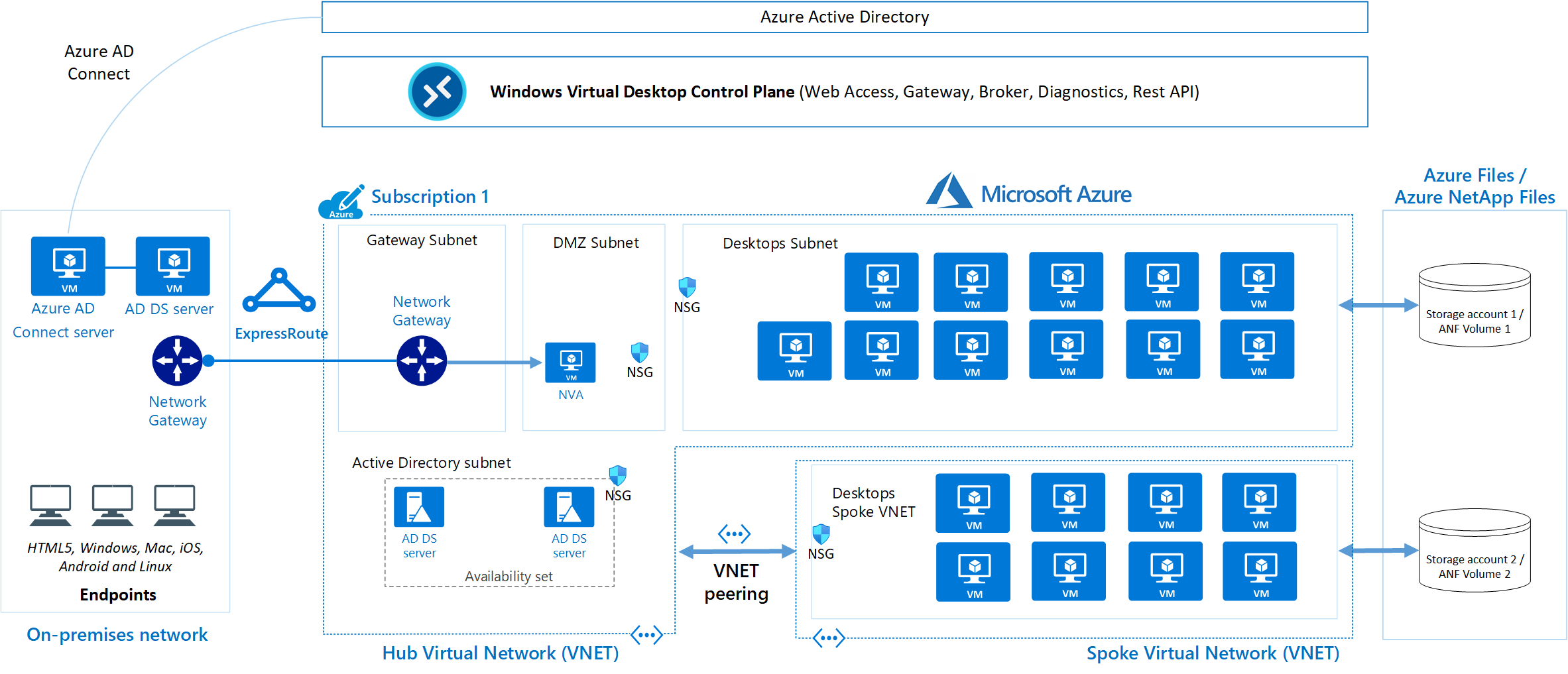
Azure virtual desktop SSO allows us to skip the session host credential prompt and automatically sign the AVD users when connecting to the VMs. Without SSO, the AVD client will prompt end users for their session host credentials for every connection.
Single sign-on is available on AVD session hosts using the following operating systems:
- Windows 11 Enterprise single or multi-session with the 2022-09 Cumulative Updates for Windows 11 Preview (KB5017383) or later installed.
- Windows 10 Enterprise single or multi-session, versions 20H2 or later with the 2022-09 Cumulative Updates for Windows 10 Preview (KB5017380) or later installed.
- Windows Server 2022 with the 2022-09 Cumulative Update for Microsoft server operating system preview (KB5017381) or later installed.
Before setting up the environment, let’s understand some concepts of Azure AD joined device and Hybrid joined device.
- Azure AD Joined Device vs Hybrid joined device.

The above diagram is Azure AD joined device. Azure AD is synced with on-premises AD domain controller. The device joins directly to the Azure AD tenant. AAD-joined devices authentication through AAD only.
- Hybrid joined device
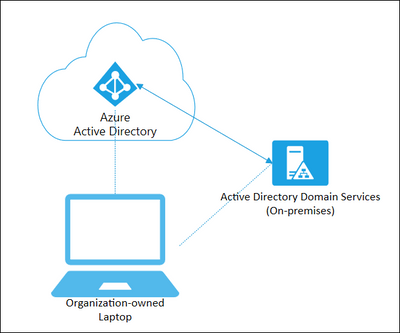
The above diagram is Hybrid joined device. Azure AD is synced with on-premises AD domain controller. The device joins On-premises domain controller and Azure AD. Hybrid joined devices authentication through On-prem AD or Azure AD.
- Setup Hybrid Joined AVD
- Create a AVD host pool with AD domain joined VMs.
- Prerequisites:
- Azure AD has been connected with On-prem domain controller.
- The on-prem user accounts have been synced into Azure AD.
- Prerequisites:
- Through the Azure portal when deploy the VMs, choose the “Active Directory”
- Create a AVD host pool with AD domain joined VMs.

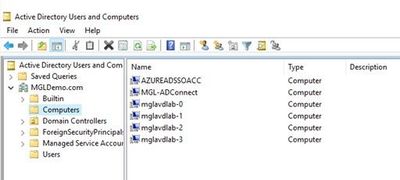
- After the deployment finishes, the AD domain joined devices will appear in the on-premises AD Domain Controller.
- Setup Hybrid Joined device
- Prerequisite: AVD VMs joined AD domain controller.
- Follow this article to enable Hybrid Azure AD join in Azure AD Connect.
- Update the On-premises domain controller GPO to enable Register domain joined computers as devices.

- Check the device status by the command dsregcmd.exe /status, if the AVD VM joined Azure AD successfully, the status is like below:

- Check the device status on Azure Portal

- If the AVD VM status is not Azure AD joined or doesn’t appear on the Azure AD Devices list, please refer the troubleshooting guide to check and fix the issue.
- Enable Single Sign-on
- Create a Kerberos Server Object on on-premises AD domain controller, follow this article to create a Kerberos server object.
- Enable Azure AD authentication on Azure portal.

- Test the SSO for AVD desktop and published applications. The authentication window should only pop up once.
Published on:
Learn moreRelated posts
End-to-End Full-Stack Web Application with Azure AD B2C Authentication: A Complete Guide
Application Overview The purpose of this sample application is to demonstrate the usage of Azure Active Directory B2C (Azure AD B2C) for authe...
Complex Data Extraction using Document Intelligence and RAG
Section 1: Introduction Historically, data extraction from unstructured documents was a manual and tedious process. It consisted of a c...
Harnessing Generative AI with Weaviate on Azure Kubernetes Service and Azure NetApp Files
Table of Contents Introduction Prerequisites Install Weaviate Approximate Nearest Neighbor (ANN) Benchmarks ANN Benchmarks Setup ANN Benchmark...
Securing Containerized Applications with SSH Tunneling
As cloud engineers and architects embrace containerization, ensuring secure communication becomes paramount. Data transmission and access cont...
Exploring AI Agent-Driven Auto Insurance Claims RAG Pipeline.
Introduction: In this post, I explore a recent experiment aimed at creating a RAG pipeline tailored for the insurance industry, specificall...
Azure NetApp Files now stores sensitive data DoD IL5 compliant in Azure US Government regions
Table of Contents Introduction Why Azure NetApp Files? DoD IL5 compliance in Azure Government Azure NetApp Files reaches feature parity betwee...
Data Intelligence End-to-End with Azure Databricks and Microsoft Fabric
This Azure Architecture Blog was written in conjunction with Isaac Gritz, Senior Solutions Architect, at Databricks. The Data Inte...
AI Studio End-to-End Baseline Reference Implementation
Azure AI Studio is designed to cater to the growing needs of developers seeking to integrate advanced AI capabilities into their appli...
Mastering AI adoption: Essentials to building, operating and optimizing genAI workloads on Azure
Mastering your AI adoption: Essentials to building, operating and optimizing genAI workloads on Azure As the demand for scalable, efficient AI...
Optimize Azure Stack HCI with the Well-Architected Framework
Azure Stack HCI is a hyperconverged infrastructure (HCI) solution that provides storage, network, and compute resources in on-premises...