
What's New in OneNote Android
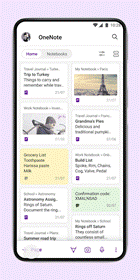
We are happy to share new updates to OneNote Android app. You can now capture notes at the speed of your thought with a refreshed notetaking canvas – that is easy to use and has a lot of new editing capabilities that you have been asking for.
In this blog post we will cover updates of the following features -
- Contextual Command Bar optimization
- Additional capture modalities (using + button)
- Real time note sharing
- Insert shapes in ink mode
- Insert tables
- Update font color and style
- Update page color and style
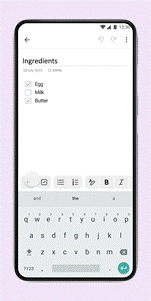
1.Command Bar optimization - All the text mode commands you need, such as checklists, bullet lists and text formatting, are available to you as you start typing a new note. These commands are dynamically brought on the fore front, as per the usage pattern to ensure you only see what’s important to you.
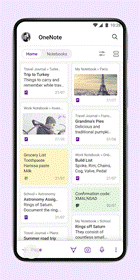
2.Additional capture modalities (using ‘+’ icon) - Introducing streamlined approach for quick capture and switching between different notes formats. Capture text, images, voice, ink, URLs, tables, attachments and annotate them all in one convenient note. Save time and reduce cognitive load with ‘+’ icon on your command bar.
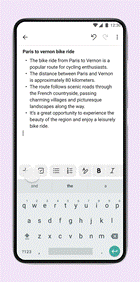
3.Real time note sharing - Click on the three-dot menu on the top right to access note level actions. You can now apply a page style, file the note to a different notebook, add the note to your home screen, delete, share your note in real time, enhancing collaboration and knowledge sharing and more.

4.Insert shapes in ink mode - Tap the ‘+’ icon on the top right to switch to ink mode. Select the newly introduced shapes icon to view a list of all the shapes you can add to your notes
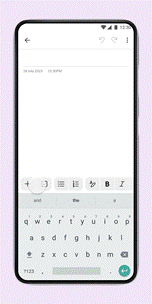
5.Insert tables - As you are typing a note, click on the table icon within your contextual command bar. By default, a 3X3 table will be inserted into your note, but you can add or delete rows/columns as per your need
6.Update font color and style - Let your notes reflect your style and personality. Tap on the text formatting option within your contextual command bar and select the fonts icon. You can change the style, color and size of your text, heading as per your choice to format your notes.

7.Update page color and style - Tap on triple dot menu to get page color option. Tap on the button, access a range of page color options, select the perfect hue to set the mood or choose from rule lines to enhance the structure of your notes
We’d love to hear from you!
We’re excited about the future of OneNote and look forward to hearing your feedback to make OneNote the best place for your notes. Please continue to tell us what you think through the in-app feedback and in the comments below!
Be sure to join our Tech Community to stay up to date with the latest. Follow OneNote Blog and connect with us on Facebook and Twitter for regular product updates.
Published on:
Learn moreRelated posts
Announcing the General Availability of the Microsoft 365 Document Collaboration Partner Program
Empowering Seamless Collaboration for Modern Workforces We are thrilled to announce the general availability of the Microsoft 365 Docume...
Favorite Copilot Prompts
(Amber Plumb interviewing Michael Morales and Allison Sweet) The power of M365 Copilot is transforming the way our support team operates...
Favorite Microsoft 365 Copilot Prompts
(Amber Plumb interviewing Michael Morales and Allison Sweet) The power of M365 Copilot is transforming the way our support team operates...
Boost digital event engagement with Voting and Archiving in Teams Q&A
Managing and delivering effective town halls is key to enabling two-way dialogue with leaders in today’s hybrid world. Microsoft Teams Q&A...
Prepare now for key end of support moments in 2025
One year from today, on October 14, 2025, support will end for all Office 2016 and 2019 suites, standalone apps, and servers. This includes:&n...
Everything you should know about Visio 2016 and Visio 2019 end of support
On October 14, 2025, Visio 2016 and Visio 2019 will reach end of support. After this date, Visio 2016 and Visio 2019 will no longer receive se...
Limit frontline worker access to Teams when off shift
We’re excited to announce that the frontline working time feature is now generally available! This feature allows admins to block or warn acce...
We are removing Feed on Microsoft 365 (Office)
As part of our ongoing efforts to streamline and enhance user experiences, we will be retiring the Feed feature (shown in figure 1 below) on t...
Leveraging Partner Apps to Deliver on the Promise of AI-Led Productivity
The advent of generative AI is driving a rethink of what outcomes we deserve from our productivity software – from gains in efficiency to more...
What’s new in FLW shared devices
Discover the Latest Enhancements in Shared Device Mode (SDM) We are excited to announce a series of new features in Shared Device Mode ...