
Terraform with Azure Cloud Shell & State file in Azure Storage

Azure Cloud Shell automatically has the latest version of Terraform installed. Also, as Terraform is run from the cloud it automatically uses information from the current Azure subscription and you can securely save the Terraform state file in Azure Storage. Best of all, you can still do all your authoring of Terraform from VS Code.
Btw, the last section on the Terraform state file in Azure storage is documented here on Microsoft Docs, however I have captured the complete solution here.
Four easy steps:
- Connect to CloudDrive (Azure Files Share)
- Copy files from this reop to Azure CloudDrive
- Setup the Terraform State in Azure Blob Storage
- Sign into Azure Cloud Shell from VS Code
1. Connect to CloudDrive (Azure Files Share)
Assuming you have previously connected to Azure Cloud Shell before and already setup the Storage Account more details here. Next, you will need to connect to the Azure Files share in which CloudDrive is configured to use, so you can copy and paste the Terraform files in this repo.
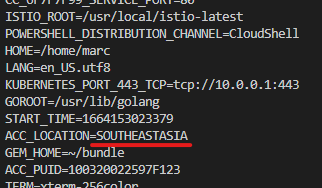
To check the region where Azure Cloud Shell is running from along with other info, type env at the prompt:
To see which Azure Files share CloudDrive is using, run the df command.
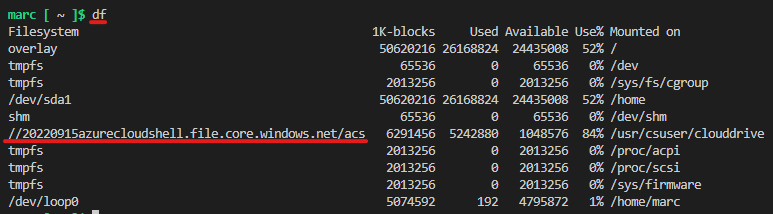
In this instance
- the storage account is 20220915azurecloudshell
- the Azure Files Share is acs
Azure CloudDrive maps to the one single Azure File Share, where you can create N number of folders.
2. Copy the repo files to the CloudDrive
Next, you can either use Azure Storage Explorer to copy the files to CloudDrive. Or you can Mount the SMB Azure file share on your local device, Windows, Linux, macOS – https://docs.microsoft.com/en-us/azure/storage/files/storage-how-to-use-files-windows.
Simply create a folder in the root of Azure CloudDrive file share itself. In my instance, the file share would be acs so create a folder in here.
So it would be like this: acs\Terraform\CAF-Landing-Zones-Design_Implement
Which is: <AzureFileShare>\<Folder>\<Folder>
I am using Azure Storage Explorer:
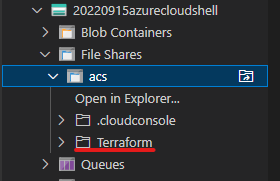
Copy all the files/folders over.
Then using the Azure Tools Extension to VS Code, you can access the storage account:
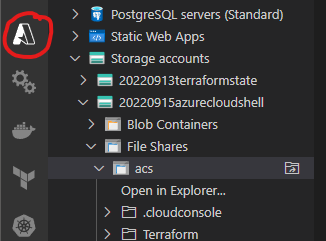
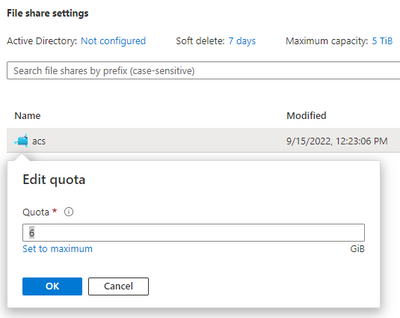
TIP: you might want to increase the quota of the Azure CloudDrive File Share, as 6GiB is not enough once you start copying files to it:
3. Setup the Terraform State in Azure Blob Storage
The state for Terraform should live in a stateful place which is central, common, secure and accessible to everything. E.g. Azure Storage is a perfect candidate. You’ll need to setup a separate, dedicated Azure Storage account with a container. Recommendation would be to apply Azure resource locking on this storage account so that it doesn’t get deleted accidentally. Also, maybe apply some tags to this storage account, clearly specifying what it’s used for.
Edit the terraform.tf and change the values for backend "azurerm" to suit your own Azure Storage Account. key = "prod.terraform.tfstate" the same.
You can keep key = "prod.terraform.tfstate" as is, no change.
4. Sign into Azure Cloud Shell from VS Code
You just need to sign in, run az login from the prompt. Once signed in, navigate to the clouddrive folder, where you'll find your Terraform files.

Then simply run your normal Terraform commands (e.g. Terraform -init or Terraform -apply).
Published on:
Learn moreRelated posts
End-to-End Full-Stack Web Application with Azure AD B2C Authentication: A Complete Guide
Application Overview The purpose of this sample application is to demonstrate the usage of Azure Active Directory B2C (Azure AD B2C) for authe...
Complex Data Extraction using Document Intelligence and RAG
Section 1: Introduction Historically, data extraction from unstructured documents was a manual and tedious process. It consisted of a c...
Harnessing Generative AI with Weaviate on Azure Kubernetes Service and Azure NetApp Files
Table of Contents Introduction Prerequisites Install Weaviate Approximate Nearest Neighbor (ANN) Benchmarks ANN Benchmarks Setup ANN Benchmark...
Securing Containerized Applications with SSH Tunneling
As cloud engineers and architects embrace containerization, ensuring secure communication becomes paramount. Data transmission and access cont...
Exploring AI Agent-Driven Auto Insurance Claims RAG Pipeline.
Introduction: In this post, I explore a recent experiment aimed at creating a RAG pipeline tailored for the insurance industry, specificall...
Azure NetApp Files now stores sensitive data DoD IL5 compliant in Azure US Government regions
Table of Contents Introduction Why Azure NetApp Files? DoD IL5 compliance in Azure Government Azure NetApp Files reaches feature parity betwee...
Data Intelligence End-to-End with Azure Databricks and Microsoft Fabric
This Azure Architecture Blog was written in conjunction with Isaac Gritz, Senior Solutions Architect, at Databricks. The Data Inte...
AI Studio End-to-End Baseline Reference Implementation
Azure AI Studio is designed to cater to the growing needs of developers seeking to integrate advanced AI capabilities into their appli...
Mastering AI adoption: Essentials to building, operating and optimizing genAI workloads on Azure
Mastering your AI adoption: Essentials to building, operating and optimizing genAI workloads on Azure As the demand for scalable, efficient AI...
Optimize Azure Stack HCI with the Well-Architected Framework
Azure Stack HCI is a hyperconverged infrastructure (HCI) solution that provides storage, network, and compute resources in on-premises...