
Try Microsoft Lists - MSA Preview for iOS
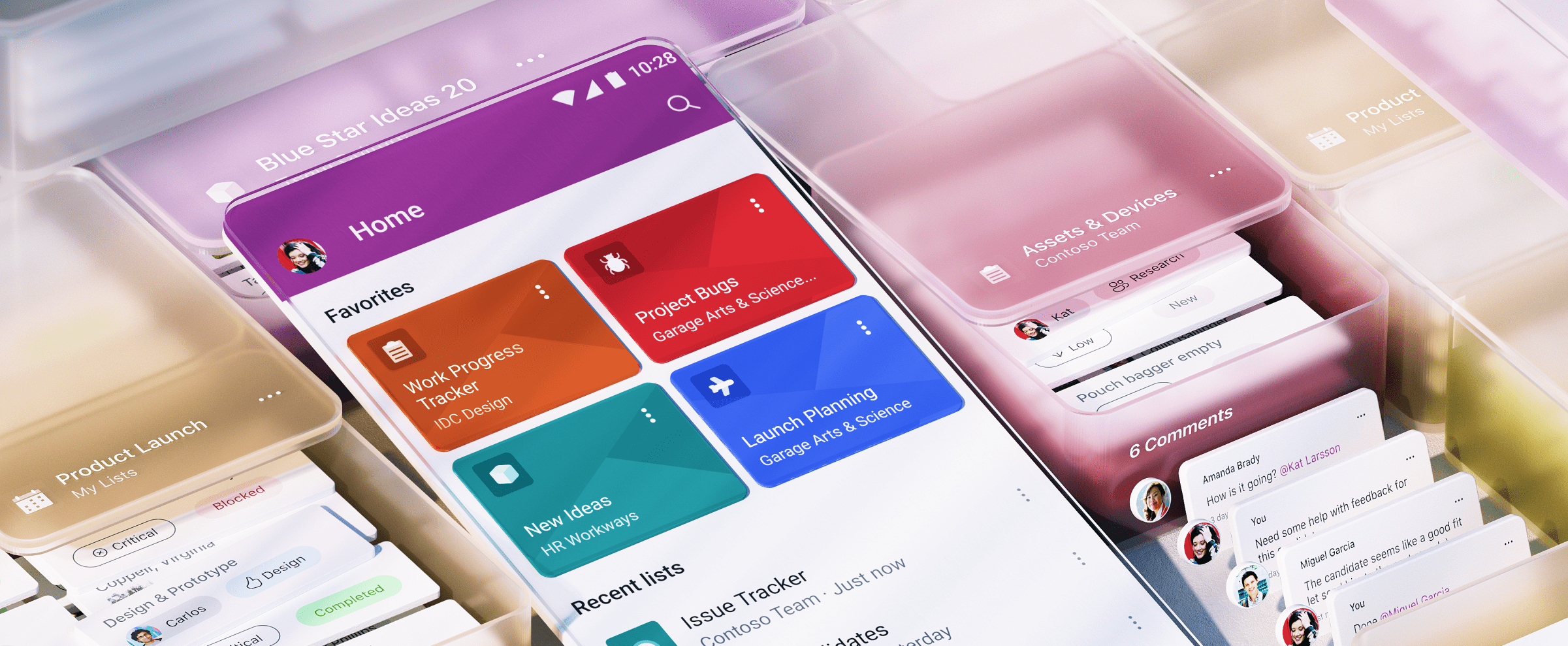
Stay organized and track what matters most - on the go. We’re pleased to introduce Microsoft Lists - MSA Preview for iOS – now available for testing using the TestFlight app.
Get the app and join today (see install steps below)

Steps to join and install:
- Tap the above app link, and join
- Install the TestFlight app first – sign in with your Microsoft account
- Join the “Microsoft Lists” beta (listed within the TestFlight app once you sign in)
- Accept, install, sign in with your Microsoft account (within the Lists app), and enjoy
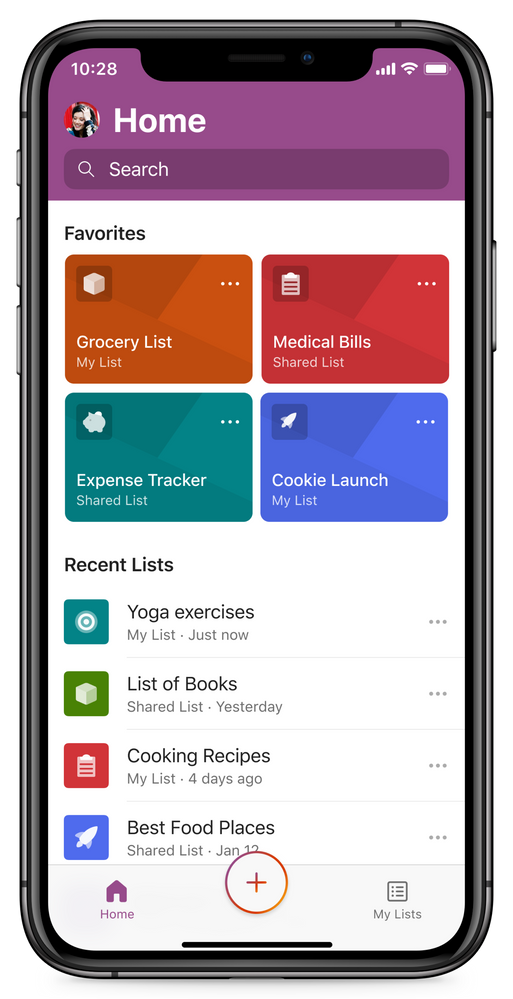
Microsoft Lists at the tap of your fingertips – a fully functional information tracker while on the go
Stay organized – Track and manage contacts, work and life events, home maintenance, and more.
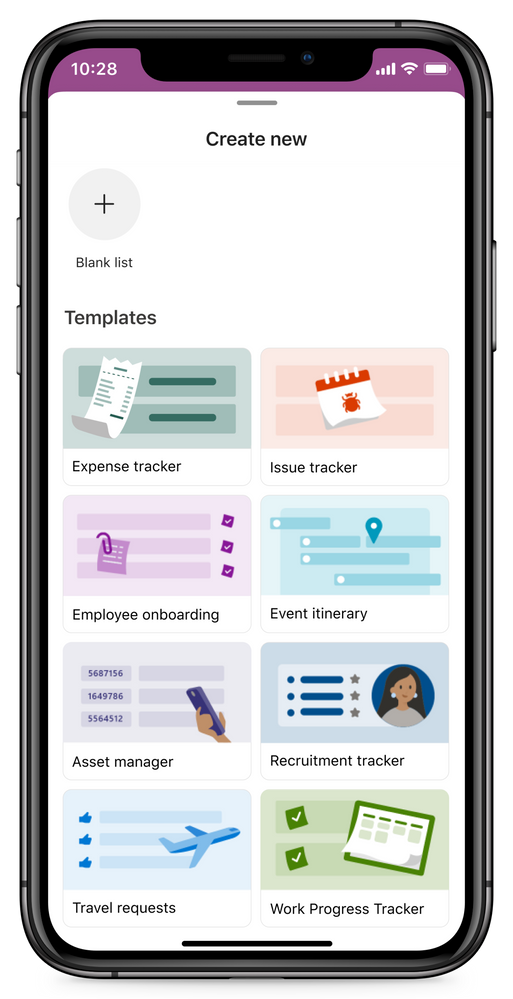
Easy to start – Use built-in templates to create lists in seconds
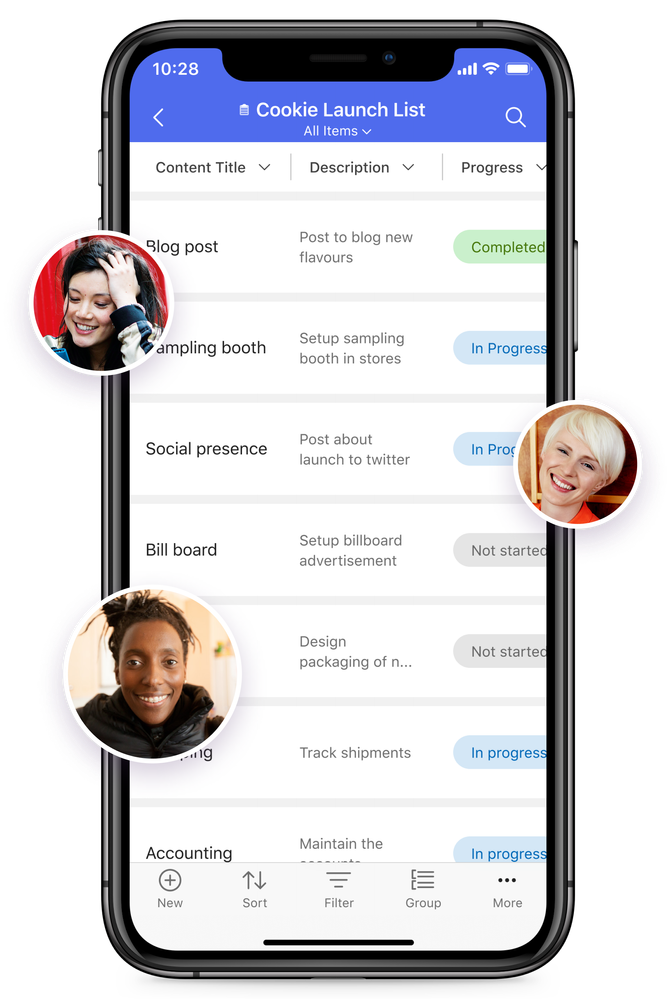
Anywhere access – Create and work on lists and list items from your iOS device

Share and Collaborate – Bring people to your information and keep everyone in sync
Switch to bigger screen – Go from mobile to desktop with lists.live.com; don’t worry, your data stays in sync across devices – a single source of truth with multiple entry points.
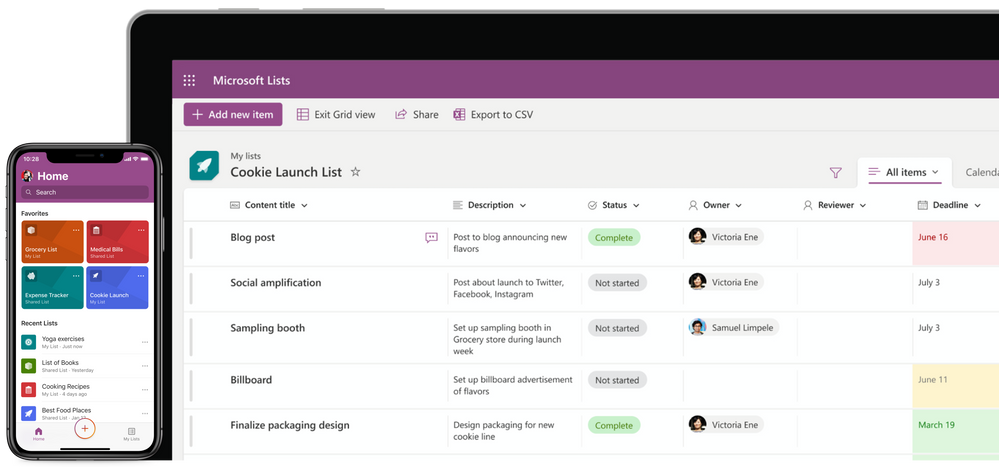
We have been using Lists for iOS here at Microsoft to plan morale events, gifts, roadmap items, travel expenses, and more – and we love it! We hope you enjoy it, too. And invite your friends and family to join in.
Frequently Asked Questions (FAQs)
Q: What is MSA?
MSA stands for Microsoft account - the account which you use to log into Outlook.com or Xbox Live. You can access the Microsoft Lists – MSA Preview for iOS app for free using your MSA account. And if you don’t have an MSA, they’re free to create and use; start here.
Q: Do I need to install the TestFlight app for accessing Lists MSA?
A: Yes. Currently Microsoft Lists – MSA Preview for iOS is limited to 10,000 installs via this method of preview. You need to both install TestFlight and download the beta version of the Microsoft Lists app for iOS. You can then sign in with both your Microsoft 365 organization ID (commercial) and your Microsoft account (personal).
Q: How is this different from Microsoft Lists for iOS in the App Store already?
A: The current production app in the App Store is Microsoft Lists which supports logging in with your work or school account – for commercial Microsoft 365 customers. The Microsoft Lists – MSA Preview for iOS (via TestFlight) allows signing in with your Microsoft account. Note: Our goal is to have one app that allows logging in with your work or school account, and MSA – or a combination of all your accounts.
Learn more about the Microsoft Lists – MSA Preview, sign up, sign in, and give it a try. And… let us know what you think. Just shake your device to send feedback. We are in preview, and gathering feedback is critical to get it right, for you.
Thanks for trying the app and letting us know what you think.
- Ankur Madan, Senior product manager – Microsoft
Published on:
Learn moreRelated posts
Announcing the General Availability of the Microsoft 365 Document Collaboration Partner Program
Empowering Seamless Collaboration for Modern Workforces We are thrilled to announce the general availability of the Microsoft 365 Docume...
Favorite Copilot Prompts
(Amber Plumb interviewing Michael Morales and Allison Sweet) The power of M365 Copilot is transforming the way our support team operates...
Favorite Microsoft 365 Copilot Prompts
(Amber Plumb interviewing Michael Morales and Allison Sweet) The power of M365 Copilot is transforming the way our support team operates...
Boost digital event engagement with Voting and Archiving in Teams Q&A
Managing and delivering effective town halls is key to enabling two-way dialogue with leaders in today’s hybrid world. Microsoft Teams Q&A...
Prepare now for key end of support moments in 2025
One year from today, on October 14, 2025, support will end for all Office 2016 and 2019 suites, standalone apps, and servers. This includes:&n...
Everything you should know about Visio 2016 and Visio 2019 end of support
On October 14, 2025, Visio 2016 and Visio 2019 will reach end of support. After this date, Visio 2016 and Visio 2019 will no longer receive se...
Limit frontline worker access to Teams when off shift
We’re excited to announce that the frontline working time feature is now generally available! This feature allows admins to block or warn acce...
We are removing Feed on Microsoft 365 (Office)
As part of our ongoing efforts to streamline and enhance user experiences, we will be retiring the Feed feature (shown in figure 1 below) on t...
Leveraging Partner Apps to Deliver on the Promise of AI-Led Productivity
The advent of generative AI is driving a rethink of what outcomes we deserve from our productivity software – from gains in efficiency to more...
What’s new in FLW shared devices
Discover the Latest Enhancements in Shared Device Mode (SDM) We are excited to announce a series of new features in Shared Device Mode ...