
Oversharing Pop-up in Outlook– Customize experience via GPO settings
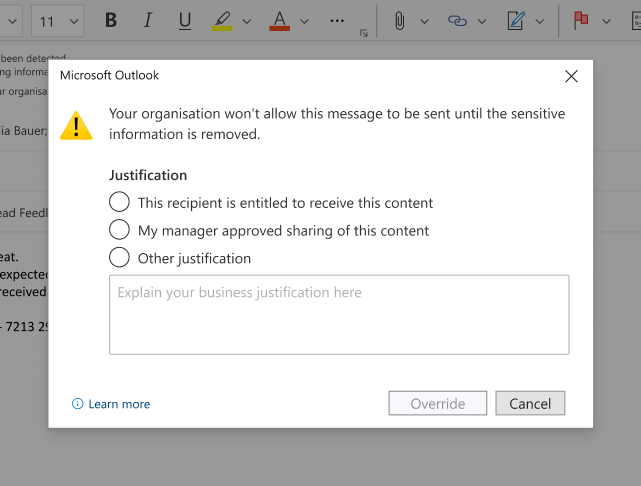
Admins can create and configure Microsoft Purview Data Loss Prevention (DLP)_policies and Outlook for Microsoft 365 to show pop-up messages that can warn users that the email that they are attempting to send contains sensitive information before the email is sent. Admins can ask them users to provide justification why they are sending an email, or prevent them from sending an email. The scenarios and specifics of using this via Microsoft Purview information protection can be read here.
Below is a sample of how the oversharing configuration can be used to capture the justification from the user before allowing them to send the message.
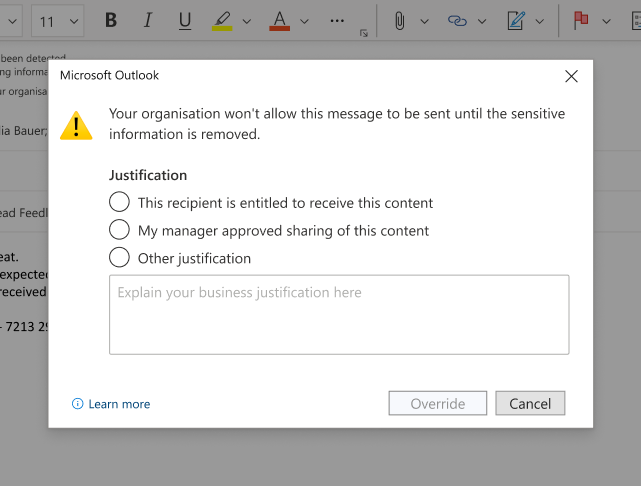
Oversharing Popups Configuration
Configuring this feature requires two steps, one on the Purview Portal and one on the Outlook for Microsoft 365 client.
1. Purview Portal Configuration
These Oversharing Popups settings are available in Purview portal.
When an admin defines a DLP policy in the Microsoft Purview compliance portal, Outlook checks messages as they are composed against the DLP policies that are deployed. If admins want to ensure that all non-compliant messages show a policy violation pop-up, they must access the Group policy setting ( Or similar mechanism explained below) and define the behavior.

- Outlook for Windows Client Configuration
An admin can configure the Outlook experience via below ways:
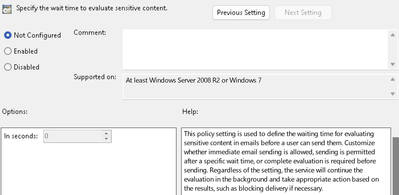
- The “Specify wait time to evaluate sensitive content” policy available under Software\Policies\Microsoft\office\16.0\Outlook\options\Mail\Compose message in the Group Policy Settings page.
- The dlpwaitonsendtimeout Regkey (Value in dword)
- Other mechanisms which can configure above regkey
For more information on how to access and use GPO settings please see Create and manage group policy in Azure AD Domain Services | Microsoft Learn.
If you're using Group Policy, make sure you've downloaded the most recent version of Group Policy Administrative Template files for Microsoft 365 Apps for enterprise and navigate to this setting from User Configuration/Administrative Templates/Microsoft Office 2016/Security Settings. If you're using the Cloud Policy service for Microsoft 365, search for the setting by name to configure it.
GPO options:
- No "check before send" experience: The Outlook client will not wait for the policy to complete the evaluation and mail is sent right away when the user hits Send. The DLP service will continue evaluating the mail in the background and take appropriate action based on the evaluation , such as blocking delivery.
- Check before send and allow sending after waiting for a pre-defined time: Message is checked when the user hits send, but the user is allowed to send the mail by clicking on “Send anyway” button in the dialog window.
- Check before send and do not allow sending until policy evaluation is completed: Message is checked when the user hits send, but the message will not be sent until all policies are evaluated.
Possible Configuration Values
Not configured/ Disabled : This is the default. When this policy is not configured or disabled, the message is not checked when the user hits "send". Service continues the evaluation, based on result mail will be delivered/NDR.
Enabled - The message is checked when the user hits send. The administrator needs to configure the time interval after which the user is allowed to send the mail even when evaluation is not completed.
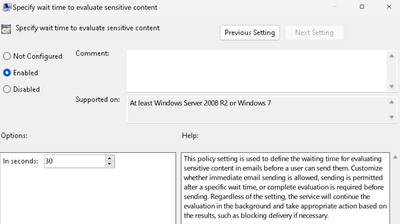
T = send anyway visible after t secs
The "T" value needs to be in the range between 0 and 9999. If T> 9999, the "Send Anyway" button will not be displayed, and the email can't be sent until the evaluation of sensitive content is complete.
Note: Any value entered above 9999 will get replaced by 1000, in which case the user will not be allowed to send the mail until full evaluation of all the policies is completed. This setting helps ensure 100% compliance to admin policies and that no mail is sent without complete evaluation.
What’s Next
We are continuing to refine the Oversharing Popups experience in several areas, including simplifying configuration and improvement to the customer experience. We will provide an update to these areas in the upcoming months – please follow the Minimum versions for sensitivity labels in Microsoft 365 Apps - Microsoft Purview (compliance) | Microsoft Learn page for change notifications.
Published on:
Learn moreRelated posts
Announcing the General Availability of the Microsoft 365 Document Collaboration Partner Program
Empowering Seamless Collaboration for Modern Workforces We are thrilled to announce the general availability of the Microsoft 365 Docume...
Favorite Copilot Prompts
(Amber Plumb interviewing Michael Morales and Allison Sweet) The power of M365 Copilot is transforming the way our support team operates...
Favorite Microsoft 365 Copilot Prompts
(Amber Plumb interviewing Michael Morales and Allison Sweet) The power of M365 Copilot is transforming the way our support team operates...
Boost digital event engagement with Voting and Archiving in Teams Q&A
Managing and delivering effective town halls is key to enabling two-way dialogue with leaders in today’s hybrid world. Microsoft Teams Q&A...
Prepare now for key end of support moments in 2025
One year from today, on October 14, 2025, support will end for all Office 2016 and 2019 suites, standalone apps, and servers. This includes:&n...
Everything you should know about Visio 2016 and Visio 2019 end of support
On October 14, 2025, Visio 2016 and Visio 2019 will reach end of support. After this date, Visio 2016 and Visio 2019 will no longer receive se...
Limit frontline worker access to Teams when off shift
We’re excited to announce that the frontline working time feature is now generally available! This feature allows admins to block or warn acce...
We are removing Feed on Microsoft 365 (Office)
As part of our ongoing efforts to streamline and enhance user experiences, we will be retiring the Feed feature (shown in figure 1 below) on t...
Leveraging Partner Apps to Deliver on the Promise of AI-Led Productivity
The advent of generative AI is driving a rethink of what outcomes we deserve from our productivity software – from gains in efficiency to more...
What’s new in FLW shared devices
Discover the Latest Enhancements in Shared Device Mode (SDM) We are excited to announce a series of new features in Shared Device Mode ...