
How to allow traffic from Internet to a Cloud Service Extended Support with Internal Load Balancer
The previous article explained how user could configure and limit the access to Cloud Service Extended Support (CSES) only from specific Virtual Network(s) by using internal Load Balancer feature. But for some scenarios, user does not really want to fully block the traffic from public Internet, but just wants to make the CSES safer. In this scenario, adding an Azure Application Gateway in front of CSES will be a good idea. It can provide following benefits:
- From public Internet, the traffic is only able to reach CSES through Application Gateway
- From Virtual Network, the traffic is not blocked by this design
- User can add additional feature such as Web Application Firewall to make the traffic safer
Generally speaking, Azure Application Gateway is an OSI layer 7 service. It can be used for load balancing, WAF and some other purposes. For more details about this service, please check here.
Pre-requirement:
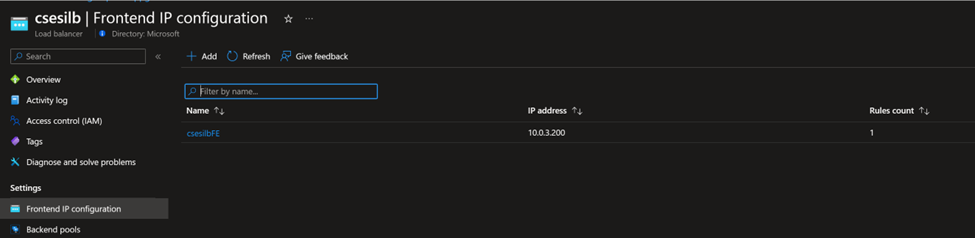
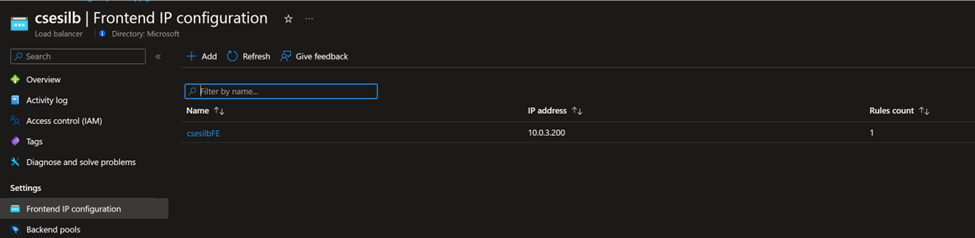
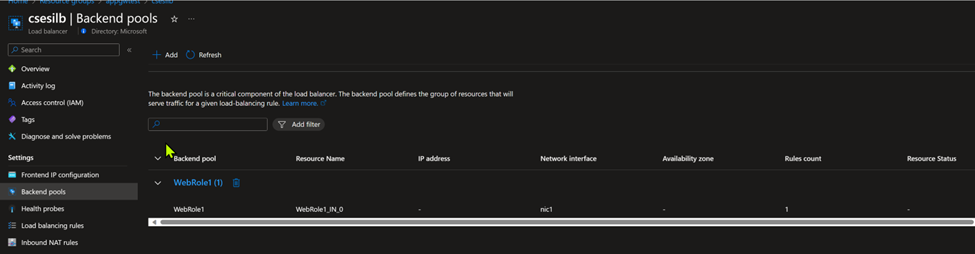
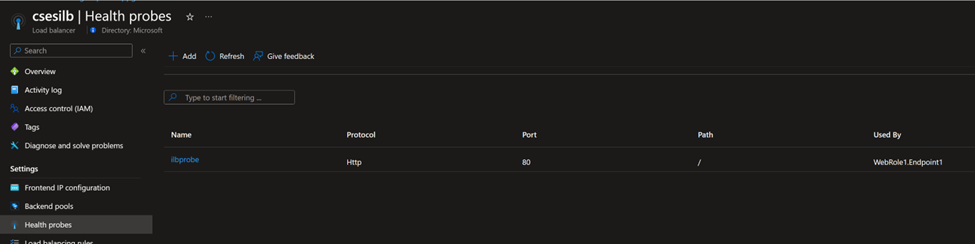
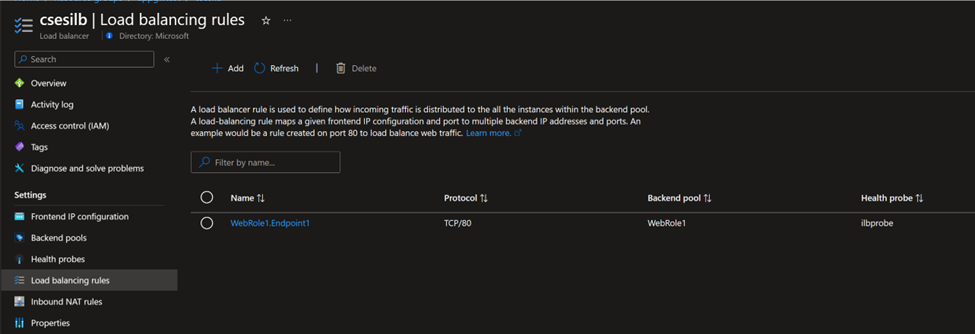
You need to follow this document at first and have a running CSES with internal Load Balancer. The following screenshots are from my environment (Frontend IP using 10.0.3.200, a private IP address, proving it’s an internal Load Balancer):
The traffic design
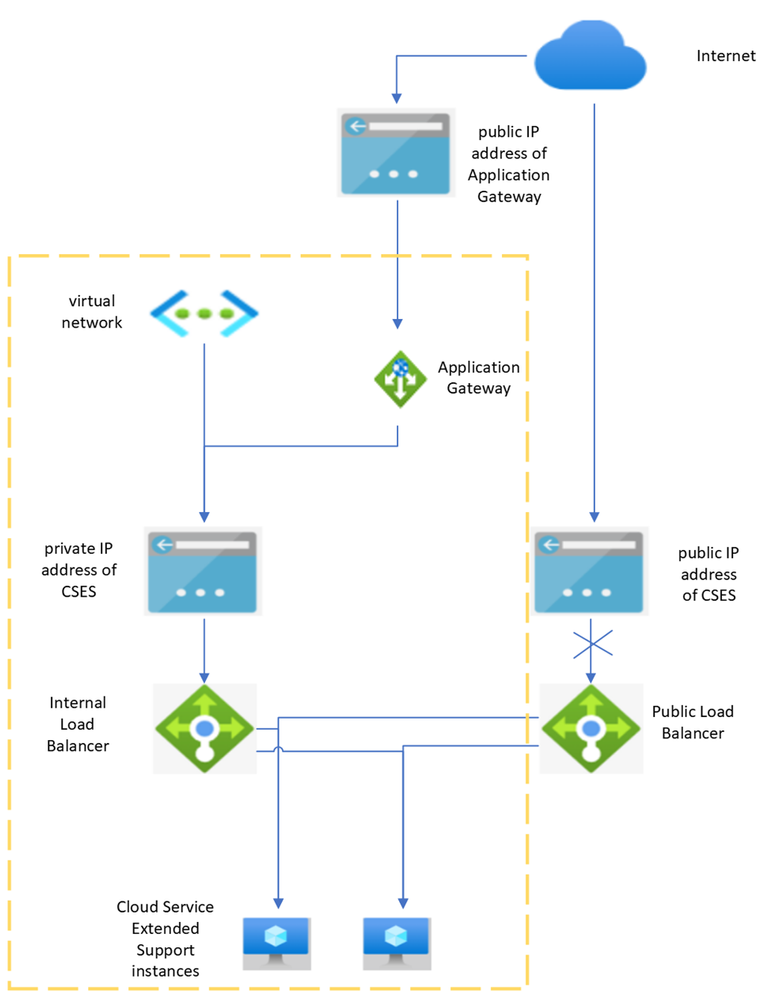
As above diagram, the part inside of yellow dash is in Virtual Network. The outside part of yellow dash is the public Internet. As the CSES is using Internal Load Balancer only, the traffic through public Load Balancer is blocked. In this scenario, in order to be able to visit the site hosted in CSES, we need to use another service as a jump box to forward the traffic to CSES. In this article, we will use Application Gateway.
The traffic flow will be:
Public Internet -> public IP address of Application Gateway -> Application Gateway -> private IP address of CSES -> Internal Load Balancer -> CSES instance
Configuration guideline
P.S. In order to make the whole process easier to follow, only the basic function of forwarding traffic is realized in this article. If any additional feature is needed, such as HTTPS traffic or WAF configuration, please kindly create a support ticket to Application Gateway team for further assistance.
Application Gateway side configuration:
Frontend Public IP address: (172.191.12.201 in this sample)

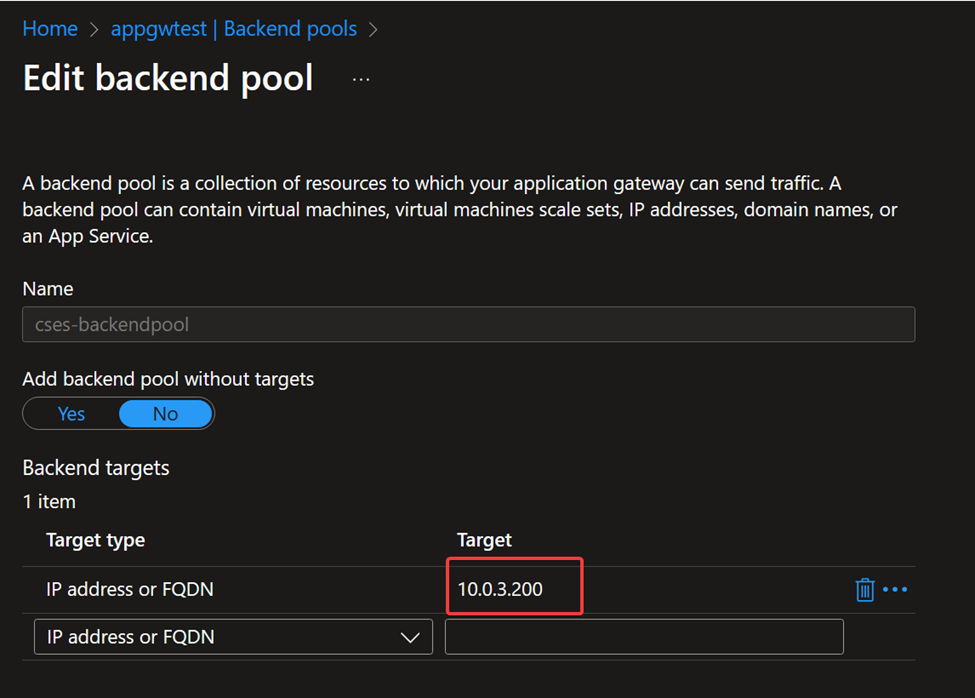
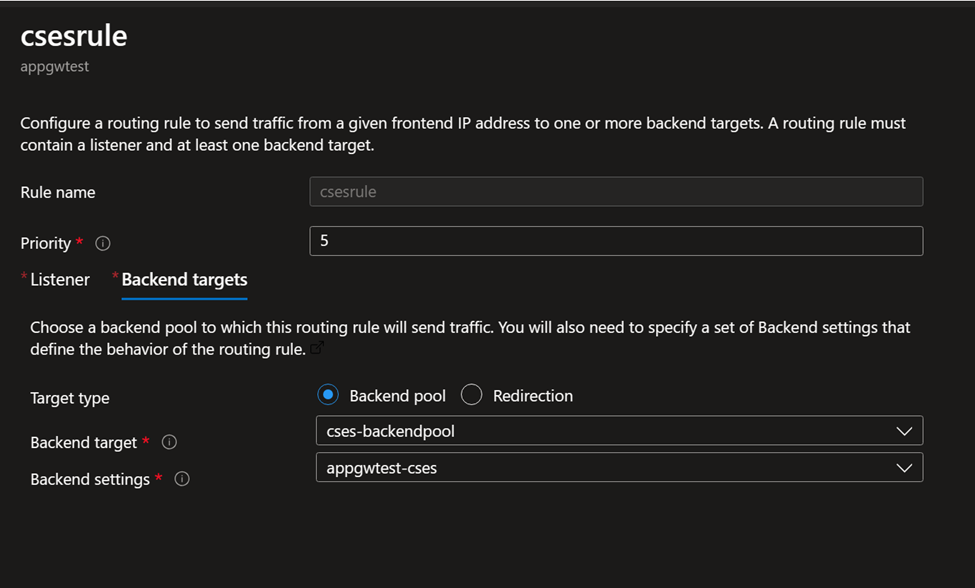
Backend pool setting: (Name can be configured as you want. Key point is to use the private, frontend IP address of the Internal Load Balancer)
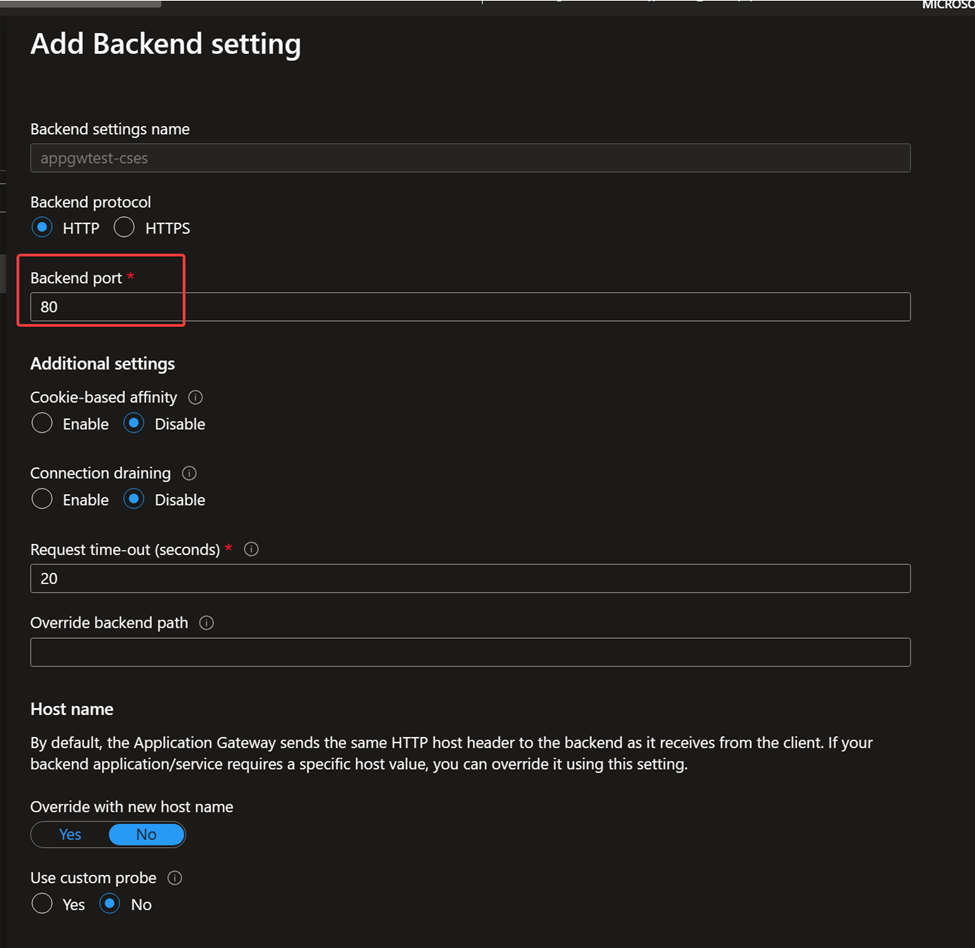
Backend setting: Setting about how the traffic will be forwarded. In this sample, the easiest simple HTTP traffic with port 80 is used (if CSES project is listening on other port like 700, then here it should be configured as 700). If any additional feature is needed such as HTTPS, custom health probe or path override, please kindly create support ticket to Application Gateway team for further assistance.
Listener setting: This is about which port of Application Gateway will be used by public Internet to send traffic to CSES. Like here the port 8080 is configured, so when user in public Internet sends traffic to this CSES, he needs to send the traffic to Application Gateway, port 8080. Of course original port 80 can still be used, here using 8080 is to prove that this port can be different from the CSES listening port.
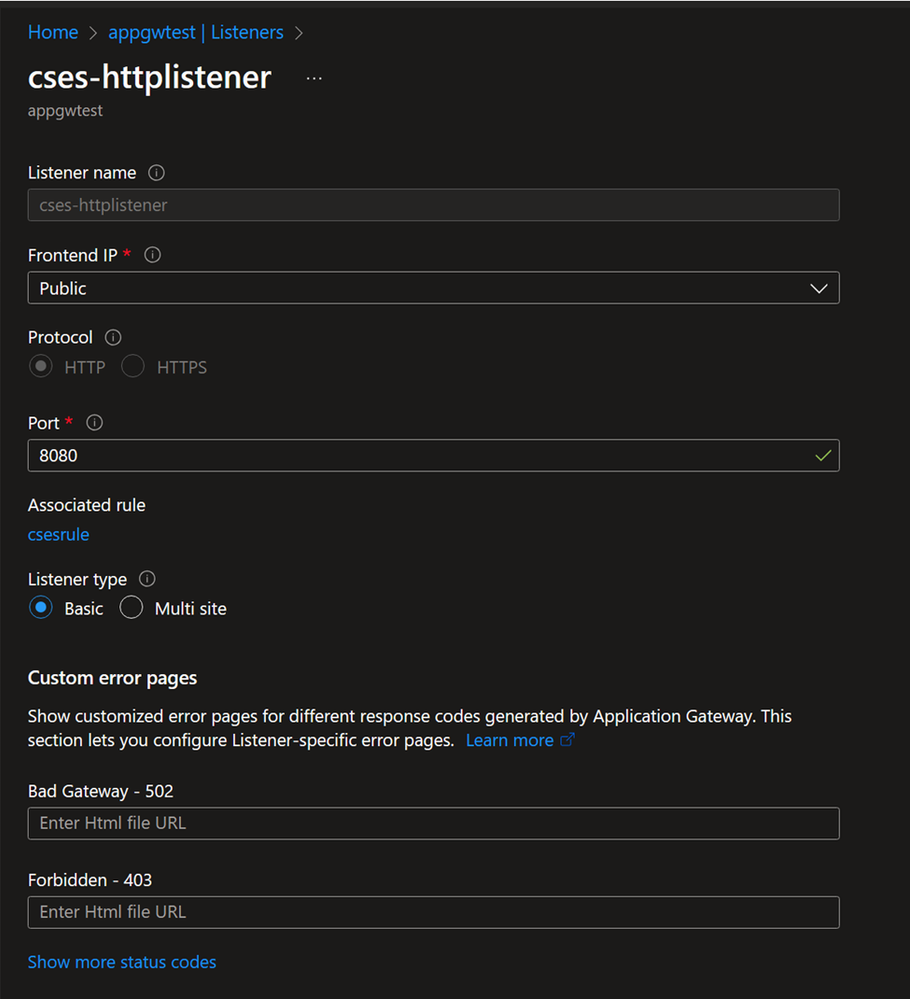
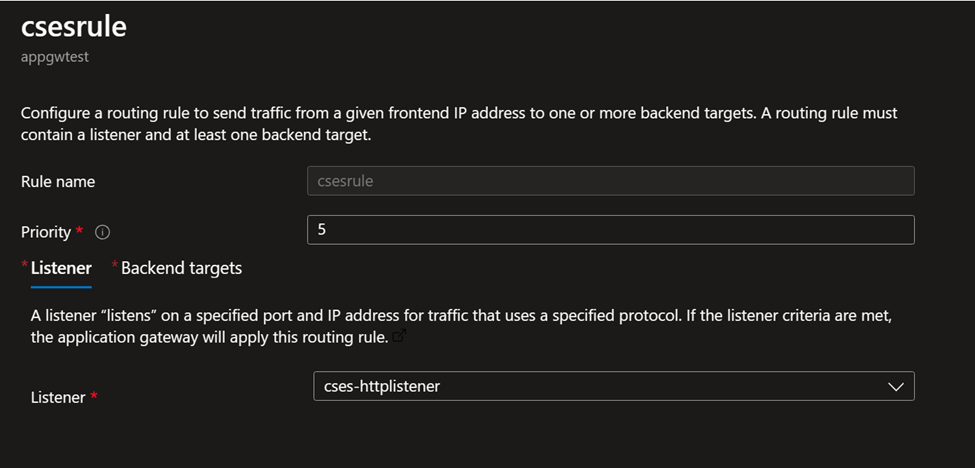
Rule setting: Combine all the above settings together.
Test result:
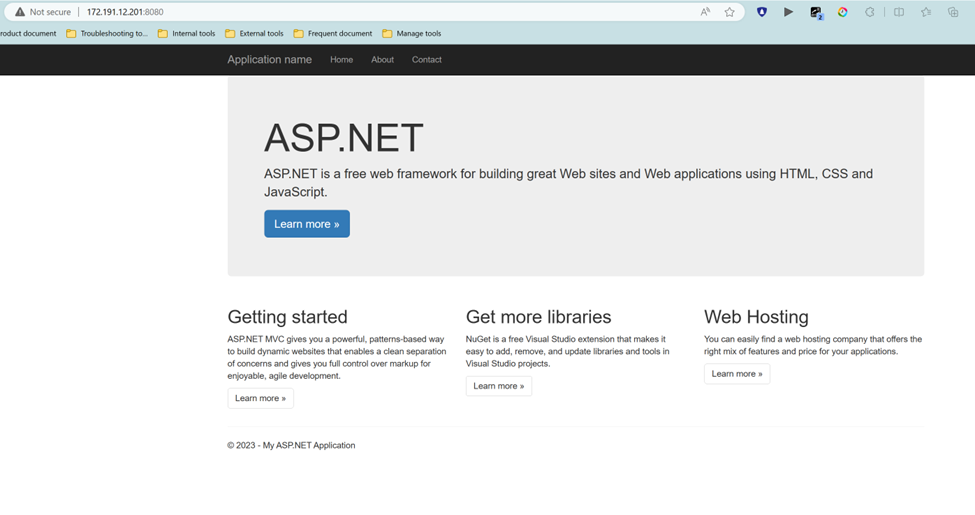
The website hosted in the CSES with Internal Load Balancer is successfully returned back to user in public Internet by visiting Application Gateway IP address (172.191.12.201) plus specific port number (8080).
Additional tips:
Someone may find that in this article, two different load balancing services are used at same time: Load Balancer and Application Gateway. In fact, this point may cause small impact on the performance of network level traffic, but it can help much if we consider about the auto-scaling scenario of CSES.
If we only use the Application Gateway in our system, this means the Application Gateway needs to add the private IP addresses of each CSES instance into the backend pool. If our CSES is scaled out (increasing the number of instances), the new instances will use new private IP addresses and those new instances must be added into Application Gateway backend pool manually. This is inconvenient for user.
Published on:
Learn moreWe can help you with How to allow traffic from Internet to a Cloud Service Extended Support with Internal Load Balancer
If you want help implementing, troubleshooting, or improving this product, contact us and we’ll point you in the right direction.
Related posts
Azure Storage - TLS 1.0 and 1.1 retirement
Overview TLS 1.0 and 1.1 retirement on Azure Storage was previously announced for Nov 1st, 2024, and it was postponed recently to 1 year later...
Efficient Management of Append and Page Blobs Using Azure Storage Actions
Overview In Azure Storage, Blob Lifecycle Management (BLM) allows you to automate the management of your data based on rules defined by...
[Azure AI Search] Internal Server Error when creating CMK encrypted objects
Scenario Customers follow the Microsoft doc to create CMK encrypted objects (data source, index etc.), but get the 500 Internal Serv...
Optimizing Azure Table Storage: Automated Data Cleanup using a PowerShell script with Azure Automate
Scenario This blog’s aim is to manage Table Storage data efficiently. Imagine you have a large Azure Table Storage that accumulates logs from ...
Optimizing Azure Table Storage: Automated Data Clean-up using a PowerShell script with Azure Automat
Scenario This blog’s aim is to manage Table Storage data efficiently. Imagine you have a large Azure Table Storage that accumulates logs from ...
Restoring Soft-Deleted Blobs with multithreading in Azure Storage Using C#
Blob soft delete is an essential feature that safeguards your data against accidental deletions or overwrites. By retaining deleted data for a...
Performing simple Azure Table Storage REST API operations using curl command.
The blog provides guidance to perform simple Table Storage REST API operations such as Create table, Delete Table, Insert entity, Delete entit...
Bulk delete all the old jobs from the batch account
Deleting a Job also deletes all Tasks that are part of that Job, and all Job statistics. This also overrides the retention period for Task dat...
Utilizing Azure Storage and Runbooks for scheduled automated backups of Azure SQL Databases
In this article, we are going to provide detailed steps to create a scheduled Azure SQL Database backup to storage account using automation. T...
[Azure Service Bus] JMS messages getting dead-lettered
The article discusses a problem where numerous messages end up in the dead letter queue (DLQ) when the JMS service bus consumer connects to th...