
Creating connections: How Microsoft BookwithMe (Bookings) can help your business grow
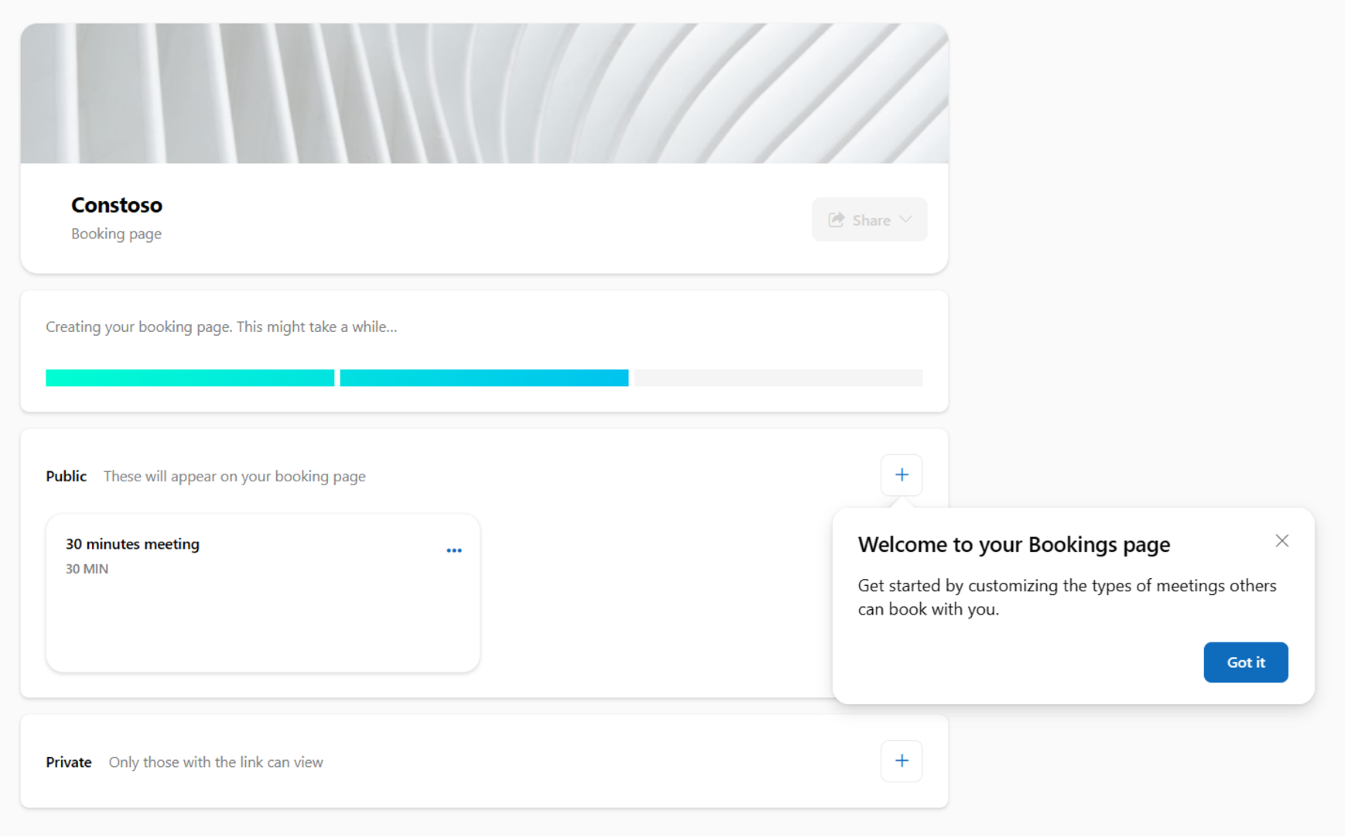
I want to take a moment to share an amazing Microsoft product from Microsoft Bookings, BookwithMe, that will increase your productivity and customer satisfaction, making it the perfect solution to improve customer connections.
In today's fast-paced business world, connecting with customers is more important than ever. And, as we all know, time is money. That's why BookwithMe, the appointment scheduling software, is a game changer for businesses looking to establish and maintain strong connections with their customers.
First and foremost, BookwithMe automates the scheduling process. No more emails back and forth trying to find a time that works for everyone. BookwithMe finds the best times for meetings based on the availability of all participants, saving both you and your customer valuable time.
But BookwithMe isn't just about scheduling. It allows businesses to schedule meetings with customers and keep track of all appointments in one place, streamlining the process and eliminating the possibility of double bookings.
Another great feature of BookwithMe is the ability to create different types of meetings, such as consultations, demos, and webinars. This makes it easy for customers to schedule the type of meeting they need, and helps businesses provide a tailored experience for each customer.
Let's not forget about accessibility. BookwithMe can be accessed by any device, making it easy for customers to schedule a meeting wherever they are.
How to setup a Booking page in BookwithMe
Step 1: Go to https://outlook.office.com/bookwithme/
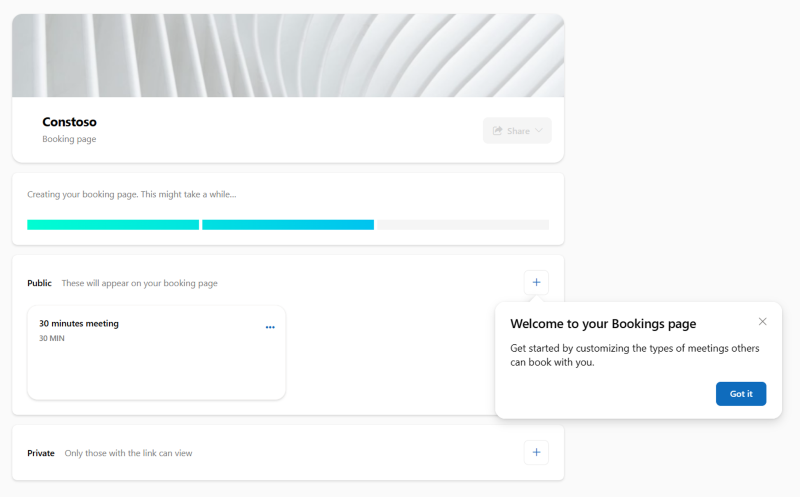
Step 2: Add a meeting type, like 1:1 with me, customer connect, etc.
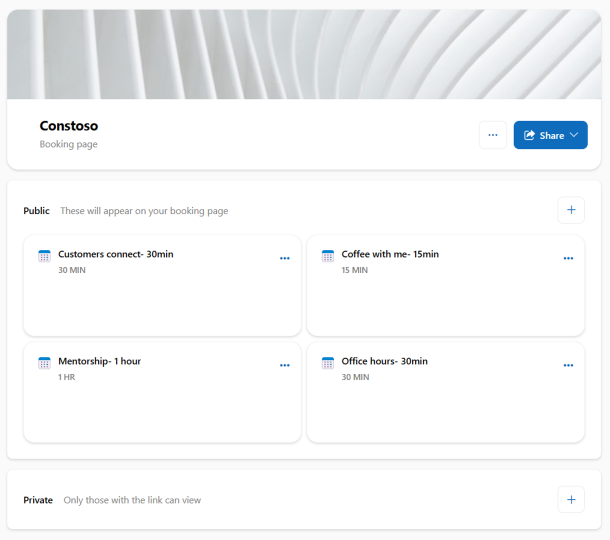
Step 3: Click the Share button to get the link to your Booking page so you can share your availability with customers. Pro tip: Add it to your email signature!

In a nutshell, BookwithMe helps businesses save time, improve customer satisfaction, and ultimately, grow their business. BookwithMe is the ultimate tool for creating connections and building strong relationships with your customers.
Continue the conversation by joining us in the Microsoft 365 community! Want to share best practices or join community events? Become a member by "Joining" the Microsoft 365 community. For tips & tricks or to stay up to date on the latest news and announcements directly from the product teams, make sure to Follow or Subscribe to the Microsoft 365 Blog space!
Published on:
Learn moreWe can help you with Creating connections: How Microsoft BookwithMe (Bookings) can help your business grow
If you want help implementing, troubleshooting, or improving this product, contact us and we’ll point you in the right direction.
Related posts
Announcing the General Availability of the Microsoft 365 Document Collaboration Partner Program
Empowering Seamless Collaboration for Modern Workforces We are thrilled to announce the general availability of the Microsoft 365 Docume...
Favorite Copilot Prompts
(Amber Plumb interviewing Michael Morales and Allison Sweet) The power of M365 Copilot is transforming the way our support team operates...
Favorite Microsoft 365 Copilot Prompts
(Amber Plumb interviewing Michael Morales and Allison Sweet) The power of M365 Copilot is transforming the way our support team operates...
Boost digital event engagement with Voting and Archiving in Teams Q&A
Managing and delivering effective town halls is key to enabling two-way dialogue with leaders in today’s hybrid world. Microsoft Teams Q&A...
Prepare now for key end of support moments in 2025
One year from today, on October 14, 2025, support will end for all Office 2016 and 2019 suites, standalone apps, and servers. This includes:&n...
Everything you should know about Visio 2016 and Visio 2019 end of support
On October 14, 2025, Visio 2016 and Visio 2019 will reach end of support. After this date, Visio 2016 and Visio 2019 will no longer receive se...
Limit frontline worker access to Teams when off shift
We’re excited to announce that the frontline working time feature is now generally available! This feature allows admins to block or warn acce...
We are removing Feed on Microsoft 365 (Office)
As part of our ongoing efforts to streamline and enhance user experiences, we will be retiring the Feed feature (shown in figure 1 below) on t...
Leveraging Partner Apps to Deliver on the Promise of AI-Led Productivity
The advent of generative AI is driving a rethink of what outcomes we deserve from our productivity software – from gains in efficiency to more...
What’s new in FLW shared devices
Discover the Latest Enhancements in Shared Device Mode (SDM) We are excited to announce a series of new features in Shared Device Mode ...