
Troubleshoot 500 BackendConnectionFailure SSL/TLS Error
Background Information
As we all know, the API management service is nothing but a proxy that helps to forward the request and response between the client and the backend server. Ideally, the API Management server will maintain two connections: the one with the client side, and the one with the backend server. The backend server proceeds the request from APIM when SSL/TLS connection is successfully established between APIM and the backend server. However, if any of the elements within the SSL/TLS connection go wrong, the client server may receive a 500 BackendConnectionFailure error with the message ‘The underlying connection was closed: Could not establish trust relationship for the SSL/TLS secure channel.’
This article is written to share some common causes of the 500 BackendConnectionFailure error and go through the debugging steps so that you can troubleshoot by yourself.
Symptom
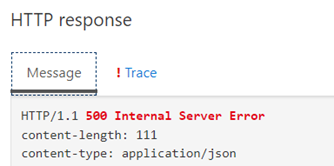
When making requests against the specific API calls, the client may get HTTP ‘500 Internal Server Error’ from the API Management.

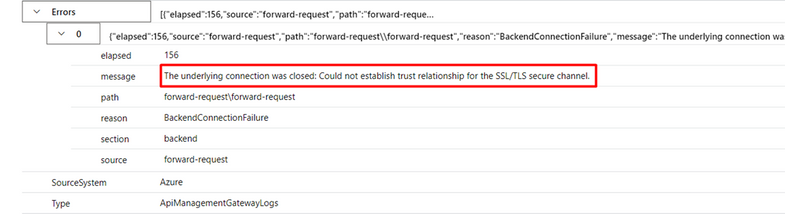
Referring to the diagnostic log, this specific failure’s detail is highlighted as below:
ErrorMessage: The underlying connection was closed: Could not establish trust relationship for the SSL/TLS secure channel.
ErrorSource: forward-request
ErrorReason: BackendConnectionFailure
Common Scenarios, Troubleshooting, and Resolution
This issue mainly indicates that the APIM proxy host fails to establish a TLS Handshake with the backend API. As the error message does not specifically identify why APIM failed to establish the SSL/TLS session with the backend API, you have to check the following possible causes that could lead to this error.
Summary:
- Scenario #1 - SSL Certificate Subject Name does not match the Backend URL Hostname.
- Scenario #2 - The API Management cannot validate certificate chain.
- Scenario #3 - APIM and the Backend Web Server fail to negotiate TLS versions, or Cipher Suite Versions.
Scenario #1 - SSL Certificate Subject Name does not match the Backend URL Hostname
The API management service will reject the SSL/TSL session and throw the 500 error if the Subject Name field of the certificate does NOT match the hostname of the requested URL. So how we can find and compare the subject name of the cert and the hostname of the backend URL?
Troubleshooting
For example, if the APIM is configured to call some backend APIs at https://www.funcapp.jiayiwu.net/api. Then the SSL certificate used for that backend website must have a subject name field (or Subject Alternate Name field) value of 'funcapp.jiayiwu.net' as follows:
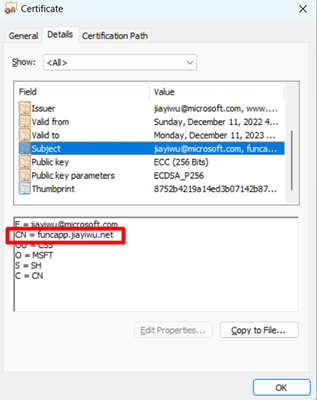
We can confirm this scenario by configuring the APIM to IGNORE the subject name conflict. After ignoring the subject name conflict, if the connection works, then we can prove that the subject name is the root cause.
The below are two options to configure the APIM to ignore the subject name conflict.
- Configure from the Azure Portal.
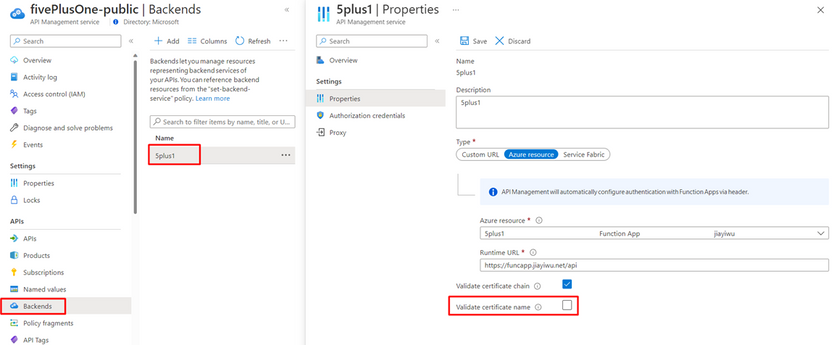
a. First find out if a backend object already exists for this backend URL that APIM fails to establish a TLS handshake with. From the portal, navigate to the Backend tab to see if the 'URL' field of any Runtime URL matches the URL of this specific backend API. You may find the data as follows. If you do see a backend object of this backend url already, then you'll have to use the backend object to ignore Certificate Subject name conflict issues.
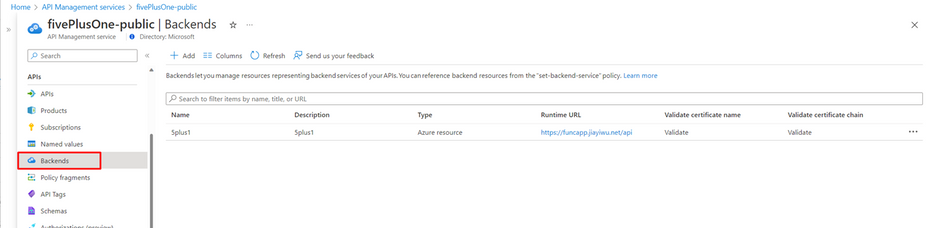
b. Create a new Backend entity object (or update existing one if one already exists for this backend URL) and disable ‘Validate certificate name’. Then the APIM will ignore the case that the backend SSL certificate subject name does not match the backend URL hostname.
Resolution
1. You can keep the ignoring configuration, so that the APIM will always ignore the subject name conflict and establish the connection as normal. However, please noted that ignoring the validation is only recommended for testing, and it is not suggested in the production environment.
2. Replace the backend SSL certificate with a new SSL certificate, where the certificate's subject name matches the hostname that the APIM used to invoke the backend API. Here are the steps for certificate uploading.
In the Azure Portal, navigate to your API management instance.
- Under Security, select Certificates.
- Select CA certificates > + Add.
- Browse to select the certificate .pfx/.cer file and enter its password. Here, we suggest to uploading the .cer file which only contains the public key.
- In Store, select the type of the certificate uploaded here. If the certificate chain includes both root cert and intermediate cert, please upload the certificates separately.
- Select Add.
- Select Save.

Scenario #2 – The API Management cannot validate certificate chain.
Underlying Mechanism
When API Management service tries to establish the HTTPS connection, it will proceed the SSL/TLS handshake with the backend server. During “ServerHello” section, the backend sends its SSL certificate to APIM, and APIM will validate if the certificate is qualified to complete the SSL handshake. Normally, the backend will return an SSL certificate with full certificate chain. A certificate chain includes a root cert, an intermediate cert(optional), and a leaf cert.
Then, the APIM will follow the certificate chain to compare the root certificate between the one installed on the APIM host machine and the one returned by the backend server.
In this stage, the API Management service trusts your website’s certificate by default if the backend URL’s certificate is signed by a well-known CA, which is trusted by Microsoft as those certificate has been already pre-installed on APIM’s host machine (for example, GoDaddy or DigiCert). Hence, there is no need for you to upload the root certificate explicitly.
However, when a self-signed certificate is returned by the backend url, or the backend SSL certificate is resolved to a corporate root Certificate Authority (CA) and not a publicly trusted Root CA, the APIM will consider the certificate as an untrust certificate.
So far, we understand how the certificate validation works when the APIM establishes HTTPs connection. But how can we identify that the issue is caused by certificates?
Troubleshooting
Step 1. Get the certificate used by the backend URL.
Here are two options.
1. If the API management is connected to an internal virtual network, or the backend server is deployed in a virtual network and is not publicly visitable, the certificate can be retrieved by the Openssl tool.
- Create a virtual machine within the same VNet as the API Management instance. This is to create a testing environment which share the same network configuration as the APIM instance, so as to imitate the APIM to establish the connection.
- Install the openssl tools.
- Run the command: openssl s_client -showcerts -connect example.com:443. Here is an example for the certificate retrieved from the Azure Portal (ms.portal.azure.com):

Here we can see that there are certificates of depth 2, 1 and 0, which refer to the root, intermediate, and leaf certificate. The certificate chain returned by the backend is composed of these three certificates. However, if there is only depth 0, or depth 0 and 1, it indicates that the backend only sends the certificate with the leaf cert, or the leaf cert and the intermediate cert. In that case, the certificate chain is not complete.
2. If your APIM is in public internet, the following two methods can be used to retrieve the certificate.
a. We can visit the backend URL in the browser directly from our machines to get the backend certificate and do comparison.
- Open the URL via a browser and select lock > Connection is secure.

- Select ‘Show certificate’

- In Detail, select Export to download the entire certificate.
b. We can also retrieve the certificate by third-party tools. For examples, SSL Server Test (Powered by Qualys SSL Labs)
Step 2. Check the certificate chain.
After obtaining the certificate from the backend URL, we will next check the certificate chain.
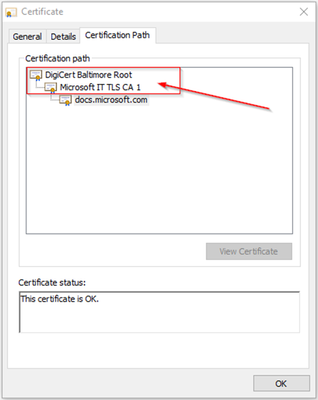
For instance, if my APIM service was calling an API hosted somewhere off https://docs.microsoft.com, the APIM will obtain the backend URL's certificate as below. We can see a leaf certificate was signed for the URL docs.microsoft.com. Within the certificate, there is an intermediate cert called "Microsoft IT TLS CA 1" and a Root Certificate named "DigiCert Baltimore Root". These three certificates make up a complete certificate chain.
Step 2a. Self/internal-signed with entire certificate chain
According to the backend certificate retrieved in Step 1, we can see if the backend is using an internal-signed or self-signed certificate with the complete chain. If so, make sure that the root certificate has been uploaded to the API management service as the self-signed root certificate is not installed in the host machine of the APIM. To check if the certificate has been uploaded, you can see all the uploaded certificates from the page APIM -> Security -> Certificates -> CA Certificates as below:

Step 2b. Missing certificate chain?
What about if the retrieved certificate chain does not have the entire certificate chain, then the APIM cannot get the root certificate for validation?
First of all, we need to check if the cause is related to the lack of the entire SSL certificate chain. To prove that we can let APIM ignore the certificate chain validation conflict by creating a backend entity object within APIM and disabling ‘Validate Certificate Chain’. The following steps are almost the same as the resolution in scenario 1.
1. Find out if a backend object already exists for this backend URL we failed to connect to. From the portal under the APIs, navigate to the Backend tab to see if the 'URL' field of any Runtime URL matches the URL of the backend that APIM fails to establish a TLS handshake with. If you do see a backend object already, you'll have to update that backend object to set flags to ignore Certificate Subject name conflict issues.
2. Create a new Backend entity object (or update the existing one if one already exists for this backend URL) and disable ‘Validate certificate chain’. Then the APIM will ignore the backend SSL certificate chain conflict.
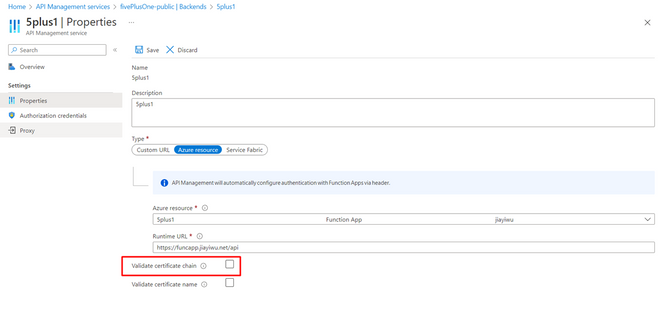
Once the certificate chain validation is disabled, send the request to see if the connection between the API Management instance and the backend is established successfully. If the SSL handshake work when ignoring the validation conflict, we can almost confirm that the issue is about the certificate chain.
Resolution
Based on the above investigation, we know that the issue is because the backend is using a certificate without the complete chain. Therefore, the APIM is not able to obtain the root certificate from the retrieved certificate for validation. To resolve that, please upload the missing certificates to the API management service, so that the APIM can make up the entire chain and find out the root certificate to proceed with validation.
The root certificate and the intermediate (if exist) can be uploaded on the following page.
Note: Please upload the root certificate and the intermediate certificate separately and select the corresponding 'Store'.

Scenario #3 - APIM and the Backend Web Server fail to negotiate TLS versions, or Cipher Suite Versions.
Lastly APIM can fail to establish an SSL/TLS handshake with the backend web server if they fail to negotiate a TLS version or Cipher Suite. By default, API Management enables TLS 1.2 for client and backend connectivity and several supported cipher suites. If the backend web server doesn't support TLS 1.2 or wants to use other protocols for that communication, then you will have to configure API Management to enable that protocol as well. The two servers also have to negotiate a Cipher Suite to use and there are some scenarios where the backend server does not support the cipher suites offered by APIM.
Troubleshooting
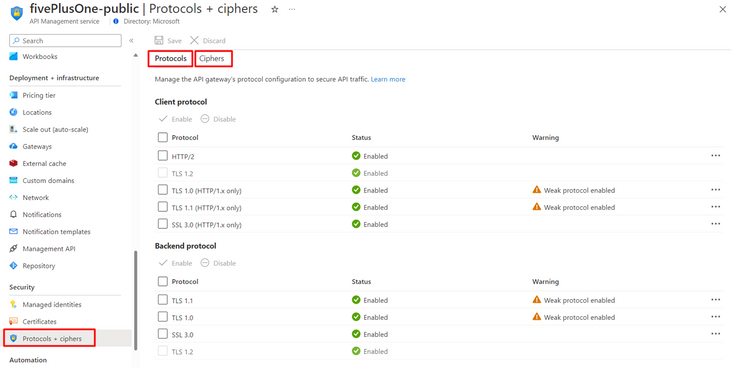
1. You can configure APIM to enable TLS 1.0 or SSL 3.0 when communicating with the backend web server on the Protocol Settings Tab refers to Manage protocols and ciphers in Azure API Management | Microsoft Learn.
2. If you need to toggle individual cipher suites, then you will need to see the properties.customProperties field of the following API: Api Management Service - Create Or Update - REST API (Azure API Management) | Microsoft Learn
NOTE: By default, we use this ciphers:
TLS_ECDHE_ECDSA_WITH_AES_256_GCM_SHA384
TLS_ECDHE_ECDSA_WITH_AES_128_GCM_SHA256
TLS_ECDHE_RSA_WITH_AES_256_GCM_SHA384
TLS_ECDHE_RSA_WITH_AES_128_GCM_SHA256
TLS_ECDHE_ECDSA_WITH_AES_256_CBC_SHA384
TLS_ECDHE_ECDSA_WITH_AES_128_CBC_SHA256
TLS_ECDHE_RSA_WITH_AES_256_CBC_SHA384
TLS_ECDHE_RSA_WITH_AES_128_CBC_SHA256
TLS_RSA_WITH_AES_256_GCM_SHA384
TLS_ECDHE_ECDSA_WITH_AES_256_CBC_SHA
TLS_ECDHE_ECDSA_WITH_AES_128_CBC_SHA
TLS_ECDHE_RSA_WITH_AES_256_CBC_SHA
TLS_ECDHE_RSA_WITH_AES_128_CBC_SHA
TLS_RSA_WITH_AES_128_GCM_SHA256
TLS_RSA_WITH_AES_256_CBC_SHA256
TLS_RSA_WITH_AES_128_CBC_SHA256
TLS_RSA_WITH_AES_256_CBC_SHA
TLS_RSA_WITH_AES_128_CBC_SHA
The cipher in BOLD cannot be disabled since they are required by Azure CloudService internal components. Other cipher which is not in BOLD can be disabled manually using custom properties of properties.customProperties refers to the REST API command Api Management Service - Create Or Update - REST API (Azure API Management) | Microsoft Learn.
Published on:
Learn moreWe can help you with Troubleshoot 500 BackendConnectionFailure SSL/TLS Error
If you want help implementing, troubleshooting, or improving this product, contact us and we’ll point you in the right direction.
Related posts
Azure Storage - TLS 1.0 and 1.1 retirement
Overview TLS 1.0 and 1.1 retirement on Azure Storage was previously announced for Nov 1st, 2024, and it was postponed recently to 1 year later...
Efficient Management of Append and Page Blobs Using Azure Storage Actions
Overview In Azure Storage, Blob Lifecycle Management (BLM) allows you to automate the management of your data based on rules defined by...
[Azure AI Search] Internal Server Error when creating CMK encrypted objects
Scenario Customers follow the Microsoft doc to create CMK encrypted objects (data source, index etc.), but get the 500 Internal Serv...
Optimizing Azure Table Storage: Automated Data Cleanup using a PowerShell script with Azure Automate
Scenario This blog’s aim is to manage Table Storage data efficiently. Imagine you have a large Azure Table Storage that accumulates logs from ...
Optimizing Azure Table Storage: Automated Data Clean-up using a PowerShell script with Azure Automat
Scenario This blog’s aim is to manage Table Storage data efficiently. Imagine you have a large Azure Table Storage that accumulates logs from ...
Restoring Soft-Deleted Blobs with multithreading in Azure Storage Using C#
Blob soft delete is an essential feature that safeguards your data against accidental deletions or overwrites. By retaining deleted data for a...
Performing simple Azure Table Storage REST API operations using curl command.
The blog provides guidance to perform simple Table Storage REST API operations such as Create table, Delete Table, Insert entity, Delete entit...
Bulk delete all the old jobs from the batch account
Deleting a Job also deletes all Tasks that are part of that Job, and all Job statistics. This also overrides the retention period for Task dat...
Utilizing Azure Storage and Runbooks for scheduled automated backups of Azure SQL Databases
In this article, we are going to provide detailed steps to create a scheduled Azure SQL Database backup to storage account using automation. T...
[Azure Service Bus] JMS messages getting dead-lettered
The article discusses a problem where numerous messages end up in the dead letter queue (DLQ) when the JMS service bus consumer connects to th...