
Announcing edit support for .vsd files in Visio for the web
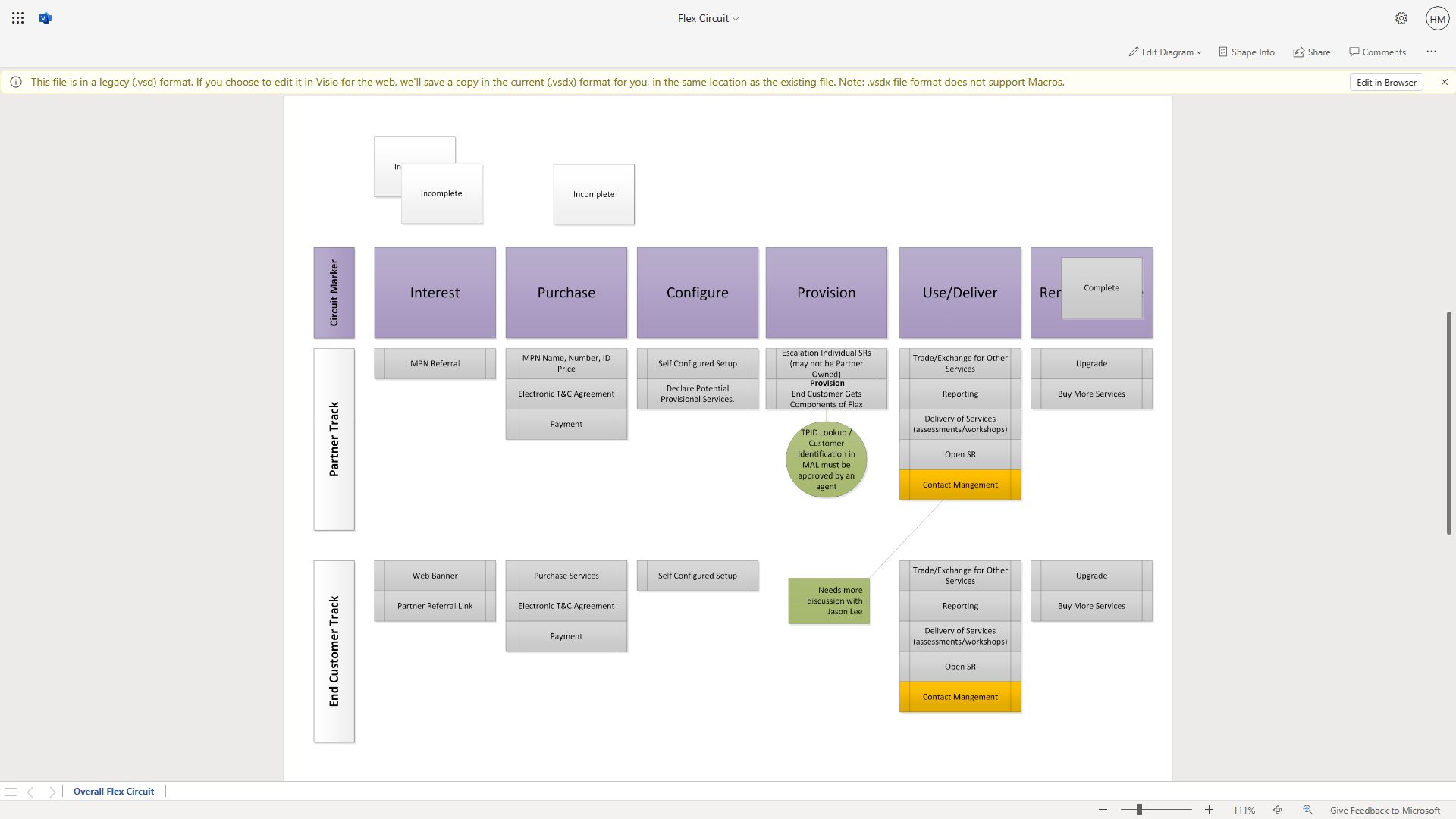
Visio for the web is constantly evolving to meet the needs of our customers. Today, we are excited to announce a new feature that will make it easier for you to work with older Visio files directly in the web app. Users with a Visio Plan 1 or Visio Plan 2 license can now edit .vsd files in Visio for the web, without losing data.
Microsoft Visio Drawing (.vsd) file format is the native format for Visio files created in the desktop app prior to version 2013. These files were not fully supported previously and could only be opened in view mode in Visio for the web; users would have to open a .vsd file in the desktop app to edit the file.
Opening a .vsd file in the browser in edit mode
To make work more convenient, you will now be able to edit .vsd files in Visio for the web—just like you would edit any other Visio file. And we’ve made the process as simple as possible.
Before you can edit the .vsd file, you’ll need to upload the file to OneDrive. Then, open the file in your browser and either select the Edit in Browser button in the Message Bar or select the Edit in Browser option from the Edit Diagram drop-down in the ribbon.

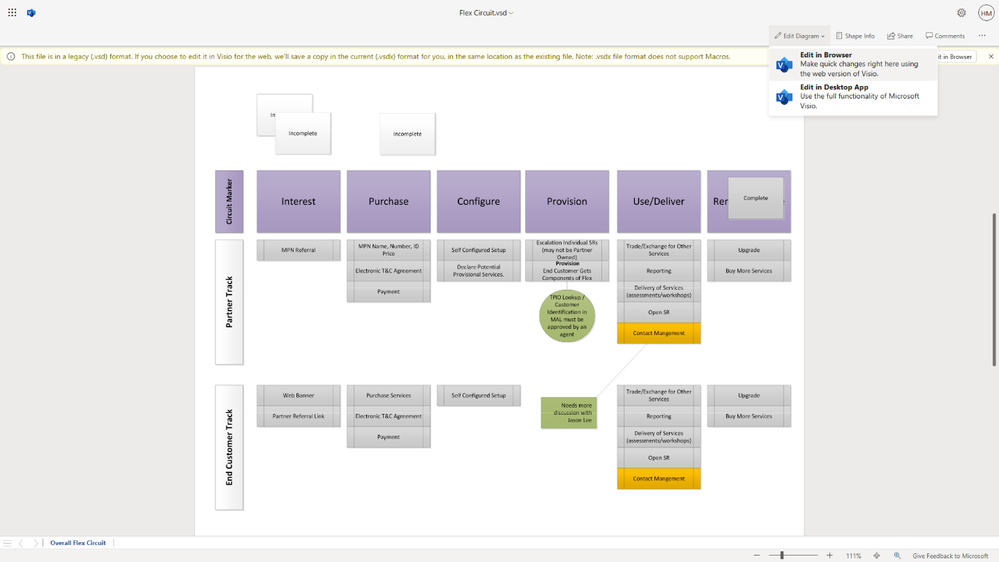
After selecting Edit in Browser, you will see a dialog box. To continue, select the Save a copy (.vsdx) button. A copy of the .vsd file will then be created and saved in the current .vsdx file format, in the same location as the original file, with the same file name. Please note, you will need edit access to the file location to proceed with the conversion. That file will then open for editing in Visio for the web.


From here, you can edit any text in the web app and enjoy all the benefits of Visio for the web, such as AutoSave, coauthoring, and sharing.
Editing .vsd files with unsupported elements
Please note that the .vsdx file format does not support macros; if the .vsd file has macros, they will not be preserved in the copy. You will be notified of this limitation before a copy of the file is created, and can choose whether or not to proceed. Also note, .vsd files that include certain features or shapes that are not already supported in Visio for the web may not be compatible for editing. In this case, use the desktop app to edit the file. Learn more about limitations to file editing in Visio for the web.
If you have Visio in Microsoft 365, you will have to upgrade to either Visio Plan 1 or Visio Plan 2 to edit .vsd files in Visio for the web. Start your 30-day free trial today to enjoy additional features and diagram types available in Visio for the web. To see a list of features available with your Visio Plan 1 or Visio Plan 2 subscription, visit the “Subscription plans” tab on the Visio comparison page.
We are listening!
We hope you find this feature useful and would love to hear your feedback. Please let us know what you think by leaving a comment below. You can also provide any feedback and suggestions via the Visio Feedback Portal or directly in the Visio web app using “Give Feedback to Microsoft” in the bottom right corner.
Did you know? The Microsoft 365 Roadmap is where you can get the latest updates on productivity apps and intelligent cloud services. Check out what features are in development or coming soon to Visio for the web on the Microsoft 365 Roadmap.
Published on:
Learn moreRelated posts
Announcing the General Availability of the Microsoft 365 Document Collaboration Partner Program
Empowering Seamless Collaboration for Modern Workforces We are thrilled to announce the general availability of the Microsoft 365 Docume...
Favorite Copilot Prompts
(Amber Plumb interviewing Michael Morales and Allison Sweet) The power of M365 Copilot is transforming the way our support team operates...
Favorite Microsoft 365 Copilot Prompts
(Amber Plumb interviewing Michael Morales and Allison Sweet) The power of M365 Copilot is transforming the way our support team operates...
Boost digital event engagement with Voting and Archiving in Teams Q&A
Managing and delivering effective town halls is key to enabling two-way dialogue with leaders in today’s hybrid world. Microsoft Teams Q&A...
Prepare now for key end of support moments in 2025
One year from today, on October 14, 2025, support will end for all Office 2016 and 2019 suites, standalone apps, and servers. This includes:&n...
Everything you should know about Visio 2016 and Visio 2019 end of support
On October 14, 2025, Visio 2016 and Visio 2019 will reach end of support. After this date, Visio 2016 and Visio 2019 will no longer receive se...
Limit frontline worker access to Teams when off shift
We’re excited to announce that the frontline working time feature is now generally available! This feature allows admins to block or warn acce...
We are removing Feed on Microsoft 365 (Office)
As part of our ongoing efforts to streamline and enhance user experiences, we will be retiring the Feed feature (shown in figure 1 below) on t...
Leveraging Partner Apps to Deliver on the Promise of AI-Led Productivity
The advent of generative AI is driving a rethink of what outcomes we deserve from our productivity software – from gains in efficiency to more...
What’s new in FLW shared devices
Discover the Latest Enhancements in Shared Device Mode (SDM) We are excited to announce a series of new features in Shared Device Mode ...