
Microsoft Visio Viewer app for iOS will be retired from the App Store

Since the introduction of Visio for the web (then Visio Online) more than six years ago, we’ve continuously improved the viewing and file sharing experience for Visio drawings stored in OneDrive and SharePoint. And we’ll continue to bring exciting innovations to Visio for the web to enhance the diagramming experience across devices.
On August 14, 2023, the Microsoft Visio Viewer app will be retired and removed from the Apple App Store, so that our team can focus our energy on making Visio for the web even better. Starting August 14, 2023, existing installations of the app on iPhone and iPad devices will continue to work. However, over time, the integration with services like OneDrive and SharePoint will break. Furthermore, users will not have the option to re-install the app on their iOS device if the app is uninstalled or they’ve switched devices.
Next steps
If you are an admin and received a notification in the Microsoft 365 Message center, it means one or more people in your organization are using the Visio Viewer app for iOS. This blog post aims to provide guidance on how current users of the Visio Viewer app for iOS can access, view, and share Visio files moving forward. If you did not receive a notification in the Message center, then you don’t need to take any action.
Accessing files in Visio for the web
Users with a Microsoft 365 subscription can access and view Visio files through a web browser by signing in to visio.office.com with their work or school account. Here, files are listed in four different views: All, Recently opened, Shared, and Favorites.
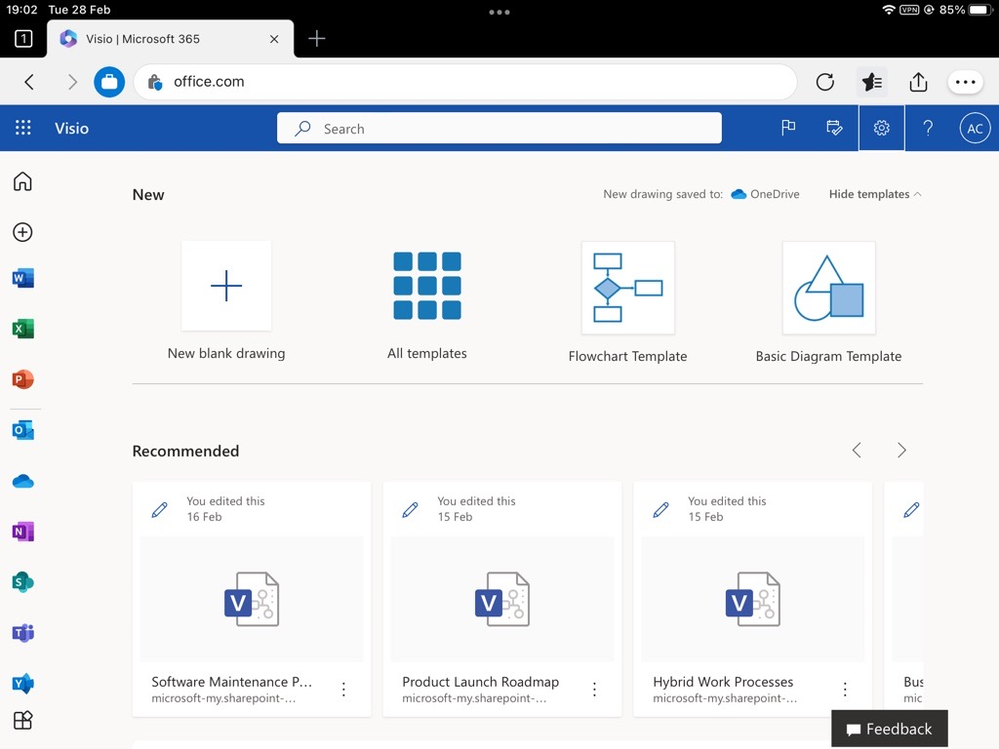
From here, select the file you want to open or select More options and then Open. The file will automatically open in Visio for the web.
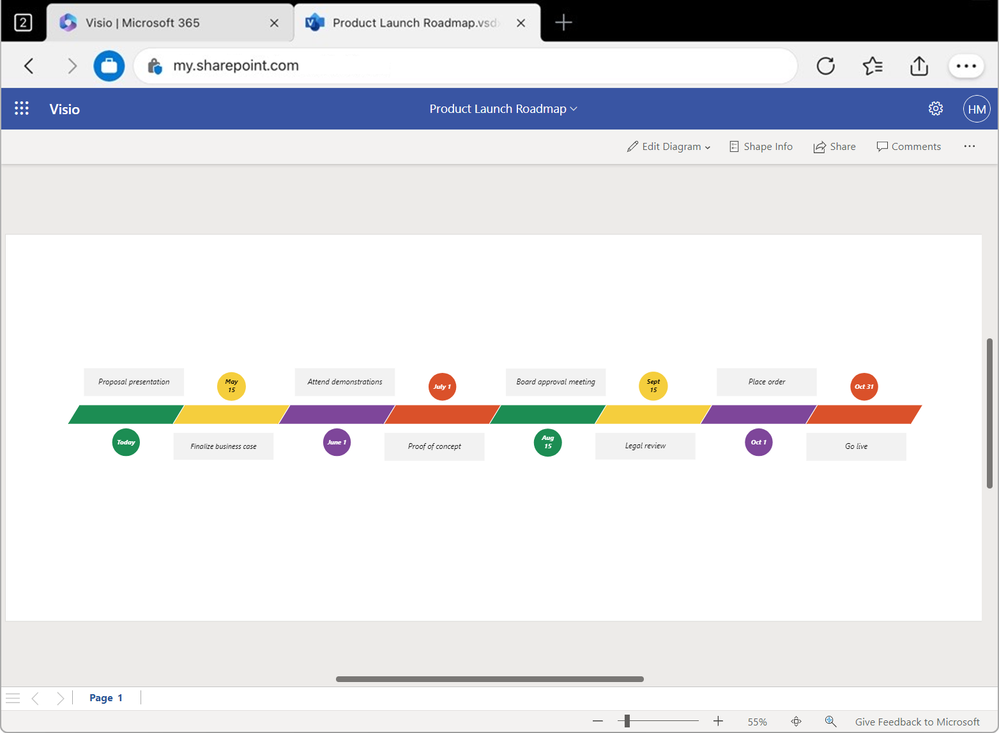
From here, users can pan, zoom, and view all aspects of the diagram using touch on a touch-enabled device. Users can also share, add comments, print, and download the diagram directly from Visio Viewer.
Accessing Visio files from OneDrive
Alternatively, users can access Visio files stored in OneDrive or SharePoint directly from the OneDrive app in the browser. Go to www.microsoft365.com and select the App launcher in the upper left corner. Select the OneDrive app, then select My files on the left side of the page to browse through existing shared files. Scroll down to the file you want to open, select the More icon, and then select Open > Open in browser.
Learn more about Visio for the web
Transitioning from the Visio Viewer app on iOS to Visio for the web is easy. To learn more about which browsers work with Visio for the web, or how to view and comment on diagrams created with a Visio Plan 1 or Visio Plan 2 subscription, visit our Visio for the web FAQ.
Thank you to those who used the Visio Viewer app for iOS and provided reviews over the years. Your feedback has helped to shape the Visio viewing and file sharing experience on iOS devices and has helped us to understand areas where we can improve the experience across Visio. Please keep the suggestions coming—either via the Visio Feedback Portal or directly in the Visio web app using “Give Feedback to Microsoft” in the bottom right corner.
Continue the conversation by joining us in the Microsoft 365 community! Want to share best practices or join community events? Become a member by "Joining" the Microsoft 365 community. For tips & tricks or to stay up to date on the latest news and announcements directly from the product teams, make sure to Follow or Subscribe to the Microsoft 365 Blog space!
Published on:
Learn moreWe can help you with Microsoft Visio Viewer app for iOS will be retired from the App Store
If you want help implementing, troubleshooting, or improving this product, contact us and we’ll point you in the right direction.
Related posts
Announcing the General Availability of the Microsoft 365 Document Collaboration Partner Program
Empowering Seamless Collaboration for Modern Workforces We are thrilled to announce the general availability of the Microsoft 365 Docume...
Favorite Copilot Prompts
(Amber Plumb interviewing Michael Morales and Allison Sweet) The power of M365 Copilot is transforming the way our support team operates...
Favorite Microsoft 365 Copilot Prompts
(Amber Plumb interviewing Michael Morales and Allison Sweet) The power of M365 Copilot is transforming the way our support team operates...
Boost digital event engagement with Voting and Archiving in Teams Q&A
Managing and delivering effective town halls is key to enabling two-way dialogue with leaders in today’s hybrid world. Microsoft Teams Q&A...
Prepare now for key end of support moments in 2025
One year from today, on October 14, 2025, support will end for all Office 2016 and 2019 suites, standalone apps, and servers. This includes:&n...
Everything you should know about Visio 2016 and Visio 2019 end of support
On October 14, 2025, Visio 2016 and Visio 2019 will reach end of support. After this date, Visio 2016 and Visio 2019 will no longer receive se...
Limit frontline worker access to Teams when off shift
We’re excited to announce that the frontline working time feature is now generally available! This feature allows admins to block or warn acce...
We are removing Feed on Microsoft 365 (Office)
As part of our ongoing efforts to streamline and enhance user experiences, we will be retiring the Feed feature (shown in figure 1 below) on t...
Leveraging Partner Apps to Deliver on the Promise of AI-Led Productivity
The advent of generative AI is driving a rethink of what outcomes we deserve from our productivity software – from gains in efficiency to more...
What’s new in FLW shared devices
Discover the Latest Enhancements in Shared Device Mode (SDM) We are excited to announce a series of new features in Shared Device Mode ...