
Scale your data sharing needs with the power of Azure Data Share’s .NET SDK
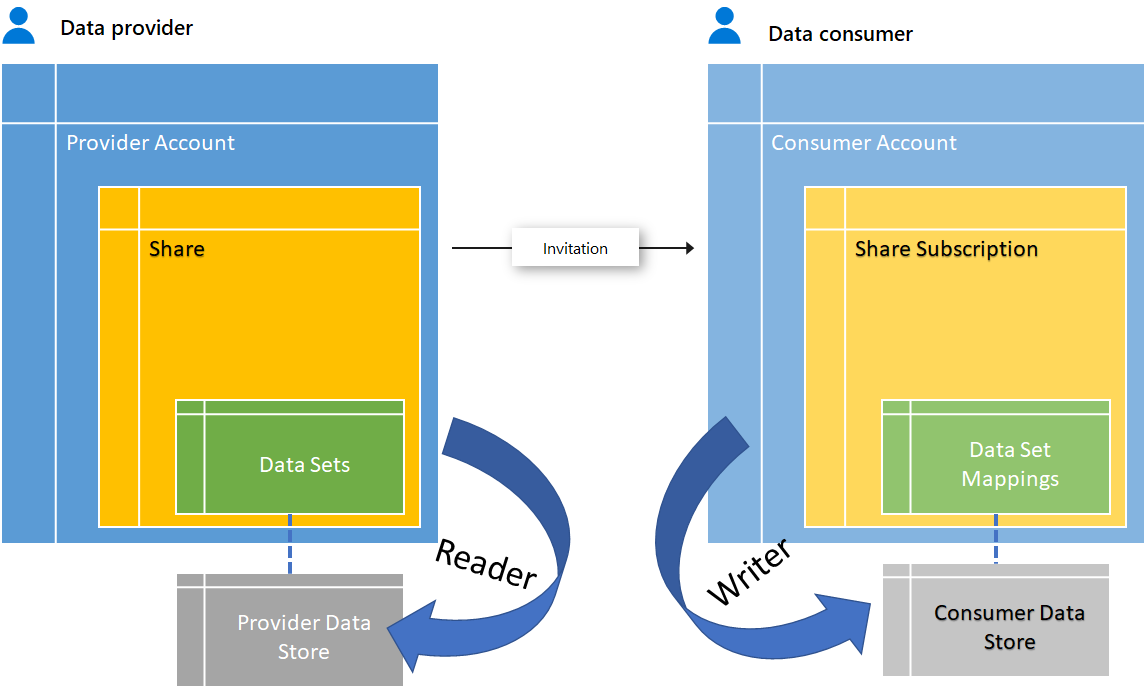
Azure Data Share, now a generally available service, makes it very simple to share your organization’s data securely with your partners. You may have already seen and tried it on the Azure Portal to share data swiftly, without writing any code. But what if you want to scale your sharing needs to thousands of customers spread across the world? Data Share offers a rich API/SDK for you to leverage and scale your sharing relationships seamlessly. Let’s jump right in and walk through a sample use case using the .NET SDK.
Why use the .NET SDK?
Imagine the following situation: Your organization provides data to some partners and consumes data from others, where these partners can be departments within your company or external organizations. Using Data Shares's portal experience for creating and managing the first few sharing relationships is quick and intuitive. However, as the number of sharing relationships grows larger, the process would soon grow tedious. Imagine managing potentially hundreds or even thousands of sharing relationships. This would become manually unscalable. We’ve designed the Data Share SDK for ease-of-use, to facilitate the scaling of your organization’s sharing needs.
Scenario
Since we would like to demonstrate both the data provider’s and consumer’s perspectives, let’s try a common customer scenario of sharing between departments of the same organization. Specifically, suppose the provider department (say Marketing) has its data in a blob store and wants to share that with a different department (say Sales). To make this sharing more interesting, we’ll try to share the data to a different tenant. Let's see how the Data Share SDK can be used for this.
Setting up the Console Application
Getting a copy of the sample code
Start by cloning the sample Git repository: by typing on the command prompt:
Creating a Service Principal for the Console Application
We'll use active directory application Id and secret for authenticating the console application. For this, an Azure Active Directory (AAD) application must be created each for the provider and the consumer. Follow this tutorial to set up the AAD application.
Creating Storage Accounts
The console application will share data from the provider data share account to the consumer data share account, each of which will point to an underlying data store. For this demo you will need to create a storage account each for the provider and consumer. Please follow this tutorial to create the storage accounts. Also ensure that the Service Principal created in the previous section has "Owner" role on the storage accounts. To learn how to add role assignment to resources, please follow this tutorial.
Configuring the run-time settings
Once the repository has been cloned, navigate to the file DataShareSample.sln and open it. By default, it should open in Visual studio 2017. Try to build the solution and make sure everything compiles correctly.
Now we will go ahead and configure the run-time settings in the appSettings.json file (shown in Snippet 1):
Snippet 1: appSettings.json
That's it! Now that you have everything configured, let’s run the code by debugging through the important lines.
Code walk-through and execution
Program.cs looks similar to the code given below in Snippet 2. Let’s have a look within the Main method. First the configurations are read from the appSettings.json that you have just filled. Following this, a Resource Group is created (for a logical grouping of the data share resources that we are about to create). Once the resource group is in order, the Data Share Account creation code is invoked, followed immediately by the Share creation. An important step to enable the data sharing is to assign the Data Share Account the Blob Reader role on the underlying provider storage account. Finally on the provider side, Data Sets are created and an invitation is sent to the consumer.
Note: the AAD application should have permission to create resources in the subscription configured and the Microsoft.DataShare resource provider should be registered in the subscriptions configured in appSettings.json.
On the consumer side, a similar flow is followed. The consumer Data Share Account is created, and subsequently the invitation is accepted by creating a Share Subscription. On the consumer side, the account Id is assigned a Blob writer role on the underlying consumer data store. A Data Set Mapping is created to link the Data Set received on the consumer side to the consumer data store. Finally, a data Synchronization is initiated and the result reported.
Go ahead and execute the code or debug through it line by line to gain a better understanding. You should be able to track the resource creation on Azure Portal while the code executes. Further, the blob from the provider blob store would appear on the consumer blob store at the end of a successful synchronize call.
Snippet 2: Program.cs
The overall program flow can be summarized by Figure 1.
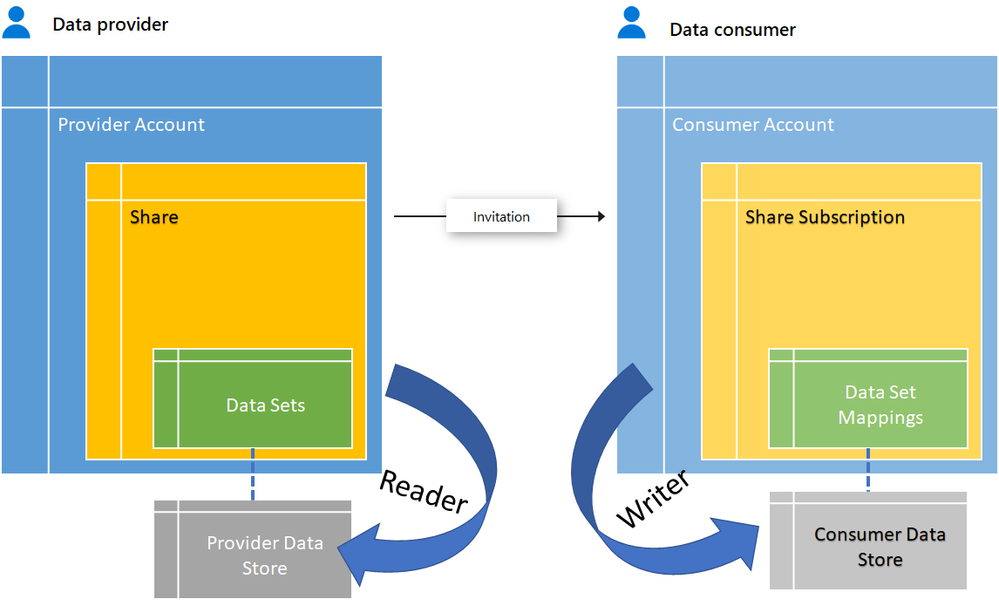
Figure 1: Sharing Model
Additional Capabilities: Scheduled Snapshots
In addition to the above process of triggering an on-demand synchronization, Data Share also provides native automation. You may choose to write a wrapper around scheduling on-demand runs or use the scheduled synchronization feature. To enable this cool feature, the provider, at the time of creating the share, specifies a snapshot schedule with a daily or hourly frequency along with a schedule start time; the consumer simply needs to accept the schedule by creating a Trigger on their side to receive automated snapshots as per the schedule. The consumer, of course always has the option to disable or re-enable the schedule. This is specifically useful for daily/hourly reports or non-real-time incremental updates. The snapshots taken after the first snapshot will be incremental in case the schedule is enabled. You can find API documentation for this at Synchronization Settings and Triggers .
Conclusion
With the Azure Data Share’s easy-to-use .NET SDK, you can now take control of sharing big data across organizations and geographies and through a single pane-of-glass create and manage all your sharing relationships at scale. For further reading please refer to our public documentation.
Published on:
Learn moreWe can help you with Scale your data sharing needs with the power of Azure Data Share’s .NET SDK
If you want help implementing, troubleshooting, or improving this product, contact us and we’ll point you in the right direction.
Related posts
Data for now and next: Powering a new era of AI apps
The era of AI has arrived and the organizations that are primed for learning, adapting, and scaling quickly hold the power to transform human ...
Announcing the General Availability of AMD-based Confidential VMs on Azure Databricks
We are excited to announce the general availability of AMD-based confidential virtual machines (VMs) for cluster nodes on Azure Databricks. Co...
A Data Professional's Guide to Build 2023
ChatGPT and Microsoft Copilot are stealing headlines worldwide—but data is the force that drives them both. That’s why this year at Microsoft ...
Introducing the Microsoft Intelligent Data Platform Partner Ecosystem
Microsoft Intelligent Data Platform Partner Ecosystem In May, we introduced the Microsoft Intelligent Data platform which deeply integr...
Microsoft and Databricks deepen partnership for modern, cloud-native analytics
In May, we introduced the Microsoft Intelligent Data platform which deeply integrates our databases, analytics, BI and data governance product...
SQL DB maintenance activity using Automation accounts for Azure SQL DBs(Different scenarios)
Infrastructure: Multiple Azure SQL DB instances Multiple databases in total Multiple instances consist of multiple databases Different subscr...
Zero to Hero: Your Guide to Getting Skilled on Azure Data and AI
We are excited to highlight the Zero to Hero guide, our very own journey to help developers and engineers get started on Azure. We have a larg...
A Data and AI guide to Build 2022
Microsoft Build will begin Tuesday, May 24 at 8:30 AM PDT with our annual keynote. Attendees can then participate in live segments, breakout ...
Azure Data Factory CI-CD using YAML template
Purpose of this Blog Defined the end to end Git integration and Deployment flow using YAML template from a project implementation...
Azure Data Components Network Architecture with secure configurations
Use Case : •When there is a need for the Data Components – ADF,ADB and SQL-Pool code to be promoted to higher environment se...