
Enrich your location data with Azure Maps

This guest blog post is written by Fernando Rocha Silva a Cloud Solution Architect at Microsoft.
Introduction
Location information can be very simple or very detailed. For a person delivering a package to certain house, an address with street number, name, city, and state could be more than enough information for them to find the right place. For a vehicle tracking system where you have a map with moving dots representing trucks in real-time, these pieces of data may not be enough to provide clear information to a dispatcher. Adding the latitude and longitude of the vehicle to present its current and historical positions is more important.
A very common scenario where the location data in place may not be enough to perform a certain task is when a company inherits or purchases a database of addresses to improve a process of their business. A retail chain may need to know where to put their next store to serve an undeserved population, a transportation company may need to find the best "green" route to create their truck schedule, or a sales company may need to define territories so that their salespeople can maximize their coverage to achieve better results. Independent of the scenario, having a database of addresses may not be enough to achieve certain goals, because important details could be missing.
In this blog post, I will show you how to create a database of simple addresses, how to enrich it and how to visualize the enriched dataset using Azure Maps.
Architecture
In the following architecture we have two separate actors securely connecting to Azure via a web application hosted in Azure and an Azure Function, triggered on demand.
The Azure Function named Enrich addresses is responsible for searching for addresses without a geolocation (latitude, longitude) in the Azure SQL Server database. For each address, a call is made to the Azure Maps Search API, passing the address information as a parameter, and retrieving the geolocation to be stored in the database.
There is also a user accessing a web application that collects the locations from Azure SQL Server using the Azure Function Get addresses and generates a visualization layer with the Azure Maps SDK to present the addresses as points in a map. All traffic is handled via https and is encrypted with TLS.
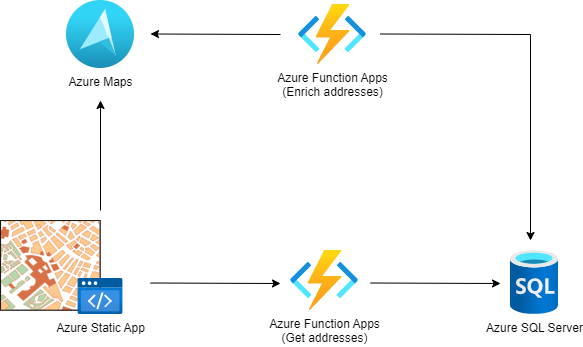
Address enrichment logical flow
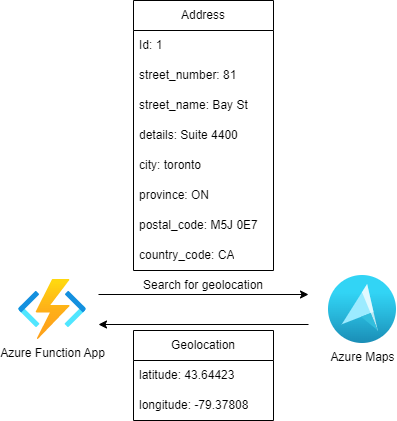
To enrich the database of addresses, the application makes a request to the database, querying for all addresses without geolocations. In return, it receives a list of addresses:

With the full list of addresses without geolocations, the application makes single calls with every single address to Azure Maps, calling the Search API. Azure Maps in response, provides the geolocation for that address. The response adds that information to the item and saves it locally. The Search API also provides extra properties in the response that are ignored by the application in this example.
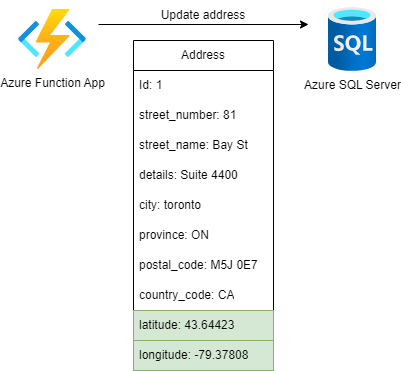
Lastly, the application updates the addresses with their corresponding geolocations in the database.
Address visualization- Logical flow
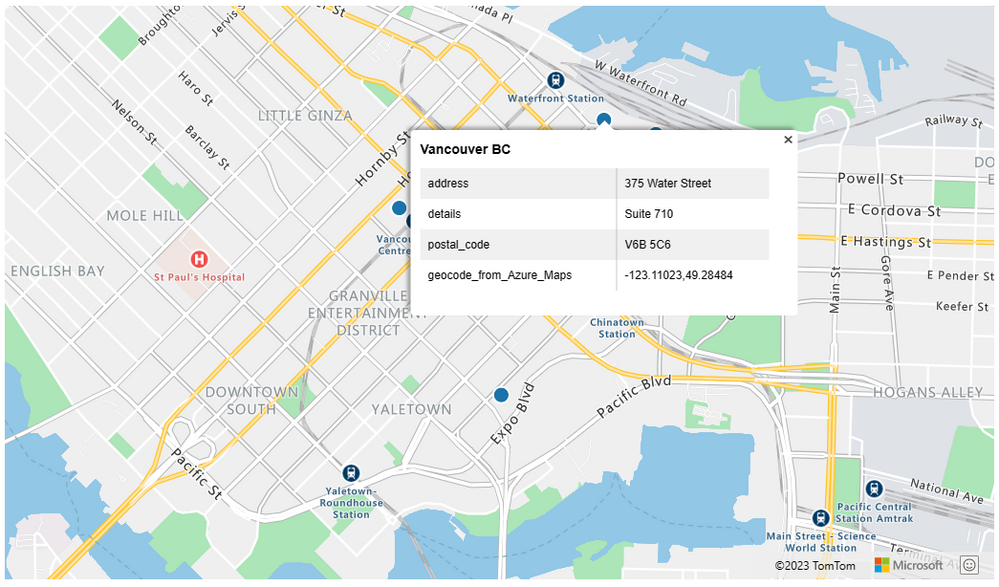
The visualization layer contains a static web app, hosted in Azure, leveraging an Azure function to query the database for all addresses with geolocations. It then connects to Azure Maps to get the map tiles with dots representing the address.

This is the result:
Walkthrough
For a detailed step-by-step on how to create this solution, clone Fernando Rocha Silva's repository and follow its instructions.
Geocode storage considerations
In general, Azure Maps has specific terms of usage that I recommend reading before storing and processing the results.
Conclusion
Location data is powerful. When added to your analytics, it can provide valuable insight to corporations when making important decisions. Azure Maps provides a modern, secure and reliable cloud platform for any geospatial challenge that you may face.
In this blog post you learned how to enrich a database of addresses with Azure Maps by using the C# SDK within an Azure Function. You have also created a web page to visualize all results queries from the enriched database. For more practical and real-world examples, follow the Azure Maps Blog.
Published on:
Learn moreWe can help you with Enrich your location data with Azure Maps
If you want help implementing, troubleshooting, or improving this product, contact us and we’ll point you in the right direction.
Related posts
Introducing the Data-Bound Reference Layer in Azure Maps Visual for Power BI
Imagine managing a nationwide sales team and needing to understand how your sales align with factors like population density, competitor locat...
Enhance Azure Maps with Overture Maps Data using PMTiles!
Supercharge Azure Maps with Overture Maps Data using PMTiles! We’ve got some exciting news. Azure Maps now supports PMTiles! This me...
Where do I go if I have questions about Azure Maps?
As you might expect, just looking around on your own, or asking Co-pilot, you can find comprehensive help like Samples.AzureMaps.com, wit...
Tailor your Reference Layers in Azure Maps Visual for Power BI
We’re excited to share the latest enhancements to the Azure Maps visual in Power BI, designed to make your data visualization even mor...
Enhancing Logistics with Azure Maps and NVIDIA cuOpt for Multi-Itinerary Optimization
The logistics industry is always finding ways to optimize vehicle routing to enhance efficiency. The Vehicle Routing Problem (VRP) and Pickup ...
Introducing the Unified Azure Maps Experience
Microsoft has recently announced the unification of Bing Maps for Enterprise (BME) with Azure Maps, marking a remarkable advancement in their ...
Power BI Azure Maps Visual: Enhanced Reference Layer & Embedded Support
The Power BI Azure Maps visual has received a major update which includes an expansion of the reference layer and the addition of Power BI Emb...
Enhance your indoor maps with real-time map feature styling
The ability to dynamically update and visualize the state of rooms or areas within a building is critical to understanding the status of any b...
Dynamic Clustering Aggregation with Custom Styling in Bubble Layer
The Power BI Azure Maps visual allows you to create stunning geospatial visualizations with your data. Today, we are excited to announce a new...
HO HO HO Two Point OH!
You might notice some big changes have come to the North Pole experience at NORADSanta.ORG this year. Developer elves have implemented a...