
How to use powerapps-modals
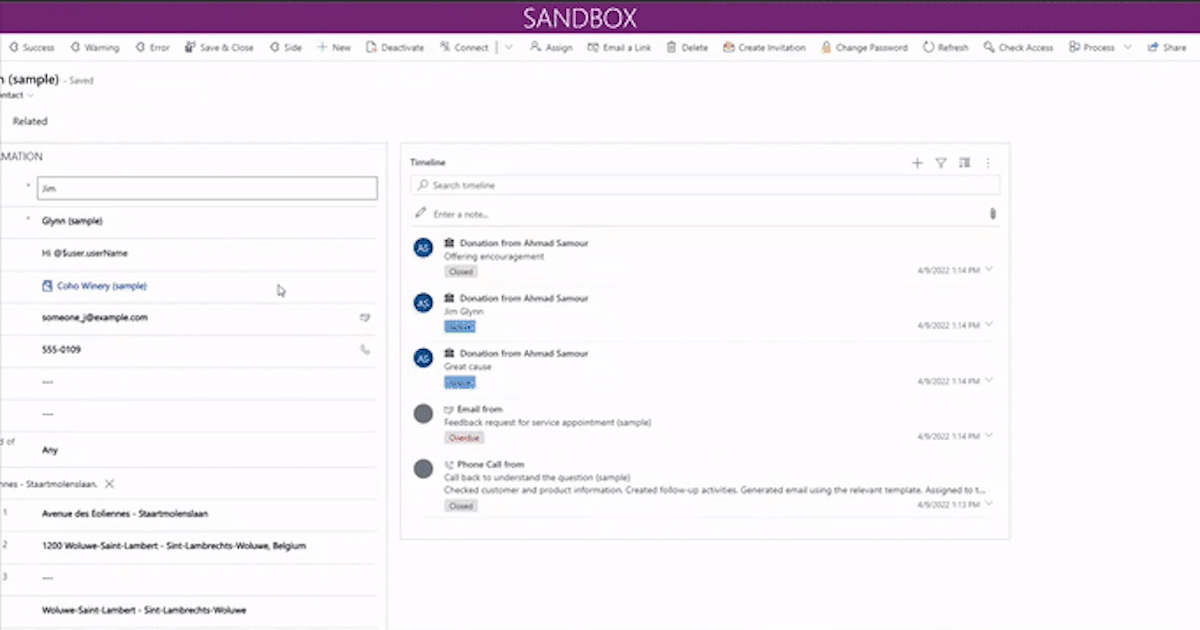
In this blog, I'm writing some examples that power-apps modals can be used.
🧑💻 Source code
Main function to call modals here
function displayPopup(modalObject: any, width, height, position) {
  var pageInput: Xrm.Navigation.PageInputHtmlWebResource = {
    pageType: "webresource",
    webresourceName: "vite_/viteapps/pages/modals.html",
    data: JSON.stringify(modalObject),
  };
  var navigationOptions: Xrm.Navigation.NavigationOptions = {
    target: 2, // 2 is for opening the page as a dialog.
    width: width, // default is px. can be specified in % as well. 400
    height: height, // default is px. can be specified in % as well. 500
    position: position, // Specify 1 to open the dialog in center; 2 to open the dialog on the side. Default is 1 (center). 1
    title: "Record activation modal", //change the title here, recommended to enter title here
  };
  Xrm.Navigation.navigateTo(pageInput, navigationOptions).then(
    function success(returnedValues) {
      console.log(returnedValues);
    },
    function error(e) {
      // Handle errors
    }
  );
}
Success modal with dropdown input
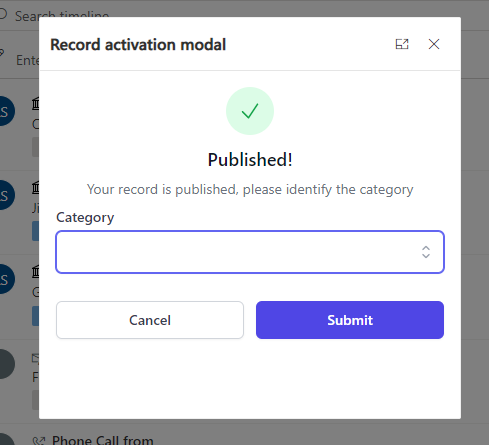
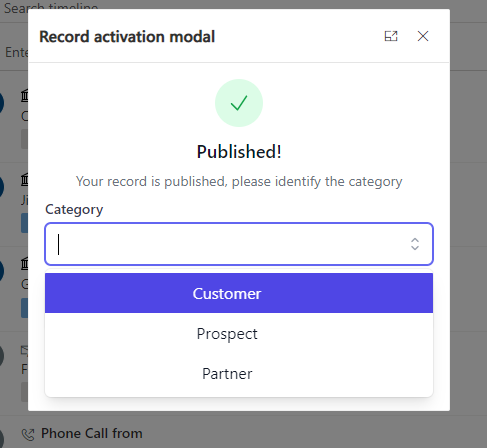
1- Json object
 {
    icon: "success",
    labels: [
      { text: "Published!", type: "h1" },
      {
        text: "Your record is published, please identify the category",
        type: "h2",
      },
    ],
    inputs: [
      {
        id: "choiceexample",
        label: "Category",
        type: "choice",
        options: [
          { id: "opt1", label: "Customer" },
          { id: "opt2", label: "Prospect" },
          { id: "opt3", label: "Partner" },
        ],
      },
    ],
    buttons: [
      {
        id: "button-cancel", //used to know what button was clicked, retunred with modal return object
        label: "Cancel",
        type: "white", //blue //red
      },
      {
        id: "button-submit",
        label: "Submit",
        type: "blue",
      },
    ],
  }
2- Call from JS
displayPopup(yourJsonObject, 400, 400, 1); //width & height 400px, and 1 is the position as a popup
Alert confirmation modal
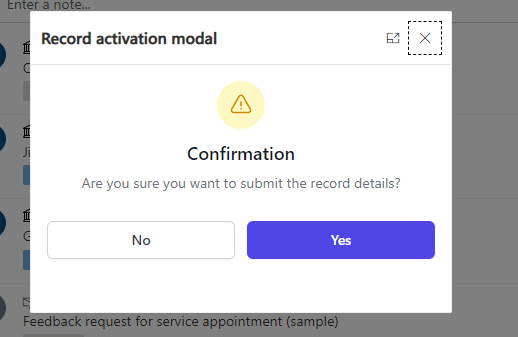
1- Json object
{
    icon: "warning",
    labels: [
      { text: "Confirmation", type: "h1" },
      {
        text: "Are you sure you want to submit the record details?",
        type: "h2",
      },
    ],
    buttons: [
      {
        id: "button-cancel", //used to know what button was clicked, returned with modal return object
        label: "No",
        type: "white", //blue //red
      },
      {
        id: "button-submit",
        label: "Yes",
        type: "blue",
      },
    ],
  }
2- Call from JS
displayPopup(yourJsonObject, 400, 300, 1); //width 400px & height 300px, and 1 is the position as a popup
Error dialog with Radio buttons
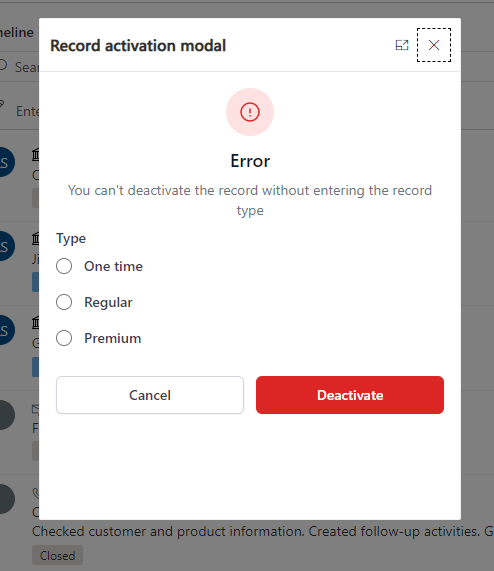
1- Json Object
{
    icon: "error", //warning //error
    labels: [
      { text: "Error", type: "h1" },
      {
        text: "You can't deactivate the record without entering the record type",
        type: "h2",
      },
    ],
    inputs: [
      {
        id: "radioexample",
        label: "Type",
        type: "radio",
        options: [
          { id: "opt1", label: "One time" },
          { id: "opt2", label: "Regular" },
          { id: "opt3", label: "Premium" },
        ],
      },
    ],
    buttons: [
      {
        id: "button-cancel", //used to know what button was clicked, returned with modal return object
        label: "Cancel",
        type: "white", //blue //red
      },
      {
        id: "button-submit",
        label: "Deactivate",
        type: "red",
      },
    ],
  }
2- Call from JS
displayPopup(yourJsonObject, 400, 500, 1);//400px width, 500px height, postition 1 for render as popup
Side dialog with multiple inputs
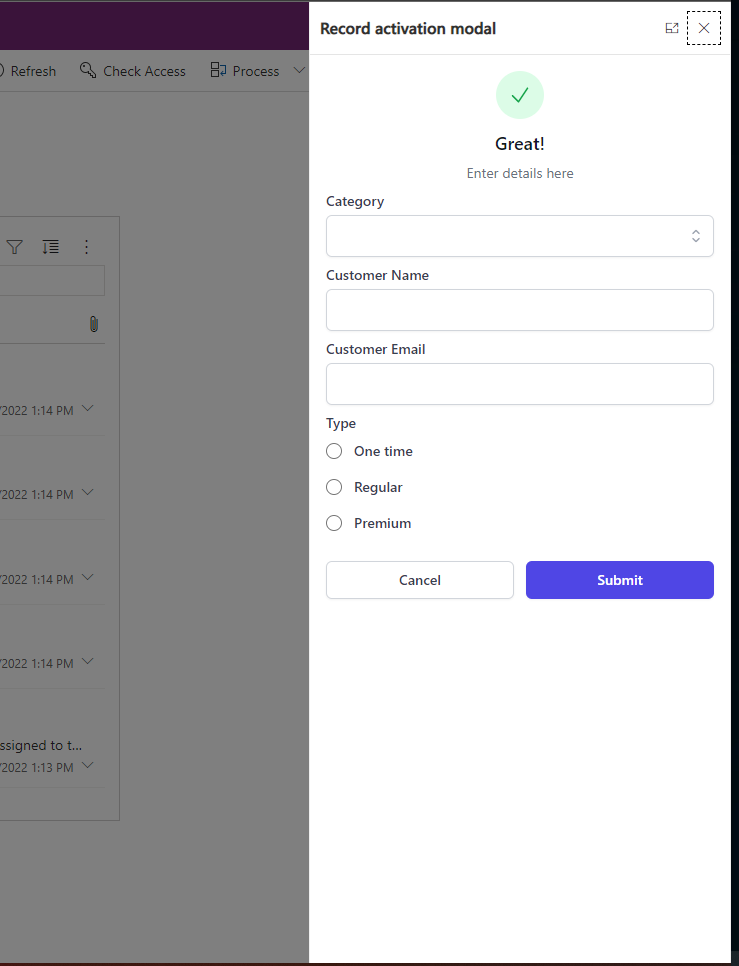
1- Json Object
{
    icon: "success",
    labels: [
      { text: "Great!", type: "h1" },
      {
        text: "Enter details here",
        type: "h2",
      },
    ],
    inputs: [
      {
        id: "choiceexample",
        label: "Category",
        type: "choice",
        options: [
          { id: "opt1", label: "Customer" },
          { id: "opt2", label: "Prospect" },
          { id: "opt3", label: "Partner" },
        ],
      },
      {
        id: "customername", //used to get the value when the modal object is returned
        label: "Customer Name",
      },
      {
        id: "customeremail",
        label: "Customer Email",
      },
      {
        id: "radioexample",
        label: "Type",
        type: "radio",
        options: [
          { id: "opt1", label: "One time" },
          { id: "opt2", label: "Regular" },
          { id: "opt3", label: "Premium" },
        ],
      },
    ],
    buttons: [
      {
        id: "button-cancel", //used to know what button was clicked, returned with modal return object
        label: "Cancel",
        type: "white", //blue //red
      },
      {
        id: "button-submit",
        label: "Submit",
        type: "blue",
      },
    ],
  }
2- Cal from JS
displayPopup(yourJsonObject, 400, "100%", 2);//Width 400px, height 100% of the height page(becomes responsive) and 2 as position to render it on the side of the page
Published on:
Learn moreRelated posts
Decimal dot or comma in Power Apps
How do you write 1,234.56? Do you have a decimal dot or a decimal comma? Well most likely this depends on where you live. How do you deal with...
Power Apps – Deprecation of Preview Copilot Controls in Canvas Apps
Starting on February 2, 2026, the following preview Copilot features in Power Apps Canvas Apps will be removed: Copilot Control: Add a Copilot...
CountRows, CountIf, CountA and Count in Power Apps
How often would you like to count the number of records without really wanting to load all the records that exist in a list or table. CountRow...
Microsoft retires the Power Apps Per App Plan
Although not yet officially announced by Microsoft, the Power Apps Per App Plan has been retired, seemingly with immediate effect. What was th...
Power Apps Grid Container: A Better Way to Build Responsive Canvas Apps
Microsoft is always rolling out updates to improve the Dynamics and Power Apps experience. Recently, Microsoft introduced Grid Containers in P...
Building Standalone Apps with Power Apps Code Apps: Using Dataverse and Office 365 Users Connectors (Part 1)
In the Dynamics 365 and Power Apps ecosystem, we have several options for building applications, each one is for a specific type of requiremen...